


So your Apple Watch isn’t locking or unlocking on its own? Yeah, that can be super annoying. I get it—you expect your watch to just work, right? When it doesn’t, it throws everything off.
Maybe you noticed it stays unlocked even when it’s off your wrist. Or maybe it doesn’t unlock when you put it back on. Either way, it feels like something’s not right.
This automatic lock and unlock feature is actually pretty important. It’s not just about convenience—it’s also about keeping your personal stuff safe.
You probably have messages, health data, maybe even payment info on your watch. So if it doesn’t lock when it should, that means anyone could see your private info. That’s not okay.
Now, the good news? Most of the time, this issue comes down to something simple. Maybe a setting got turned off. Maybe the back of your watch is dirty.
Or maybe there’s a little software glitch that needs a reset. You don’t have to be a tech expert to fix it—we’re going to walk through everything together.
Let’s figure this out and get your Apple Watch working like it should.
What might be causing the problem?
Alright, let’s talk about the common reasons your Apple Watch might not be locking or unlocking automatically.
You’d be surprised how often it’s just a small thing that needs a quick fix.
1. Check your settings first
This is always the best place to start. Sometimes, settings change without you realizing it. You want to make sure both Wrist Detection and Passcode are turned on. If either one is off, your watch won’t be able to lock or unlock properly.
2. Wrist Detection might be off
This feature tells your Apple Watch when it’s on your wrist. If it’s turned off, your watch can’t tell if you’re wearing it or not.
Go ahead and check this now. Open the Watch app on your iPhone, go to Passcode, and make sure Wrist Detection is turned on. If it’s off, just flip the switch.
3. It could be a glitch
Sometimes, your watch just needs a refresh. A software bug might be messing things up. If you haven’t updated your watch in a while, now’s a good time. Updates often fix these little problems.
4. Sensors might be dirty or worn out
The sensors on the back of your watch are what help detect your wrist. If they’re dirty or not working well, the watch might think it’s still on your wrist—or not.
Try cleaning the back of your watch gently with a soft cloth. If that doesn’t help, and the problem keeps happening, it might be time to have it checked by Apple.
5. Something might be blocking the sensors
Sometimes, sweat, lotion, or even a tight wristband can get in the way. If you’ve been working out or using creams, wipe the back of the watch clean. Also, check that nothing is covering or pressing too hard on the sensors.
Alright, now let’s go step-by-step and get this fixed.
How to make your Apple Watch lock and unlock automatically
Now that you know what might be going wrong, let’s fix it together. I’ll guide you through each step. Don’t worry—it’s easy, and you’ve totally got this.
#1: Turn on Wrist Detection
This is the most important setting. Without this, your watch won’t know when it’s on your wrist.
Here’s how to turn it on:
- Open the Watch app on your iPhone.
- Tap on My Watch.

- Then go to Passcode.
- Make sure Wrist Detection is turned on.
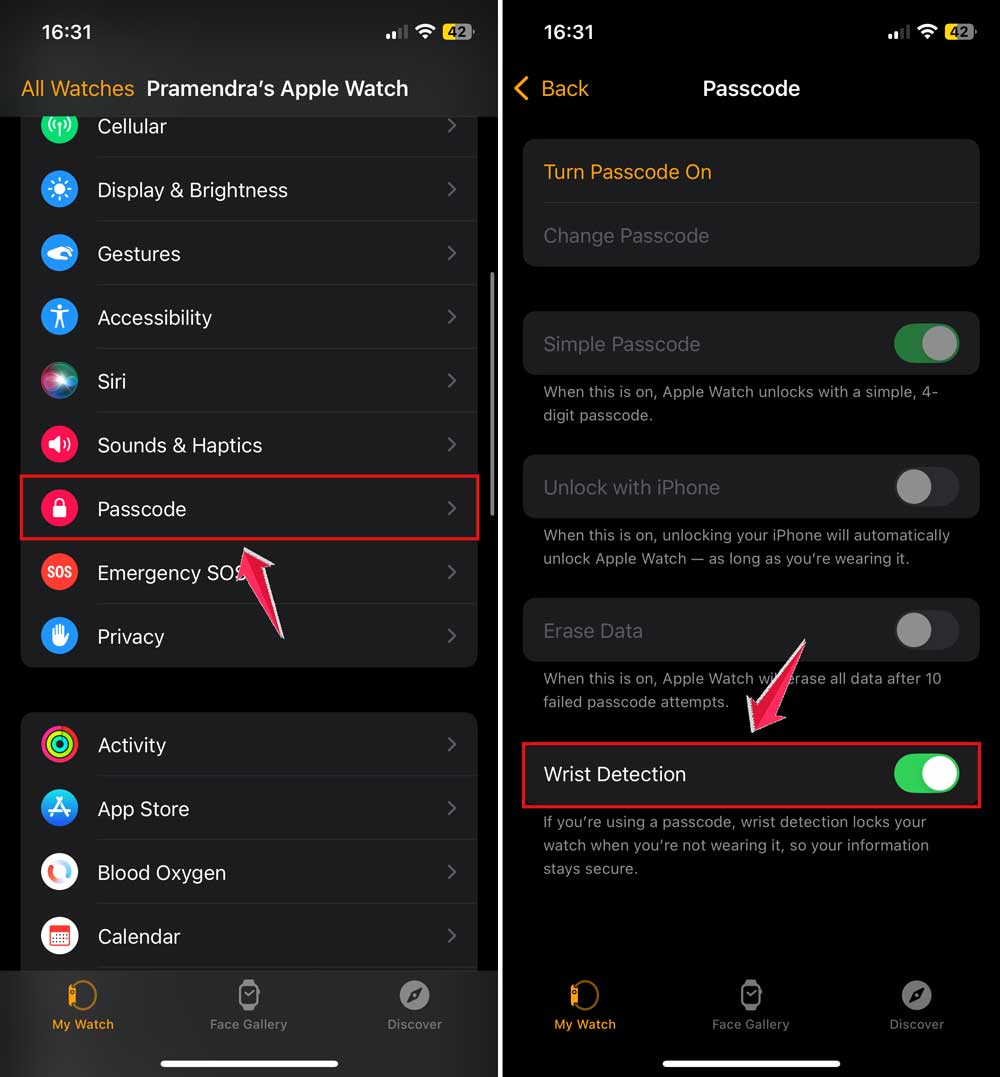
Once this is on, your watch can tell when it’s on your wrist and will lock or unlock accordingly.
#2: Check your passcode settings
Your watch needs a passcode to lock itself. If you skipped setting one up, now’s the time to do it.
Here’s how:
- Open the Watch app on your iPhone.
- Tap Passcode.
- Enable the passcode if it’s not already on.
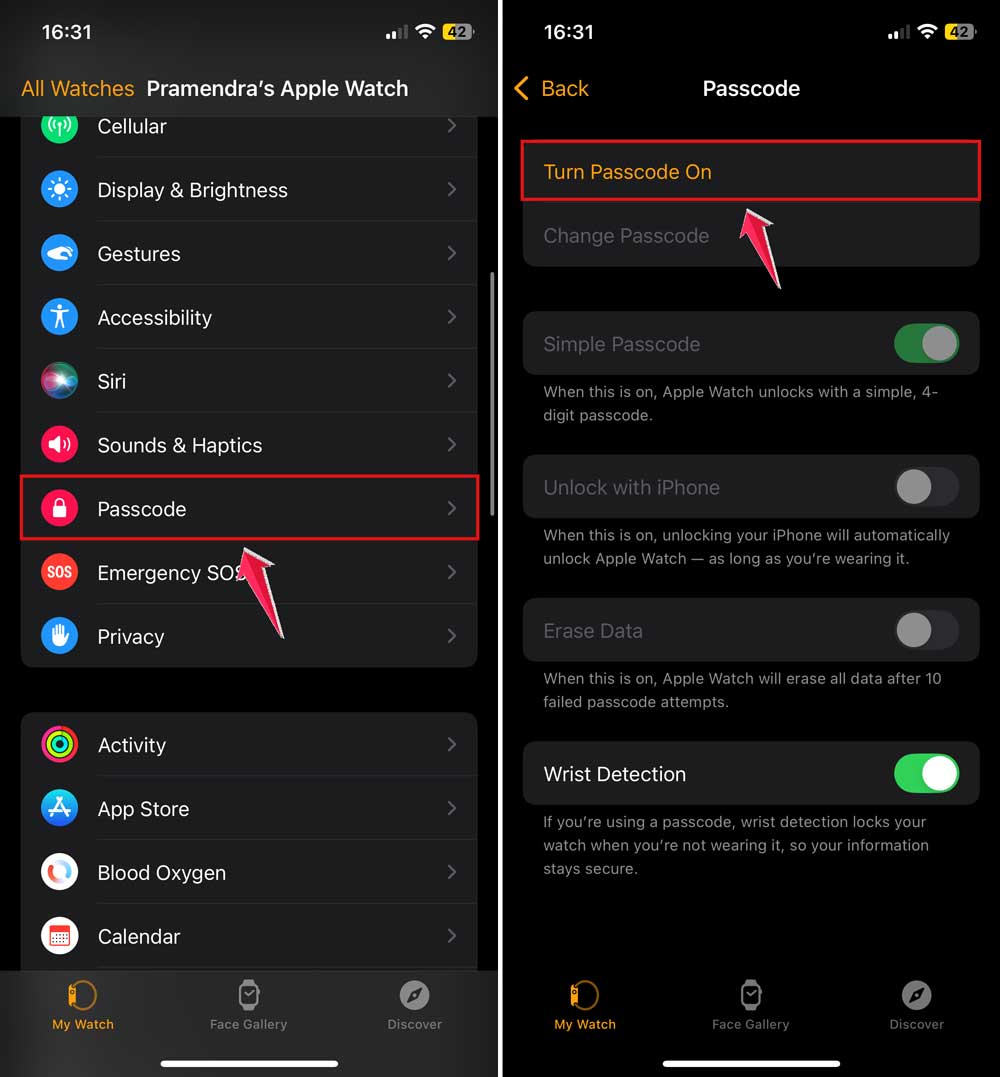
This keeps your data safe and ensures locking works the way it should.
#3: Update your software
If your Apple Watch or iPhone is running old software, it might cause random issues. Updates usually fix bugs and improve features.
To update your Apple Watch:
- Open the Watch app on your iPhone.
- Tap General.
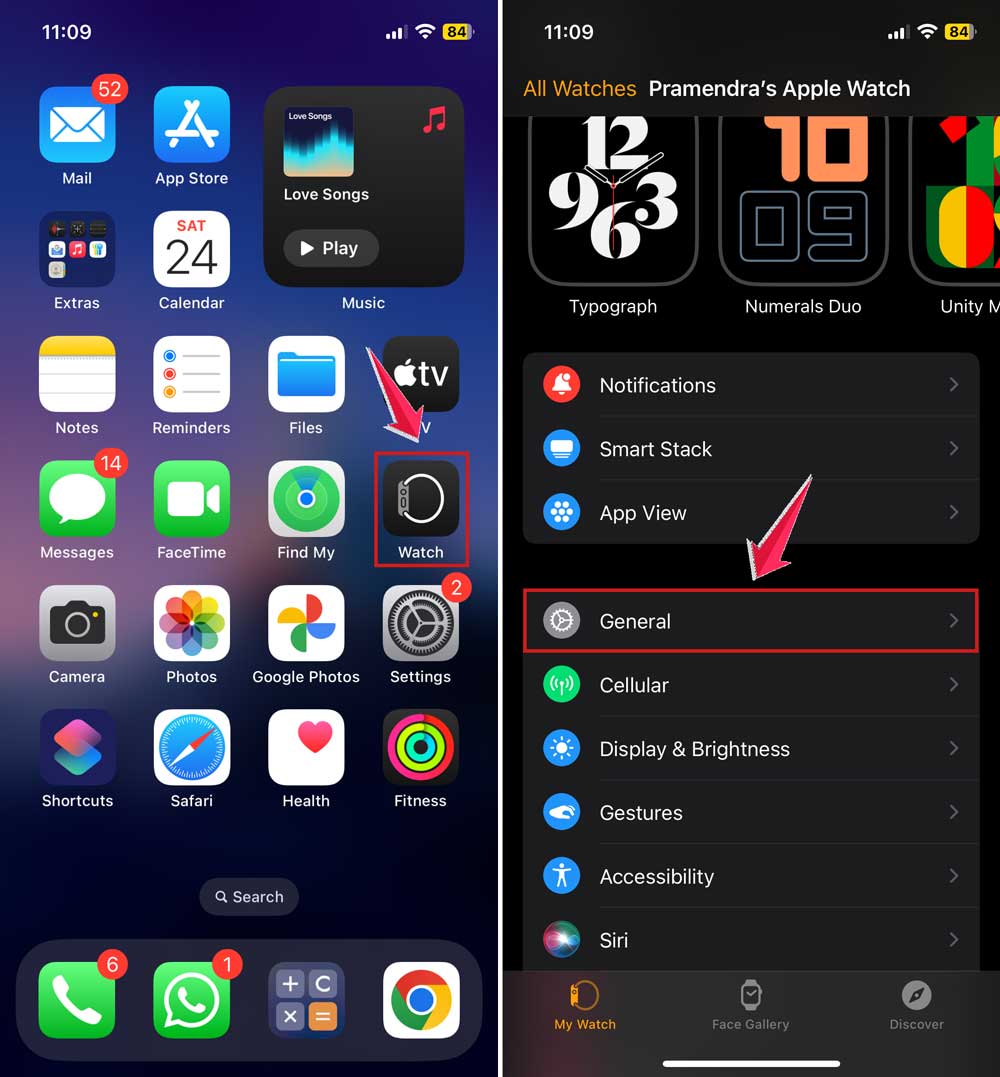
- Then, Software Update.
- Download and install any available updates.

Make sure your iPhone is also up-to-date. Updates help both devices work better together.
#4: Restart both your watch and iPhone
Sometimes, your devices just need a reset. A quick restart can clear out little bugs and get things working again.
To restart your Apple Watch:
- Press and hold the side button until you see the power off slider.
- Slide it to turn off the watch.
- Press and hold the side button again to turn it back on.

To restart your iPhone:
- Press and hold the power button (and volume button if needed).
- Slide to power off.
- Turn it back on after a few seconds.

This simple step can fix more than you think.
#5: Clean the sensors on your watch
If the sensors are dirty, your watch might not be able to tell when you’re wearing it. This is a common issue, especially if you wear your watch during workouts.
Here’s what to do:
- Use a soft, lint-free cloth to gently clean the back of your watch.
- Avoid using any alcohol or chemical cleaners.
- Make sure the sensors are dry and clear of dirt or sweat.
#6: Make sure nothing is blocking the sensors
Sometimes, a tight band or even a wristband can mess things up. If your watch is too tight, it might not detect your wrist correctly.
- Adjust your band so it’s snug but not too tight.
- Avoid wearing anything over the sensors.
- Remove sweatbands or accessories that might block the watch.
#7: Try a different band
Believe it or not, some bands don’t work well with the Apple Watch sensors.
If you’re using a third-party or leather band, try switching to one made by Apple or something more breathable.
- Try using a standard Apple Sport Band.
- See if the issue goes away with the new band.
#8: Reset your watch settings
If nothing else works, you can reset your settings. Don’t worry. Your data will stay safe.
- Open the Watch app on your iPhone.
- Go to General.
- Then Reset.
- Tap Reset Sync Data or Erase Apple Watch Content and Settings.

Only do this if you’ve tried everything else. It’s like starting fresh.
Extra tips to keep your Apple Watch working right
1. Clean your watch regularly
After workouts or long days, wipe your watch down. Sweat, lotion, and dirt can mess with the sensors. Use a soft, lint-free cloth for best results.
2. Don’t wear your watch too tight
You want it snug, but not squeezing your wrist. A tight band can confuse the sensors. Adjust it so it feels just right.
3. Keep your software up to date
Always check for updates. This goes for both your watch and your iPhone. Updates often fix bugs that cause weird issues like this.
4. Watch out for extreme temperatures
Your watch doesn’t like it too hot or too cold. If you’re out in the sun or freezing weather, try to protect it. It helps the sensors work better.
5. Restart your devices once in a while
Even if everything seems fine, a quick restart every few days can keep things running smooth. Think of it like giving your watch a quick reset.
The Takeaway
So, your Apple Watch wasn’t locking or unlocking like it should? Yeah, it’s frustrating. But now you know what to do.
Most of the time, it’s just a small setting or a bit of dirt on the sensor. Turning on Wrist Detection, enabling your passcode, and keeping the sensors clean can make all the difference.
A lot of people think wearing the band super tight helps, but that can actually make things worse. Just give your watch a little space to breathe, and it’ll thank you by working like it should.
You’ve got this. Try the steps above, one at a time. Most of these fixes are quick and easy. And if you’re still stuck, you can always reach out for help or visit an Apple Store.
Got a question or a tip that worked for you? Drop it in the comments below—I’d love to hear from you!





