


When your text doesn’t say “Delivered,” it can be confusing.
This status usually means your message reached the other person’s phone. Without it, you might wonder if the text was sent, received, or if something went wrong.
It’s important to know why this happens. In this guide, we’ll explain the common reasons and show you simple ways to fix it. Let’s get started!
What does “Delivered” really mean in texting?
The “Delivered” status means your message has reached the recipient’s device. As simple as that I could tell you. It’s like your text saying, “I made it!” But it doesn’t always mean what you think.
For iMessage users, “Delivered” shows your text made it to the other person’s Apple device through Apple’s servers. It doesn’t mean they’ve seen it—just that it’s in their inbox.
For SMS/MMS texts, it works a bit differently. “Delivered” confirms your carrier sent the message to the recipient’s network. Whether it reaches their phone depends on things like their signal or whether their device is connected.
In short, “Delivered” is a good sign, but it doesn’t guarantee the message was seen.
What “Delivered” doesn’t confirm:
- It doesn’t mean the recipient has seen or read your message.
- It doesn’t guarantee they’ll reply.
- It doesn’t even mean their phone is on! (In some cases, messages are queued to deliver when their device reconnects.)
The “Delivered” status gives you a sense of assurance, but it’s not foolproof. Knowing this can help you interpret those small but meaningful updates in your conversations better.
Common reasons your text doesn’t say “Delivered”
When that reassuring “Delivered” status doesn’t pop up, it’s natural to wonder what went wrong. Here are the most common culprits:
#1 The recipient’s phone is off or disconnected.
If their phone is turned off, in airplane mode, or out of service range, your message won’t reach them immediately. It’ll sit in the queue, waiting for their device to reconnect before it’s marked as “Delivered.”
#2 Poor network connection on either end.
Your phone and the recipient’s device need a stable network to exchange messages. In a weak signal area, or if their phone can’t connect to the network, your text might not go through right away.
#3 You’ve been blocked.
This is an unpleasant possibility, but it’s worth considering. When someone blocks you, messages won’t deliver to their device, and you won’t see the “Delivered” status.
On iMessage, your messages might even revert to green bubbles, indicating they were sent as SMS instead.
#4 The recipient has switched devices or disabled features.
If the recipient switched from an iPhone to an Android device without disabling iMessage, messages to their number may get stuck.
Similarly, they might have turned off messaging features like iMessage. An outdated app or software version might prevent proper delivery.
How to troubleshoot delivery issues step-by-step
If your text isn’t saying “Delivered,” don’t worry—there are a few simple steps you can try to figure out what’s wrong. Let’s go step by step:
#1 Check your internet connection.
If you’re using iMessage, a stable internet connection is essential. Make sure your Wi-Fi is working properly, or switch to mobile data if needed. You can do a quick check by browsing a webpage or refreshing your social media feed.
#2 Confirm the recipient’s contact details.
It might sound basic, but double-check the number or email you’re sending the message to. Even a small typo can cause delivery issues. If the recipient recently updated their contact info, make sure you’re using the latest details.
#3 Restart your phone.

Sometimes, all your phone needs is a quick reboot. Press and hold the power button, turn your device off, wait a few seconds, and then power it back on. This can resolve minor glitches that might be interfering with message delivery.
#4 Enable “Send as SMS” for iMessages.
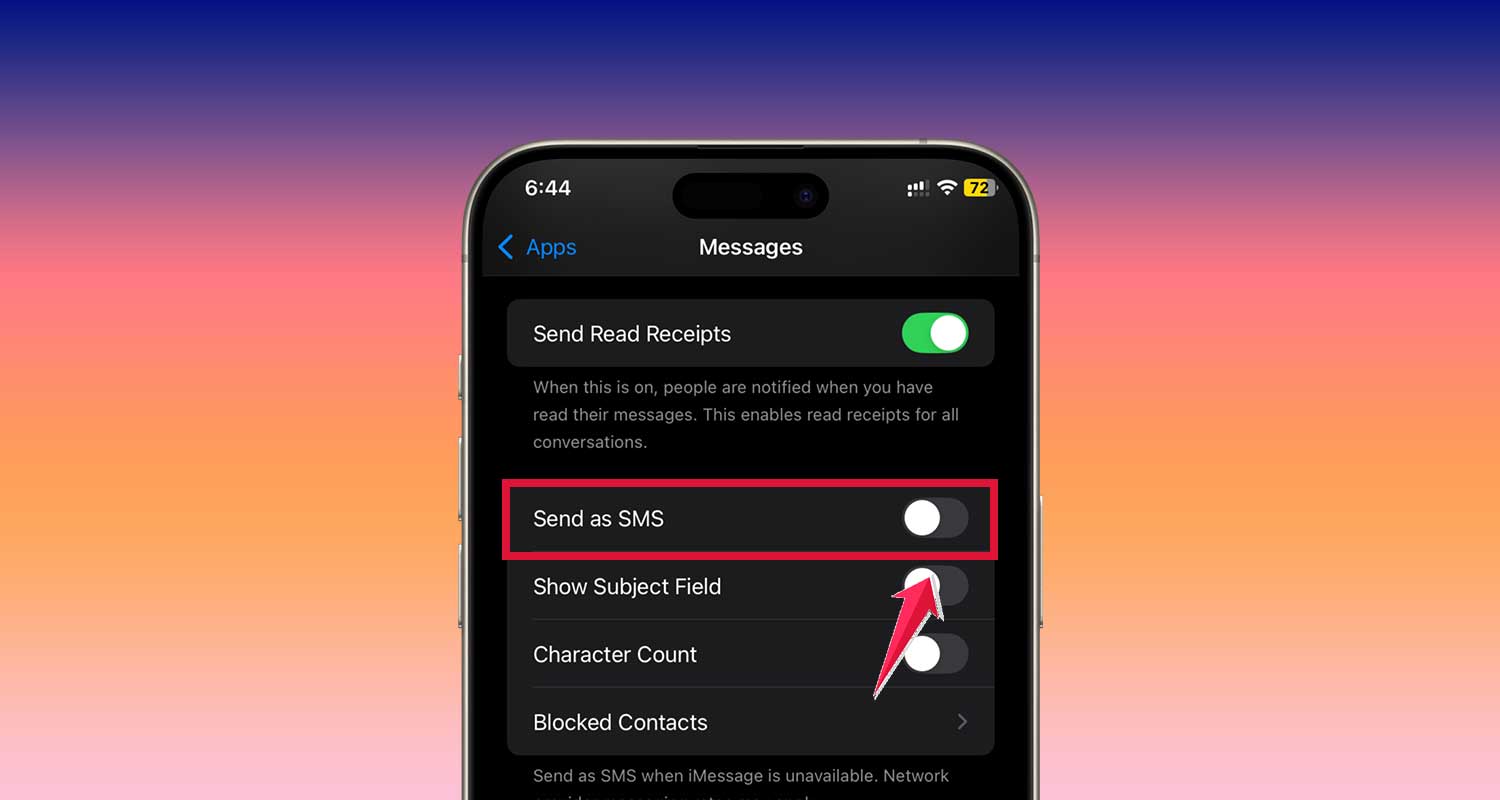
If your iMessage isn’t delivering, your phone can automatically send the message as an SMS instead. To enable this, go to Settings > Messages, then toggle on “Send as SMS.” This ensures your text still gets through, even without internet.
#5 Test with another contact.
Send a text to someone else to see if the issue is with a specific recipient or your phone in general. If messages to others are working fine, the problem might be on the recipient’s end.
Are you blocked? Here’s how to tell
One unsettling possibility when your text doesn’t say “Delivered” is that you’ve been blocked. While no one wants to jump to conclusions, here are some signs that might indicate you’ve been blocked:
Signs you might be blocked:
- No “Delivered” or “Read” status on iMessage: If your messages are stuck with no delivery confirmation, it could be a sign. If you’re blocked, iMessage won’t show “Delivered” or “Read.”
- Messages turn green on iMessage: On iMessage, texts turn green when they revert to SMS. This might mean the recipient is no longer reachable on iMessage. They may have blocked you.
- Calls go straight to voicemail: Try calling the person. If your calls always go to voicemail without ringing, it’s another clue that you might be blocked.
Why blocking causes delivery failure:
When someone blocks you, their device rejects your calls and messages. Your texts still seem to send from your phone.
But, they’re blocked from reaching the recipient’s device. This is why you don’t see “Delivered” or any further status updates.
How to confirm if you’re blocked:
- Test with another number: If possible, send a message to the recipient from a different phone or number. If the message goes through, your number is likely blocked.
- Ask directly: If appropriate, reach out through another communication channel to clarify if there’s been a misunderstanding or issue.
Being blocked can feel personal, but it’s not always intentional. It’s better to focus on resolving any misunderstandings or respecting boundaries. If you’re unsure, the steps above should give you clarity.
Device or app-specific issues
Sometimes, the problem lies within your phone or messaging app itself. Let’s go over a few common device or app-related issues and how to fix them:
1. Outdated software
Using an older version of your phone’s operating system can cause compatibility issues with messaging apps. To fix this, update your phone to the latest software version.
- On iPhone: Go to Settings > General > Software Update and install any available updates.
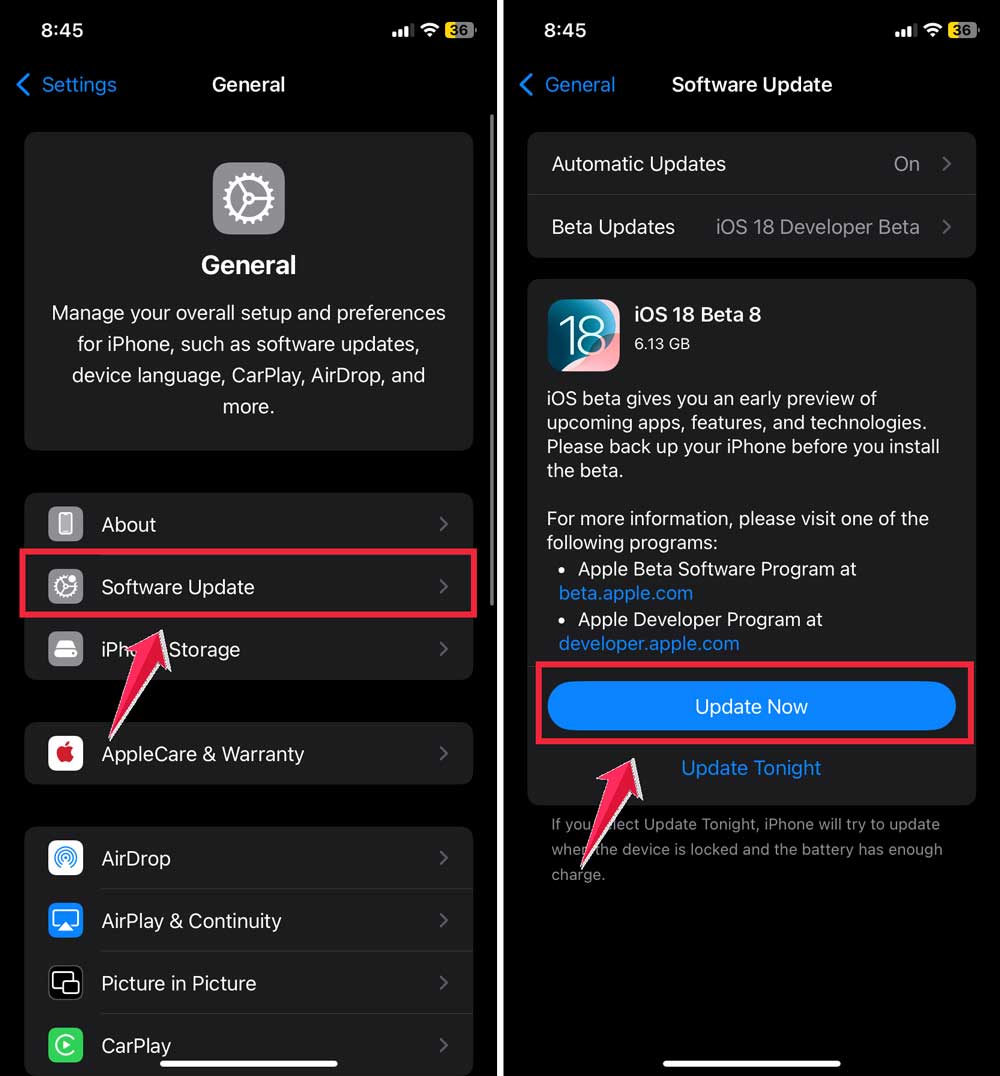
- On Android: Navigate to Settings > System > Software Update or your device’s equivalent menu.

Keeping your phone updated ensures better performance and fewer glitches.
2. iMessage or messaging app glitches:
Sometimes, the messaging app you’re using might encounter a temporary glitch. Here’s how to fix it:
- Toggle the app off and on: For iMessage, go to Settings > Messages and turn off iMessage. Wait a few seconds, then toggle it back on.
- Reinstall the app: If toggling doesn’t work, delete and reinstall the messaging app. This refreshes its functionality and clears any bugs.

3. Conflicting apps:
If you’ve installed multiple messaging apps, they might interfere with each other. For example, having duplicate apps handling SMS or MMS can confuse your device.
- Remove unnecessary apps: Uninstall any duplicate or redundant messaging apps to avoid conflicts.
- Set a default app: On Android, ensure you’ve selected a primary messaging app under Settings > Apps > Default Apps.
Fixing these device and app-specific issues will ensure smoother communication. If the issue persists, check for external factors. Look for network or recipient-related problems.
Network and carrier-related problems
Sometimes, the issue with your text not saying “Delivered” is beyond your device or app—it’s related to your network or carrier. Here’s how to troubleshoot common network and carrier-related problems:
1. Temporary outages:
Carrier outages can disrupt message delivery without any fault on your end. To check for outages:
- Visit your carrier’s website or social media channels for updates on service disruptions.
- Use an online tool like Downdetector to see if others in your area are reporting similar issues.

If there’s an outage, all you can do is wait for the service to be restored.
2. International texting issues:
When sending messages internationally, using the wrong country code can prevent delivery. Double-check the recipient’s phone number:
- Make sure it starts with the correct country code (e.g., +1 for the U.S.).
- Avoid unnecessary spaces or characters that might cause errors.
Additionally, confirm that your mobile plan supports international texting. If not, contact your carrier to enable this feature.
3. Carrier settings:
Outdated or incorrect carrier settings can interfere with text delivery. To reset or update:
- On iPhone: Go to Settings > General > About. If an update is available for carrier settings, you’ll see a prompt to install it.
- On Android: Navigate to Settings > Mobile Network > Carrier Settings (or similar) to check for updates.
If issues persist, contact your carrier’s customer support. They can check for account-related issues, resolve network problems, or escalate the issue to a technician.
Tips for avoiding future delivery issues
To minimize the chances of running into the dreaded “not delivered” problem, follow these simple tips:
1. Keep your apps and device updated.
Regular updates improve your phone’s performance and fix bugs that might interfere with message delivery. Check for updates to your phone’s operating system and messaging apps regularly:
- On iPhone: Go to Settings > General > Software Update.
- On Android: Navigate to Settings > System > Software Update.
For apps, visit your app store to ensure your messaging app is up-to-date.
2. Use trusted messaging apps.
Stick to reliable and widely-used apps like iMessage, WhatsApp, or Signal. These platforms are designed for smooth performance and better delivery rates. Avoid lesser-known apps with questionable reliability or compatibility.
3. Maintain clear and up-to-date contact details.
Ensure your contacts are saved correctly, with no typos or outdated numbers. If someone changes their number or email, update it in your phone immediately. Double-checking before you send can save you a lot of hassle later.
The takeaway: Solving the “undelivered” mystery
When your text doesn’t say “Delivered,” it’s easy to feel frustrated, but most issues are simpler to resolve than you might think.
Common culprits include: the recipient’s phone being off, poor networks, outdated software, and app glitches. Sometimes, more specific issues, like being blocked or international texting problems, might be at play.
The good news? A calm and methodical approach is usually all it takes to fix the problem. Start with the basics—check your internet connection, confirm contact details, and restart your phone. If those don’t work, move on to device updates, app settings, or reaching out to your carrier for support.
Remember, undelivered texts are almost always a temporary hiccup. By following the steps in this guide, you can troubleshoot with confidence and get your messages back on track. Communication doesn’t have to stop here—stay patient, and the fix is just a few taps away!





