


You’re scrolling through Facebook, excited to watch that funny video your friend just shared, but it keeps freezing every few seconds. Frustrating, right?
This stopping and starting is called buffering, and it’s a common problem that can really ruin your video-watching experience.
Why is this happening to you? Well, there are a few reasons. Your internet connection might be slower than the video needs. Or maybe the video quality is set too high for your current connection.
Sometimes, your device (computer or phone) might be struggling to keep up. You might even have too many apps or tabs open, slowing everything down.
Don’t worry, though – you’re not stuck with choppy videos forever. In this article, you’ll learn some simple ways to speed up those Facebook videos on both your computer and phone.
Whether you’re trying to watch a quick clip or settle in for a longer video, these tips will help you enjoy smooth, uninterrupted Facebook videos.
What is video buffering, and why does it happen?
Video buffering is what happens when you’re trying to watch a Facebook video, and it keeps pausing, showing that spinning circle. It’s frustrating, but understanding why it happens can help you fix it.
When you click on a Facebook video, your device doesn’t get the whole video at once. Instead, it downloads small pieces of the video one after another. Buffering occurs when your device can’t download these pieces fast enough to play the video smoothly.
There are two main reasons why buffering happens.
1. Slow internet connection: If your internet is too slow, it can’t keep up with the video’s data needs. It’s like trying to fill a big bucket with a small trickle of water – it takes time.
2. Server issues: Sometimes, the problem isn’t on your end. Facebook’s servers might be having trouble sending the video data quickly enough.
To help reduce buffering, you can try moving closer to your Wi-Fi router to improve your connection speed. And, if the video is buffering, lowering the video quality often helps in Facebook’s settings. This means less data to download. So the video can play more smoothly.
How to fix buffering issues with Facebook videos
Are you tired of that spinning circle interrupting your Facebook video watching? Let’s fix that! Here are some simple steps you can take to get your videos playing smoothly.
1. Speed up your internet connection
Your videos might be buffering because your internet is too slow. Here’s what you can do:
- Test your internet speed using a free online tool.
- If it’s slow, try restarting your modem or router.
- Close unnecessary apps that might be using up your bandwidth.
- If you’re on a computer, try connecting directly to your modem with an ethernet cable.
- Consider upgrading your internet plan if problems persist.
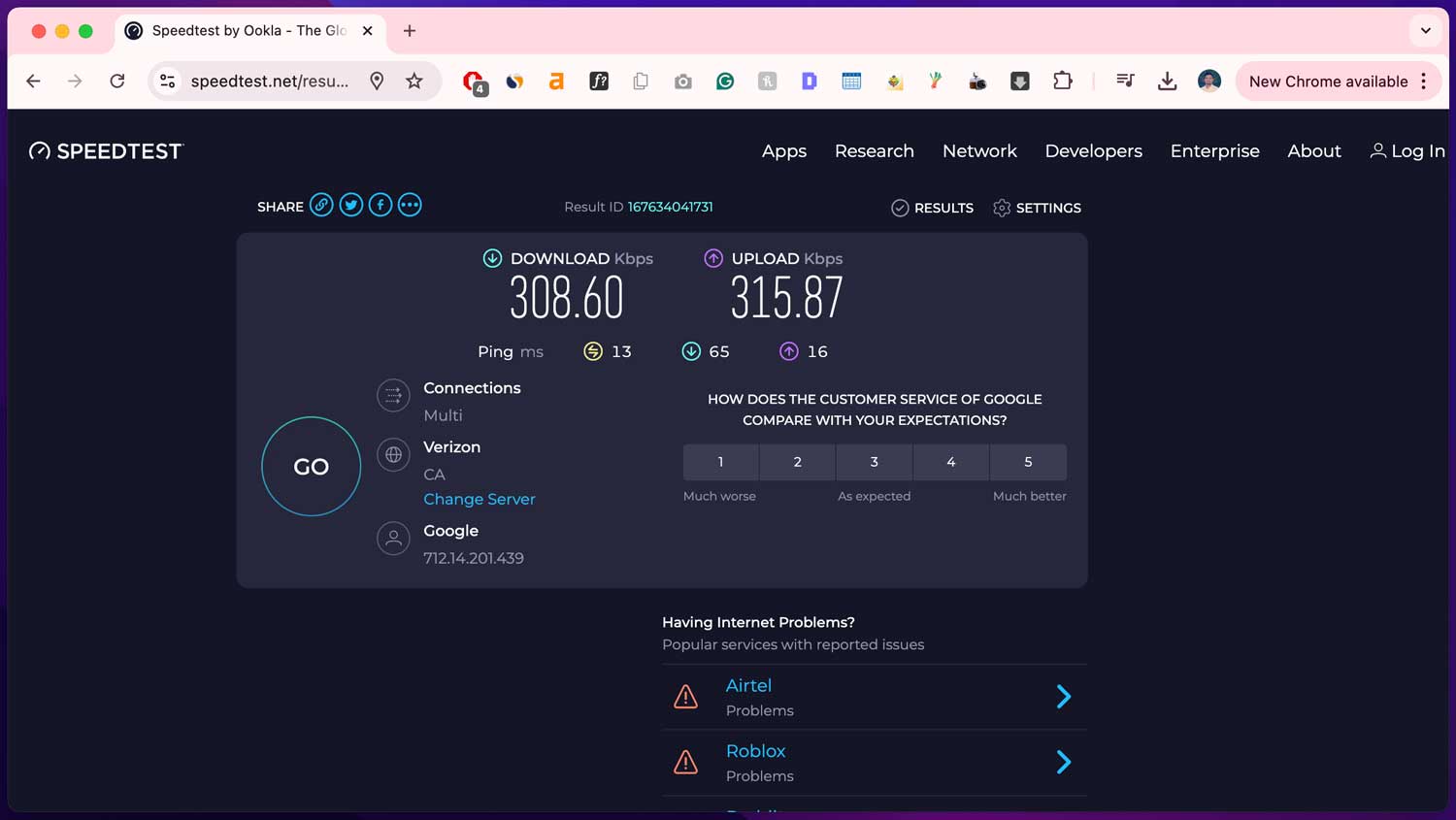
Remember, sometimes all your internet needs is a quick break. Turning your router off and on again can work wonders!
2. Update your browser
An outdated browser can be like trying to watch videos with foggy glasses. Let’s clear things up:
- Open your browser and find the menu icon (usually three dots or lines).
- Look for “Help” or “About” in the menu.

- Check for updates and install them if available.

- Restart your computer after updating.

You’d be surprised how often this simple step can solve buffering issues. It’s like giving your browser a fresh pair of eyes!
3. Restart your streaming device
Sometimes, your device just needs a quick nap to refresh itself:
For computers
- Click on the Apple icon.

- Tap on the Restart button.

For phones/tablets
- Hold the power button and choose “Restart“.
- Wait a moment, then turn your device back on.
- Try watching your video again.

This is like giving your device a cup of coffee – it might just wake up and work better!
4. Reduce the video quality
Sometimes, it’s better to watch a slightly less crisp video than deal with constant buffering. Here’s how to lower the quality:
- Open Facebook and click on the menu icon.
- Go to “Settings and Privacy”.
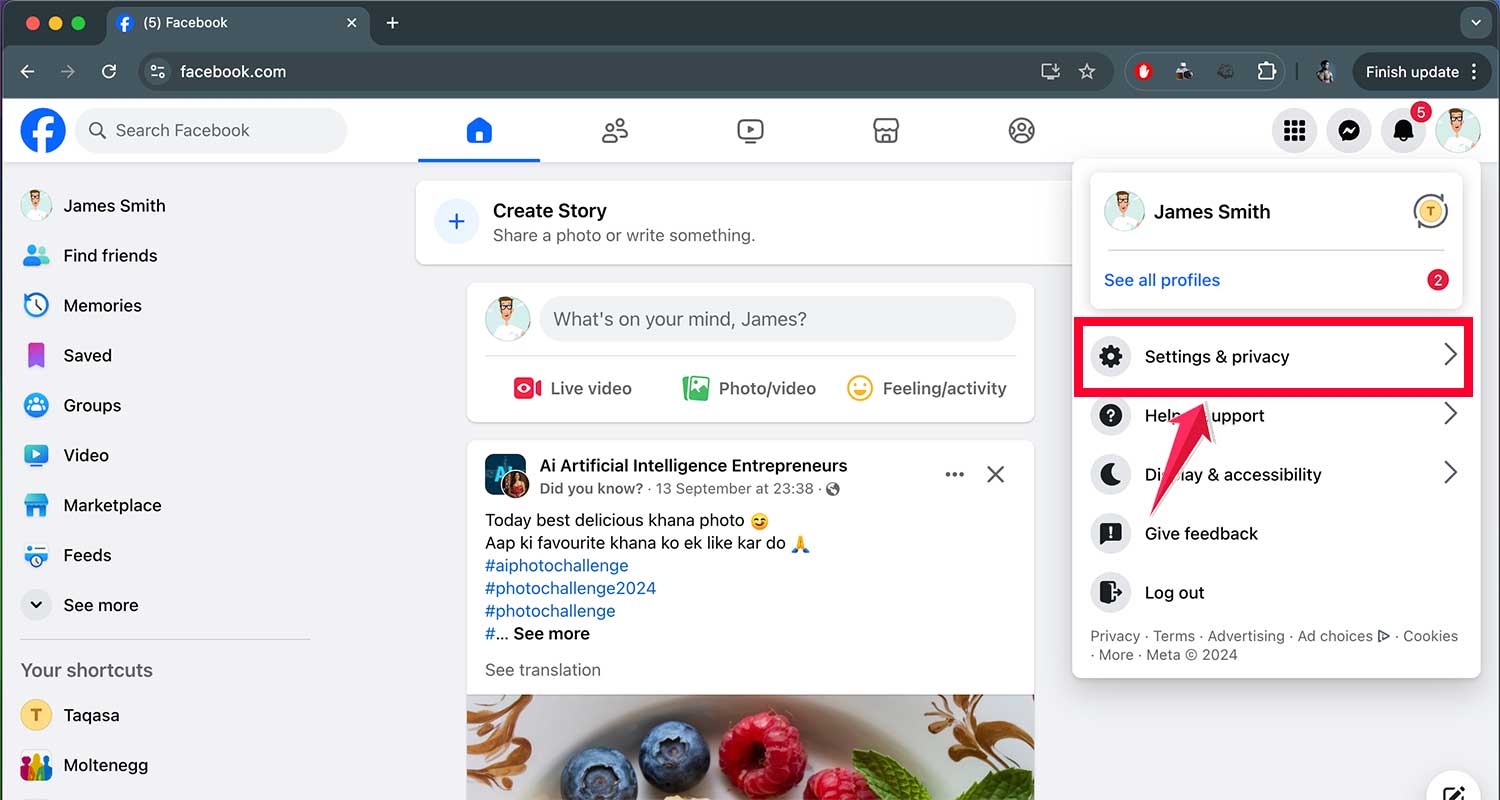
- Click on Settings.
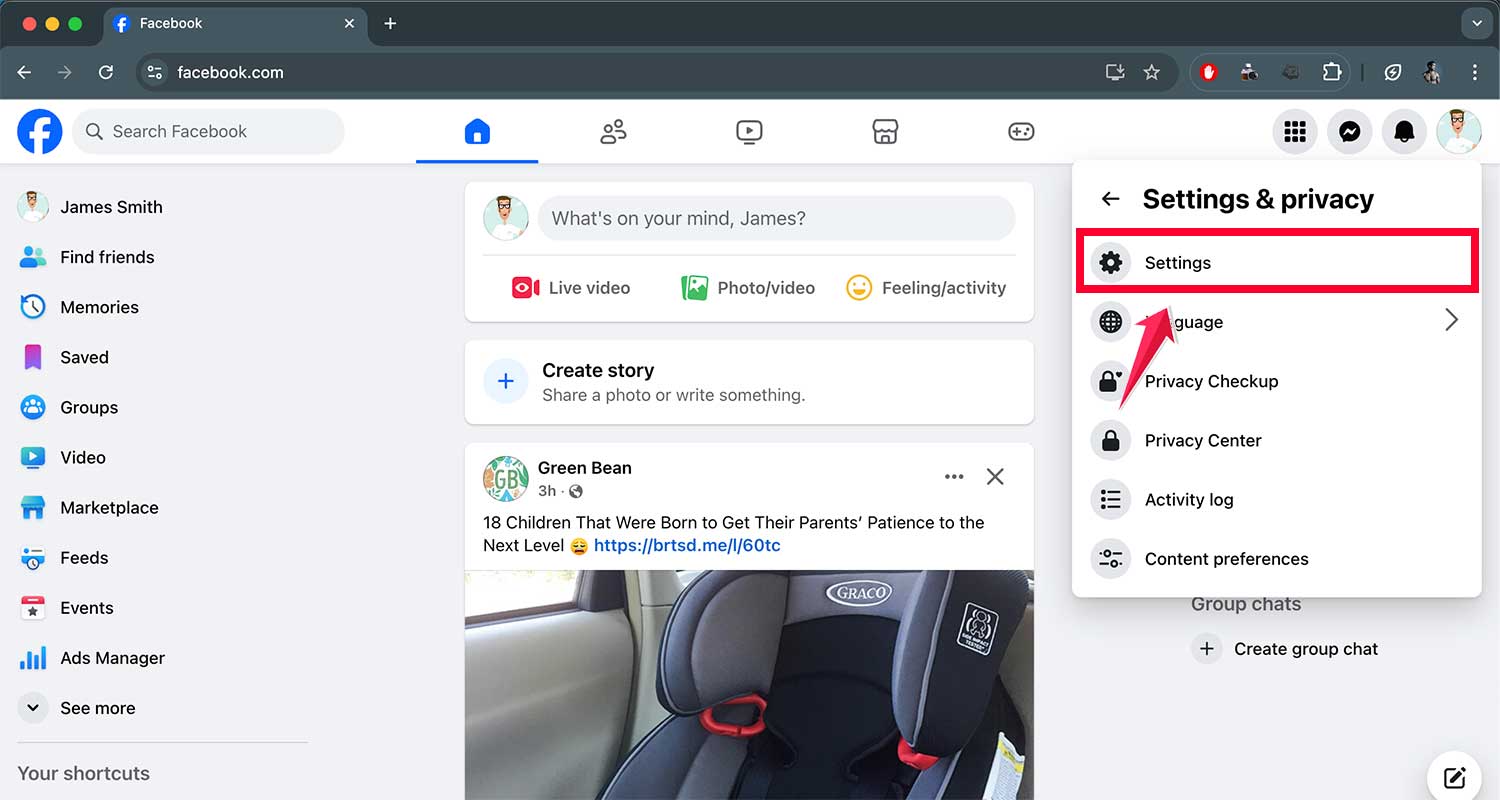
- Tap on “Media”.
- Look at “Video Settings”.

- Choose “Video Default Quality” or optimize for your internet speed.

Think of it like choosing a smaller ice cream cone – it might not be as big, but you’ll get to enjoy it without it melting all over your hands!
5. Update your graphics card drivers
Outdated graphics drivers can cause playback issues. Here’s how to update them:
- Find your graphics card name in Device Manager.
- Visit the manufacturer’s website and download the latest drivers.
- Install the new drivers and restart your computer.
This is like giving your computer’s “eyes” a new prescription – everything should look clearer and run smoother!
6. Try streaming on another device
If nothing else works, maybe it’s time to switch things up:
- If you’re on your phone, try watching on a computer or tablet.
- If you’re on a computer, try a different browser.
- Make sure your device’s software is up-to-date.
- Consider using a dedicated streaming device like Chromecast or Apple TV.
Sometimes, a change of scenery is all your video needs to play smoothly. It’s like moving to a comfier chair when you’re trying to read a book!
The takeaway
Let’s face it – buffering issues can be a real pain when you’re trying to enjoy Facebook videos. But don’t worry, you’ve now got the tools to tackle this problem head-on.
Remember, the culprit could be your internet connection, outdated software, or even your device itself. Start with the basics: try speeding up your internet or updating your browser.
These simple fixes often work wonders. If you’re still stuck, don’t be afraid to lower the video quality or switch devices – sometimes that’s all it takes.
Here’s a key thing to keep in mind: buffering isn’t always about slow internet. Often, a quick restart or update can solve the issue. So don’t jump to conclusions too quickly.
Most importantly, don’t give up if the first solution doesn’t work. You’ve got multiple strategies to try now. With a bit of patience and these tips, you’ll be back to smooth, uninterrupted viewing in no time.





