


So, you’ve got your shiny new Apple Watch—exciting, right? But now you’re trying to figure out how to make Siri work on it, and suddenly it doesn’t feel so easy. Don’t worry, you’re not alone. A lot of people feel the same way at first.
Here’s the thing: having Siri working properly on your Apple Watch can really make your day smoother. You won’t need to tap around to find apps or scroll through menus.
You can just speak, and Siri takes care of the rest. Want to send a message? Set a reminder? Check your calendar? You can do all that just by talking to your watch. Pretty cool once it works, right?
But sometimes, Siri doesn’t respond. Maybe it’s not listening, or maybe it’s just not talking back. That’s frustrating. It could be a setting that’s off, a software update you missed, or even a connection issue between your watch and phone.
The good news? These are all easy fixes. Stick with me, and I’ll walk you through everything step by step. In just a few minutes, you’ll have Siri up and running like a pro. Let’s get started.
Why Siri might not be working on your Apple Watch
#1 Check your Siri settings
Let’s start simple. Make sure Siri is turned on. Yes, it sounds basic, but it’s one of the most common reasons Siri doesn’t work.
You’ll need to check settings on both your Apple Watch and your iPhone.
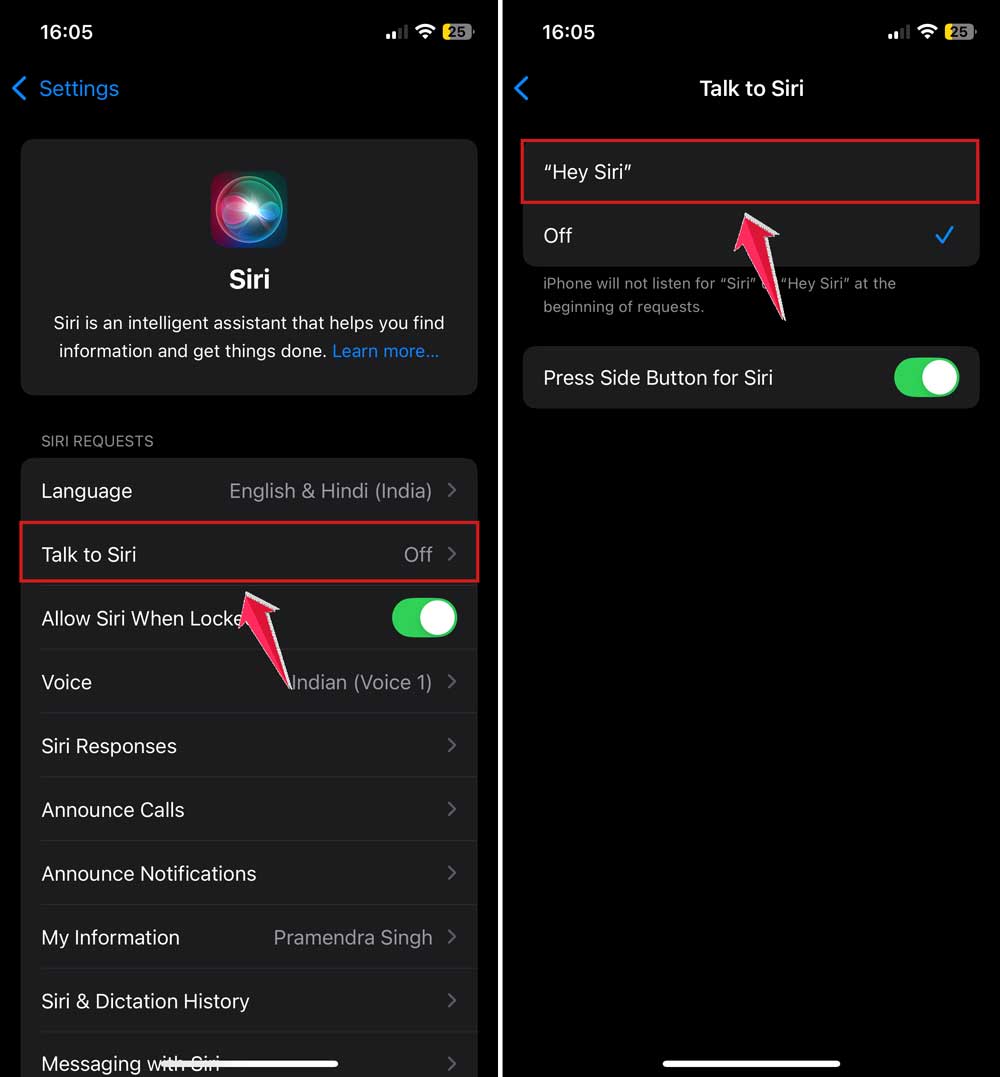
- On your iPhone, go to Settings > Siri.
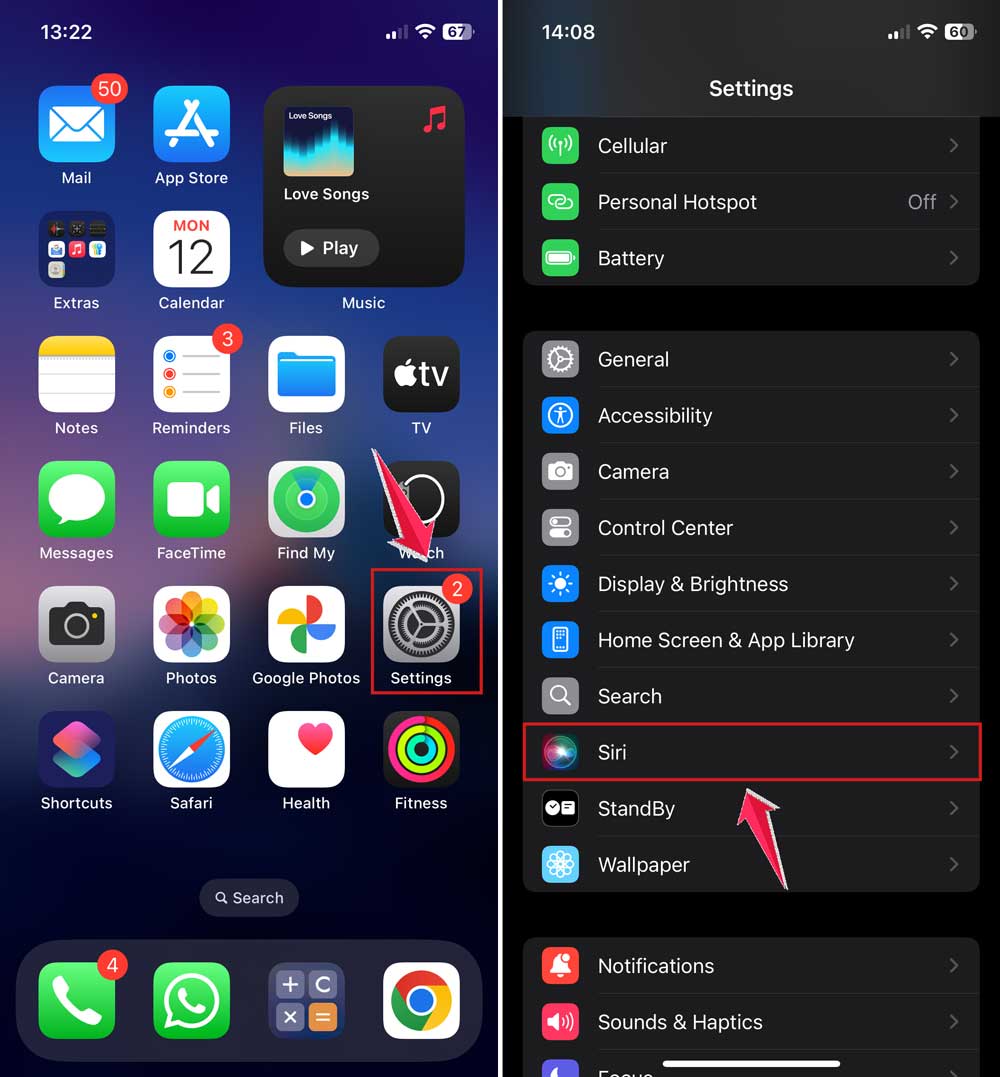
- Make sure “Talk to Siri” is turned on.
- On your Apple Watch, open the Settings app.
- Tap Siri and enable the same options.

If any of these are off, Siri won’t respond.
#2 Keep your devices updated
Updates matter more than you think. Apple often fixes bugs and improves Siri’s performance in software updates. So, if Siri is acting weird, it could be because your watch or iPhone needs an update.
Here’s how to update:
- On your iPhone, go to Settings > General > Software Update. If there’s one available, install it.

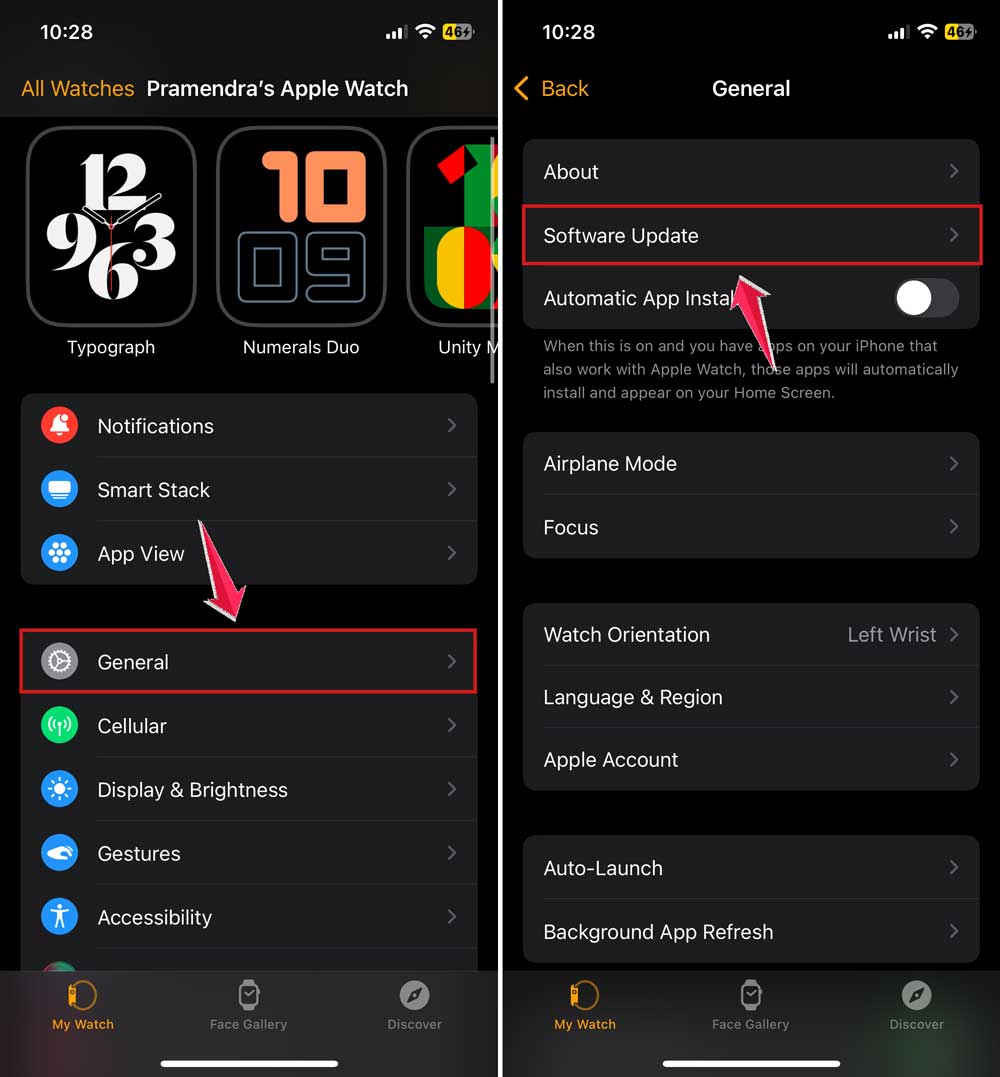
- Open the Watch app on your iPhone.
- Tap General > Software Update and follow the steps if an update is there.
Once both are up to date, try using Siri again.
#3 Make sure your devices are connected
Siri needs a solid connection between your Apple Watch and iPhone. If the two aren’t talking to each other, Siri won’t work right.
- On your iPhone, check that Bluetooth and Wi-Fi are both turned on.
- Make sure your Apple Watch is close to your iPhone.
- Swipe up on your watch face to open Control Center and check the connection icon.
If it shows a red phone icon or says “Disconnected,” that’s your problem.
#4 Restart your devices
Sometimes things just need a reset. Restarting your iPhone and Apple Watch can fix small software glitches that mess with Siri.
Here’s how to restart:
- On your iPhone, press and hold the side button and volume button until the power slider appears. Slide it to turn off. Then, press the side button again to turn it back on.

- On your Apple Watch, press and hold the side button until you see the power slider. Drag it to turn off. Then press the side button again to turn it back on.

After restarting, give Siri another try.
How to use Siri on Apple Watch (and what you can say)
Now that Siri is working again, let’s make sure you know how to use it properly. You don’t need to be a tech expert—just follow these simple steps.
#1 Make sure Siri is enabled
We already talked about this earlier, but it’s worth repeating. If Siri isn’t enabled, it won’t respond—no matter what you say.
- On your iPhone, go to Settings > Siri.
- On your Apple Watch, go to Settings > Siri.
- Turn on “Hey Siri” and “Raise to Speak”.
Now, you can just raise your wrist and say something like, “Hey Siri, what’s the weather today?”
#2 Learn what you can ask Siri
Siri can do a lot on your Apple Watch. Here are some examples:
- “Send a message to Alex.”
“Set a timer for 10 minutes.” - “What’s on my calendar today?”
- “Remind me to call mom at 6 PM.”
- “Start a workout.”
You don’t need to memorize everything. Just try asking in your own words. Siri’s pretty smart.
#3 Fix connection issues if Siri still won’t respond
If Siri is still ignoring you, go back and double-check those Wi-Fi and Bluetooth settings. Also, make sure your iPhone is nearby. Siri needs that connection to work properly.
- Open Settings on your iPhone.
- Make sure Wi-Fi and Bluetooth are turned on.

- If needed, toggle them off and back on again to refresh the connection.
Sometimes that quick reset is all it takes.
#4 Restart if things still feel off
Still not working? Go ahead and restart both your iPhone and Apple Watch again.
It’s a simple fix that often works wonders.
Extra tips to make Siri even better on your Apple Watch
1. Try using AirPods for hands-free Siri
If you’ve got AirPods, pair them with your Apple Watch. This way, you can talk to Siri without touching your watch at all.
Super useful when your hands are full or you’re on the go.
2. Customize how Siri responds to you
Some people like Siri to talk back. Others prefer just text. You can change how Siri replies:
- On your Apple Watch, go to Settings > Siri.
- Choose between Always On, Control with Silent Mode, or Headphones Only.
Pick what works best for you.
3. Set up Siri Shortcuts
Want to make Siri even more useful? Create shortcuts for things you do often.
- Open the Shortcuts app on your iPhone.
- Create a new shortcut for something like “Text my partner I’m on my way.”
- Then, just say the shortcut name to Siri and it’ll do it for you.
You’ll save time every day.
4. Add Siri to your watch face
You can make Siri even easier to access by adding it to your watch face.
- Press and hold your current watch face.
- Tap Edit.
- Swipe to Complications and choose Siri.
Now Siri is just one tap away.
5. Use Silent Mode if you don’t want Siri to talk out loud
Need peace and quiet? Turn on Silent Mode so Siri won’t speak out loud.
- Swipe up on your watch face to open Control Center.
- Tap the bell icon to turn on Silent Mode.
Siri will still show you answers, just without sound.
The Takeaway
So, here’s the deal. Getting Siri to work on your Apple Watch doesn’t have to be hard. Most of the time, it’s just a setting, a connection, or a quick update. We’ve gone through all the simple steps to check, fix, and use Siri the right way.
You learned how to turn Siri on, keep your devices updated, and fix connection issues. You also saw how to make the most of Siri with voice commands, shortcuts, and custom settings.
A lot of people think Siri is broken when it’s just something small that needs a tweak. Don’t let it confuse you. Take a few minutes, follow the steps, and you’ll have Siri working like a charm.
Now it’s your turn. Try it out. Ask Siri something right now. And if you’ve got questions, or if you figured out a cool Siri trick, leave a comment below and share it. I’d love to hear how it’s going for you.





