


Let’s be real—your Apple Watch is part of your daily routine. You use it to check messages, track your steps, maybe even pay for your coffee. But what happens when it starts acting up? Maybe it’s lagging, not syncing with your iPhone, or just feels off. That’s frustrating, right?
Here’s something simple you can try: unpair your Apple Watch and then pair it again. Think of it like giving your watch a fresh start. Kind of like restarting your computer when it freezes. Works more often than you’d think.
You might need to do this if you’ve just bought a new iPhone, if your watch isn’t connecting like it should, or if you plan to sell or give it away. Unpairing wipes your personal info and gives the watch a clean slate. That way, your data stays safe and you avoid random bugs.
And don’t worry—this isn’t hard. I’ll guide you through it step-by-step, just like a friend would. Let’s fix this together so your Apple Watch works like new again.
When should you unpair your Apple Watch?
Unpairing isn’t just something you do for fun. There are real reasons you might need to do it. Let’s go over the most common ones, so you know exactly when it makes sense.
1. Software glitches that just won’t go away
Your watch might feel slow, or maybe the screen freezes now and then. Sometimes it doesn’t sync with your phone like it should. These small issues add up and mess with your day. Unpairing can help clear out those bugs and give your watch a clean start.
2. You’re switching to a new iPhone
Congrats on the new phone! But before you make the switch, you’ll want to unpair your Apple Watch from your old iPhone. It helps avoid setup issues and makes sure your data transfers smoothly to the new device.
3. Your watch won’t stay connected
Ever had your Apple Watch drop connection randomly? Maybe it stops showing notifications or won’t sync your health data. That’s super annoying. Unpairing and re-pairing can fix these kinds of connection problems fast.
4. You’re selling or giving away your Apple Watch
Before you hand your watch to someone else, make sure you unpair it. This deletes all your info and disconnects it from your Apple ID. That way, the new owner can set it up without running into issues—and your personal data stays private.
So yeah, if you’ve run into any of these problems, unpairing might be the fix you need. And once you’ve done it once, it feels easy the next time.
How to Unpair and Re-pair Your Apple Watch Safely
Alright, now let’s walk through the actual steps. Don’t worry—I’ll keep it simple. We’ll start with unpairing, then make sure your backup is safe, and finally pair everything back up again.
#1: Start by unpairing your Apple Watch
If your watch is still connected to your iPhone, this is the easiest way to unpair it. Just follow these steps:
- Open the Watch app on your iPhone.
- Tap on All Watches at the top of the screen.

- Find your watch and tap the small info (i) button next to it.
- Tap Unpair Apple Watch.

Your iPhone will create a backup of your watch during this process. So don’t worry—you won’t lose your data.
#2: Make sure your backup is saved
Apple usually backs up your watch automatically when you unpair. But it’s smart to double-check, especially if you’ve got important data like health records or custom settings.
- Go to Settings on your iPhone.
- Tap iCloud.

- Make sure iCloud Backup is turned on.
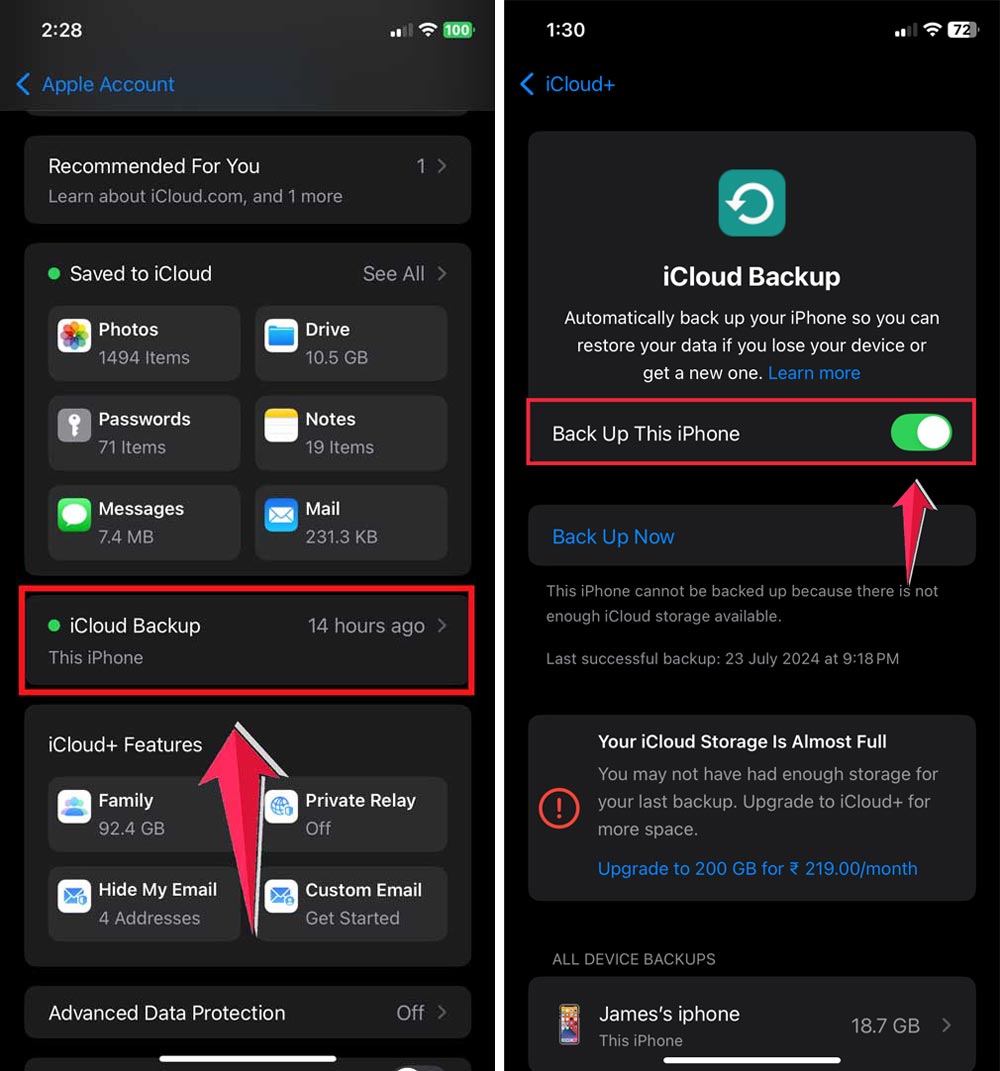
If everything looks good, you’re safe to move on. If not, turn on iCloud Backup and tap Back Up Now.
#3: Time to re-pair your Apple Watch
Now that your watch is unpaired and your data is safe, let’s pair it again. This part is actually kind of fun—it’s like setting up a new device.
- Charge both your iPhone and Apple Watch first.
- Turn them both on.
- Open the Watch app on your iPhone.
- Hold your watch close to the phone. You’ll see a message pop up to start pairing.
- Tap Continue and follow the steps on the screen.
When asked, you can choose to restore from backup or set it up as a new watch. If you want your old settings and data back, go with the backup option.
#4: Restore your data and settings
If you choose to restore from backup, your watch will start downloading your apps, settings, and preferences. This might take a few minutes, so sit tight.
- When prompted, select Restore from Backup.
- Wait for the process to finish. Keep your watch and phone close together.
Once it’s done, your watch will look and feel just like before—maybe even better if it fixed your issues.
#5: Reconnect your apps and services
Some apps might need you to log in again or adjust settings. Just open each app on your watch or phone and sign in where needed. It only takes a minute or two.
#6: Check your notification settings
If you weren’t getting notifications before, now’s a good time to check that everything’s working.
- Go to the Watch app on your iPhone.
- Tap Notifications and scroll through the list.
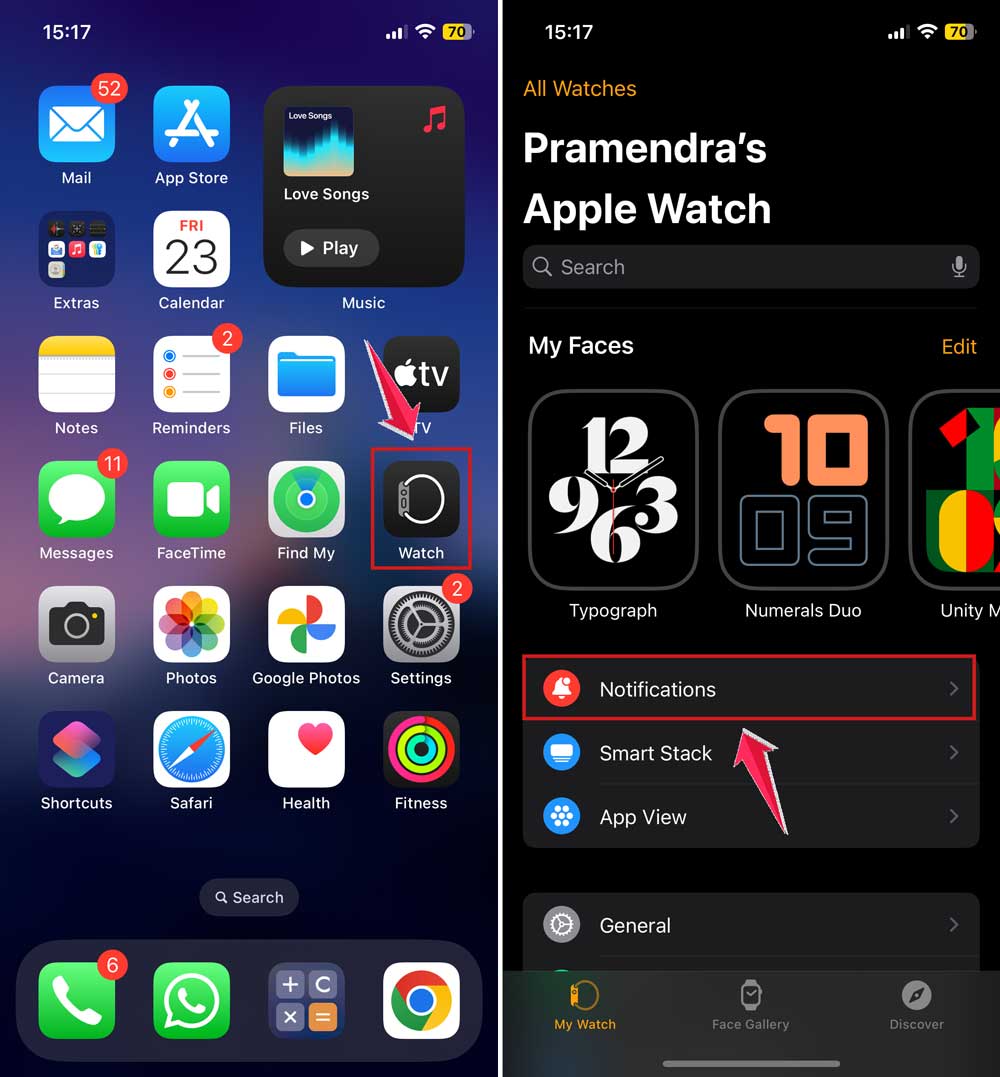
- Make sure the alerts you want are turned on.
This helps you stay in the loop without missing anything important.
#7: Reconnect to Wi-Fi and Bluetooth
Most of the time, this happens automatically, but if your watch isn’t connecting to your home Wi-Fi or Bluetooth devices, here’s what to check:
- Press the side button to open Control Center.
- Tap the Wi-Fi icon to connect to a network.

- Make sure Bluetooth is on in your iPhone’s settings.

#8: Set up Apple Pay again
If you use Apple Pay on your watch, you’ll need to add your cards again after pairing.
- Open the Watch app on your iPhone.
- Tap Wallet & Apple Pay.

- Add your cards by following the on-screen steps.
This way, you’ll be ready to pay with just a tap again.
#9: Re-enable any custom watch faces or complications
Your favorite watch face might not show up right away. No big deal—you can set it up again in seconds.
- Open the Watch app.
- Tap Face Gallery to pick your favorite style.

- Customize it with complications for weather, calendar, battery, and more.
#10: Do a quick test run
Before calling it done, check that everything’s working. Send a test message, check your heart rate, or walk around to see if it’s tracking your steps.
If everything looks good, you’re all set!
The Takeaway
So, your Apple Watch wasn’t working right—and now it is. See? That wasn’t so bad. Unpairing and re-pairing your watch can fix a bunch of annoying issues like syncing problems, lag, or connection drops. It’s also the safest way to prep your watch if you’re moving to a new iPhone or handing it to someone else.
A lot of people think this process is complicated, but it’s really not. You just follow the steps, one by one, and your Apple Watch feels brand new again. No stress, no tech headaches.
Give it a try. And if something still feels off, don’t hesitate to ask or drop a comment below. I’m here to help. Got tips of your own? Share them too—someone else might be looking for the same fix.





