


Are you feeling overwhelmed by the constant ping of email notifications? You’re not alone.
Right now, millions of people are facing the same challenge. It’s a never-ending stream of emails disrupting their focus and peace of mind.
Every time your phone buzzes or your computer chimes with a new email alert, you’re being pulled away from what you’re doing.
This constant interruption is more than just annoying. It’s affecting your productivity and potentially your mental well-being.
But here’s the good news: you have the power to change this. In this guide, you’ll discover how to turn off email notifications on various devices and platforms.
You’ll learn why this simple change can make a big difference in your daily life, and how to stay on top of important messages without being constantly interrupted.
Ready to take back control of your attention? Let’s get started!
Why should you consider turning off email notifications?
Let’s explore the benefits of silencing those persistent email alerts:
1. Boost your focus and get more done
Constant email notifications can interrupt your workflow. When you turn them off, you can concentrate better on your tasks without frequent distractions.
This leads to improved productivity and helps you complete your work more efficiently.
2. Lower your stress levels
The pressure to respond immediately to every email can be overwhelming. By muting notifications, you can check your inbox when you’re ready.
This approach reduces stress and email-related anxiety, giving you more control over your day.
3. Manage your time more effectively
Instead of reacting to every new message as it arrives, you can set specific times to check and respond to emails.
This habit leads to better time management and allows you to use your working hours more efficiently.
4. Create a healthier work-life balance
By setting boundaries around when you engage with emails, you can separate your work and personal life more effectively.
This is especially important in our increasingly connected digital world.
5. Improve your sleep quality
If you often check emails right before bed, turning off notifications can help you disconnect and prepare for rest.
This can lead to better sleep, which is crucial for your overall well-being and next-day productivity.
Now that you understand why turning off email notifications can be so beneficial, let’s look at how to do it on different devices and platforms.
How to turn off email notifications on iPhone
Many iPhone users rely on the built-in Mail app for their email needs. Here’s how you can silence those notifications:
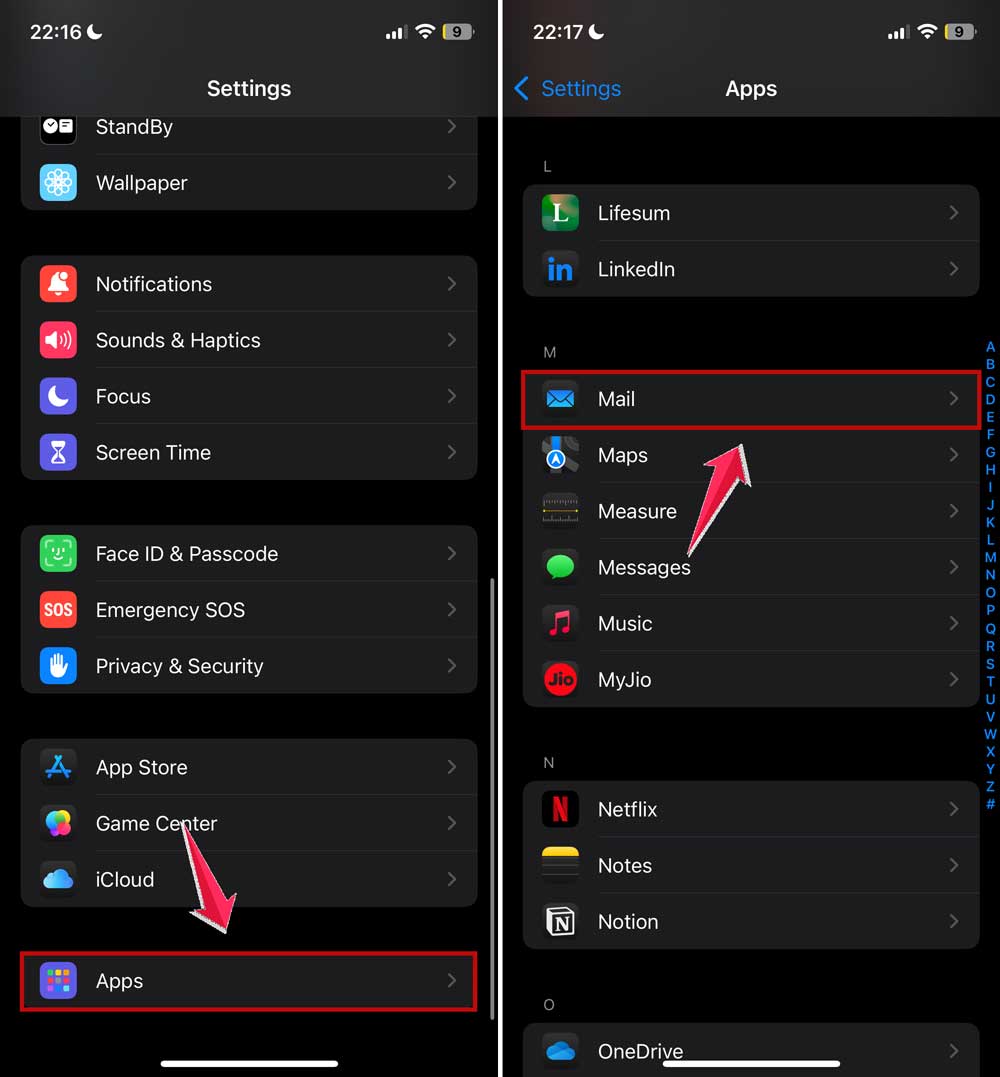
- Open the Settings app on your iPhone.
- Scroll down and tap on Apps.
- Then find and click on Mail.
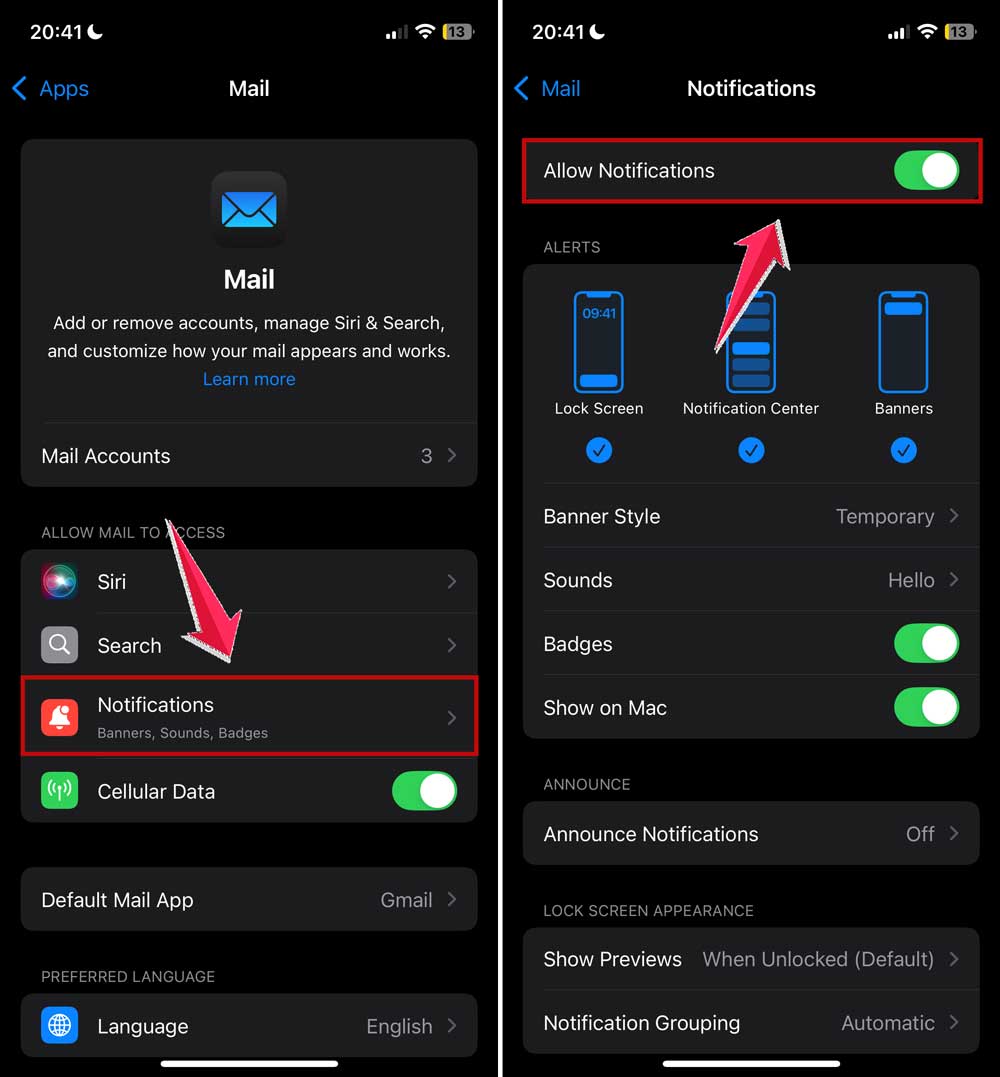
- Under “Allow Mail to Access,” select Notifications.
- Toggle off the switch next to Allow Notifications.
If you’re using a third-party email app on your iPhone, the process is slightly different:
- Open Settings and tap on Notifications.

- Scroll through the list of apps until you find your email app.
- Tap on the app and toggle off Allow Notifications.

How to turn off email notifications on Android
Android devices offer a similar process for muting email notifications:
- Open the Settings app on your Android device.
- Tap on Notifications.
- Find and tap on App notifications.

- Locate your email app in the list and tap on it.
- Toggle off the switch next to Allow notifications.

Remember, the exact steps might vary slightly depending on your Android device’s manufacturer and operating system version.
How to turn off email notifications on Mac
For Mac users, here’s how you can silence email alerts:
- Click on the Apple menu in the top-left corner of your screen.
- Select System Preferences (or System Settings on newer versions).

- Click on Notifications.
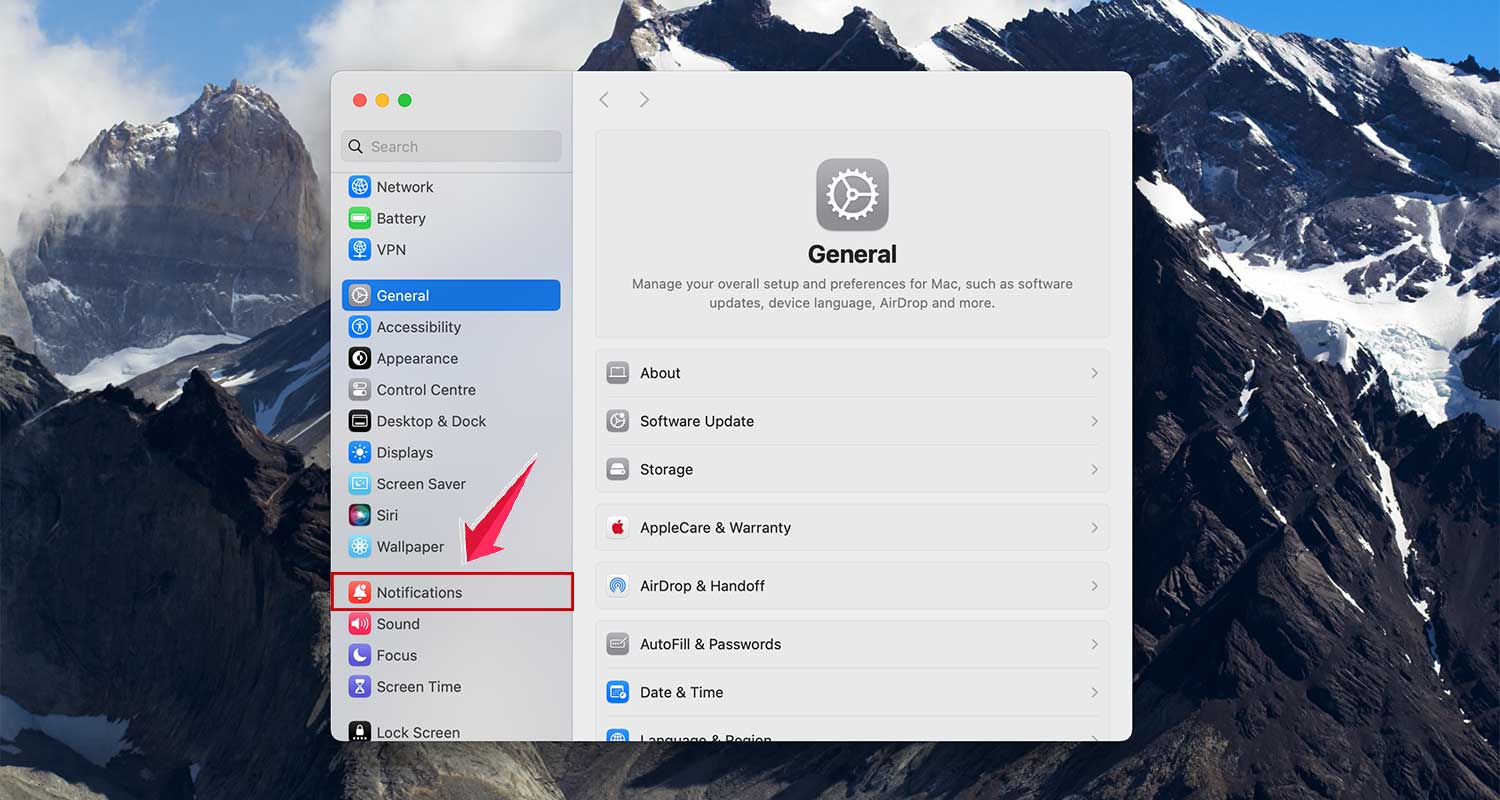
- Find your email app in the list on the left side. Click on it.

- On the right side, toggle off the Allow Notifications.

How to turn off email notifications on Windows
If you’re using a Windows PC, the process depends on which email client you’re using. Here’s how to do it for the most common options:
For Outlook:
- Open Outlook and click on File in the top-left corner.

- Select Options.

- In the new window, click on Mail in the left sidebar.
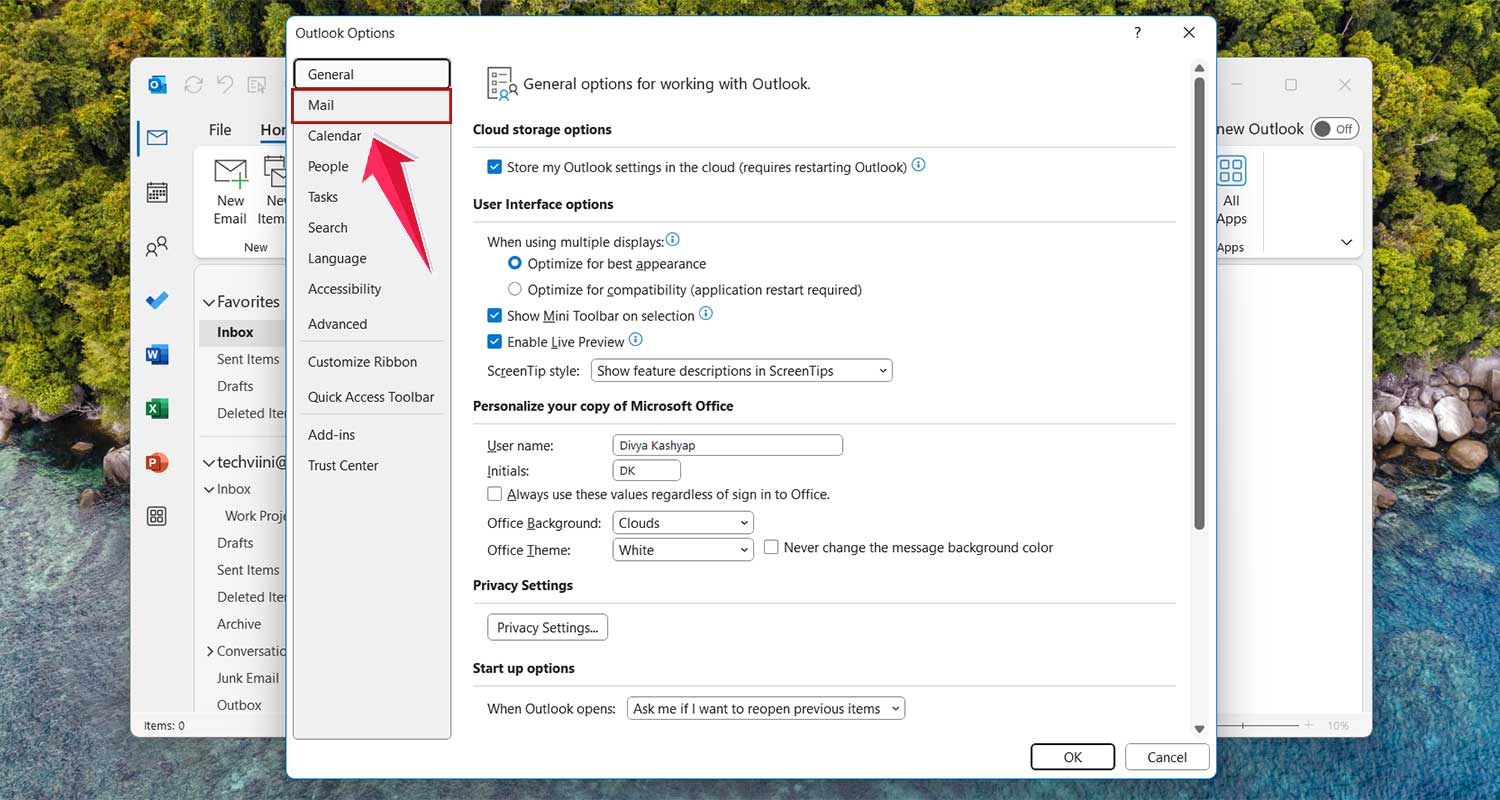
- Under the “Message arrival” section, uncheck the box next to Display a Desktop Alert.

- Click OK to save your changes.

For the Windows Mail app:
- Open the Mail app and click on the Settings gear icon.
- Select Notifications.
- Choose your email account from the dropdown menu.
- Toggle off the switch next to Show notifications in the action center.
How to turn off email notifications in Gmail (web browser)
If you primarily use Gmail through a web browser, you can disable desktop notifications:
- Open Gmail in your web browser.
- Click on the Settings gear icon in the top-right corner.

- Select See all settings.

- Scroll down to the “Desktop notifications” section.
- Select Mail notifications off.
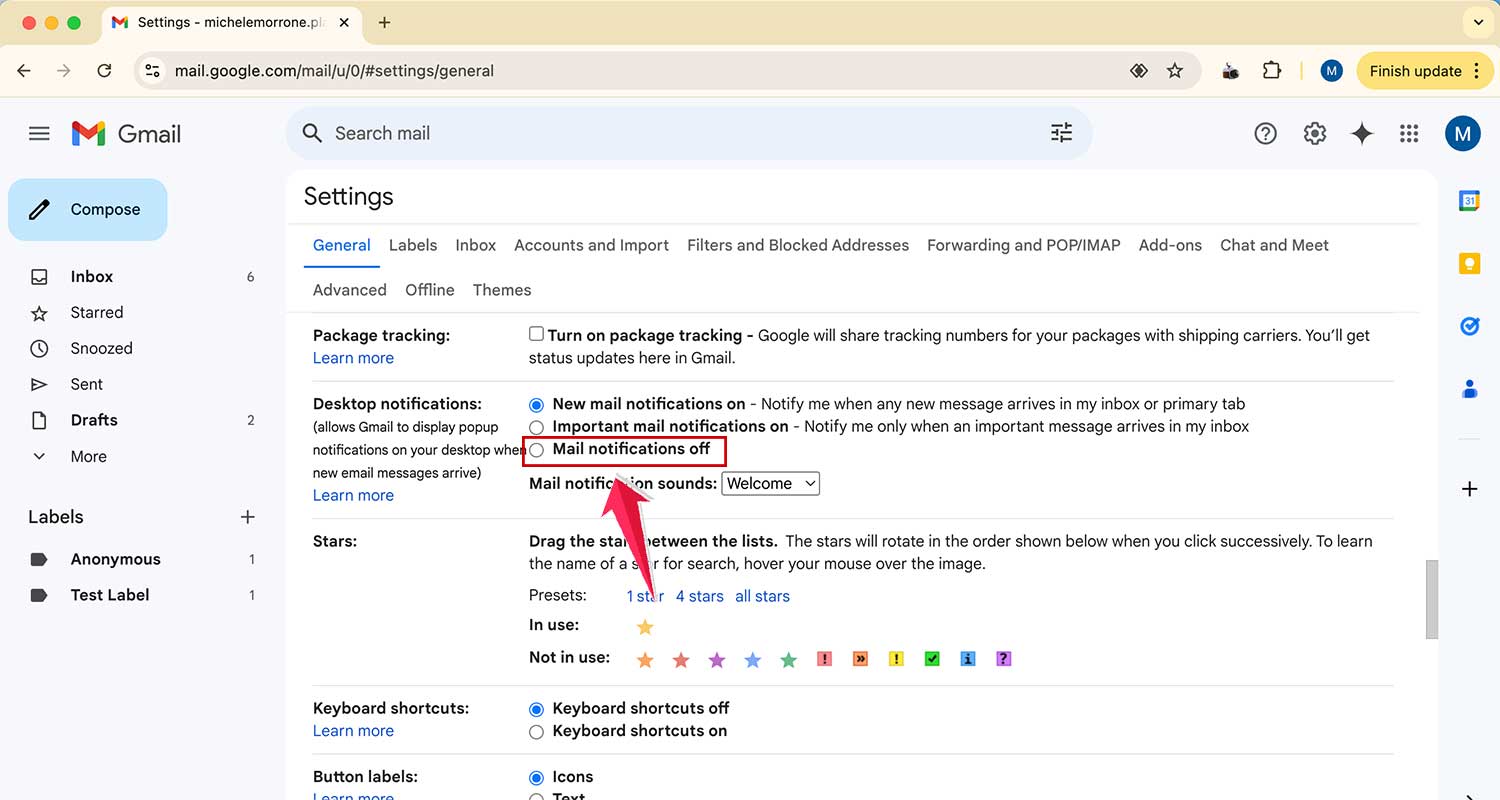
- Scroll to the bottom and click Save Changes.

Tips for managing your inbox without constant notifications
Now that you’ve turned off those distracting notifications, you might be wondering how to stay on top of your emails without missing important messages.
Here are some strategies to help you manage your inbox more effectively:
1. Set specific email checking times: Designate 2-3 times during your day to check and respond to emails. This helps you stay focused on other tasks while ensuring you don’t miss crucial messages.
2. Use the “Two-Minute Rule”: When you do check your emails, if a response will take less than two minutes, handle it immediately. For longer tasks, schedule time to address them later.
3. Utilize folders and filters: Set up folders and automatic filters to organize incoming emails. This makes it easier to prioritize and find important messages when you do check your inbox.
4. Unsubscribe from unnecessary newsletters: Reduce the volume of emails you receive by unsubscribing from newsletters and promotional emails you no longer find valuable.
5. Use an email management tool: Consider using a tool like Clean Email to help you organize your inbox, unsubscribe from unwanted emails, and set up automation rules.
6. Communicate your new email habits: Let colleagues and important contacts know about your new email checking schedule, so they know when to expect responses or how to reach you for urgent matters.
7. Use alternative communication methods for urgent matters: For time-sensitive issues, consider using instant messaging or phone calls instead of relying on email.
The takeaway
You’ve now got the tools to reclaim your focus from the constant barrage of email notifications.
Remember, turning off these alerts isn’t about ignoring your responsibilities. It’s about managing them more effectively.
By checking your emails at set times throughout the day, you’re giving yourself the space to concentrate on important tasks without constant interruptions.
Don’t worry about missing crucial messages. Y—ou’re simply choosing when to engage with your inbox on your own terms.
It might feel strange at first to not have instant notifications, but give it time.
Many people find they’re actually more productive and less stressed once they break free from the tyranny of constant alerts.
The key is to find a balance that works for you.
So go ahead, turn off those notifications and experience the difference it can make in your day.
Your focus, productivity, and peace of mind will thank you. And remember, your inbox is a tool for you to use. Don’t let it use you!
How do you plan to adjust your email habits after reading this?
Take a moment to think about one change you can make today to improve your relationship with email.





