


Have you ever sent a text and found yourself constantly checking your phone, waiting for a response? It’s a common experience in our digital age. You’re not alone in this – millions of people share this feeling every day.
Maybe you’re trying to make plans with friends, or you’ve sent an important message to a colleague or loved one. The uncertainty can be frustrating. You might be asking yourself: Has the person seen my message? Are they ignoring me? Or are they just busy?
Understanding when your messages are read can help ease this anxiety and improve your communication. It can give you insights into the other person’s availability and help you decide whether to follow up or wait patiently.
In this article, you’ll learn practical ways to check if your messages have been read on different smartphones and popular messaging apps.
Whether you’re using an iPhone, Android, or specific apps like WhatsApp or Facebook Messenger, we’ve got you covered. Let’s dive in and help you become more informed about your message status.
How to know if someone has read your text message
1. Read receipts on iPhone
Want to know if someone has read your text on an iPhone? There’s a feature called read receipts that can help. Here’s how you can use it in the Messages app:
To turn on read receipts:
- Open your Settings.
- Scroll down and tap on Apps.
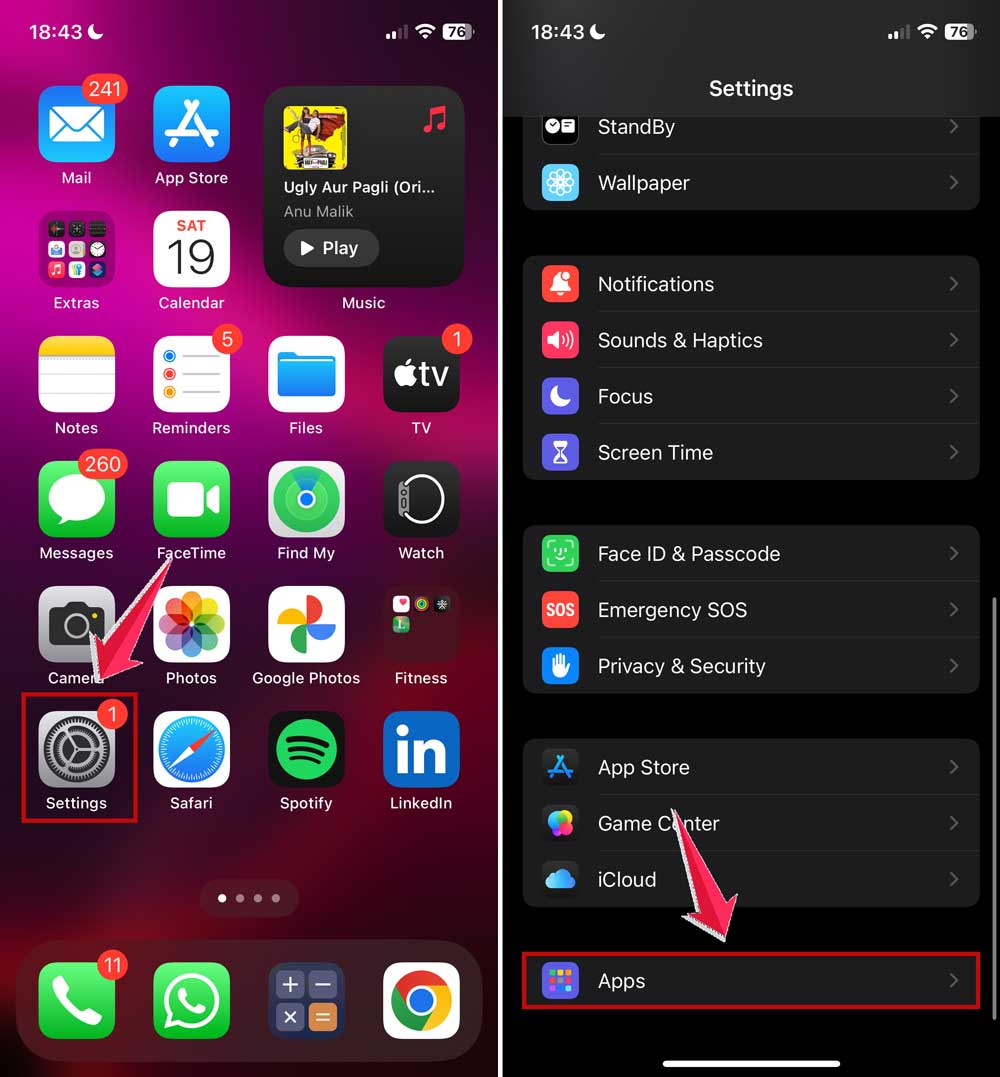
- Now, find and click on Messages.
- Find the “Send Read Receipts” option and toggle it on.

When you and the person you’re texting both have this turned on and are using iMessage, you’ll see the word “Read” under your message with the time they read it.
Just remember, this only works if you’re both using iMessage. It won’t work for regular SMS texts or if the other person doesn’t have an iPhone.
If you’d rather keep it private when you read messages, you can easily turn this feature off using the same steps.
2. Read receipts on Android smartphones
If you’re using an Android phone, you can also check if someone has read your message. This feature is available through the Google Messages app, but it depends on your phone carrier supporting it. Also, the person you’re messaging needs to have read receipts turned on too.
To enable read receipts on your Android:
- Open the Messages app.
- Click on the profile icon at the top right corner.

- Now click on the Messages settings and then click on General.

- Find “Chat features” or “RCS chats” (the exact name might vary).
- Look for an option like “Send read receipts” and turn it on.
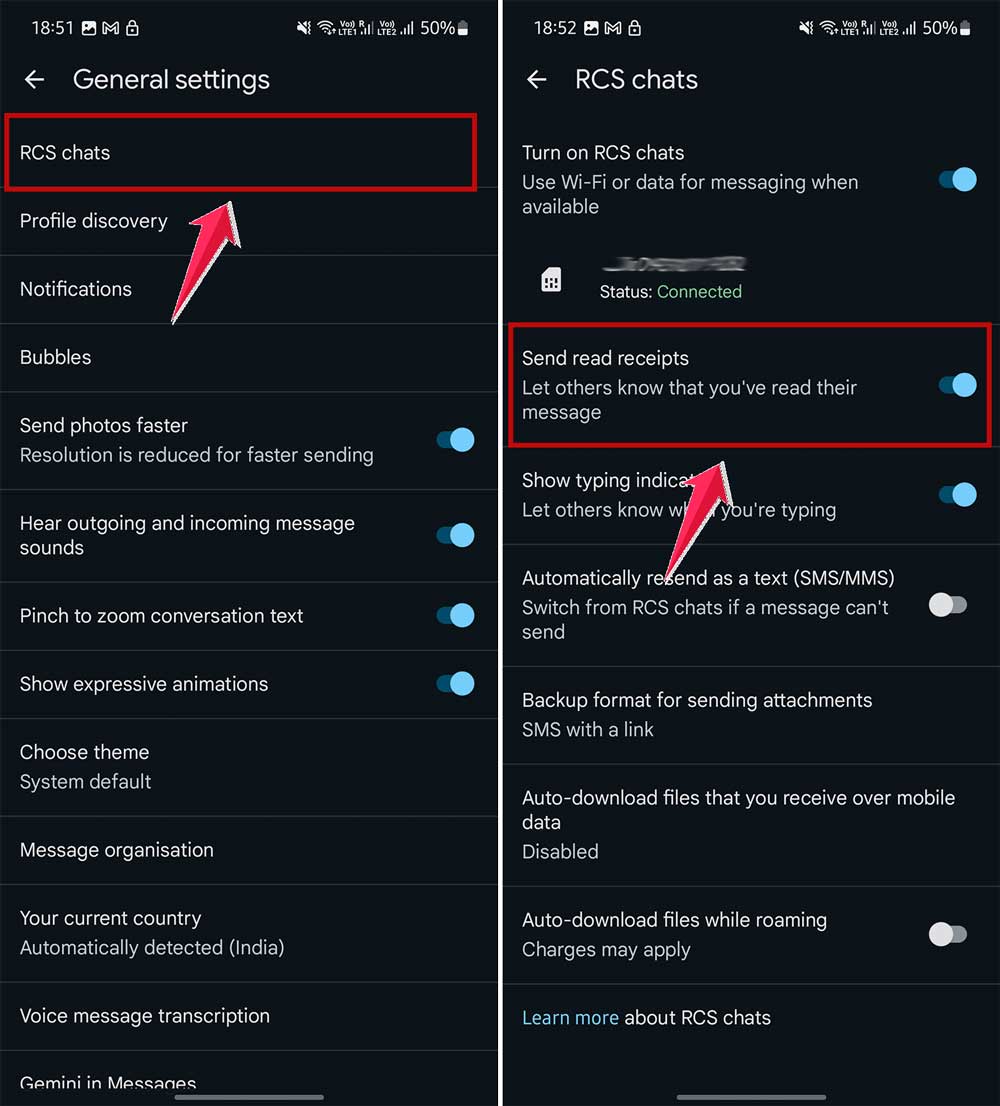
Keep in mind, the exact steps might be a bit different depending on your Android version and phone model.
3. WhatsApp reads receipts
WhatsApp makes it easy to see what’s happening with your messages using check marks:
- One grey check: Your message is sent.
- Two grey checks: Your message is delivered.
- Two blue checks: Your message is read.
WhatsApp turns on read receipts automatically, but you can turn them off if you want. Just remember, if you turn them off, you won’t be able to see when others read your messages either.
To check more details about a specific message:
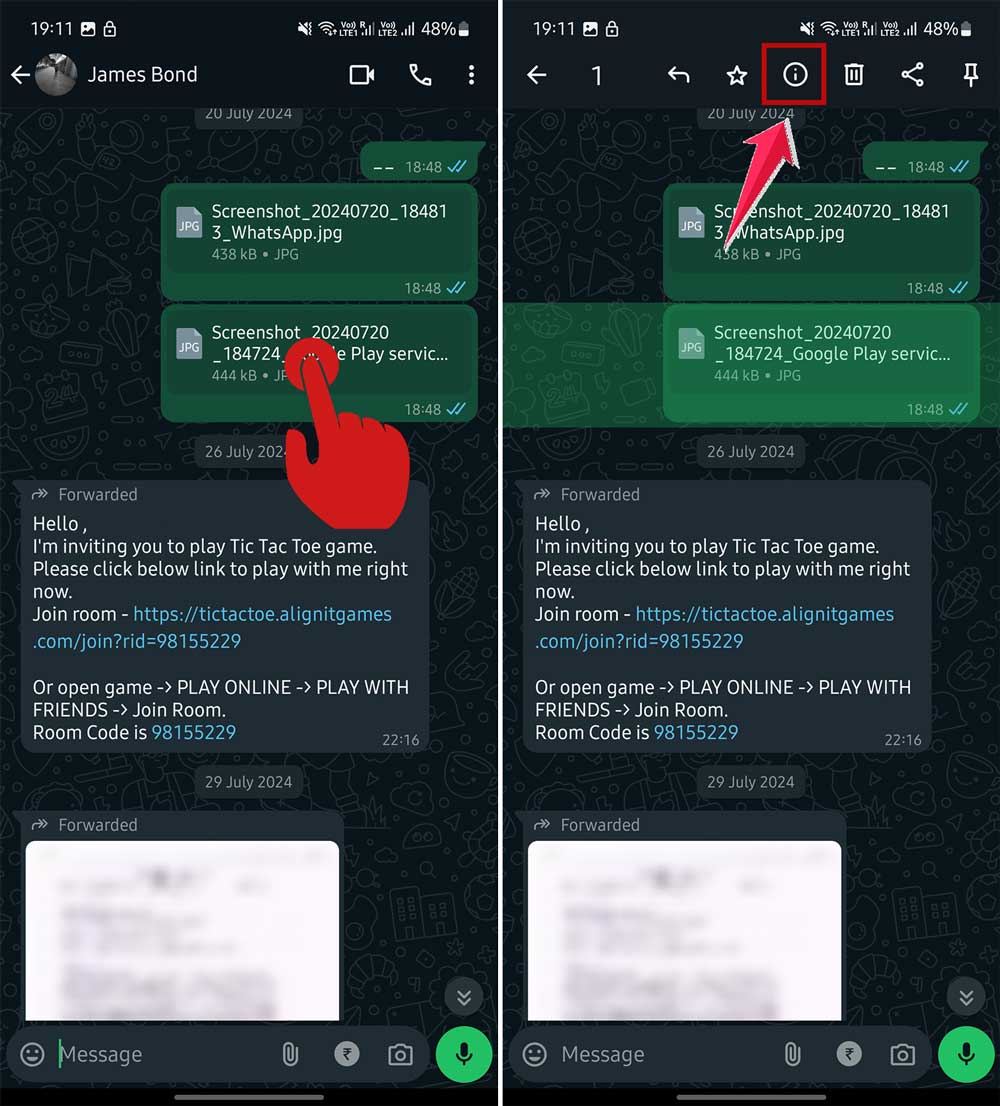
- Open a conversation in WhatsApp.
- Tap and hold the message you’re curious about.
- Choose “Info” (on some phones, you might need to tap the three-dot menu first).
- If read receipts are on, you’ll see exactly when your message was delivered and read.
4. Messenger read receipts
Facebook Messenger also lets you see when someone has read your messages. This works the same way whether you’re using an Android or iPhone.
To turn on read receipts in Messenger:
- Open the app and tap the menu (usually three lines) at the top.
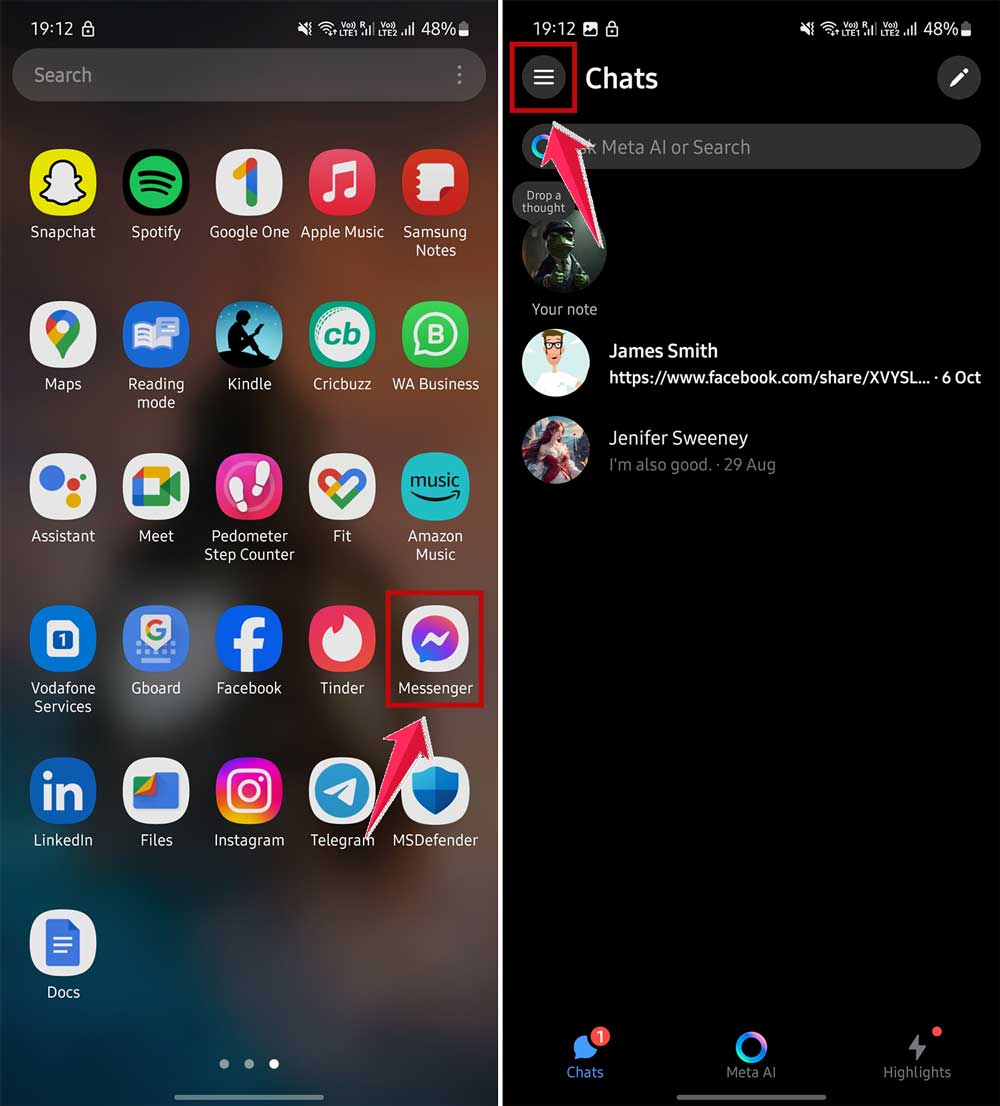
- Tap on the settings icon.
- Go to “Privacy & safety“.

- Find and select “Read receipts“.
- Turn on the “Show read receipts” switch.

Messenger uses different icons to show your message status:
- Blue circle: Message is sending.
- Blue circle with a check: Message is sent.
- Filled blue circle: Message is delivered.
- Recipient’s profile picture: Message is read.
5. Instagram read receipts
On Instagram, you can also see when someone reads your messages. But you need to make sure the right settings are on.
To turn on read receipts for Instagram messages:
- Open Instagram and go to the conversation you want to manage.
- Tap on the person’s name at the top of the conversation.

- Scroll to “Privacy & safety“.
- Turn on the “Read receipts” switch.

You can do this for each chat separately, giving you control over who can see when you’ve read their messages and vice versa.
Remember, these features are there to help you communicate better. But it’s also okay if someone doesn’t respond right away – they might just be busy!
The takeaway
Now that you’ve learned about read receipts, you’re better equipped to manage your messaging experience. Whether you’re using an iPhone, Android, WhatsApp, Facebook Messenger, or Instagram, you have the power to control how you communicate.
Remember, it’s all about what works best for you. You can turn read receipts on if you want to know when others have seen your messages. Or you can turn them off if you prefer more privacy. There’s no right or wrong choice – it’s about your personal comfort and communication style.
Don’t feel pressured to respond immediately just because someone can see you’ve read their message. It’s okay to take your time. Read receipts are just a tool to help you communicate more effectively, not to add stress to your conversations.
The key is to use these features in a way that improves your digital interactions. Whether you’re planning a get-together with friends or having an important work conversation, you now have the knowledge to manage your messaging apps confidently. Use this information to make your chats more enjoyable and less anxiety-inducing.
What’s your take on read receipts? Do you find them helpful or do you prefer to keep them off? I’d love to hear your thoughts in a brief comment below.





