Are you staring at your iPhone or iPad right now, frustrated by an inbox overflowing with spam? You’re not alone. Every day, millions of iOS users battle unwanted emails that clutter their screens and waste their time. It’s more than just an annoyance – spam can be a real security risk too.
You’re probably wondering, “Why can’t my device just stop these emails?“. The truth is that spammers are constantly changing their tactics, making it tough for even the smartest filters to catch everything. Plus, in our connected world, it’s easier than ever for your email address to end up on spam lists.
But don’t worry – you’re about to take control of your inbox. This guide will walk you through practical steps you can take right now to reduce spam on your iPhone and iPad.
From tweaking your iOS settings to adopting smarter email habits, we’ve got you covered. Let’s clean up your inbox and get you back to the emails that really matter.
How do spam emails work and why are they a problem?
Spam emails are unwanted messages sent to many people at once. They often try to sell you things or trick you into giving away personal information. These emails can:
- Fill up your inbox with junk.
- Waste your time sorting through them.
- Sometimes carry viruses or links to fake websites.
Apple device comes with some built-in ways to fight spam.
1. Smart Filtering. iOS uses clever software to spot junk mail and keep it out of your main inbox. It learns over time to get better at catching spam.
2. Mail Privacy Protection. This feature stops spammers from knowing if you’ve opened their emails. It makes it harder for them to know if your email address is active, so they’re less likely to keep sending you spam.
Now, let’s look at specific methods to stop spam emails on your device.
How to stop spam emails on your iPhone and iPad?
Method 1: Block Senders in the Mail App
One of the easiest ways to stop spam is to block specific senders:
- Open the Mail app on your iPhone or iPad.
- Find an email from the sender you want to block.
- Tap the sender’s name at the top of the email. Then tap it again.

- Tap “Block this Contact.”
- Confirm by tapping “Block this Contact” again.

Once blocked, future emails from this sender will go straight to your Trash folder.
Method 2: Mark Emails as Spam
Another effective method is to mark spam emails as junk:
- In the Mail app, swipe left on the spam email.
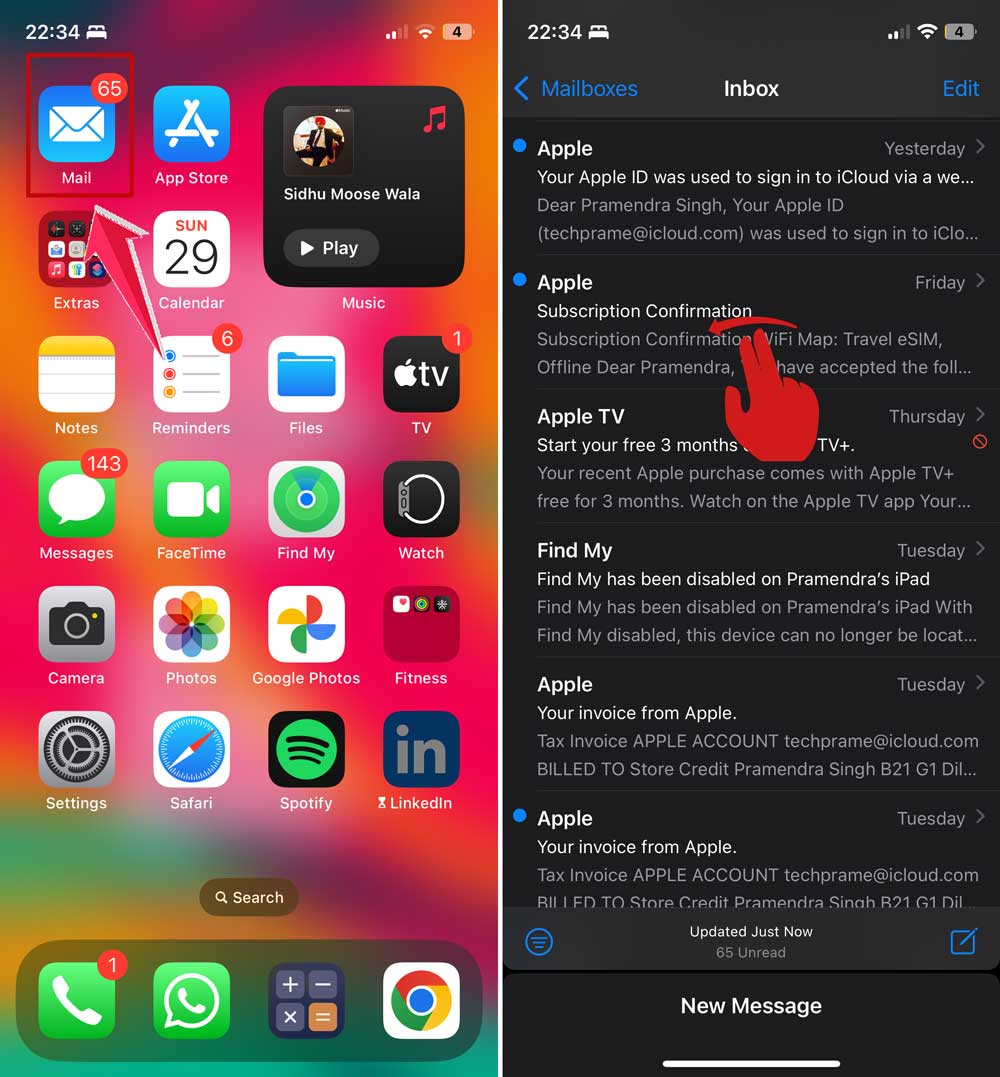
- Tap “More.”
- Select “Move to Junk.”

This action helps train your device’s spam filter, improving its accuracy over time.
Method 3: Adjust Mail Privacy Protection Settings
To further reduce spam, you can adjust your Mail Privacy Protection settings:
- Go to Settings > Apps > Mail
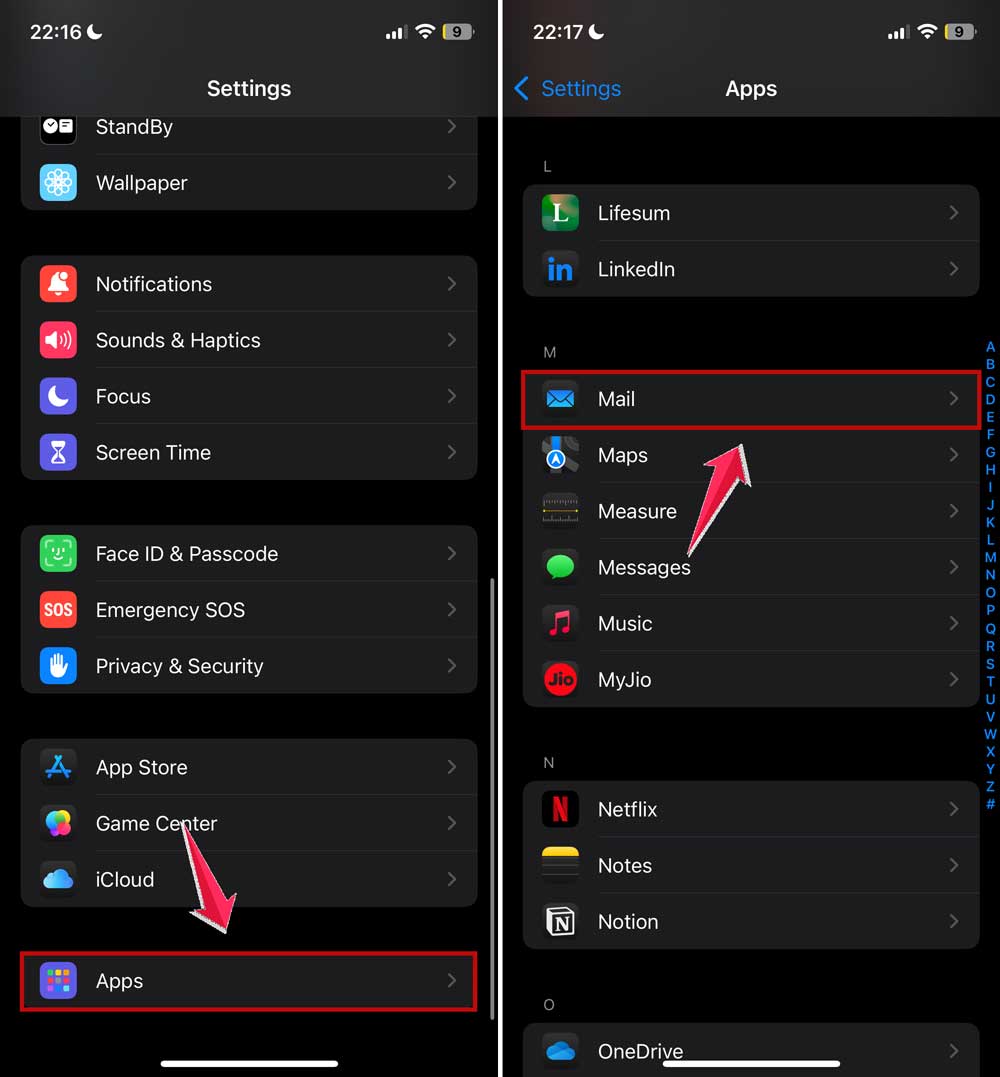
- Then click on Privacy Protection.
- Turn on “Protect Mail Activity.”

This feature prevents spammers from knowing if you’ve opened their emails, making you a less attractive target.
Method 4: Use iCloud Email Aliases
iCloud email aliases are a great way to manage incoming mail and reduce spam:
- Go to Settings > [Your Name] > iCloud
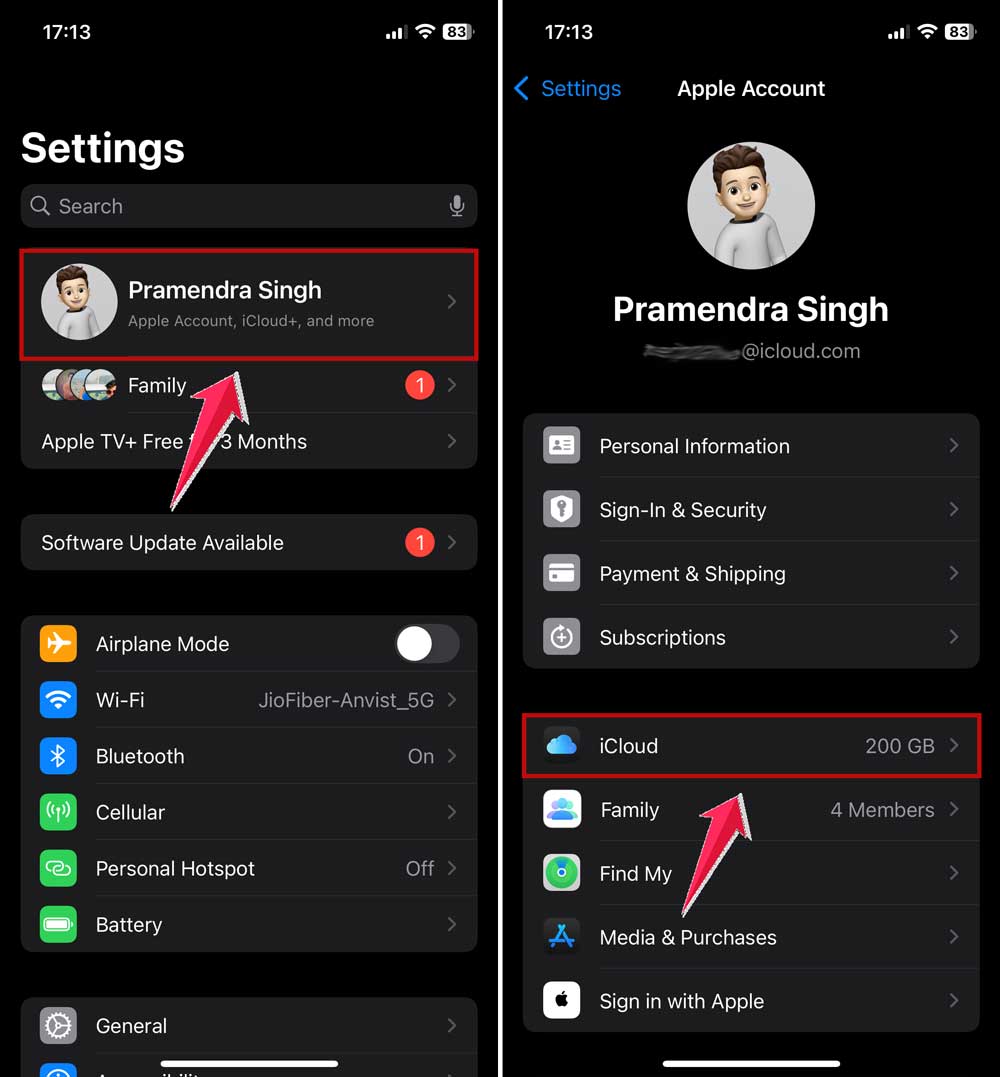
- Then click on iCloud Mail.
- Now click on Addresses.
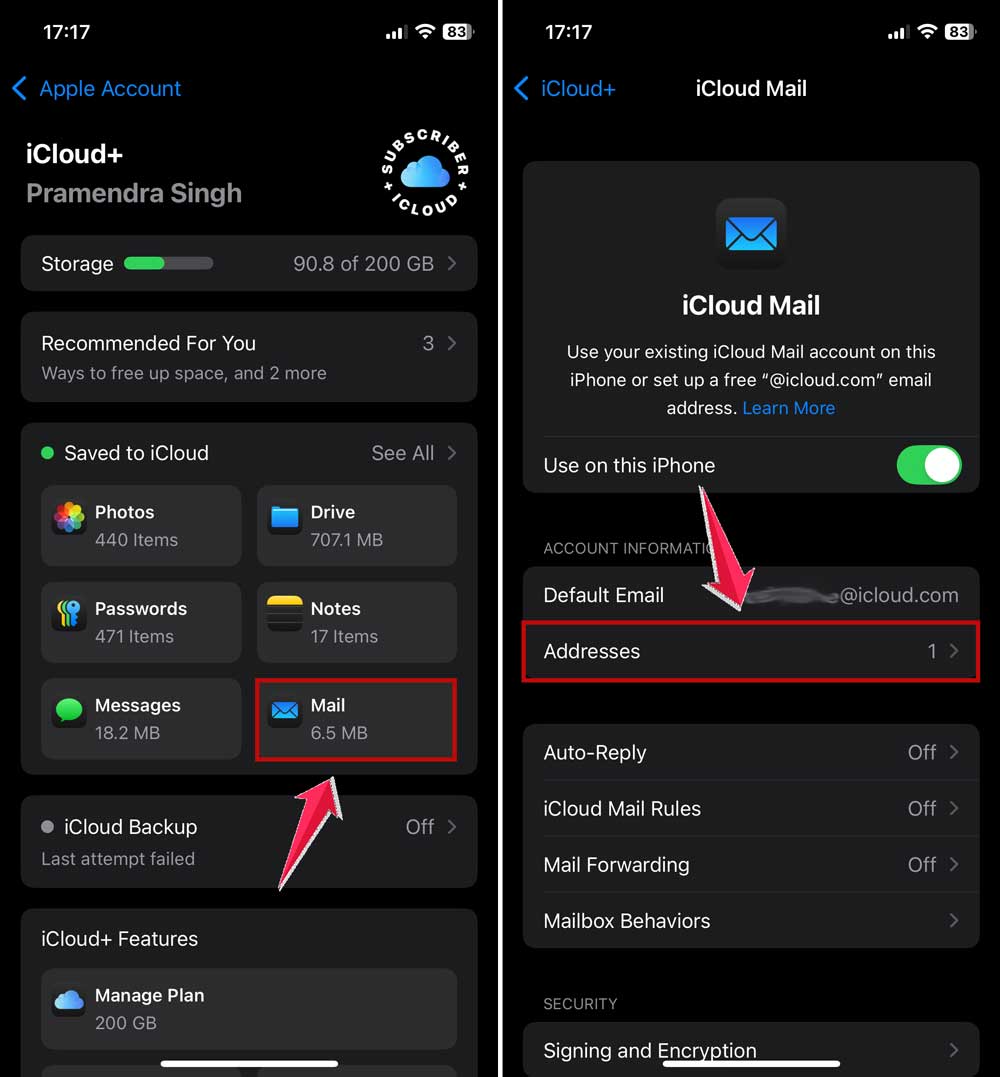
- Tap on Add Alias.
- Choose a unique alias and description.

Use these aliases for online registrations and subscriptions. If one starts receiving spam, you can easily disable it without affecting your main email address.
Method 5: Enable Junk Mail Filtering
Make sure your junk mail filter is enabled:
- Go to Settings > Apps > Mail.
- Scroll down and ensure “Filter Junk Mail” is turned on.
This setting allows iOS to automatically detect and filter out potential spam emails.
Method 6: Use Third-Party Email Apps
Consider using third-party email apps with advanced spam filtering features. Apps like Gmail, Outlook, or specialized anti-spam apps can offer additional layers of protection.
Method 7: Be Cautious with Your Email Address
Prevention is key. Be careful about sharing your email address online or signing up for services. Use temporary email services for one-time registrations when possible.
Method 8: Regularly Clean Your Inbox
Make it a habit to regularly clean your inbox:
- Delete old spam emails.
- Unsubscribe from newsletters you no longer want.
- Review your contacts and remove any you don’t recognize.
Method 9: Report Phishing Attempts
If you receive suspicious emails that appear to be phishing attempts, report them:
- Open the email.
- Tap the flag icon at the bottom.
- Select “Report Junk Mail.”
This helps improve overall spam detection for all users.
Method 10: Use Hide My Email with iCloud+
If you have an iCloud+ subscription, take advantage of the “Hide My Email” feature:
- Go to Settings > [Your Name] > iCloud
- Then click on Hide My Email.
- Tap “Create New Address.”

This generates unique, random email addresses that forward to your real inbox, keeping your actual email address private.
What are some advanced ways to prevent spam on your iPhone and iPad?
Here are some more powerful ways to keep spam out of your inbox:
1. Use tough passwords for your email accounts.
I know, I know – you’ve heard it before. But trust me, using tough passwords for your email accounts is super important. It stops sneaky people from breaking into your email and using it to send spam.
So, what makes a good password? Think long – at least 12 characters. Mix it up with letters, numbers, and symbols.
And here’s a biggie – don’t use the same password for different accounts. It’s a pain to remember, but it’s worth it to keep the spammers out.
2. Always update your iPhone or iPad’s software when new versions come out.
Next, let’s talk about keeping your iPhone or iPad up to date. You know those software updates that pop up? Don’t ignore them! They’re not just for new emojis (although those are fun too).
These updates often come with better spam filters, fix security issues, and add new ways to protect your privacy. So next time you see that update notification, go ahead and tap it. Your inbox will thank you.
3. Be careful with links and files in emails, especially if you don’t know the sender.
Now, let’s get into email safety. We all get emails with links or attachments, right? But here’s the thing – be super careful, especially if you don’t know who sent it. Before you click on anything, take a second to check it out.
Does the sender’s email address look legit? Does the message seem weird or out of the blue? If anything feels off, just don’t click. It’s better to be safe than sorry.
4. Disposable email services give you a temporary email address to use when signing up for things online.
Lastly, let me tell you about a cool trick – disposable email services. These give you a temporary email address to use when you’re signing up for stuff online.
It’s pretty neat because you don’t have to give out your real email. If that temp address starts getting spam, no big deal – you can just delete it. Meanwhile, your main inbox stays nice and clean.
These advanced tips can really boost your protection against spam. They take a bit more effort, but they’re worth it to keep your inbox spam-free.
What can you do if spam keeps coming despite your efforts?
Sometimes, even after trying everything, you might still get spam. Here’s what you can do:
1. Reach out to your email provider’s support team
They can check if there’s a problem with your account and offer specific advice for their email service. If they find out something serious, they can help you set up additional filters or protection.
2. If spam is really out of control, you might need a new email address
Consider this if you’re getting way more spam than normal emails. Your current email address is very old or widely shared. You’ve tried everything else and spam is still a big problem.
Remember, changing your email is a big step. Make sure to tell your contacts and update your important accounts.
3. Stay informed about new ways spammers try to trick people
This helps because you’ll spot new types of spam more easily. You can adjust your spam-fighting methods. You’ll be less likely to fall for scams.
To keep learning, read tech news websites. Follow cybersecurity experts on social media. Pay attention to warnings from your email provider.
By staying alert and using these strategies, you can handle even stubborn spam problems. It might take some time, but you can get your inbox under control.
The takeaway
You’ve now got the tools to fight back against spam on your iPhone and iPad. Remember, tackling spam is an ongoing process, but it’s one that gets easier with time and practice.
Start by using the built-in iOS features we’ve discussed. Block problem senders, mark suspicious emails as junk, and take advantage of Mail Privacy Protection. These simple steps can make a big difference right away.
Don’t forget the power of prevention. Be cautious about where you share your email address online. Consider using email aliases or temporary addresses for online signups. It’s much easier to avoid spam than to get rid of it later.
Most importantly, don’t let spam emails control your digital life. With the strategies you’ve learned, you can keep your inbox cleaner and more secure. Take action today, and enjoy a better email experience on your Apple devices. Your future self will thank you for the time and stress you’ve saved!
How has spam affected your iPhone or iPad use? Share your story in the comments – your experience might help others tackle their own spam problems!