


Are you tired of sending plain, boring emails that get lost in the inbox shuffle? You’re not alone. Millions of Gmail users struggle to make their messages stand out. The problem? Gmail doesn’t have a built-in HTML editor, leaving you wondering how to create those eye-catching emails you see from businesses and savvy marketers.
Maybe you’re planning an important newsletter, trying to impress a potential client, or just want to spice up your personal correspondence. Whatever your reason, the lack of easy HTML options in Gmail is frustrating. You know visually appealing emails get better results, but how do you create them without being a coding expert?
Don’t worry – you’re in the right place. In this guide, we’ll walk you through several easy methods to send HTML emails right from your Gmail account.
Whether you’re a complete beginner or have some tech skills, you’ll find an approach that works for you. Get ready to transform your emails from dull to dazzling, all without leaving your familiar Gmail interface!
What are HTML emails?
HTML emails are like regular emails that have a makeover. They use a special code (don’t worry, you don’t need to learn it) to make your messages look more appealing and organized. Think of it as dressing up your email in its Sunday best.
So, how do HTML emails jazz up your messages?
1. They add some color to your life: With HTML, you can use different colors and text styles. Want to make something stand out? Boom! Make it red or bold. It’s like highlighting but for grown-ups.
2. They let you show, not just tell: You can add pictures, logos, or graphics to your email. It’s like sending a mini billboard right to someone’s inbox.
3. They keep things tidy: HTML lets you organize your email into neat columns. It’s like having shelves for your words instead of throwing everything in a pile.
4. They give your words some personality: While there are some limits, you can use different fonts. It’s like choosing different voices for your message.
5. They make your email clickable: You can add buttons or links that readers can actually click on. It’s like turning your email into a mini-website.
How are HTML emails different from plain text?
Let’s talk about the difference between HTML and plain text emails. You know those basic emails that are just words on a screen? Those are plain text emails. Now, HTML emails are like plain text emails that got a fancy makeover.
With HTML emails, you can do a lot more than just type words. You can add colors, change how the text looks, and even include pictures. It’s like giving your email a whole new wardrobe instead of just sticking with the same old t-shirt and jeans.
Why might you want to use HTML in your emails?
Here’s the cool thing about HTML emails – they can really make your message pop. Think about it:
- They’re eye-catching. A well-designed HTML email is like a bright neon sign in a sea of plain text billboards.
- You can make your point clearer. With HTML, you can highlight the important stuff so your readers don’t miss it.
- They’re more engaging. You can add buttons and links that your readers can click on right in the email.
- They look more professional. If you’re trying to impress someone, an HTML email can make you look like you really know your stuff.
But wait, are there any downsides?
Now, HTML emails aren’t all sunshine and rainbows. There are a few things to watch out for:
- Sometimes they don’t play nice with all email programs. Your beautiful design might look wonky on someone else’s screen.
- They take more time to create. You can’t just type and hit send – you need to think about design too.
- If you go overboard with the fancy stuff, your email might end up in the spam folder. Nobody wants that!
So, that’s the scoop on HTML emails. They’re like the Swiss Army knife of the email world – more features, but also a bit more complicated. In the next part, we’ll chat about how you can start sending these snazzy emails right from your Gmail account.
How to send HTML emails using Gmail?
Method 1: Copy and Paste Rendered HTML
This is the simplest method for occasional HTML emails:
- Create your HTML email content using a text editor or HTML email builder.
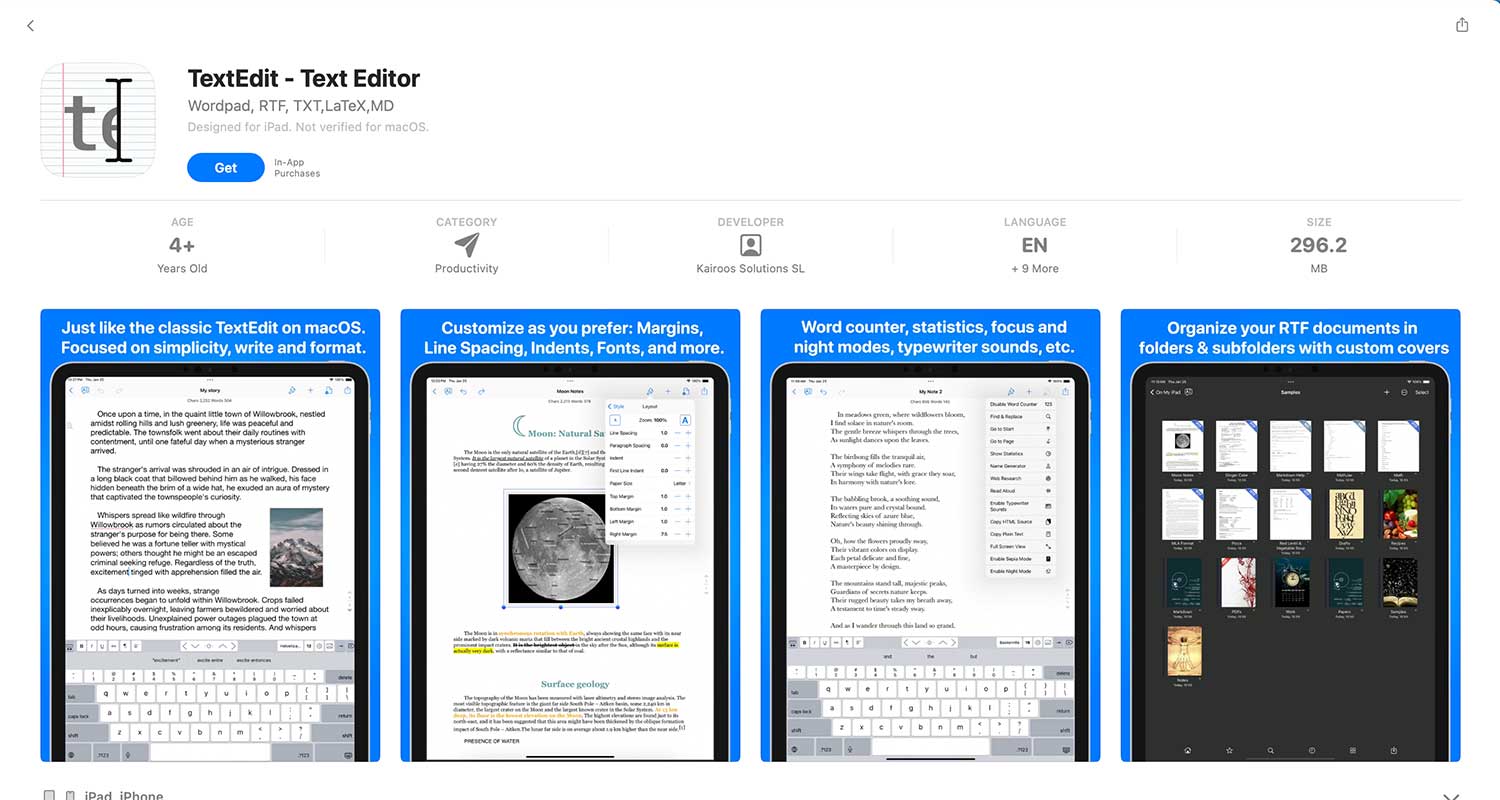
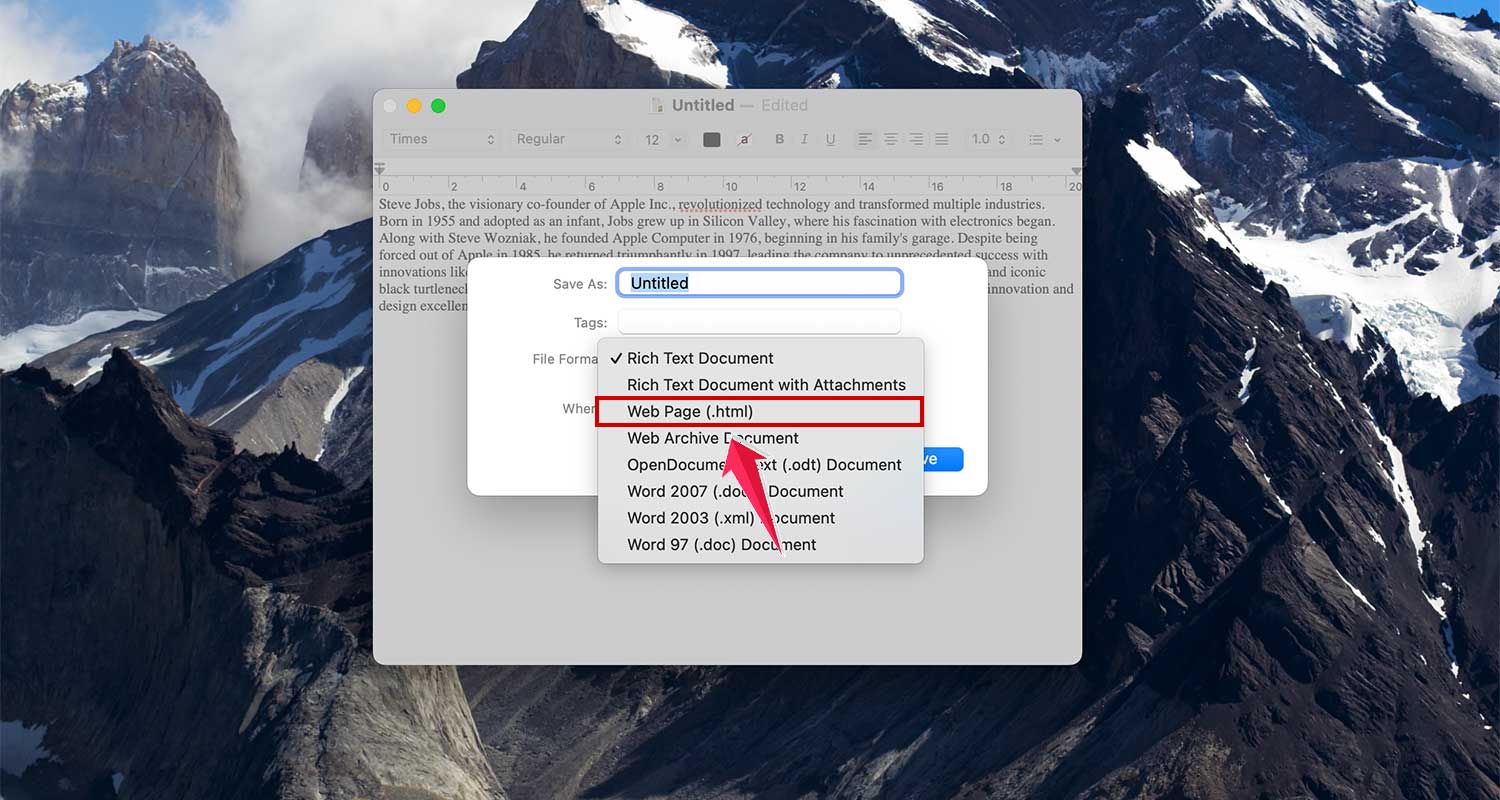
- Save the file with a .html extension.
- Open the HTML file in a web browser to see how it renders.
- Select all the content (Ctrl+A on Windows, Cmd+A on Mac) and copy it.

- Open Gmail and start a new message.

- Paste the copied content into the email body.
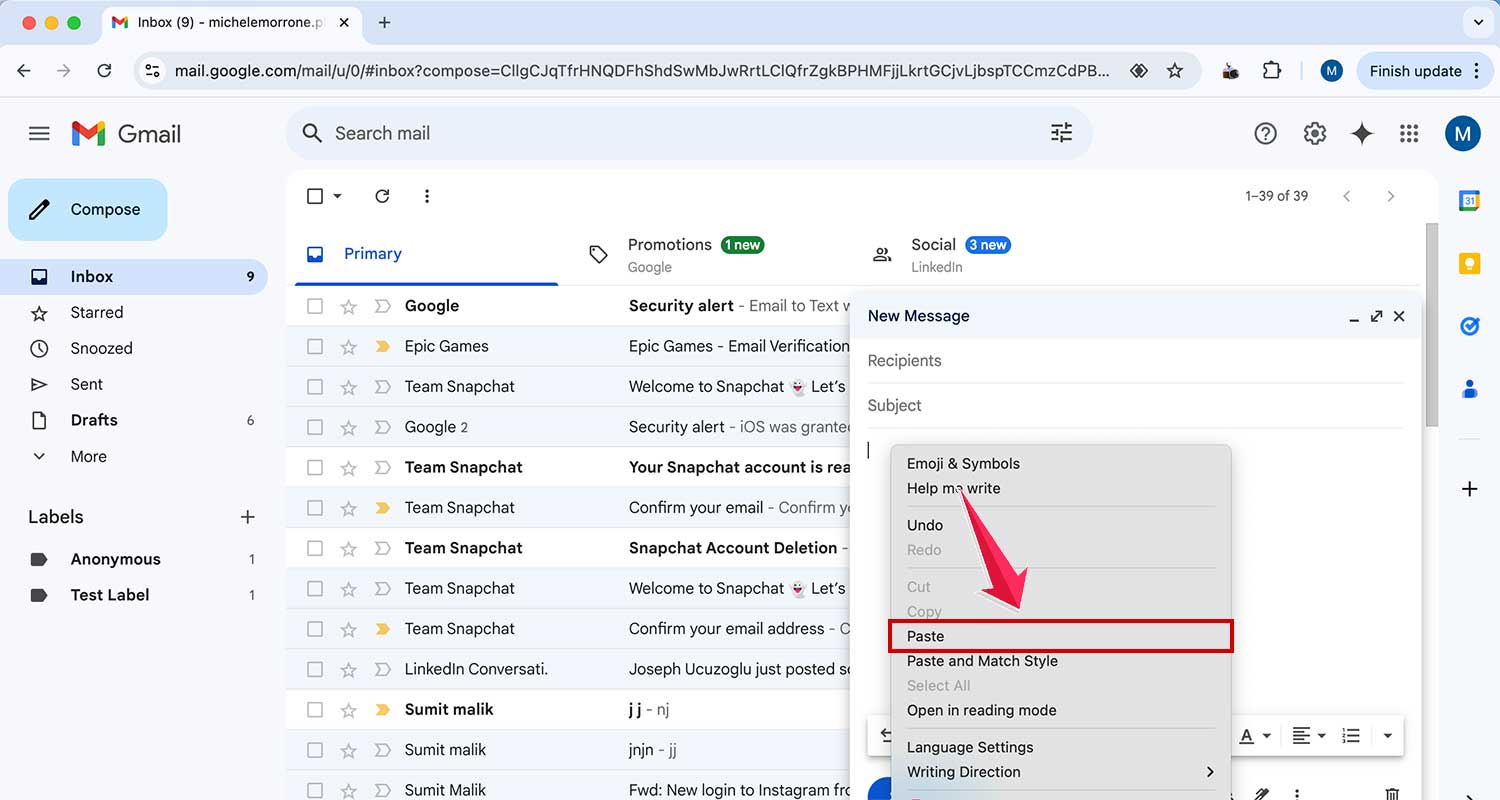
- Quick and easy for simple designs.
- No additional tools required.
- Limited editing options once pasted.
- May not work well for complex designs.
Method 2: Use Chrome Developer Tools
For more control over your HTML, try this method:
- Open Gmail and start a new message.
- Right-click in the compose window and select Inspect.

- In the developer tools pane, find the div element with contenteditable=true.
- Right-click on this element and choose Edit as HTML.

- Paste your HTML code into this section.

- Click outside the developer tools to see your rendered email.

- More control over the HTML.
- Allows for easier editing.
- Requires basic knowledge of HTML and Chrome Developer Tools.
- Can be time-consuming for frequent use.
Method 3: Use a Chrome Extension (Recommended)
For the easiest and most flexible option, consider using a Chrome extension like GMass:
- Install the GMass extension for Chrome.

- Open Gmail and start a new message.
- Click the GMass settings button.

- Select the “HTML” option.

- Paste your HTML code into the editor.
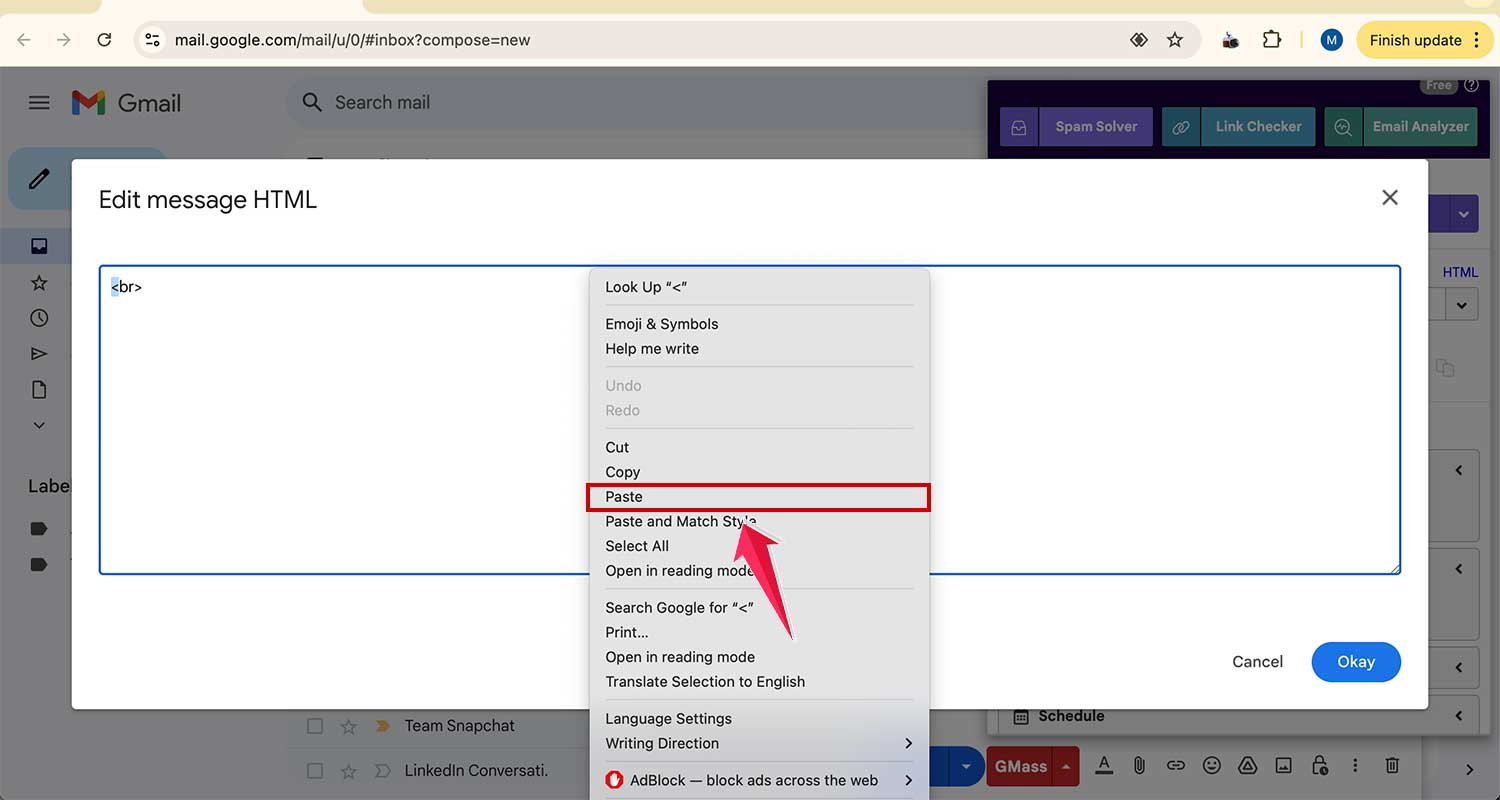
- Click “Okay” to see your rendered email in the compose window.

- User-friendly interface.
- Easy editing and previewing.
- Saves templates for future use.
- Additional email marketing features.
- Requires installing a Chrome extension.
What should you keep in mind when making HTML emails for Gmail?
Let’s chat about some important things to remember when you’re creating fancy HTML emails in Gmail. It’s not rocket science, but there are a few tricks to know.
1. Your images need a home on the internet
When you want to add pictures to your email, you can’t just attach them like usual. Here’s what you need to do instead:
1. Find a place for your images to live online. Think of it like finding an apartment for your photos. You can use Google Drive, Imgur, or your own website if you have one.
2. Make sure anyone can see your images. If you’re using Google Drive, check that your sharing settings allow anyone with the link to view the image.
3. Use the direct link to your image. It’s like giving someone the exact address to your photo, not just the neighborhood it’s in.
Why bother with all this? Well, it makes your emails load faster and look more professional. Worth the extra effort, right?
2. Keep your styling simple
Now, if you’ve done any web design, you might be used to using something called external stylesheets. But Gmail isn’t a fan of those. Instead, try these:
1. Use inline CSS. This is like dressing each part of your email individually, rather than giving it a whole wardrobe to choose from.
2. Use embedded CSS. This is like putting a clothing rack right in your email, with styles that any part can use.
This way, your email will look great no matter where it’s opened.
3. Be picky with your fonts
You might want to use some fancy fonts, but Gmail has some strict rules about this. Here’s how to work with that:
1. Stick to fonts Gmail likes. These are usually common ones like Arial, Helvetica, Georgia, or Times New Roman.
2. Have a backup plan for fonts. It’s like telling your email, “If you can’t wear this outfit, try this one instead.”
3. For special text, like your logo, consider using an image. It’s like taking a picture of the text in the font you want, rather than trying to use the font itself.
Remember, the goal is to make your email look good and work well. With these tips, you’re well on your way to creating awesome HTML emails in Gmail. Ready to give it a try?
What if things don’t go as planned?
Okay, so you’ve created your HTML email and you’re ready to send it. But wait! Sometimes things might not look quite right. Don’t worry, it happens to everyone. Let’s talk about some common hiccups and how to fix them.
Problem 1: Your pictures are not loading
You’ve added some great images, but they’re not showing up. Frustrating, right? Here’s what to check:
- Did you give your images an online home? Remember, they need to live on the internet, not just on your computer.
- Are you using the full web address for your images? It’s like giving someone your full address, not just your street name.
Problem 2: Your email looks different everywhere you open it
You thought your email looked perfect, but now it’s all wonky on your phone or in a different email app. What gives?
- Try opening your email in different apps and on different devices. It’s like trying on clothes in different mirrors.
- If it looks bad in some places, you might need to simplify your design. Sometimes, simpler is better!
Problem 3: Your email is being sent to Spam Land
You’ve crafted a beautiful email, but it’s ending up in the spam folder. That’s no fun for anyone.
- Avoid using too many spammy words. You know, like “Free!” or “Buy now!” Too many of these can make your email look suspicious.
- Don’t go overboard with your HTML. It’s like over-accessorizing an outfit – sometimes less is more.
- Make sure you’re following the rules for sending emails. There are laws about this stuff!
Remember, creating HTML emails is a bit of an art. It might take some practice to get it just right. But don’t get discouraged! With each email you send, you’ll get better and better at avoiding these common pitfalls. Soon, you’ll be sending beautiful, problem-free HTML emails like a pro!
The takeaway
Sending HTML emails in Gmail is easier than you might think. While it’s true that Gmail doesn’t offer a built-in HTML editor, you now have several user-friendly options at your fingertips.
We’ve covered methods ranging from simple copy-paste techniques to using helpful Chrome extensions. Each approach has its merits, so choose the one that best fits your skill level and needs. Remember, the goal is to create emails that look great and engage your recipients, without spending hours on complex coding.
Don’t let the lack of a native HTML editor hold you back. With these techniques, you can start sending beautifully designed emails right away. Whether it’s for business or personal use, your messages will stand out and make a lasting impression.
Ready to give it a try? Pick one of the methods we’ve discussed and start experimenting today. Your next email could be the one that gets noticed, sparks a conversation, or lands that important deal. The power of HTML emails is now in your hands – make the most of it!
Have you tried sending HTML emails in Gmail before? Share your experience or ask questions in the comments – we’re here to help!





