


Is your phone running out of storage? Or maybe you’re getting ready to sell it? Whatever your situation, you might be considering removing Gmail from your device. Don’t worry – I’m here to help you through this process step by step.
First things first: let’s talk about why you might want to remove Gmail. Maybe you’re trying to free up space, or you’re preparing to hand your phone over to someone else. Or perhaps you’re just trying to cut down on distractions. Whatever your reason, it’s important to understand what removing Gmail actually means for you and your data.
Well, there’s a big difference between removing Gmail from your phone and deleting your entire Gmail account. When you remove Gmail from your phone, you’re just taking it off that device.
Your account still exists, and you can access it from other devices or through a web browser. But if you delete your Gmail account completely, that’s permanent. You’ll lose all your emails and won’t be able to use that email address again.
In this guide, I’ll show you how to safely remove Gmail from your phone without losing any important information. We’ll cover the process for both Android and iPhone, and I’ll even show you how to back up your data first.
How to remove Gmail from your phone
Thinking about removing Gmail from your phone? Don’t worry, it’s not as complicated as it might seem. Whether you’re freeing up space, preparing to sell your phone, or just decluttering your digital life, I’ll guide you through the process step by step.
1. Remove Gmail from Android phone
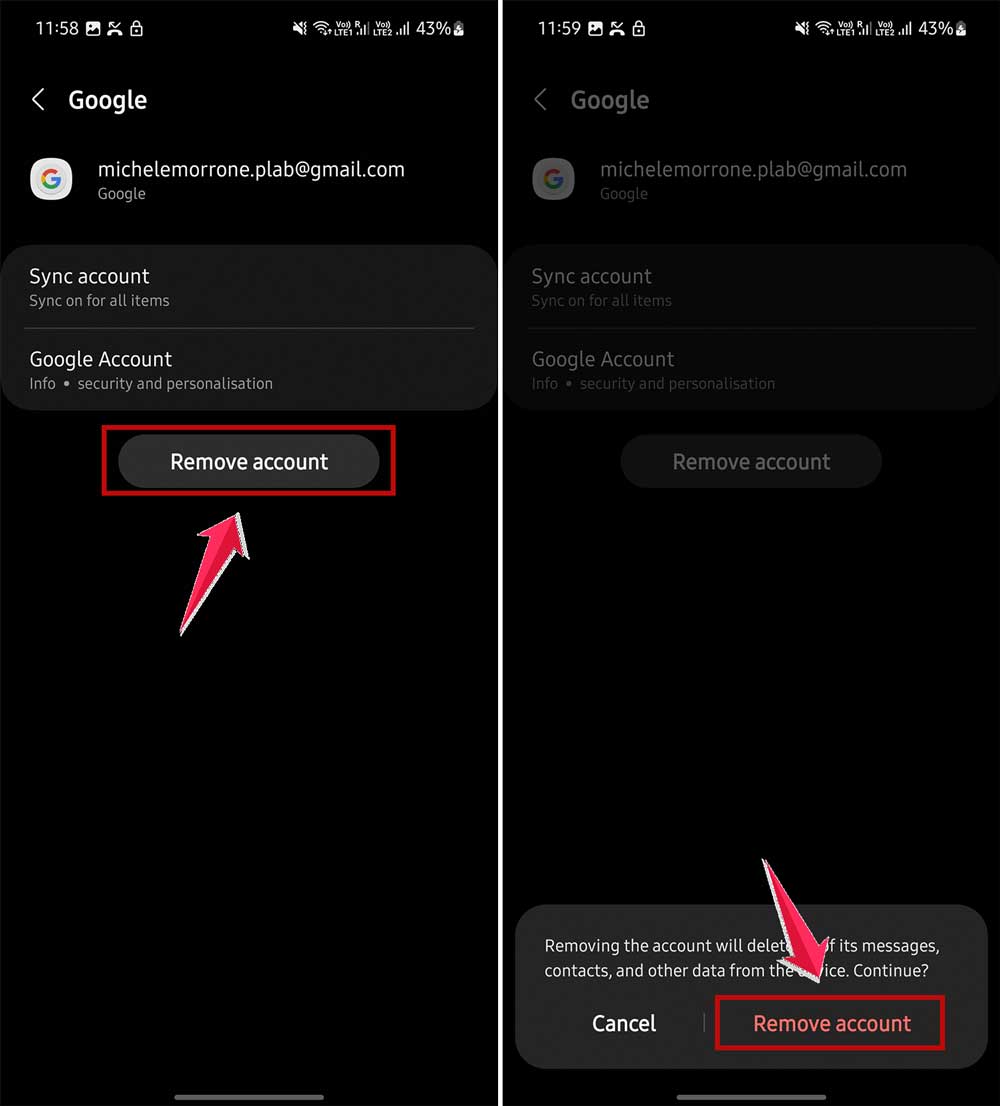
- Open your phone’s Settings app.
- Tap on “Accounts” or “Accounts & Sync“.

- Select “Google” or “Manage accounts“.
- Choose the Gmail account you want to remove.

- Tap “Remove Account“.
- Confirm by tapping “Remove Account” again.
2. Remove Gmail from iPhone
If you’re using an iPhone, here’s what you need to do:
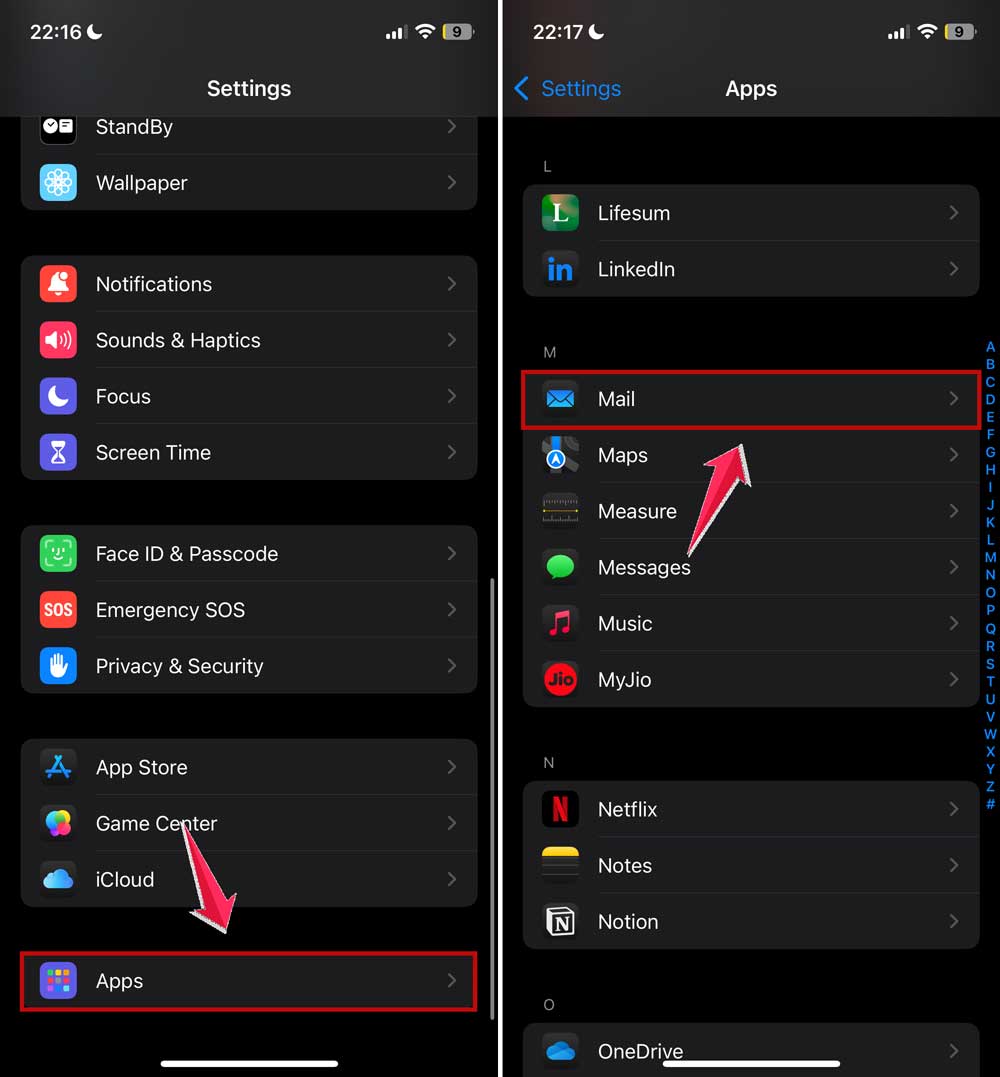
- Open the Settings app.
- Scroll down and tap “Apps“.
- Then find and click on “Mail“.
- Now click on “Mail Accounts“.
- Find and tap the Gmail account you want to remove.

- Tap “Delete Account“.
- Confirm by tapping “Delete from My iPhone“.

Remember, removing Gmail from your phone doesn’t delete your account. You can still access your emails from other devices or through a web browser.
3. Remove Gmail from the phone’s web browser
Want to remove Gmail from your phone’s web browser too?
Here’s how:
- Open your browser (like Chrome).
- Go to Settings and select your Google Account.
- Then click on “Sync“.

- Choose “Sign out and turn off sync“.
- Tap “Continue” to confirm.

4. Remove Gmail remotely (for lost or stolen phones)
If you’ve lost your phone or it’s been stolen, you can remove your Gmail account remotely:
- Sign into your Gmail account on another device.
- Click on your profile icon at the top and then on “Manage your Google Account“.

- Navigate to the Security tab.
- Scroll to “Your devices” and select “Manage all devices“.

- Find your lost device and select “Sign out“.

Remember, it’s always a good idea to back up your data before removing any accounts from your phone. This way, you won’t lose any important information. If you need help with backing up your data, just let me know!
How to delete Gmail from your phone
Deleting your Gmail account is a big deal. It’s not like uninstalling an app – it’s permanent and far-reaching.
Sometimes, what people really want is to remove Gmail from their phone, not delete the entire account. If that’s the case, we can remove it from the phone instead – it’s much simpler and less permanent.
But if you still want to delete your Gmail account, please note that all your emails will be gone for good. Those birthday wishes, important work emails, and funny cat videos your aunt sent – were all deleted. You won’t be able to use that email address ever again. If it’s linked to other accounts, you’ll need to update those. And any services you’ve signed up for using your Gmail address might become inaccessible.
If you’ve thought it through and still want to delete your Gmail account, I’ll walk you through the steps. Just remember, this isn’t easily undone. Are you ready to start the deletion process?
Steps to delete your Gmail account
- Open the Settings app on your phone.
- Scroll down and tap on Google.
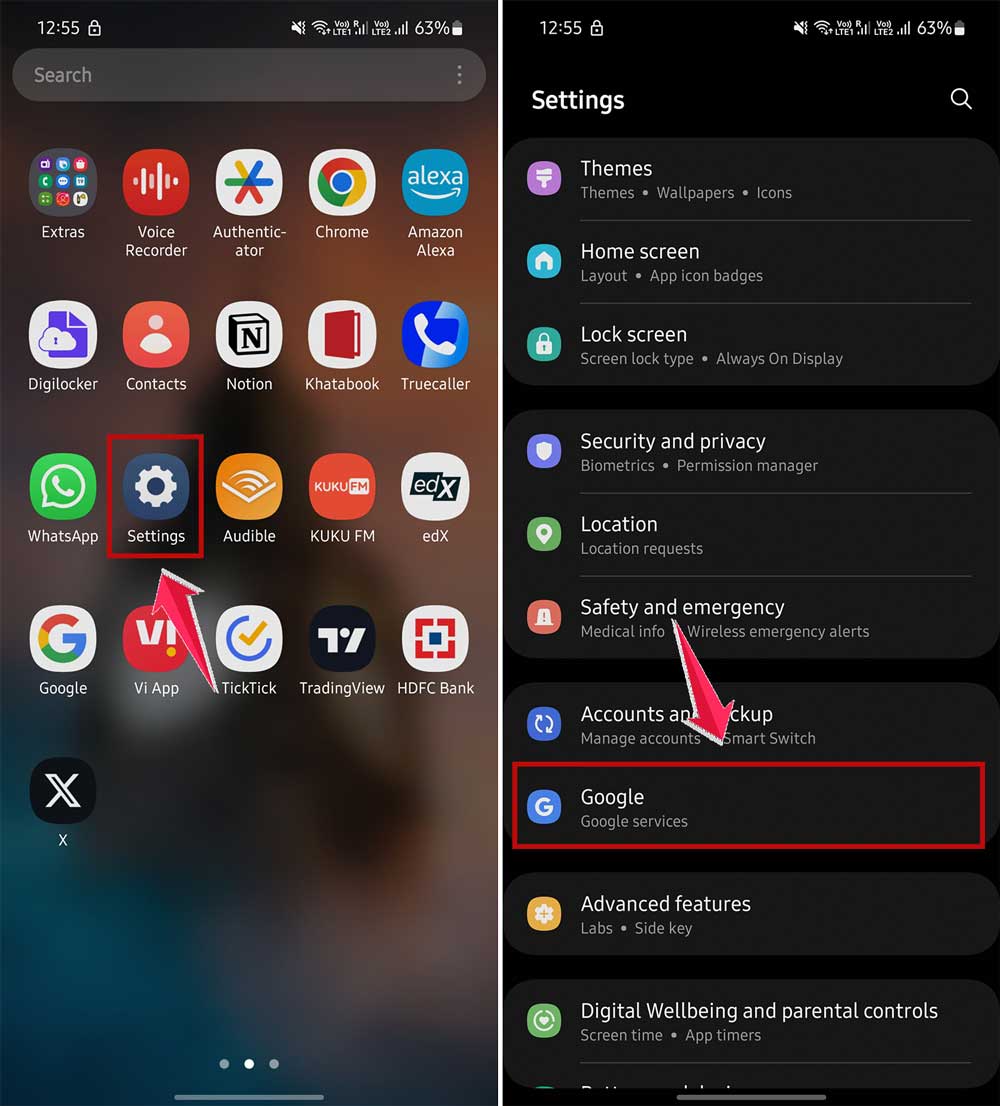
- Select Manage your Google Account.

- Go to the Data & Privacy tab.
- Scroll to Data from apps and services you use and tap Delete a Google service.

- You might need to sign in again here.
- Before deleting, consider backing up your data. Tap Download your data if you want to do this.

- When you’re ready, tap the trash can icon next to Gmail.
- Google will ask for an alternative email address that isn’t Gmail. You’ll need this to keep using other Google services.
- Check your new email for a verification message from Google and follow the instructions to complete the deletion.

After deleting, you won’t be able to send or receive emails with that Gmail address anymore. Your Gmail address and all your emails will be permanently deleted.
If you have second thoughts after deleting your account, you might still be able to recover it. Just go to Gmail and follow the recovery instructions. But act quickly – this option isn’t available indefinitely.
How to turn off Gmail notifications
One thing I want to discuss is sometimes people confuse turning off gmail notifications with deleting the account permanently. If this is the case with you, and you are getting too many notifications from Gmail, you can simply turn off notifications, and you will have peace of mind. You can easily turn off Gmail notifications using these steps.
- Open the Gmail app on your phone.
- Tap the three lines in the top-left corner.

- Scroll down and tap Settings.
- Choose the Gmail account you want to adjust.
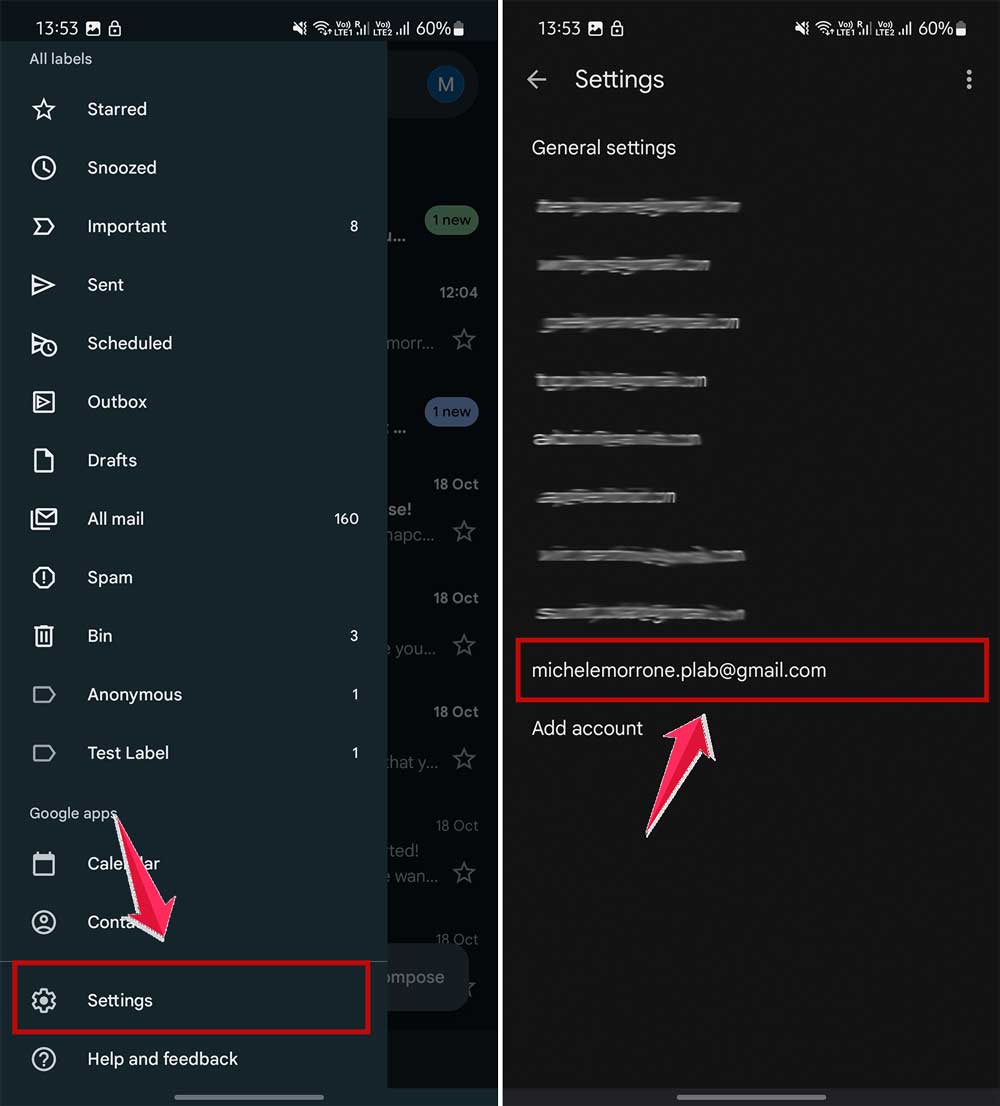
- Tap Notifications.
- Select None to turn off all notifications.
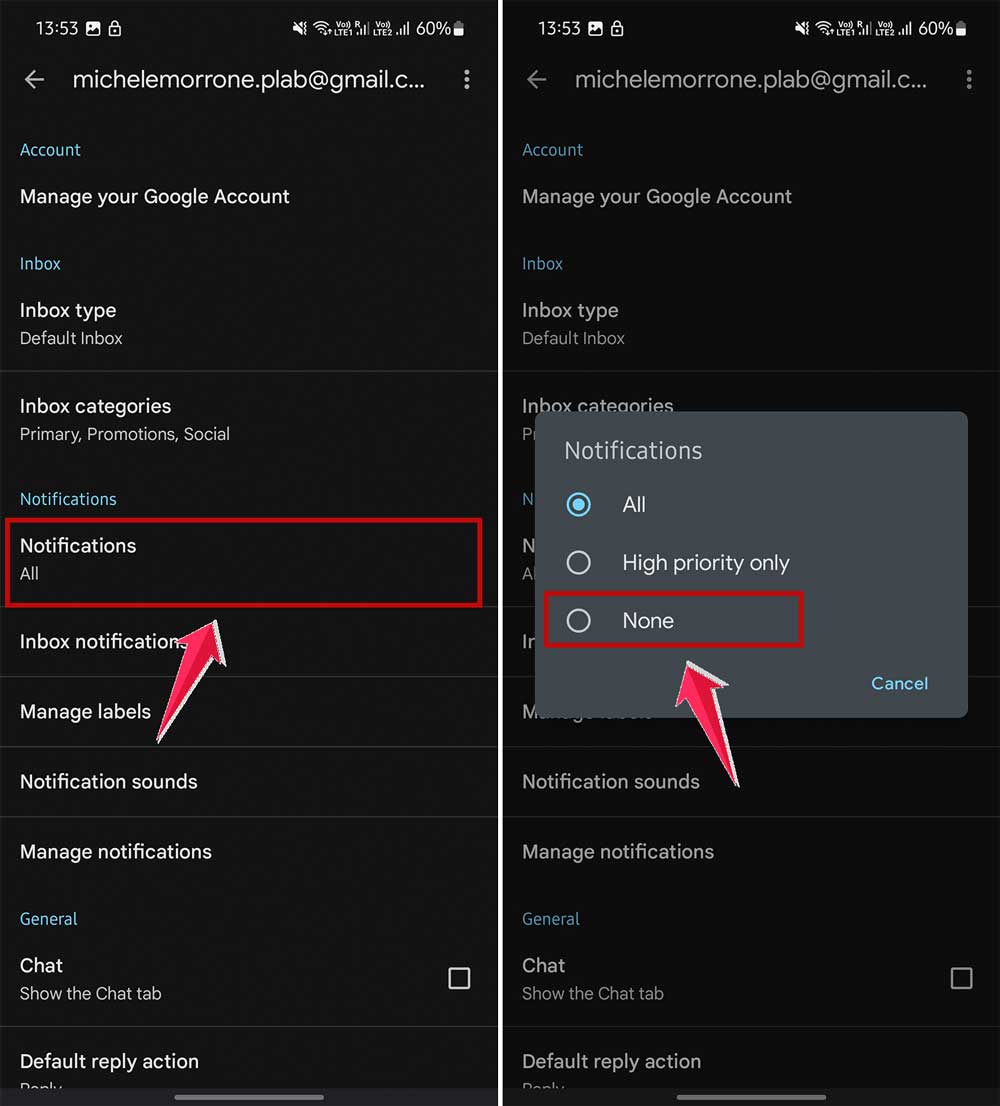
That’s it! Gmail won’t send you alerts anymore. You can check your emails when you’re ready. This works the same way on both iPhone and Android devices.
The takeaway
Managing your Gmail on your phone is simpler than you might think. We’ve covered a lot of ground, from removing Gmail to turning off notifications. Let’s recap the main points:
Removing Gmail from your phone doesn’t delete your account. It just takes it off your device, but you can still access your emails elsewhere. On the other hand, deleting your Gmail account is permanent. You’ll lose all your emails and won’t be able to use that address again. Think carefully before taking this step.
If you’re just tired of constant notifications, you can turn them off without removing Gmail. This way, you can check your emails when it’s convenient for you. And if your phone is lost or stolen, you can manage your account remotely to keep your information safe.
Remember, you’re in control of your digital life. Whether you want to remove Gmail, delete your account, or just quiet those notifications, you now know how to do it. Take a moment to think about what works best for you, and don’t be afraid to make changes. Your phone should work for you, not the other way around.





