


Did you know that every day, thousands of people get locked out of their Gmail accounts? If you’re reading this, you’re probably one of them right now.
You’ve forgotten your password, and to make matters worse, you can’t use the usual recovery methods. No access to your phone number or backup email? Don’t panic – you’re not alone, and there are still ways to get back into your account.
You’re probably feeling frustrated and maybe even a bit scared. Your Gmail account isn’t just for emails – it’s often the key to your entire online life. Work documents, personal messages, photos, and access to other services are all tied to that one account. Being locked out can bring your digital world to a screeching halt.
But take a deep breath. Even without your phone or backup email, you still have options. In this guide, we’ll walk you through step-by-step methods to recover your Gmail password.
We’ll explore alternative ways to verify your identity and regain access to your account. Plus, we’ll share tips to prevent this stressful situation from happening again.
How does Gmail usually handle account recovery?
When you’re trying to get back into your Gmail account, it’s helpful to know what options are typically available. Let’s break down the standard recovery methods and then explore what you can do when these aren’t accessible to you.
1. Verification code to your phone
If you’ve linked your phone number to your Gmail account, Google can send a verification code via text message or phone call. This is often the quickest way to prove it’s really you trying to access the account.
2. Recovery link to your backup email
Google also allows you to set up a backup email address. If you forget your password, they can send a recovery link to this alternate email. It’s a handy option if you can’t access your phone.
3. Security questions
Some accounts have security questions set up. These are personal questions you chose and answered when setting up your account. Correctly answering these can help verify your identity.
What if you can’t use these methods?
Here’s the tricky part – you’re reading this because you don’t have access to these standard options. Maybe you’ve changed your phone number, can’t access your backup email, or never set up security questions. Don’t worry, though. There are still ways to recover your account, which we’ll explore in the next sections.
Remember, Google uses these methods to keep your account safe from unauthorized access. While it might feel frustrating right now, these security measures are there to protect you.
Let’s move on to explore what you can do when these standard recovery options aren’t available to you.
How to reset your Gmail password without a phone or backup email?
Steps to recover your Gmail password without a phone or backup email
1. Start with the account recovery page. Your first step is to visit the Google Account Recovery page. This is where you’ll begin the process of regaining access to your account.
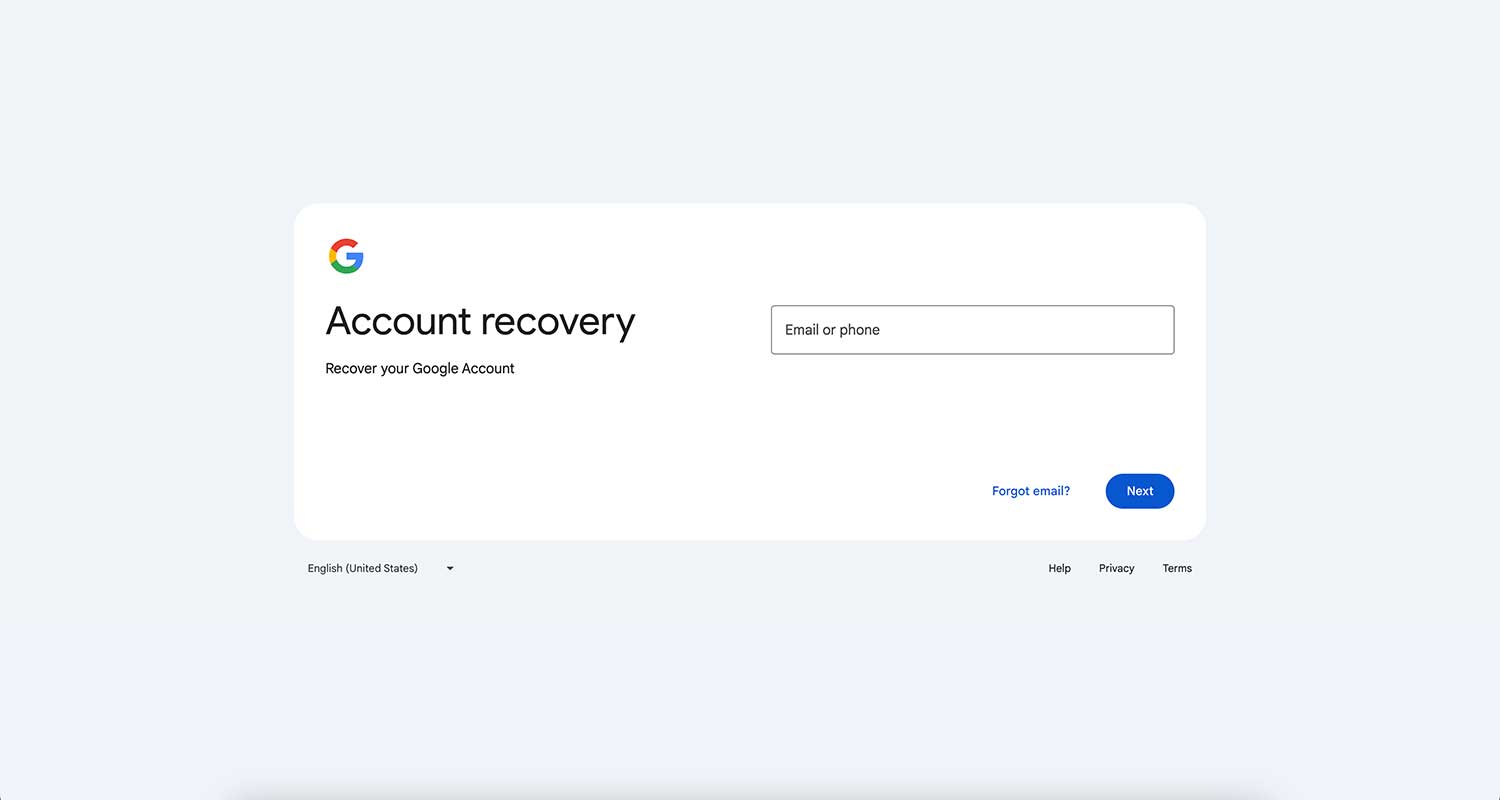
2. Enter your Gmail address. Type in the email address associated with the Gmail account you’re trying to recover. This helps Google identify which account you’re trying to access.

3. Try another way to sign in. When prompted for your password, look for the option that says “Try another way to sign in” or something similar. Click on this to explore alternative recovery methods.

4. Use a trusted device. If you’ve previously signed into your Gmail account on another device, like your smartphone or tablet, Google might send a notification to that device. If you receive this notification, you can use it to verify your identity and regain access to your account. Simply follow the on-screen instructions to complete the verification process.
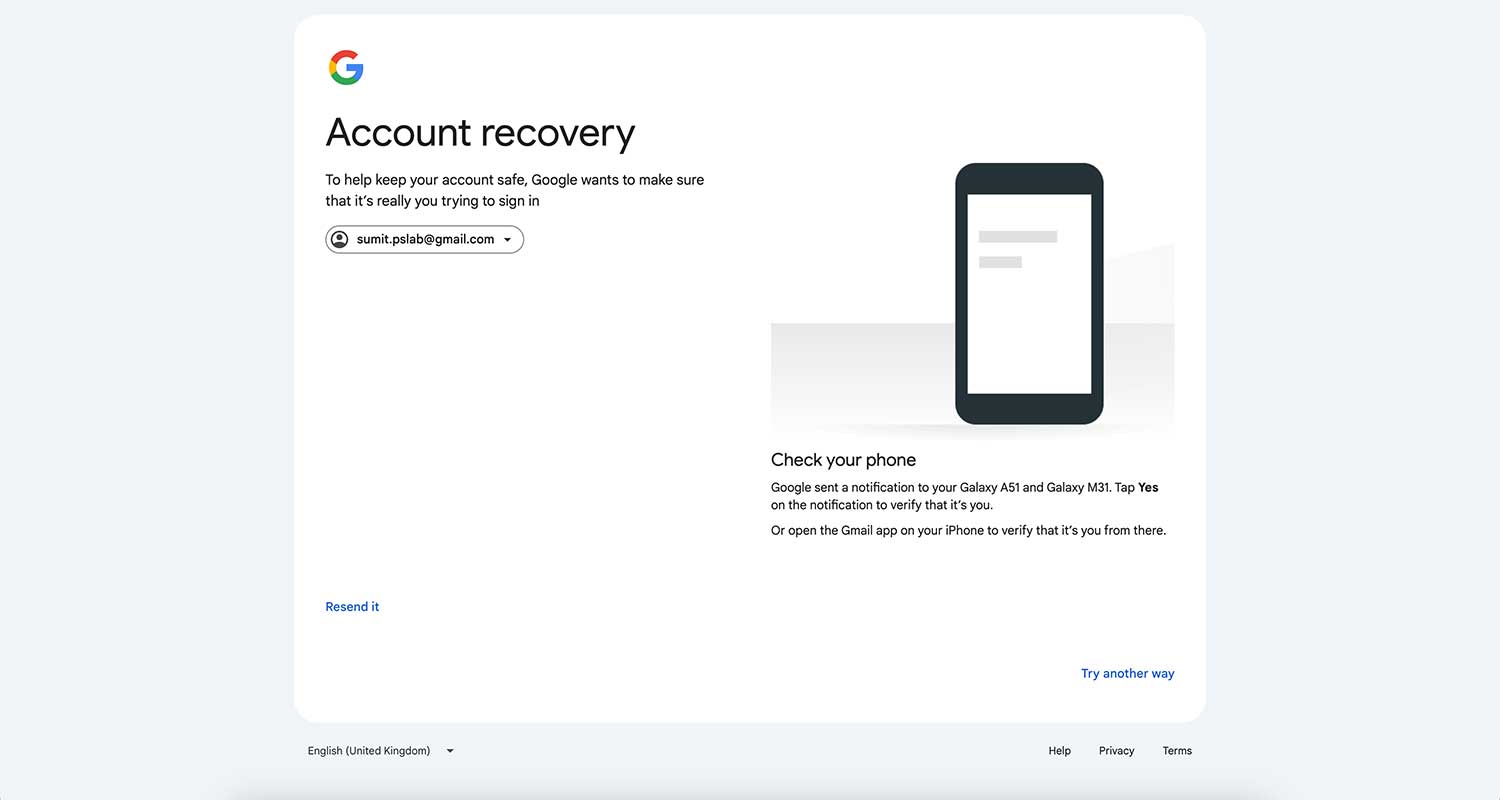
5. Wait for the password reset link. If you don’t have access to a trusted device, Google may offer to send you a password reset link after a 72-hour waiting period. This waiting period is a security measure to protect your account from unauthorized access attempts.
During this time, it’s crucial to:
- Check your email regularly, including your spam or junk folder
- Keep at least one device signed into your Gmail account (if possible)
6. Reset your password. After the waiting period, you should receive an email from Google with a link to reset your password. Click on the “Get Started” link in the email, which will take you to a page where you can create a new password. Follow the on-screen instructions carefully to set up your new password and regain access to your account.
What to do if these steps don’t work
If you’ve tried all of the above steps and still can’t access your account, don’t lose hope. There are a few more options you can explore:
1. Contact Google Support
While Google doesn’t offer direct phone support for Gmail, you can still reach out for help through their support channels:
- Visit the Gmail Help Forum or Google Account Help Center.
- Look for contact options like email support or live chat.
- Provide as much information as possible about your account and the issues you’re facing.
- Follow their instructions carefully and be patient – it may take some time to resolve your issue.

2. Use account recovery services
As a last resort, you might consider using third-party account recovery services. However, be extremely cautious with these options, as they can pose risks to your privacy and data security. Only consider reputable services, and understand that they may charge a fee for their assistance.
Preventing future password issues
Once you’ve regained access to your account, it’s crucial to take steps to prevent similar issues in the future:
1. Update your recovery options. Immediately add or update your phone number and recovery email in your Google Account settings. This will make future recovery processes much smoother.
2. Use a strong, unique password. Create a password that’s difficult to guess but easy for you to remember. Consider using a passphrase – a string of random words – rather than a traditional password.
3. Enable two-factor authentication (2FA). Two-factor authentication adds an extra layer of security to your account. Even if someone gets your password, they won’t be able to access your account without the second verification step.
4. Use a password manager. A password manager can help you create and store strong, unique passwords for all your accounts, reducing the risk of forgetting your Gmail password in the future.
5. Regularly review your account security. Make it a habit to review your account security settings periodically. This includes checking your recovery options, reviewing recent account activity, and updating your password if necessary.
The takeaway
You’ve been through a stressful experience, but you’ve made it through. Whether you’ve successfully recovered your account or are still working on it, remember that persistence is key. Google has these security measures in place to protect you, even if they feel frustrating right now.
Once you regain access to your account, take a moment to update your recovery options. Add a current phone number and backup email. Consider enabling two-factor authentication for an extra layer of security. These simple steps can save you from future headaches.
Remember, your online security is in your hands. By staying proactive and keeping your recovery information up to date, you can avoid the panic of being locked out of your account. Your future self will thank you for taking these precautions.
How do you plan to secure your Gmail account moving forward? Share your thoughts in the comments below.





