Looks like you’re having trouble accessing your Facebook business page? That’s definitely a headache, but no worries—I’m here to help you take back control!
Maybe a sneaky hacker has compromised your page, or maybe you’ve simply lost access for some reason. No matter the cause, it’s time to take action and reclaim your admin rights!
Ready to dive in? First, we’re going to visit the Facebook Help Center. Your secret weapon? A copyright form. Yes, it sounds super official because it is!
Submitting this form is your way of signaling to Facebook, loud and clear: “This is my page, and I need to be the boss again!” It’s an effective strategy to assert your ownership and regain access to your page. Let’s get started!
How To Recover My Facebook Page Admin?
#1 Using Facebook Support To Recover Business Manager
Follow these steps to reclaim your admin rights and take back control of your page. It’s easier than you think—like a mini-adventure on your computer. Let’s get started!
- Launch Your Expedition: Open Facebook on your desktop and log into the account linked to your page.

- Navigate to Your Profile: In the top right corner, click on your profile picture.

- Access Help & Support: You’ll find an option labeled “Help & Support.” Click on this to proceed.

- Explore the Help Center: This is your go-to resource for all things Facebook. Click on “Help Center”.

- Go to Policies & Reporting: On the left, find and click “Policies & Reporting”.

- Focus on Intellectual Property: Select the “Intellectual Property” option. This is crucial for the next steps.
- Focus on Copyright Issues: Under Intellectual Property, find and click “Copyright.”

- Locate the Magic Form: Look for a link that says “filling out this form” and click on it. This form is your golden ticket!

- Define Your Role: In the copyright report form, choose the right role. Are you the rights owner, representing an organization, or reporting for someone else? Make sure to choose correctly!
- Provide Your Details: Fill in your name, mailing address, and email. This will ensure Facebook can contact you.
- Clarify Ownership: Enter the name of the person or group that owns the page. Also, enter your country.
- Describe your situation: Briefly explain why you’re submitting this report. Include the URL of the page you’re trying to recover.
- Sign Digitally: Add your electronic signature to authenticate your request.

- Submit Your Claim: Hit “submit” to send your request to Facebook. You’ve now officially taken the steps to reclaim your page!

#2 Using Business Settings to Regain Admin Access to Your Facebook Business Page
Using Facebook’s Business Settings might be your best shot at regaining control. These settings are where you typically manage page access and ad campaigns.
Let’s walk through how to reclaim your admin privileges step-by-step.
- Navigate to Business Settings: Start by logging in to your personal account with admin access. Click on this link to go directly to Business Settings on Facebook.

- Go to the Pages Section: From the Business Settings menu, pick ‘Accounts’ and then ‘Pages’. This will bring you to a section where you can manage your pages.

- Identify Your Business Page: In the middle column, look for the business page you need. If you see your page listed, click on it.
- Add Yourself as an Admin: After selecting the page, click on “Add People” located on the right side. A pop-up will appear.
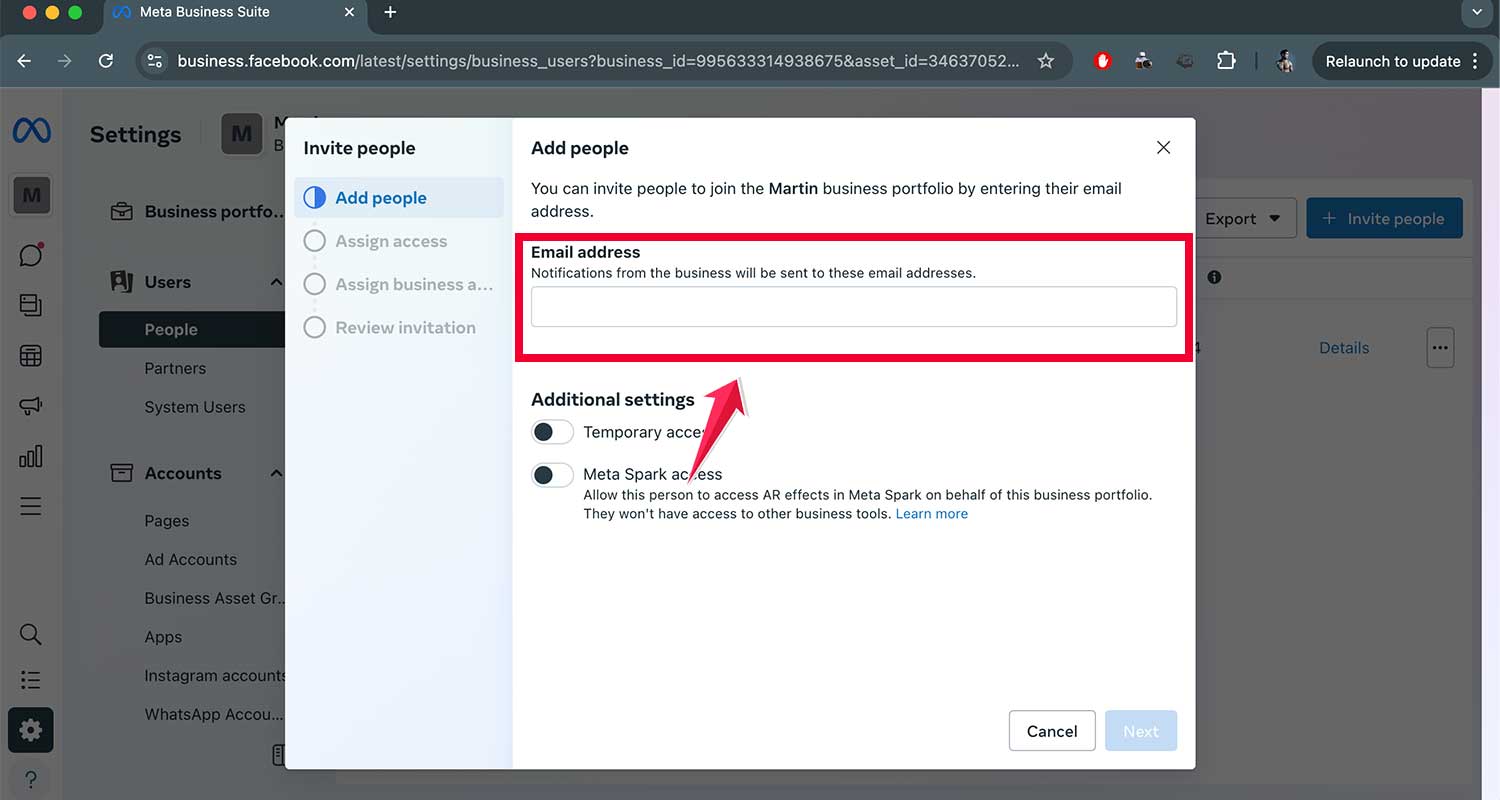
- Follow the Prompts.
In the pop-up, use the search box on the left. Type in your name or the name of the Facebook account that needs admin access. Select your name from the list.
Then, scroll to the bottom of the pop-up on the right side, where you will find an option to grant Admin Access. Make sure to select this option to restore your admin privileges.
Why You Might Have Lost Your Facebook Admin Page Rights?
Let’s play a bit of detective work to figure out why you might have lost access. Knowing the cause can streamline the process of reclaiming your page.
- The Hacking Plot: Your account could have been hacked. Think of it as an unwanted guest sneaking into your digital home and changing the locks. It’s frustrating and unsettling. But, realizing this is the first step to securing your account again.
- The Case of the Missing Admin: Perhaps someone else set up your business page. Then, they left without handing over the admin rights.
- Too Many Cooks in the Kitchen: If you have many admins for your page, one of them might have removed your rights, by mistake or on purpose.
- Facebook has a surprise gift: In some cases, especially for big businesses, Facebook might make a page for you. It’s intended to be helpful, like a surprise party, but can be confusing if you didn’t initiate it yourself. This is especially tricky because you might not even know this page exists until you stumble upon it or someone tells you.
Is It Possible to Recover a Facebook Business Page?
The good news is, yes, you can recover a Facebook Business page! You may have lost access due to admin changes, hacking, or forgotten details. Facebook provides a way to reclaim your page.
- Contact Facebook Support.
- Provide Necessary Documentation.
- Follow the Recovery Template.
- Recovery Without Support.
Wrapping up
Alright, we’ve covered quite a bit on how to recover your Facebook Business Page!
If your page has fallen into the wrong hands due to hacking, remember that Facebook is your go-to resource. They have the tools and authority to help you regain access and secure your page again.
Follow the outlined steps well. Provide all needed documentation. Use Facebook’s recovery tools well.
If this guide helped you solve your problem, please let us know in the comments section below.
If you’re still facing issues, feel free to reach out to us directly for more personalized assistance.
We’re here to help you navigate through this and get back on track!