


GIFs are a staple on all social media. They’re in Instagram chats and Twitter posts. And yes, Facebook Messenger has hopped on the GIF bandwagon too! However, sometimes you might find yourself scratching your head. The GIF option just isn’t there.
Don’t worry, though! In this article, we’ll look at why you might be missing out on GIFs in Facebook Messenger. We’ll also see exactly how to fix it. So, buckle up and get ready to master the art of using GIFs on Messenger!
Where Did GIFs Go on Messenger?
The app’s latest updates moved the familiar GIF button. It was shuffled from its usual spot next to the message typing area. But don’t worry—it hasn’t disappeared for good!
For those of you who rely on the GIPHY keyboard, the GIF icon might still be visible. However, if you’re scratching your head looking for it, here’s a quick fix:
1. Open Messenger on your smartphone.
2. Navigate to the chat where you want to send a GIF.
3. Tap on the smiley icon right next to the text box.
4. Below this, you’ll find various options popping up.
5. Click on the icon labeled “GIF.”
6. Select the GIF you want to send and voilà!
Just a few taps and you can keep your chats lively with the perfect GIF!
How To Send GIFs on Facebook Messenger on Desktop
Sending GIFs isn’t just for mobile users! If you’re on your desktop, diving into the world of GIFs on Facebook Messenger is just as easy and fun. Here’s how you can keep your chats lively with some animated flair, all from the comfort of your desktop:
1. Navigate to Facebook in your favorite web browser.

2. Click on the Messenger icon at the top of your screen to open your chats.

3. Open a chat where you want to send a GIF.

4. Click on the GIF icon, located right next to the text input box.
5. Browse through the collection and pick a suitable GIF to express just what you mean.

Why Is My Facebook Messenger Gifs Missing
Let’s explore the common culprits. Then, you can get back to sending those funny animations quickly.
#1 Old Version of Messenger:
If you’re sticking with an older version of the Messenger app, it might not even support GIFs. Updating to the latest version could quickly solve this issue.
#2 Unstable Internet Connection:
A shaky internet connection can stop the GIF menu from loading right. This makes it seem like the GIFs have vanished.
#3 Bugs and Glitches:
Sometimes, technical glitches can interfere with how apps function. Messenger may crash or freeze. This could be due to bugs. These bugs also affect the visibility of GIFs.
#4 Incompatible Devices and Keyboards:
Your device or its default keyboard may not support GIFs. This means you won’t see the option to use them in Messenger.
#5 Persistent Usage:
If you haven’t logged out of Messenger for a long time, this can lead to issues. For example, GIFs might disappear. A simple log-out and log-in might bring them back.
How To Fix “Facebook Messenger Gifs Missing”
If you’re missing the fun of GIFs in your Facebook Messenger chats, don’t worry! Here’s a comprehensive guide to fixing the issue and getting your GIF game back on track:
#1 Update Messenger:
First things first, ensure your Messenger app is up-to-date. This update could fix not only the missing GIFs but also any bugs or glitches you might be experiencing.
#2 Stable Internet Connection:
Double-check your internet connection. A stable and fast internet is crucial for loading GIFs properly. If you suspect connectivity issues, try resetting your router. Or, switch to a different network.
#3 Restart Your Device:
Sometimes, a restart can fix glitches. They cause problems in your apps. Close the Messenger app, turn off your device for a few minutes, and then turn it back on.
#4 Reinstall Messenger:
If the problem persists, try uninstalling and then reinstalling Messenger. This can help remove corrupt data. It might be causing the GIF feature to break.
#5 GIF Keyboard:
Consider using a third-party keyboard that supports GIFs. There are several options available for both Apple and Android devices, such as:
- GIF Keyboard by Tenor
- GIPHY: GIFs, Stickers & Clips
- Emoji Keyboard
- Kika
- Fleksy
- Gboard
- SwiftKey
- Go Keyboard
- iKeyboard
#6 Logout Your Messenger:
Logging out of Messenger. Then, log back in. This can refresh the app’s settings and bring back missing features like GIFs.
#7 Force Stop the Messenger:
For Android users, you can try force stopping the app. This action can help clear out any stuck processes that might be causing issues.
#8 Clear Messenger Cache:
For Android:
- Open your device’s Settings.
- Navigate to Apps or Applications (the exact term may vary depending on your device).
- Find and tap on “Messenger”.
- Select Storage.
- Here, you will see options to Clear Data and Clear Cache. Tap on these to clear the cache and reset the app data if necessary.
For iOS:
- Scroll down and tap on “Messenger”.
- You have a couple of options:
- Offload App: This option removes the app but keeps its data intact. This is useful if you plan to reinstall the app without losing your settings and data.
- Delete App: This will completely remove the app and all its data from your device.
- Reinstall Messenger from the App Store to get a fresh start with the app.
#9 Contact Support:
If all else fails, reaching out to the Facebook Help Center could provide a solution. Describe your issue in detail and wait for their guidance.
Can I Post a GIF on Facebook?
Absolutely! Whether you want to share a GIF as a status update or use one in a comment, here’s how you can do it both on mobile and desktop:
#1 Post GIF on Facebook On Mobile:
- Create a post: Start by tapping to write a new status.
- Tap on the three dots icon from the list of options at the bottom of your screen.
- Select “GIF” from the options that appear.
- Browse and choose the GIF you want to share on your status.
#2 Post GIF on Facebook On Desktop:
- When creating a post or commenting, simply click on the three-dot icon next to the text box.
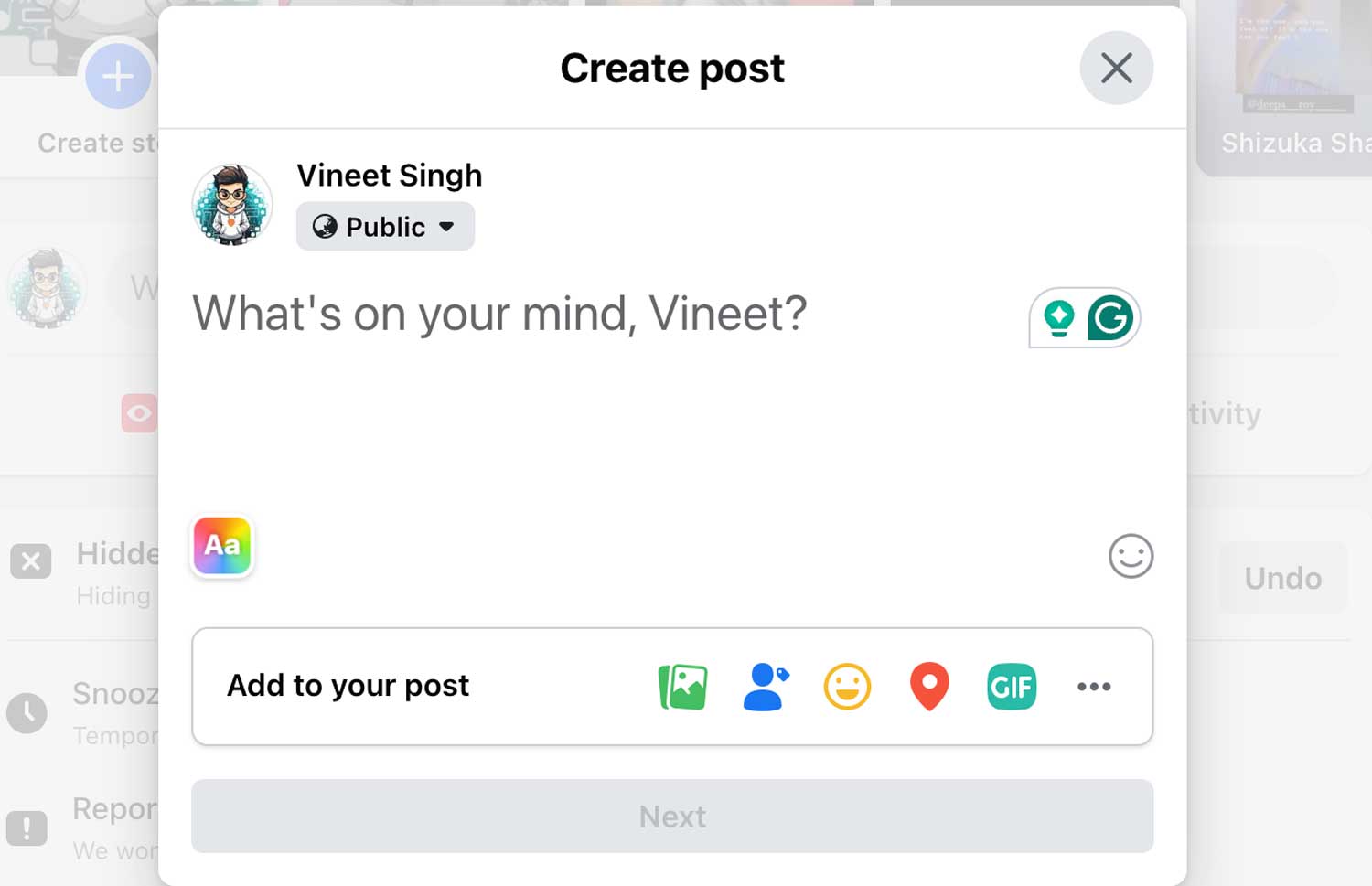
- Choose the “GIF” option.

- Select from a wide array of GIFs to find the perfect one to express yourself.

Moreover, when you want to reply to someone’s post with a GIF, just click on the text box to comment, and you’ll see the GIF icon. Click it, pick your GIF, and you’re set to post.
In Conclusion To
Remember, if your GIFs have taken a little vacation, don’t worry. Just check for updates. Restart your device. Make sure your internet is fast. Or ask the tech wizards at Facebook for help.
Using GIFs in our chats makes conversations so much fun, like adding sprinkles to ice cream. So, don’t let a small hiccup stop you. Share those funny, cute, or great GIFs with your friends and family.
I hope this guide has been helpful and that you’re now a GIF-finding ninja on Facebook Messenger. Happy messaging, and may your chats be ever filled with the perfect GIFs!





