


Is your AOL inbox cluttered with spam and unwanted messages? You’re not alone. Unwanted emails can be a real hassle, but don’t worry – there’s a simple solution. AOL Mail has built-in features that let you block bothersome senders and keep your inbox clean.
In this guide, you’ll learn how to use AOL’s tools to block unwanted emails quickly and easily. Whether it’s persistent spam or messages from senders you’d rather not hear from, you’ll soon have the power to control what lands in your inbox. Let’s get started on making your email experience more enjoyable and manageable.
How to Block Emails in AOL: 2 Methods
Are you tired of junk mail cluttering your inbox every day? Don’t worry – blocking unwanted emails in AOL is simpler than you might think. You don’t need to be tech-savvy to do it. Let’s walk through two easy methods to block those annoying emails and make your AOL experience more enjoyable.
Method 1: Block an Email Address in AOL Standard Mail
If you’re using AOL Mail on your web browser, here’s how you can quickly block bothersome senders:
- Open your web browser and log into your AOL Mail account.
- Find an email from the sender you want to block.
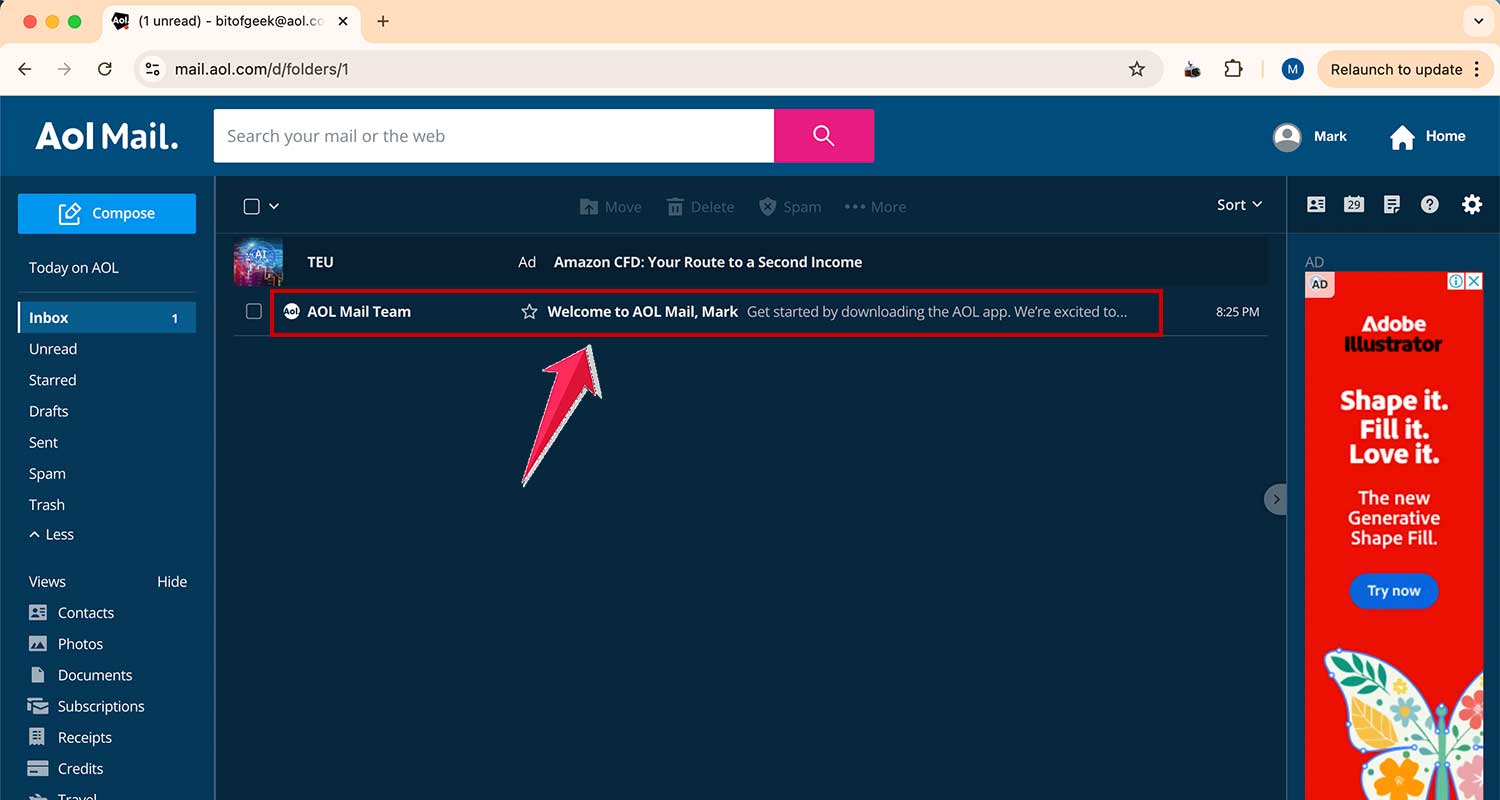
- Look for the “More” icon (it looks like three dots) in the toolbar above the email and click on it.

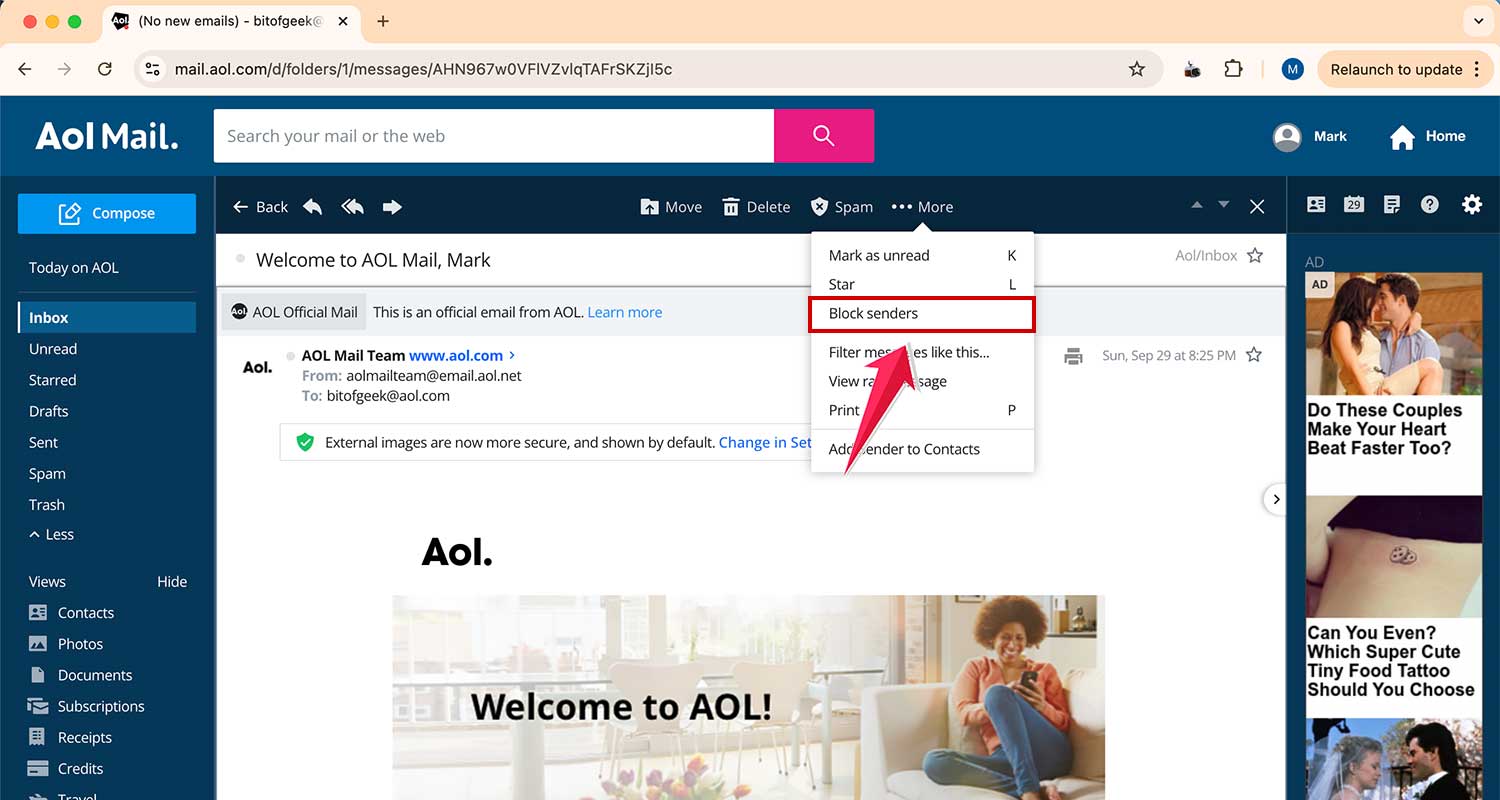
- From the dropdown menu, choose “Block senders”.
- A window will pop up. You’ll see options to block all future emails and delete existing ones. These are usually pre-selected, but you can change them if you want.
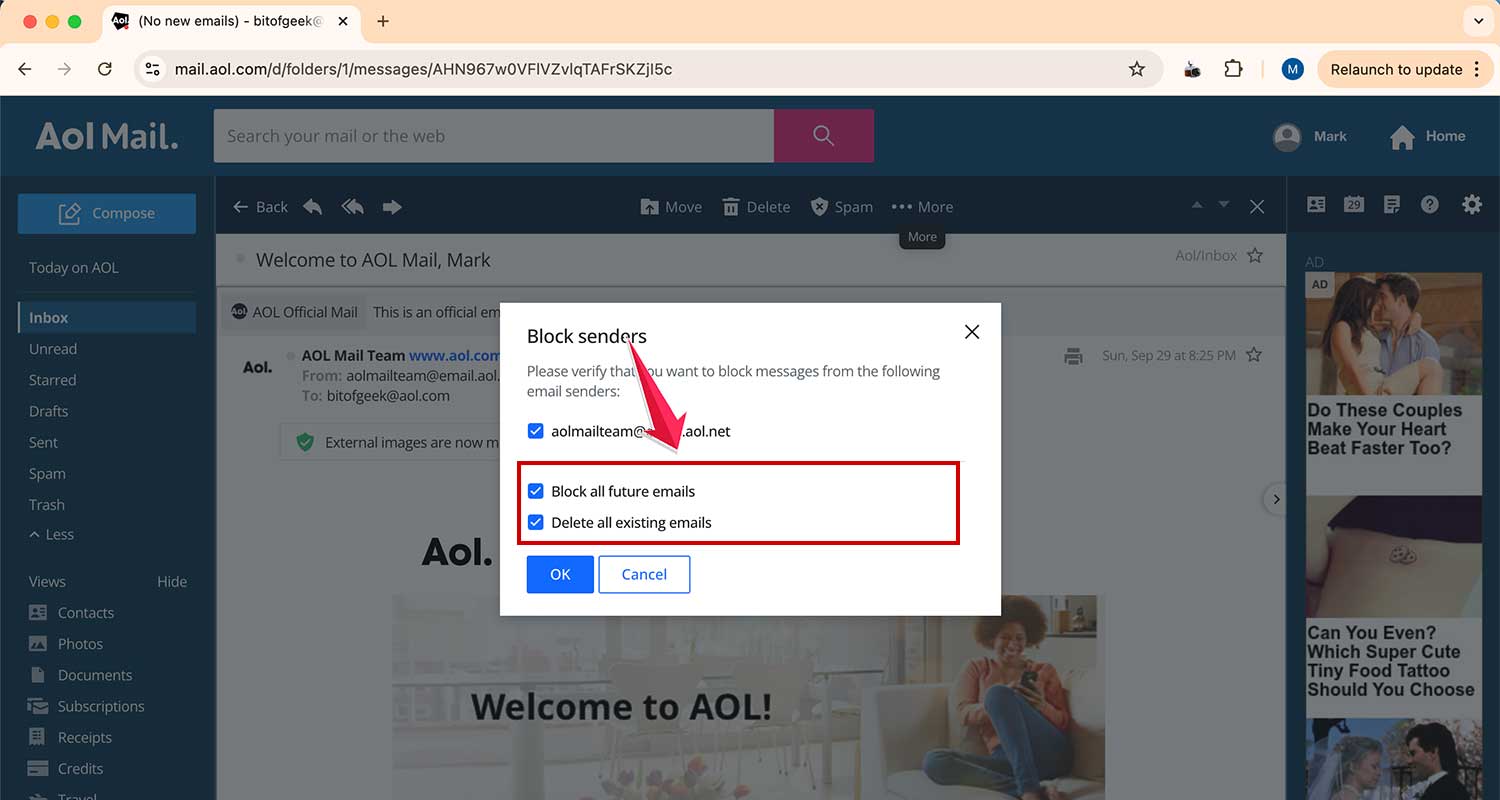
- When you’re happy with your choices, click “OK”.

And that’s it! You’ve successfully blocked that sender.
Method 2: Update AOL Spam Settings
Another way to manage blocked contacts is by adjusting your spam settings. Here’s how:
- Find the gear icon at the top right of your screen – that’s your Settings menu.

- Click on it, then choose “More Settings”.

- Look for the “Security and Privacy” section.

- Under “Blocked Addresses”, click the “Add” button.

- Type in the email address you want to block and hit “Save”.
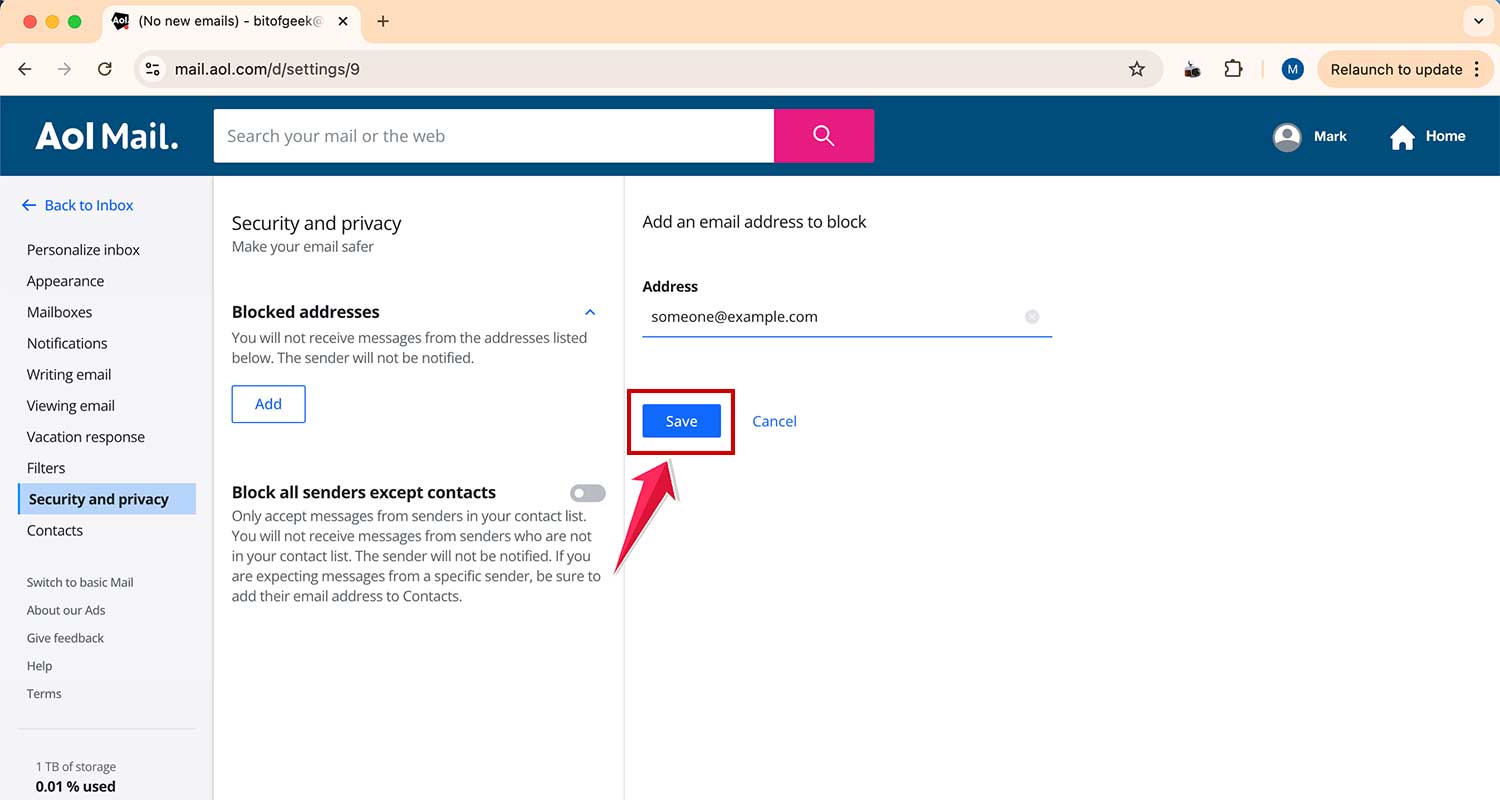
Want to take it a step further? You can also turn on the “Block all senders except contacts” option. This means you’ll only get emails from people in your contact list – a great way to keep your inbox free from strangers and potential spammers.
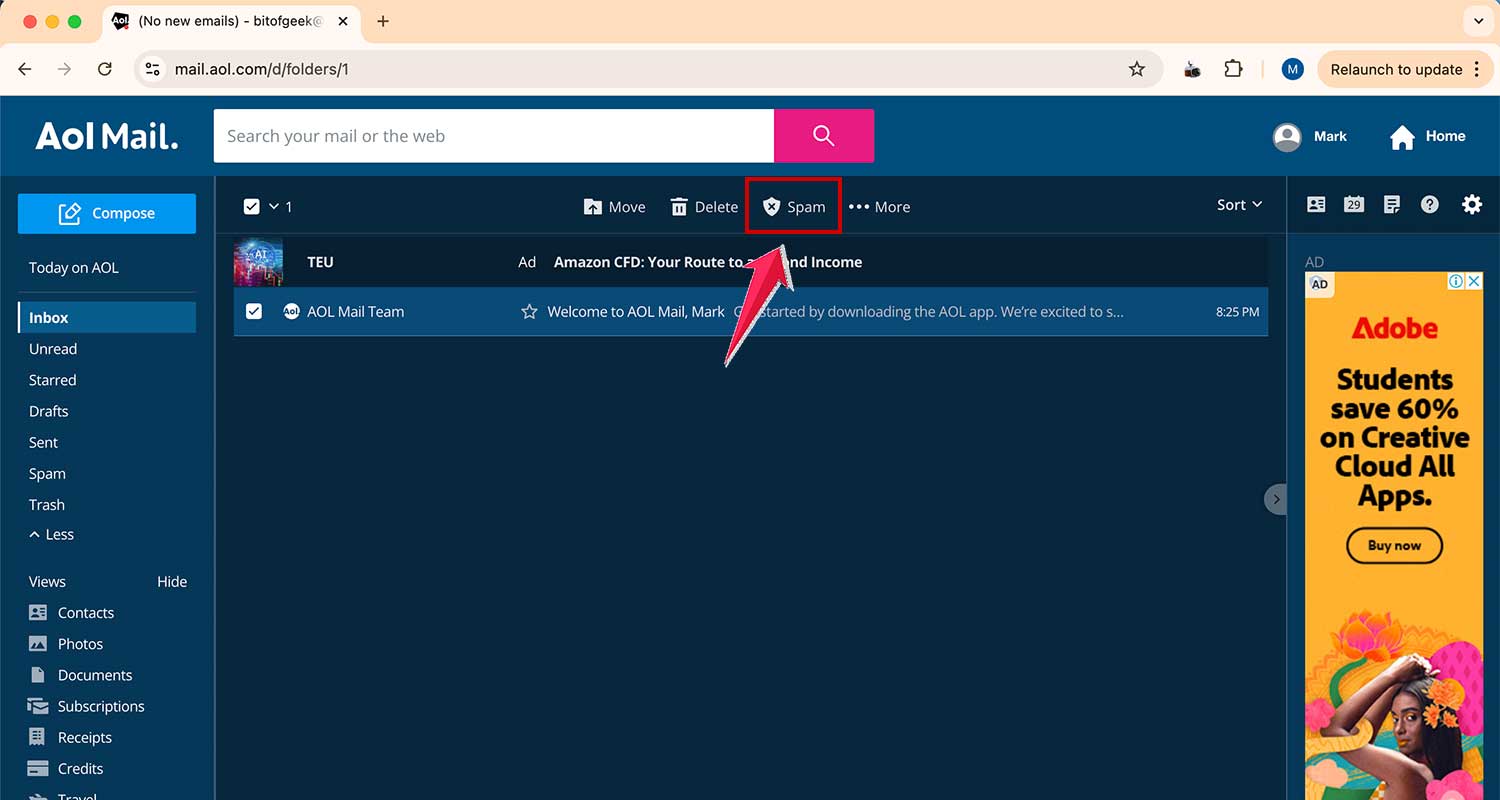
Method 3: Using the ‘Mark as Spam’ Feature
Here’s an extra trick to keep your inbox clean:
- Log into your AOL Mail account.
- Find a message from the sender you want to block.
- Select it, then look for the “Spam” button on the top toolbar of your inbox.
- Click the “Spam” button.
If you’re dealing with a newsletter you’ve subscribed to, AOL might offer to unsubscribe you instead of marking it as spam. This is a helpful feature that can keep your inbox even cleaner.
How to Block Images in Emails on AOL
Blocking images in your emails not only saves valuable storage space but also shields you from potential threats hidden in seemingly harmless images.
Follow these straightforward steps to block images in AOL Standard Mail:
- Log into your email account at AOL Mail.
- Click the Settings gear icon at the top right corner
- Then select ••• More Settings.
- Navigate to the Viewing email tab.

- Scroll down to find the Show images in the messages section.
- Select Ask before showing external images to ensure AOL asks for your permission before displaying any images in emails.
- Don’t forget to hit Save Settings to apply your new preferences.

By enabling this setting, you enhance your email security and avoid unnecessary data usage.
Conclusion
Congratulations on taking control of your AOL inbox! By learning how to block unwanted emails, mark spam, and manage image settings, you’ve equipped yourself with essential tools to maintain a clean and secure email environment.
These simple steps not only enhance your daily email experience but also protect your digital privacy.
Remember, a well-organized inbox boosts productivity and keeps you focused on what’s truly important—free from the clutter of unwanted messages and security risks.
Keep these tips handy, and you’ll navigate your AOL email like a pro!





