I get it. You’re in a rush, trying to log in or fill out a form, and suddenly Safari’s AutoFill just… doesn’t work. It’s frustrating.
You expect it to remember your info, save you time, and make life easier. But when it doesn’t, it slows everything down. And yeah, it can make you want to throw your phone or close your laptop.
So, what’s the deal? AutoFill is supposed to help, not make things harder. But sometimes, it stops doing its job because of a few small things, like a setting turned off, an outdated Safari version, or even a browser extension misbehaving.
The good news? These problems are usually easy to fix once you know where to look.
You don’t need to be tech-savvy to figure this out. I’ll walk you through it step by step. We’ll check the basics, tweak a few settings, and get AutoFill back on track.
Let’s fix it together so you can get back to your smooth, hassle-free browsing.
Why Safari AutoFill might not be working
Before jumping into fixes, let’s talk about why this might be happening. Once you understand the cause, the solution becomes a lot easier.
1. Update Safari and iOS/macOS
If Safari or your device isn’t updated, AutoFill might not work right. Updates fix bugs, improve performance, and keep everything running smoothly.
If you’re running an older version, it could be the reason AutoFill isn’t working.
2. Check Your AutoFill Settings
Sometimes, settings get changed without you realizing it. AutoFill might be turned off, and you wouldn’t even know.
It’s worth double-checking—this is one of the most common reasons it stops working.
3. Clear Out Corrupted Safari Data
Over time, Safari collects a lot of data—cookies, cached files, and more. If something in there gets corrupted, it can mess with AutoFill.
Cleaning it out gives Safari a fresh start.
4. Account and Password Problems
If you’ve changed your password but Safari still has the old one saved, AutoFill won’t work. It’s important to keep your saved info updated, or Safari won’t know what to fill in.
5. Extensions May Be the Culprits
Browser extensions can be helpful, but some mess with how Safari works. If one of them interferes with AutoFill, turning it off might solve the problem.
Now that we’ve covered the most likely reasons why AutoFill isn’t working, let’s move on to the part where we fix it.
Safari AutoFill not working – what you can do to fix it
Let’s walk through the steps you can take to get Safari AutoFill working again. I’ll keep it simple and easy to follow. And don’t worry—I’ll explain everything along the way.
#1 Turn On AutoFill
Let’s start with the basics. AutoFill might just be turned off. It happens more often than you’d think.
Here’s how to check and turn it back on:
- Open Safari and click on the Safari menu at the top.
- Select Settings.

- Click on the AutoFill tab.

- Make sure the boxes for things like Usernames and Passwords are checked.

Once that’s done, try visiting a site and see if AutoFill kicks in.
#2 Update Safari and Your System
If AutoFill still isn’t working, check for updates. Running outdated software can cause all kinds of weird problems.
Here’s how to update:
- On iPhone or iPad: Open Settings > General > Software Update. Install any available updates.

- On Mac: Open the App Store, go to the Updates tab, and install any Safari or system updates.

Updates often include bug fixes, so this could instantly solve the problem.
#3 Clear Out That Cache
Old or corrupted data can confuse Safari. Clearing it out helps AutoFill work properly again.
Here’s how to clean it up:
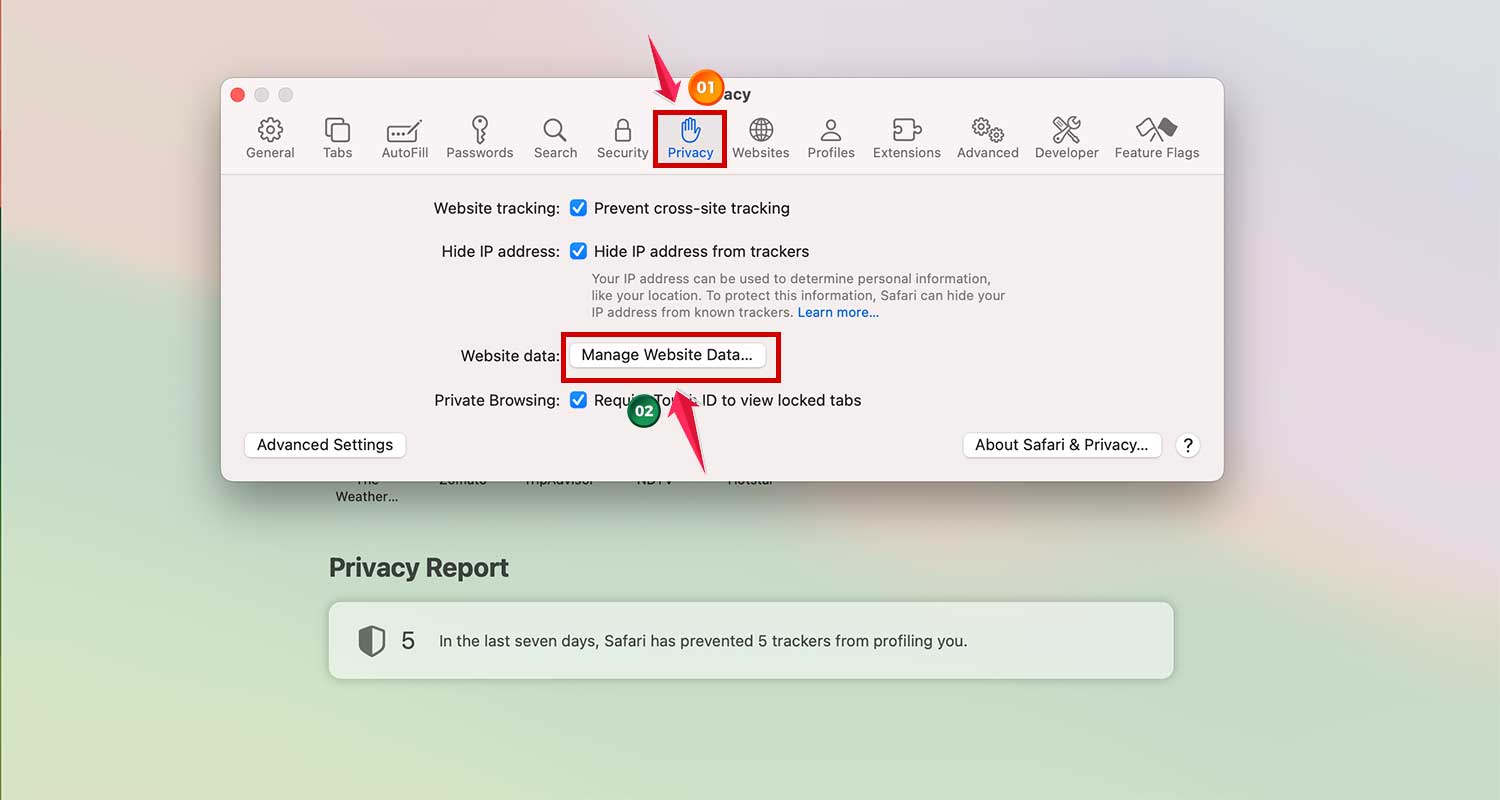
- Open Safari and click on the Safari menu.
- Select Settings.
- Then go to the Privacy tab.
- Click on Manage Website Data.
- Click Remove All to clear everything.
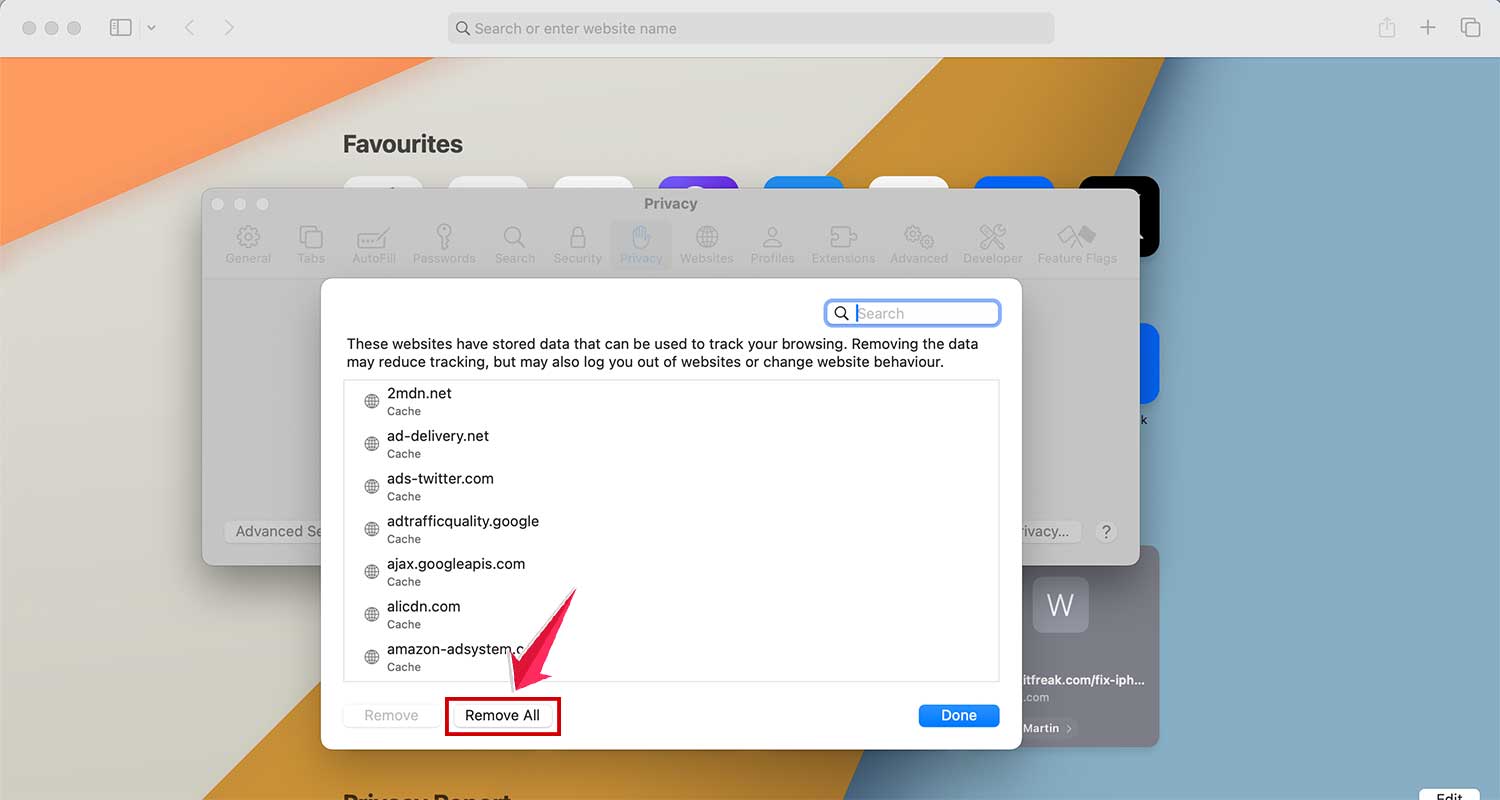
Give Safari a restart after this and test AutoFill again.
#4 Re-enter Your Info
If AutoFill isn’t filling anything in, it might not have your latest login info saved. You can fix this easily.
Try this:
- Go to a login page and enter your username and password manually.
- When Safari asks if you want to save the info, tap Yes.
This tells Safari to update its records so it can AutoFill next time.
#5 Check Your Extensions
Some extensions are helpful, but others can block AutoFill from working.
Here’s how to check:
- Open Safari and go to Settings.
- Click on the Extensions tab.

- Turn off each extension one by one and test AutoFill after each.

If AutoFill starts working, then you’ve found the troublemaker.
#6 Double-Check Keychain
Safari uses iCloud Keychain to store your login info. If it’s off or not syncing, AutoFill won’t work.
Here’s how to check:
- On Mac: Go to System Settings > Apple ID > iCloud. Make sure Keychain is turned on.

- On iPhone/iPad: Go to Settings > tap your name > iCloud > Keychain. Make sure it’s on.
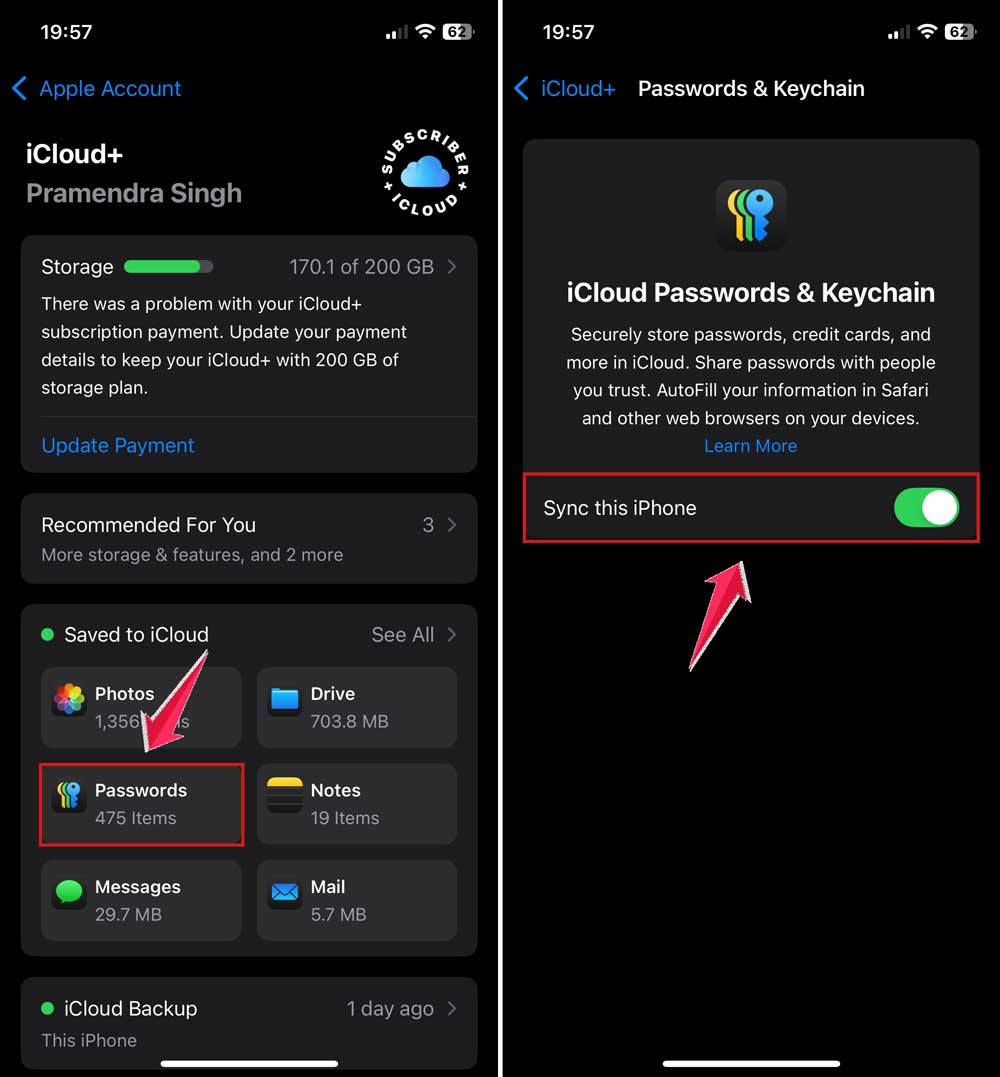
Keychain keeps everything in sync. If it’s turned off, Safari won’t know your latest info.
#7 Restart Your Device
Sometimes, all your device needs is a quick reboot. It clears out small bugs and refreshes everything.
Do this:
- Hold the power button until you see the option to turn off your device.
- Slide to power off. Wait a few seconds.
- Turn it back on and try using AutoFill again.

It sounds simple, but it works more often than not.
#8 Test AutoFill on Other Sites
Still not working? Let’s see if it’s just one site causing the problem.
Try this:
- Go to a few different websites and try logging in.
- If AutoFill works on other sites, then the issue is with that one site—not Safari.
Some websites block AutoFill for security reasons, so don’t worry if it’s just one or two.
Some Extra Tips You Should Try
1. Make Sure Keychain is Your Best Buddy
Open up your Keychain and check if your recent logins are saved. If not, add them in manually. Then sync across your devices.
This keeps everything working together. If one device has your info and the other doesn’t, AutoFill won’t work right.
2. Turn Your Device Off and On Again
I know I mentioned it before, but seriously. Just restarting your device can fix more than you think. It clears up small issues that build up over time.
3. Test on a Few Different Sites
AutoFill might not work on every website. Some block it, especially for security. Try a few different sites before assuming it’s broken altogether.
4. Keep Your Browsers in Sync
Make sure all your Apple devices are logged in with the same Apple ID. Syncing your Safari settings across your iPhone and Mac can help avoid problems.
5. Reach Out to Apple Support if Needed
If nothing works, don’t beat yourself up. Apple Support is there for a reason. They can walk you through more advanced steps or check if there’s a deeper issue going on.
The Takeaway
So, here’s the deal—you came here because Safari AutoFill stopped working, and that’s annoying.
But now, you’ve got a full list of simple, clear steps to fix it. Most of the time, it’s just a setting, a cache issue, or an outdated version of Safari. Nothing too scary.
Just remember: Keep your system updated. Make sure AutoFill is turned on. Check your Keychain and clear out any clutter Safari’s holding onto. These little things can make a big difference.
And hey, if nothing seems to work, don’t stress. You’re not alone, and help is out there. Try these tips first, and if you still need help, Apple Support is just a click away.
Give these steps a try and see the difference! Got questions or something else to share? Drop a comment below—I’d love to hear from you!