


So, you’ve just grabbed your iPhone, and boom—your screen’s showing a weird green or purple tint. Not what you expected, right? I get it.
It’s confusing, maybe even a little scary. But hey, don’t panic. You’re definitely not the only one dealing with this.
Now, you’re probably wondering, what’s going on here? Well, this kind of color mess usually points to a software glitch.
Sometimes, it’s because your phone got a little too hot. Other times, it could be because of some hidden physical damage or strange settings that decided to act up.
Why should you care? Because your screen is everything. It’s how you text, watch videos, scroll through social media… basically, how you do everything.
So yeah, when the screen goes crazy, it’s a big deal.
But don’t worry. I’m going to walk you through some super simple steps to get your beautiful screen back to normal. Stick with me—we’ll fix this together.
What causes the green or purple tint on your iPhone?
Alright, let’s dig a little deeper. Why does your iPhone screen suddenly look like a disco party? Let’s break it down.
1. Software glitches can cause weird colors
Sometimes when your phone updates, it doesn’t go perfectly. A new update can bring weird bugs, like that crazy green or purple tint you’re seeing now.
It’s like your iPhone is throwing a mini tantrum because something inside didn’t install right.
2. Hardware damage could be the bad guy
Did your phone take a little tumble recently? Or maybe it got a splash of water? Even a tiny drop or bump can mess with the sensitive parts inside your iPhone, especially the screen.
You might not even see the damage, but it could still be there, causing all this color drama.
3. Display settings could be messing things up
Sometimes, your display settings just go wild. Maybe something got switched accidentally.
When that happens, colors can look super off. It’s like your iPhone decided to try out a new (and not very good) paint job.
4. Overheating can make your screen act funny
If your iPhone’s been working overtime—like playing games for hours or sitting out in the sun—it can overheat.
And when it gets too hot, the screen might start showing weird colors. It’s just your phone’s way of saying, “Hey, I need a break!”
Knowing these causes is half the battle. Now, let’s move on and actually fix it.
Fixing the Green or Purple Tint on Your iPhone Screen
Alright, time to roll up our sleeves. Here’s what you can do to fix that funky screen. Let’s start simple and work our way up.
#1 Restart Your iPhone
You might laugh, but trust me—this trick works more often than you’d think. A simple restart can clear out small glitches.
Here’s how you do it:
- Hold down the power button until you see “Slide to power off”.
- Slide it and wait about 30 seconds.
- Turn it back on by holding the power button again.

Check your screen after it powers back up. Still weird? No worries, let’s keep going.
#2 Update iOS
Sometimes, Apple realizes there’s a bug and sends out a fix. Updating your iPhone could patch up the issue fast.
Here’s what you need to do:
- Open Settings on your iPhone.
- Tap General.

- Tap Software Update.
- Download and install any available updates.

Give your phone a few minutes to update, then check your screen again. Fingers crossed!
#3 Reset Display Settings
If your display settings got messed up somehow, resetting them could bring everything back to normal.
Follow these easy steps:
- Open Settings.
- Tap General.
- Scroll down and tap Transfer or Reset iPhone.

- Choose Reset and then Reset All Settings.

Don’t worry—this won’t delete your photos or apps. It just resets the settings. After it’s done, see if your screen looks better.
#4 Check for Physical Damage
If nothing’s worked so far, it’s time to play detective. Look closely at your phone.
Here’s what you should check:
- Inspect the screen for any tiny cracks or weird spots.
- Check the charging port and speakers for signs of water or dust.
- Think back—did you drop it or spill something on it recently?
If you find anything suspicious, it might be time to visit a repair shop or an Apple Store.
#5 Cool Down Your Device
If your phone feels super hot, that could easily be the cause of the weird tint.
Here’s how to cool it down:
- Turn it off for a little while.
- Move it to a cooler, shady spot.
- Let it rest until it feels normal to the touch again.
Also, try not to use heavy apps or games while charging—it can heat up your phone fast.
If your screen is still looking funky after all these steps, don’t lose hope. We’ve got a few more tricks up our sleeve.
Extra Tips to Get Your iPhone Screen Back to Normal
Let’s go even deeper. These extra tips might be just what you need.
1. Check your screen protector
Sometimes it’s not your phone—it’s the screen protector. If it’s cracked, bubbled, or peeling, it can mess with how your screen looks. Try taking it off and see if that helps.
2. Disable True Tone
True Tone is supposed to make colors look natural, but sometimes it goes overboard.
Here’s how to turn it off:
- Go to Settings.
- Tap Display & Brightness.
- Toggle off True Tone.
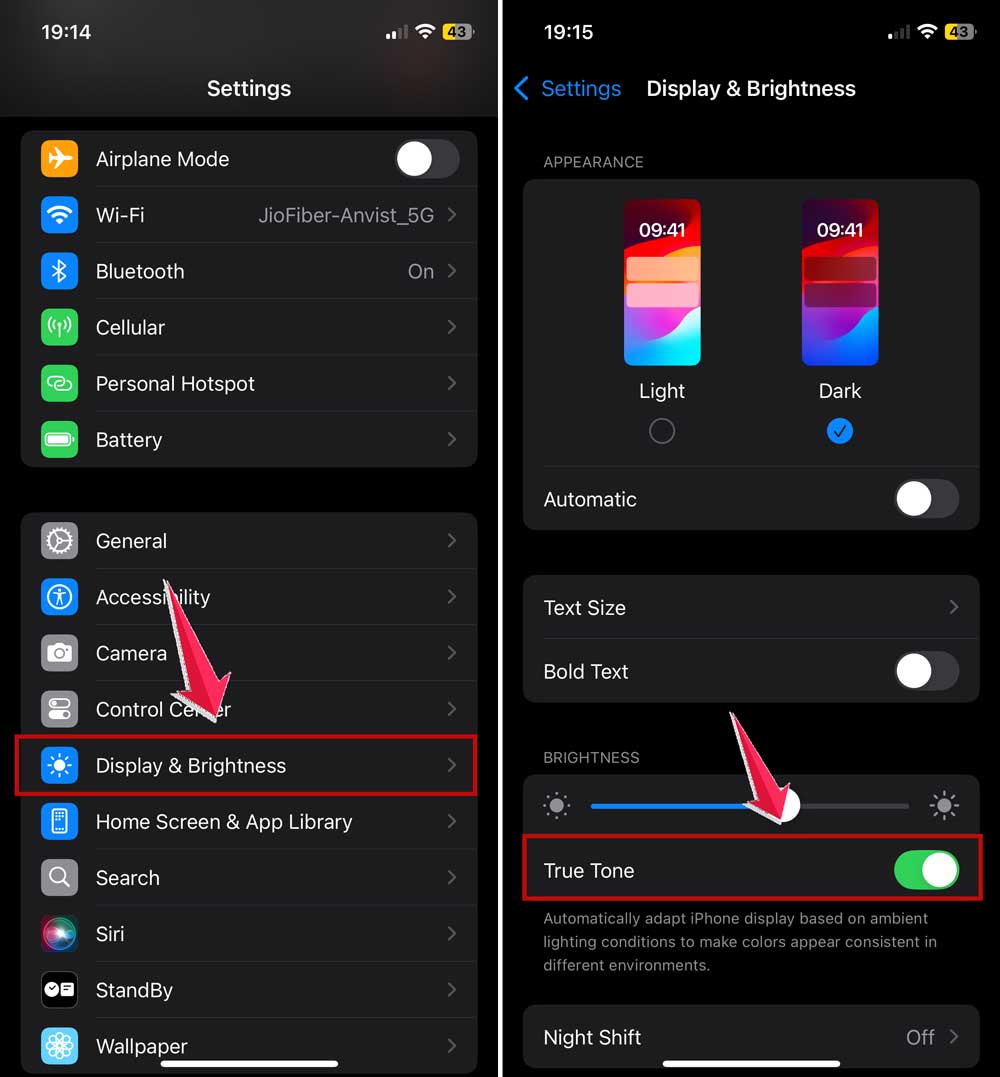
See if your screen looks better after turning it off.
3. Watch for rogue apps
Did the weird tint start right after you installed a new app? Some apps don’t play nice with your phone’s display. Try deleting or updating any suspicious apps.
4. Check your battery health
Believe it or not, a dying battery can cause display issues too.
Here’s how to check:
- Open Settings.
- Tap Battery.
- Tap Battery Health & Charging.

If your battery health is below 80%, you might need a battery replacement.
5. Calibrate the display
While Apple doesn’t offer a built-in tool for this, there are third-party apps that can help you adjust your screen colors back to normal. Just make sure you pick a trusted app.
The Takeaway
You made it! Dealing with a green or purple screen might feel like a disaster at first, but honestly, most of the time it’s a quick fix. A simple restart or iOS update clears it right up.
A lot of people immediately think it’s a hardware problem, but trust me—it’s usually just a silly software hiccup. And now, you’ve got all the tools you need to fix it yourself.
Go ahead, try these tips, and get your iPhone screen looking perfect again. You’ve got this! And hey, if you need more help, don’t be shy—drop a comment below!





