


Ever grabbed your iPhone to snap a quick photo and—bam—it comes out blurry? Yeah, that’s frustrating. Especially when it’s a moment you can’t get back.
You’re not alone, and the good news is: it’s usually a small issue that you can fix yourself.
Your iPhone’s camera is pretty smart, but even smart things mess up sometimes. Maybe there’s dirt on the lens, or a software bug is acting up.
Sometimes, it’s just a setting that got changed without you realizing it. Other times, your phone case might be blocking the lens or interfering with the focus system.
And let’s be real—these things matter. Photos are how we keep memories alive. Whether you’re snapping a pic of your pet, your food, or a special moment, you want it to look clear. When your camera doesn’t focus, it kind of ruins the fun, right?
But don’t worry. I’ve got your back. In this guide, I’ll walk you through all the possible reasons your iPhone camera isn’t focusing—and how to fix each one. Let’s get those photos looking sharp again.
What Could Be Causing the Focus Problem?
1. Dirt or Smudges on the Lens
Sometimes, it’s just the obvious things we overlook. If your camera lens has fingerprints, smudges, or dust, it can mess with the focus. You might not see it, but your phone’s camera definitely does.
To fix this, gently clean the lens using a microfiber cloth. Avoid using tissues or your shirt—they can scratch the glass or leave more lint. Just a quick wipe can make a huge difference.
2. Software Glitches or Bugs
Your iPhone runs on software, and sometimes that software hits a hiccup. A bug or small glitch can interrupt the camera’s ability to focus properly. This usually happens after an update or if your phone has been on for a long time without restarting.
Keeping your phone updated is important. Apple regularly fixes bugs through iOS updates that can solve camera issues too.
3. Obstructions or Damage to the Lens
Check if your phone case or any accessory is blocking the camera. Even a small edge or magnet from a case can interfere with the lens or the focusing system. If you’ve dropped your iPhone recently, there might be physical damage to the lens itself.
Look closely at the lens. Any cracks or scratches? If yes, you might need to visit a repair center.
4. Misconfigured Camera Settings
Sometimes, we play around with settings and forget to put them back. Those changes can affect how your camera focuses. Maybe a filter, a mode, or a zoom setting is stuck. Resetting your camera settings can help get everything back to normal.
iPhone Camera Not Focusing? Let’s Fix It Together
Alright, now that we know what could be wrong, let’s go through the solutions. I’ll keep it simple, and we’ll take it step by step.
Think of it like me sitting next to you, walking you through each fix.
#1: Clean the Lens
This is the first thing you should do. It’s quick, easy, and surprisingly effective. A smudge or bit of dust can make your photos look blurry—even if everything else is working fine.
Here’s how to clean it the right way:
- Use a microfiber cloth. Gently wipe the lens in a circular motion.
- Don’t use tissues, napkins, or your clothes—they can scratch it.
- If needed, lightly breathe on the lens to fog it, then wipe it clean.
Try taking a photo again. Clearer? Great! If not, let’s move on.
#2: Restart Your iPhone
Sometimes your phone just needs a quick restart. It’s like giving it a fresh start. This can fix small bugs that mess with camera focus.
- Press and hold the power button and volume button until you see “Slide to power off”.
- Slide to turn it off.
- Wait a few seconds, then press the power button again to turn it back on.

Once it’s back on, open the camera and test it. Still blurry? No problem—we’re just getting started.
#3: Update iOS
Running outdated software can cause all sorts of random problems—including camera focus issues. Let’s check for an update.
- Go to Settings.
- Tap General.

- Select Software Update.
- If there’s an update available, install it.

Updates often include camera improvements and bug fixes. Once done, restart your phone and test the camera again.
#4: Reset Camera Settings
To reset camera settings on an iPhone, follow these steps:
Steps to Reset iPhone Camera Settings:
- Open the Settings app on your iPhone.
- Scroll down and tap on Camera.
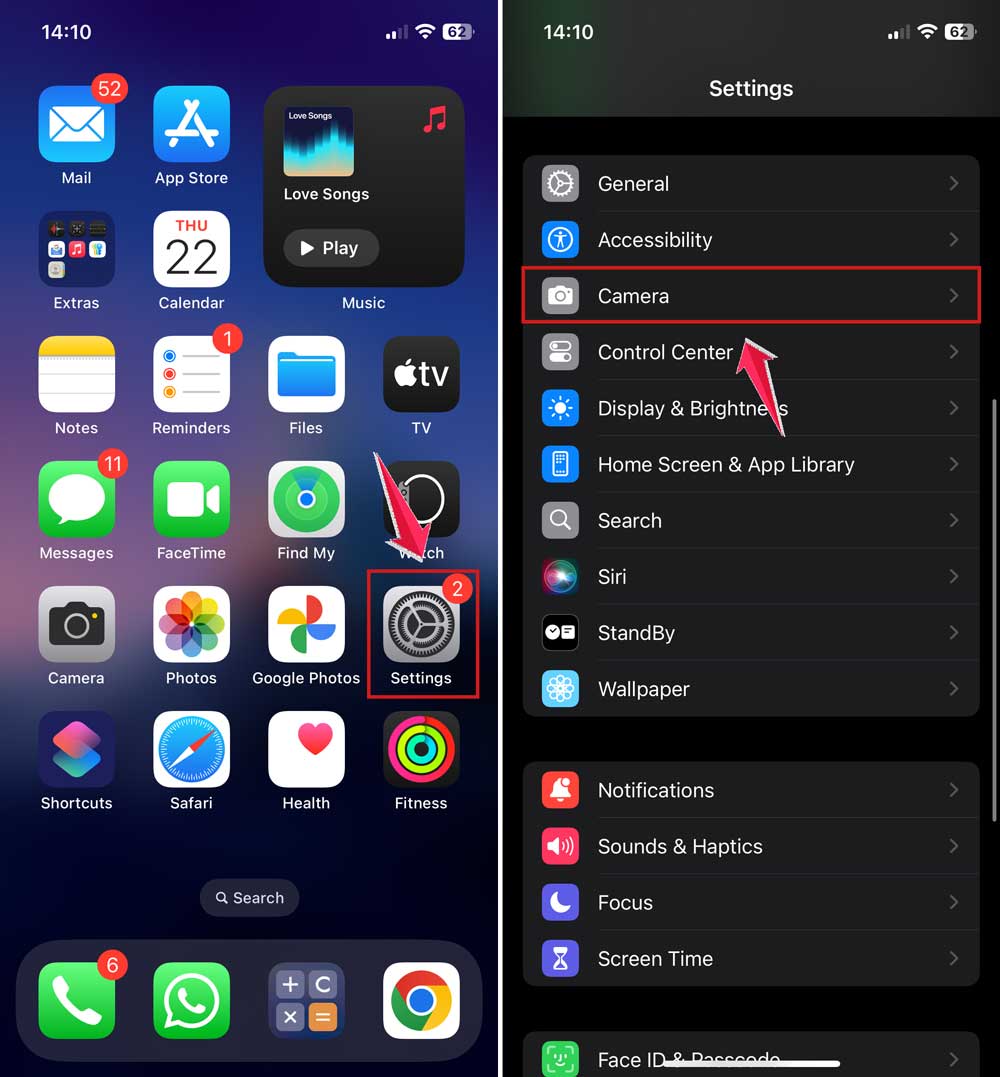
- Adjust settings manually as needed, or…
If you want to fully reset all camera-related settings (including saved modes, filters, grid, etc.), do the following:
Reset All Settings (includes camera settings)
- Go to Settings > General.
- Scroll down and tap Transfer or Reset iPhone.

- Tap Reset.
- Choose Reset All Settings.

- Enter your passcode if prompted and confirm.
NOTE: This will reset all system settings like Wi-Fi, Bluetooth, Do Not Disturb, etc., but not delete any data or media.
If you only want to reset specific camera behaviors like:
- Preserve Settings (e.g., last-used camera mode, filter, Live Photo):
- Go to Settings > Camera > Preserve Settings.
- Toggle off all options to stop preserving last-used settings.

This way, the camera will always open with default settings.
#5: Remove Your Phone Case or Accessories
Believe it or not, your phone case might be the problem. Some cases, especially ones with magnets or thick edges, can block the lens or affect focus.
Take off your case and try using the camera again. If it works fine without the case, you’ve found the issue. Time to shop for a new case.
#6: Use Manual Focus
If your camera’s auto-focus isn’t working, try focusing manually. It’s super easy and gives you more control.
- Open the Camera app.
- Tap the part of the screen you want to focus on.
- Hold your finger there until you see AF/AE Lock.

This locks the focus and exposure on that spot. Take your photo and see if it’s clearer.
#7: Turn Off VoiceOver
This one’s a bit uncommon, but it works. If you have VoiceOver turned on, it can interfere with how your camera focuses.
- Go to Settings.
- Tap Accessibility.

- Select VoiceOver and turn it off.
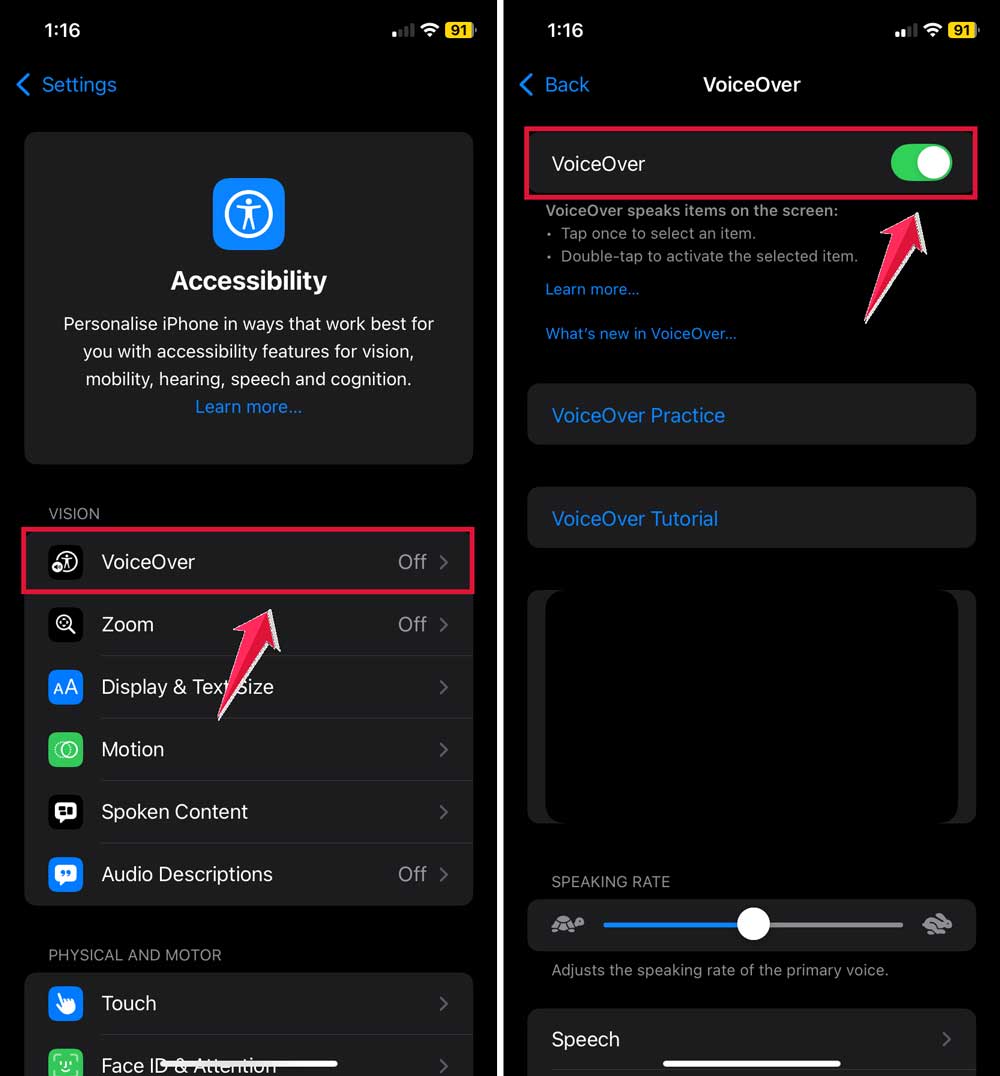
Now try taking a photo again. You might be surprised it worked!
#8: Try a Third-Party Camera App
If your built-in camera still isn’t focusing properly, try downloading a third-party camera app from the App Store. Some of them have better manual controls and might bypass the issue you’re facing with the default app.
Apps like Halide or ProCamera give you more control over focus, exposure, and more. It’s worth a shot—especially if you need a quick fix while waiting for a permanent one.
#9: Reset All Settings
Still no luck? You can reset all settings on your iPhone. This won’t delete your data, but it will reset Wi-Fi passwords, wallpapers, and system settings—just a heads-up.
- Go to Settings.
- Tap General.
- Scroll down to Transfer or Reset iPhone.
- Tap Reset > Reset All Settings.
After your phone restarts, try using the camera again.
#10: Contact Apple Support
If nothing has worked so far, it might be a hardware issue. Maybe your camera lens is damaged or there’s something internal going on. In that case, it’s best to reach out to Apple.
You can contact Apple Support online, by phone, or visit an Apple Store near you. They’ll run some diagnostics and let you know what’s wrong. If your phone is under warranty, repairs might even be free.
The Takeaway
So, your iPhone camera’s not focusing. Annoying? Definitely. But most of the time, it’s something small—maybe a quick wipe of the lens, a restart, or a settings reset.
There’s no need to panic or rush to buy a new phone just yet.
Try the steps we went through above. Start with the basics and work your way down. You’d be surprised how often the simplest fix does the trick. And if nothing works, Apple Support is always there to help.
Your memories matter. Your camera should be ready when you are. Got a question or something to share? Drop a comment below—I’d love to hear from you!





