


Is Instagram crashing on you right now? It’s incredibly frustrating when you’re in the middle of posting a story or creating a reel, and suddenly the app just quits on you. I get it – you want to share your content, but Instagram isn’t cooperating.
This is a common problem that many Instagram users face. You might be wondering, “Why does this keep happening to me?” Well, there could be several reasons. Maybe your phone isn’t playing nice with the latest Instagram update, or perhaps there’s a sneaky bug causing trouble.
In this article, we’re going to walk through some simple, effective solutions to get your Instagram up and running smoothly again. Whether you’re using an iPhone or an Android, we’ve got you covered.
So, if you’re ready to stop the crashes and get back to enjoying Instagram, let’s dive in.
Why does Instagram keep crashing?
Let’s dive into some common causes of those frustrating Instagram crashes you’re experiencing:
1. Device compatibility issues might be the culprit. Is your phone struggling to keep up with the latest Instagram version? It’s like trying to run a new game on an old computer – sometimes, things just don’t match up well.
2. Have you noticed the crashes happening right after an update? New updates can sometimes bring along uninvited guests: bugs. These pesky glitches might be causing Instagram to crash on your phone. It’s similar to when you update your computer and suddenly some programs start acting weird.
3. Think about any third-party apps you’ve downloaded recently. Are any of them related to Instagram, like photo editors or repost apps? Sometimes, these can clash with Instagram, leading to crashes. It’s like when you install a new program on your computer, and suddenly, other software starts misbehaving.
4. The data within your Instagram app might have gotten corrupted. This can happen over time, especially if you use the app a lot. It’s similar to how a computer file can sometimes get damaged and refuse to open properly.
5. Don’t forget about Instagram’s own servers. Sometimes, the problem isn’t on your end at all. If Instagram is having technical difficulties on its side, the app might crash no matter what you do. It’s like trying to call someone when the phone lines are down – it’s out of your control.
How can you fix Instagram when it keeps crashing?
Now that we know why Instagram might be crashing let’s talk about how to fix it. I’ve got some straightforward solutions for you:
1. Uninstall and reinstall the app
This gives you a fresh start with Instagram, often solving many issues.
- Find the Instagram icon on your home screen.
- Press and hold it, then select “Uninstall“.

- Restart your phone.
- Open your device’s app store.

- Search for “Instagram”.
- Tap “Install“.

- Open the app and log in.
2. Clear the app cache
Clearing the cache removes temporary data that might be causing problems.
- Go to your phone’s Settings.
- Tap on “Apps” or “Application Manager“.
- Find and tap on “Instagram“.

- Tap on “Storage” or “Storage & Cache“.
- Tap the “Clear Cache” button.

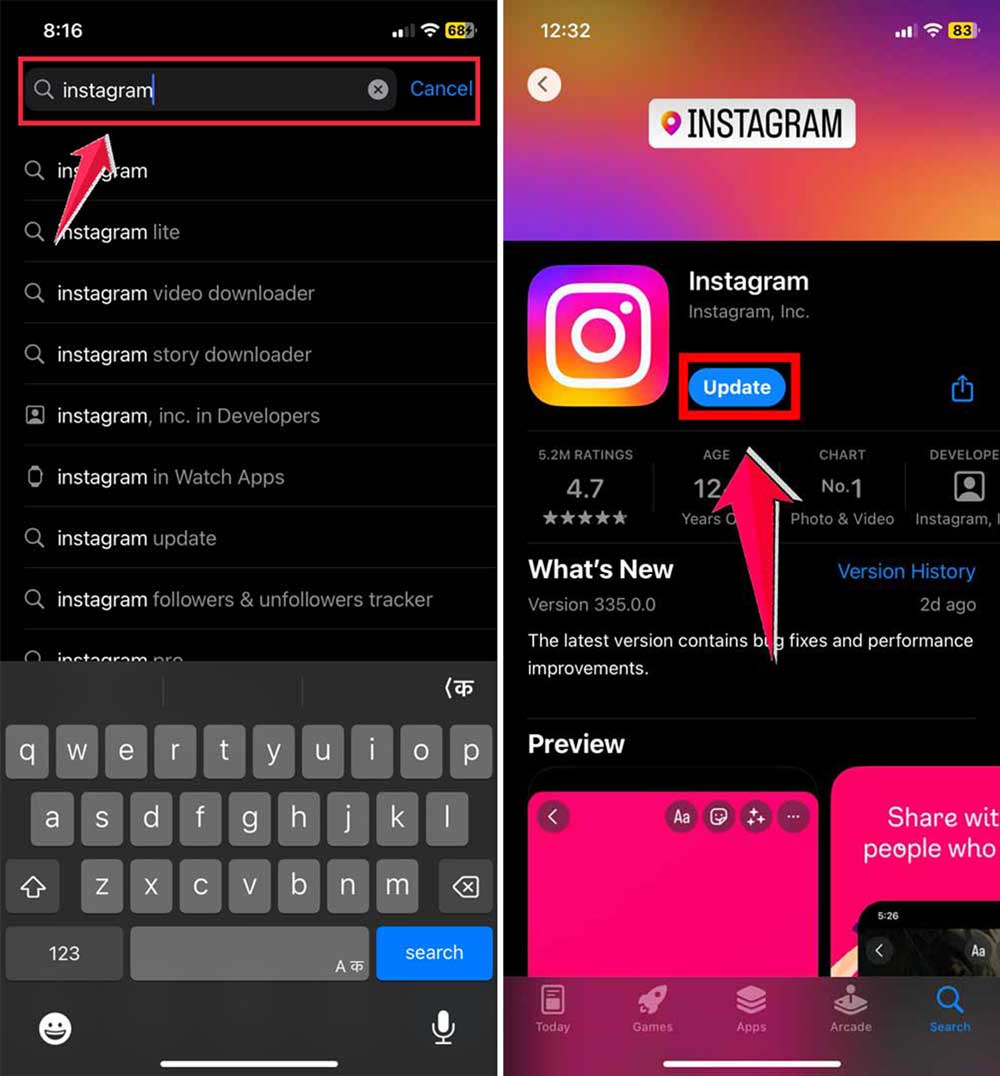
3. Update Instagram
Keeping your app up-to-date ensures you have the latest bug fixes.
- Open your device’s app store.
- Search for “Instagram“.
- If an update is available, tap “Update“.
- Wait for the update to install.
4. Check your internet connection
A weak or unstable connection can cause Instagram to crash.
- Turn your Wi-Fi off and on again.
- Try switching between Wi-Fi and cellular data.
- If on Wi-Fi, move closer to your router or reset it.
- Run a speed test online to check your connection.
5. Update your device’s operating system
An outdated OS can cause compatibility issues with apps.
For Android
- Go to Settings > Software update.

- Download and install > Download.
- Tap “Check for update“.
- If available, download and install the update.

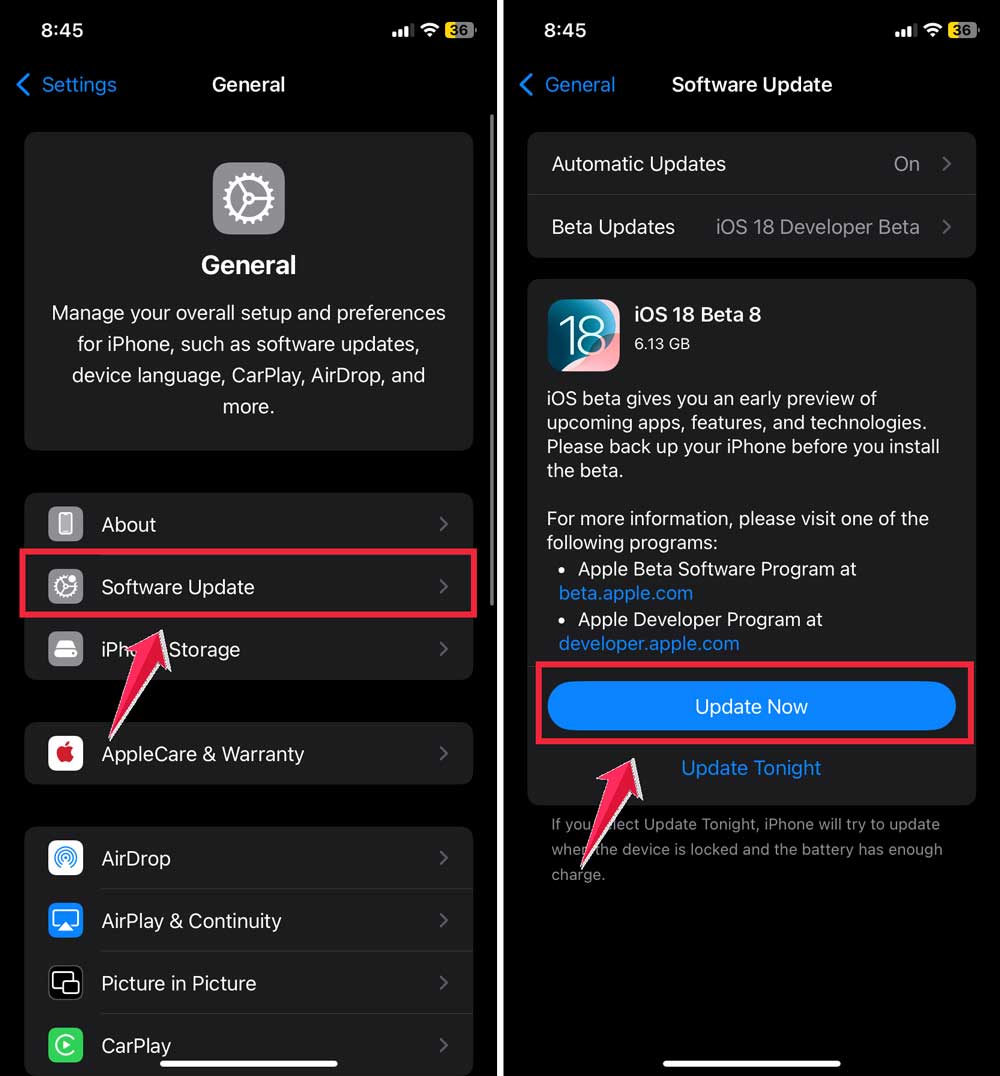
For iPhone
- Go to Settings > General > Software Update.

- If an update is available, tap “Update Now“.
6. Report the issue to Instagram Support
If nothing else works, reaching out to Instagram directly might help.:
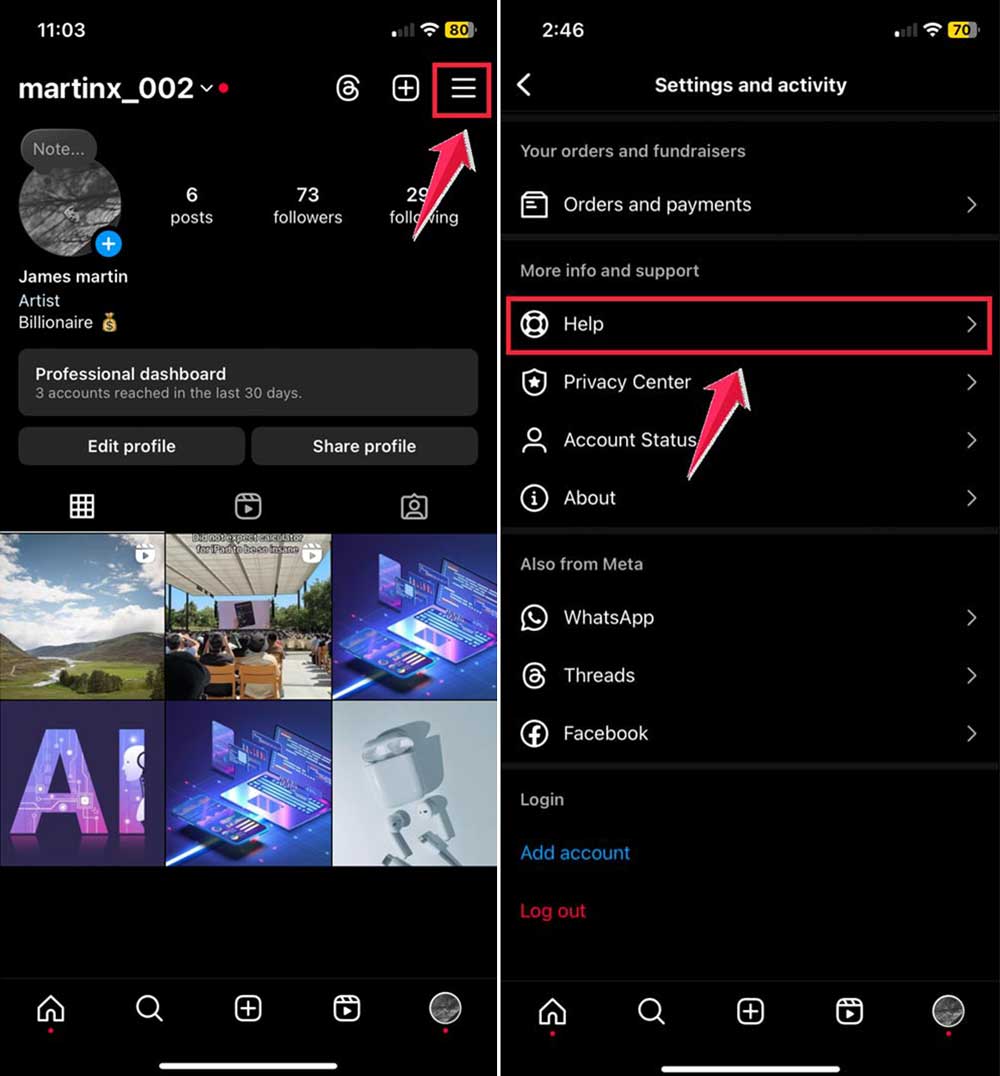
- Open Instagram and go to your profile.

- Tap the menu icon in the top right.
- Select Settings and Privacy> Help.
- Tap “Report a problem“.
- Confirm to “Report a problem“.

- Click on Include and continue.
- Type “Something isn’t working“.
- Describe the issue in detail.
- Tap Send to send your report.

7. Free up internal storage
Low storage can cause app crashes. Here’s how to free up space:
- Move photos and videos to an SD card or cloud storage.
- Go through your downloads folder and delete unnecessary files.
- Use your phone’s built-in storage manager (usually found in Settings).
- Delete old photos, videos, and unused apps.
- Aim to keep at least 1GB of free space on your device.
8. Disable power-saving mode
Power-saving mode can restrict app functionality, potentially causing crashes:
For Android
- Go to Settings > Battery and Device Care.

- Click on Battery > Power Saving Mode.
- Toggle it off if it’s enabled.

For iPhone
- Go to Settings > Battery.
- Turn off Low Power Mode if it’s on.

Remember, if you’re still having trouble after trying these fixes, it might be worth contacting your device manufacturer’s support team. There could be a device-specific issue that needs addressing.
The takeaway
Dealing with app crashes can be a real pain, right? But don’t worry, you’ve got this! We’ve walked through some simple fixes that can get your Instagram back on track.
Remember, the quickest solutions are often the most effective. Try reinstalling the app, clearing that cache, or freeing up some storage space on your phone. And don’t forget to keep both Instagram and your phone’s system up-to-date!
Sometimes, the issue isn’t Instagram itself but your phone’s settings or internet connection. So, give those a check, too. And if you’re still stuck? Don’t be shy about reaching out to Instagram support – that’s what they’re there for!
The most important thing? Don’t get discouraged. Tech hiccups happen to everyone, and with these tips, you’ll be back to posting your awesome content in no time. You’ve got this, and your Instagram feed is waiting for you!





