


Let’s be real—nothing’s more frustrating than being in the middle of a FaceTime call and suddenly… it drops.
One second you’re chatting, laughing, or handling something important, and the next—silence. It feels like your phone just gave up on you. I get it, and you’re definitely not alone.
So, why does FaceTime keep disconnecting like that? Well, there are a few possible reasons. Sometimes it’s your internet acting up. Other times, your phone might be running too many apps or using an outdated iOS version.
And yes, software bugs sneak in too, especially after updates. Even your settings could be causing trouble without you realizing it.
But here’s the good news—you don’t need to be a tech expert to fix it. Most of the time, the solution is simple and quick.
You just need to know where to look and what to tweak. That’s exactly what we’re going to do together in this guide.
So, take a breath. We’re going to walk through everything step by step. By the end, you’ll know exactly what to do to stop those FaceTime disconnects once and for all.
Common Reasons Why FaceTime Disconnects
1. Weak Internet Connection Can Be Tricky
FaceTime needs a good, strong internet connection to work properly. If your Wi-Fi is weak or your mobile data is spotty, calls can drop without warning.
It’s one of the top reasons FaceTime gives up mid-call. Try standing closer to your router or switching to a different network. You’d be surprised how often that helps.
2. Too Many Apps Can Slow You Down
Your phone can only handle so much at once. If you’ve got a bunch of apps running in the background, they could be eating up memory and data.
That leaves FaceTime struggling to keep up. So, it’s a smart move to close anything you’re not using.
3. Software Updates Sometimes Have Bugs
Every update is supposed to make things better, but sometimes, they bring new problems. It’s not your fault. Software bugs can cause FaceTime to disconnect randomly.
That’s why it’s good to wait a few days before installing a new update—let others test it out first.
4. Check Your Settings
Now and then, a tiny setting can mess everything up. Maybe something changed without you noticing. Maybe a toggle got flipped. It happens.
Double-check your Wi-Fi settings, FaceTime settings, and data usage settings. It only takes a minute.
5. Get the Latest iOS Version
If your phone’s running an older version of iOS, it might not play nice with FaceTime anymore. Updates often include fixes for things like this.
So, head to your settings and make sure you’re running the latest version. It could solve the problem instantly.
How to Fix FaceTime Keeps Disconnecting Randomly?
Alright, now let’s get to the good part—fixing it. These are the steps you can take right now to stop FaceTime from dropping out during calls.
No tech degree needed. Just follow along, and we’ll figure this out together.
#1: Strengthen Your Internet Connection
Let’s start with the most common issue—your internet. If FaceTime keeps cutting out, check your connection first.
- Tip: Move closer to your Wi-Fi router.
- Tip: Try switching to mobile data if your Wi-Fi is unstable.
- Tip: Restart your router if it’s been on for a while.
Sometimes, your internet just needs a little refresh.
#2: Restart Your Device
It sounds simple, but it works. Restarting your phone clears out temporary glitches and gives it a fresh start.
- Step 1: Hold down the Power button and Volume button (on newer iPhones).
- Step 2: Slide to power off.
- Step 3: Wait a few seconds, then turn it back on.

Try FaceTime again after the restart. You might be surprised how effective this is.
#3: Shut Down Unnecessary Apps
Too many apps in the background? That’s a problem. They eat up your phone’s memory and slow things down.
- Step 1: Swipe up from the bottom (or double-tap the Home button).
- Step 2: Swipe up on the apps you’re not using to close them.
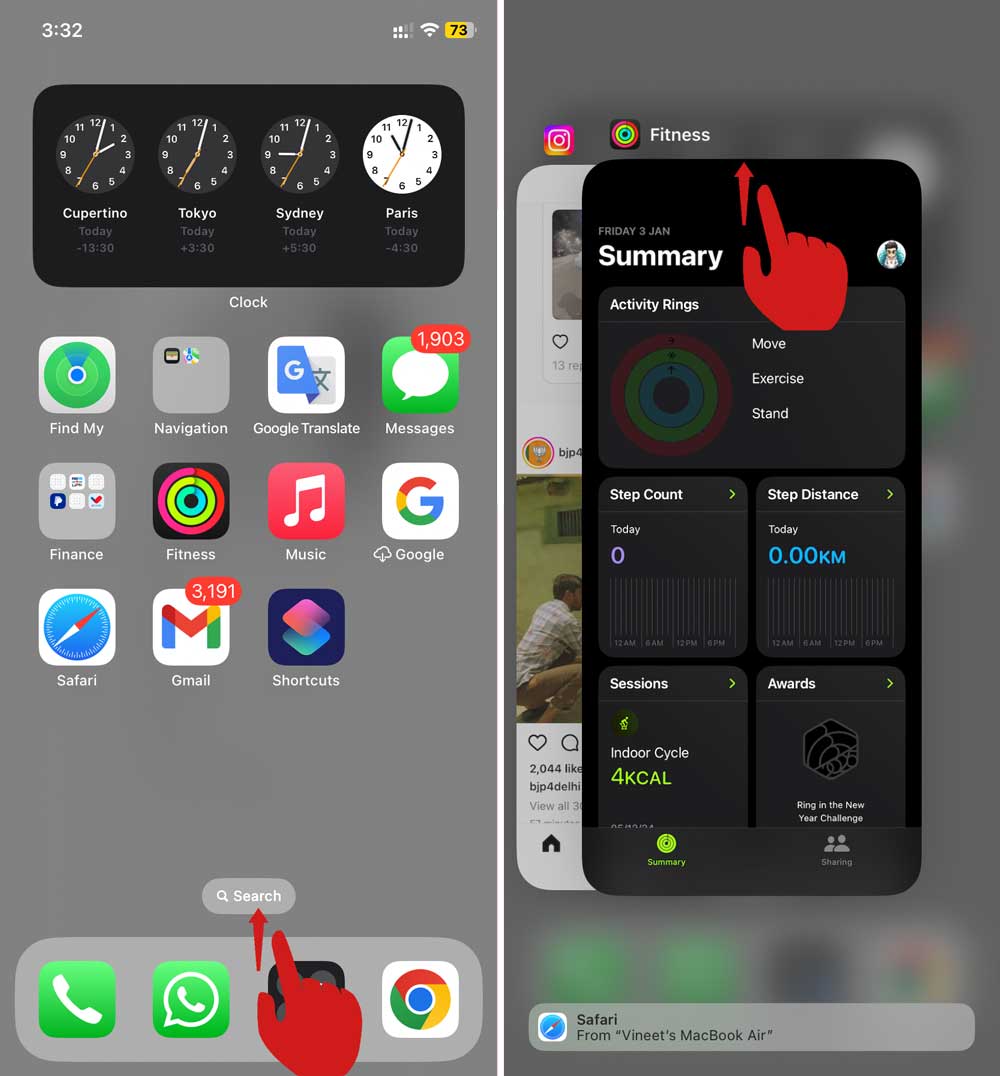
FaceTime needs room to run smoothly. Give it that space.
#4: Update Your iOS Software
Outdated software can cause all kinds of issues, including FaceTime disconnects.
- Step 1: Open Settings.
- Step 2: Tap General.

- Step 3: Then tap on Software Update.
- Step 4: If there’s an update available, tap Update Now.

Once it’s updated, test FaceTime again.
#5: Reset Network Settings
If your internet settings are messed up, this can fix it. Just know, it will erase saved Wi-Fi networks, so you’ll need to reconnect.
- Step 1: Go to Settings.
- Step 2: Tap General > Transfer or Reset iPhone.

- Step 3: Tap Reset > Reset Network Settings.
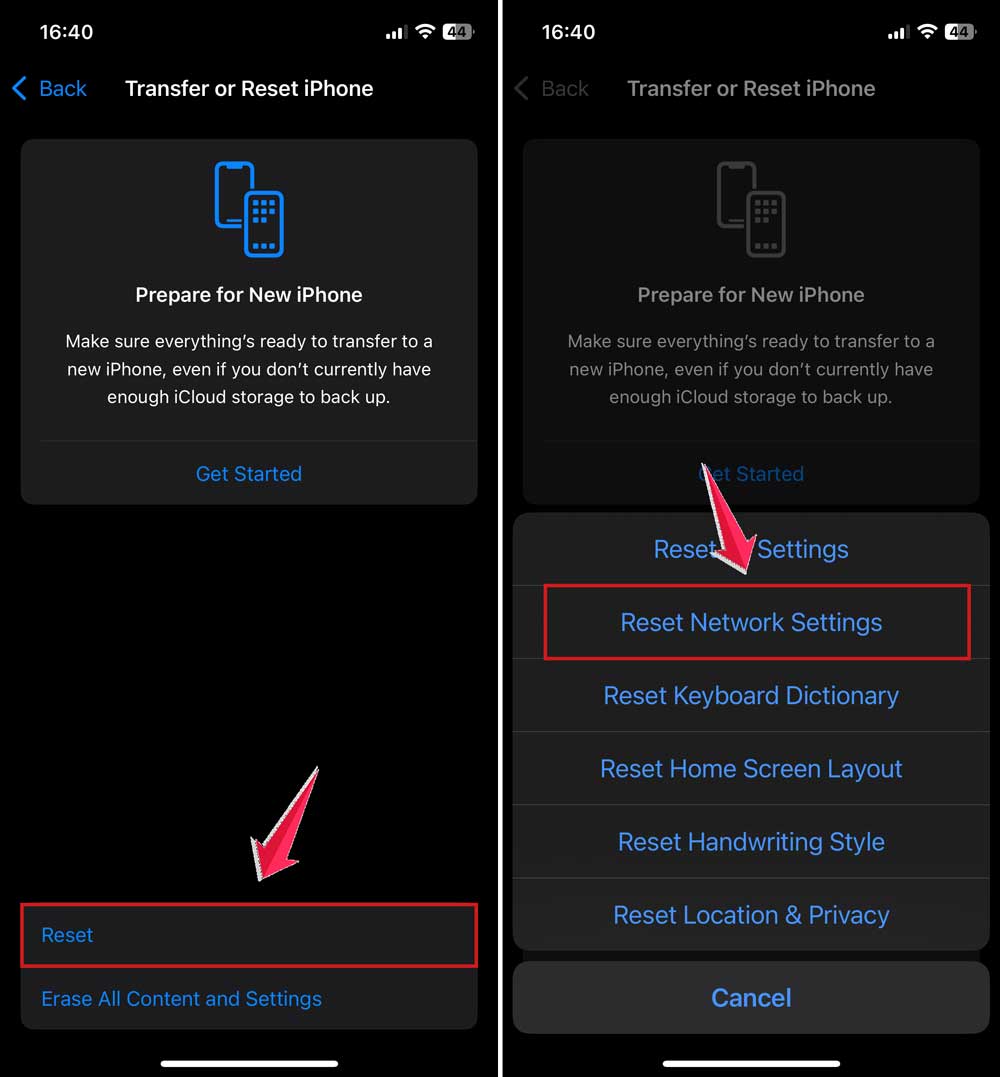
- Step 4: Enter your passcode and confirm.
Reconnect to Wi-Fi and check FaceTime again.
#6: Turn Off Low Data Mode
Low Data Mode can mess with FaceTime performance.
- Step 1: Open Settings.
- Step 2: Tap Wi-Fi.

- Step 3: Tap the info (i) icon next to your network.
- Step 4: Toggle off Low Data Mode.

This ensures FaceTime has enough bandwidth to run properly.
#7: Try FaceTime on Another Device
If you’ve got an iPad or another iPhone, give FaceTime a try on that. If it works fine there, the problem might be with your main device.
#8: Reach Out to Apple Support
Still stuck? It might be time to get help from the experts.
- Tip: Visit Apple’s Support site or head to an Apple Store. They can run deeper diagnostics and figure out what’s going on.
Extra Tips to Keep FaceTime Running Smoothly
Let’s make sure everything stays smooth, even after you fix the current issue.
1. Keep Battery Level Healthy
Low battery can mess with performance. Keep your device charged, especially during long calls. Plug in if you can—it helps.
2. Try Using a Different Network
Your current Wi-Fi might be slow today. Try switching to another network or using mobile data. Sometimes, that’s all it takes.
3. Disable Background App Refresh
Some apps keep using your data even when you’re not using them.
- Step: Go to Settings > General > Background App Refresh.
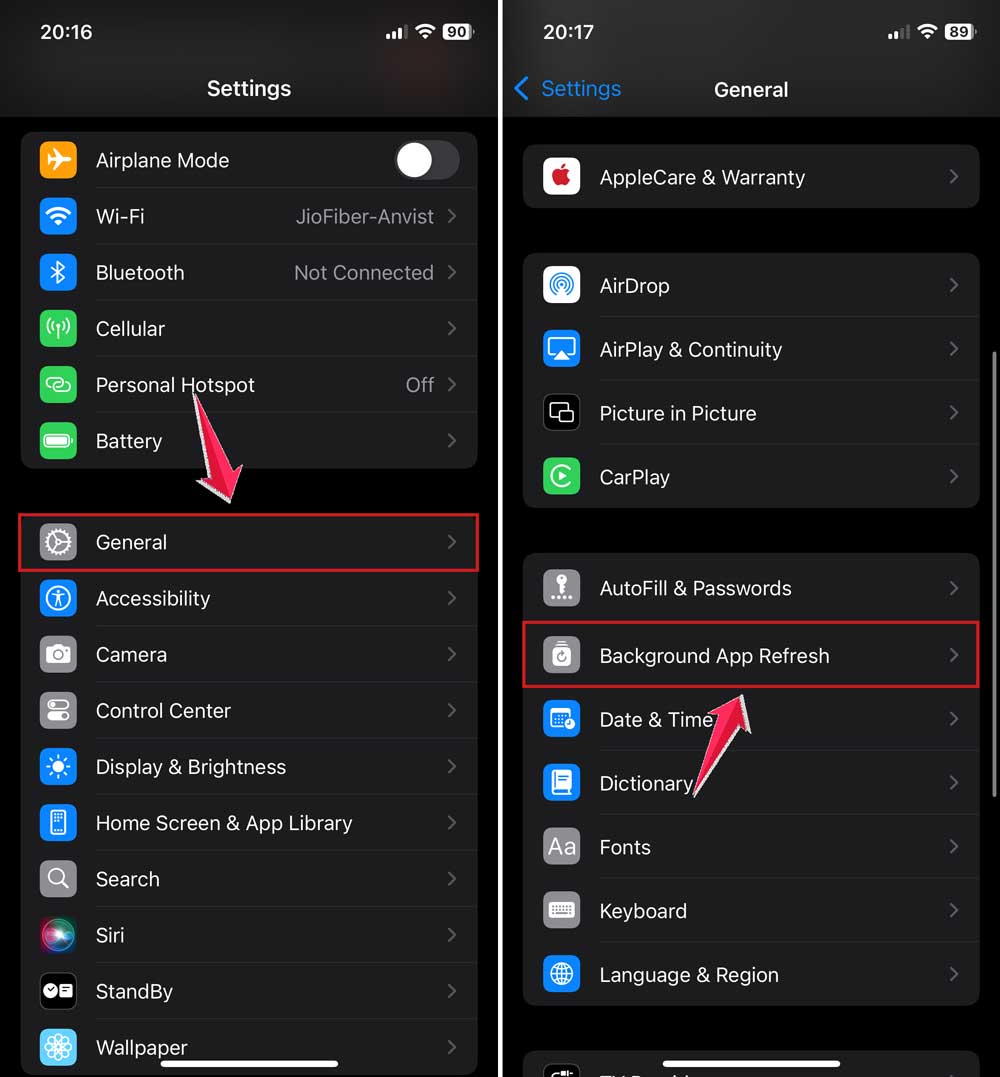
- Step: Turn it off for apps you don’t need running in the background.
This gives FaceTime more speed to work with.
4. Maintain a Clean Case and Clear Microphone
Make sure your phone case isn’t covering your mic or speaker. Wipe your phone gently with a soft cloth. Clear audio makes a big difference.
5. Check for Busy Network Times
Even good networks slow down during busy hours. If your calls keep dropping at the same time every day, try calling at a quieter time.
The Takeaway
So, FaceTime keeps cutting out—and yeah, it’s a pain. But now you know what causes it and how to fix it. Whether it’s a weak Wi-Fi signal, too many open apps, or a software glitch, you’ve got the tools to handle it.
We covered everything from restarting your phone to updating iOS, resetting network settings, and even checking for background activity. These steps are simple, but they can make a huge difference.
And remember—most of the time, it’s not your phone’s fault. It just needs a little help to get back on track. So don’t stress. You’ve got this. Try these fixes, and you’ll be back to smooth, uninterrupted FaceTiming in no time.
Still having issues? Drop a comment below and let’s figure it out together.





