Let’s be honest. There’s nothing more frustrating than finishing a workout, checking your Apple Watch, and realizing… nothing was tracked.
No credit, no Move ring progress, no sign that you even moved. You’ve been walking, running, or working out, but your watch just didn’t get the memo.
If you’re trying to stay active or hit your daily fitness goals, this kind of issue can really mess with your motivation. And it’s not just you—this happens to a lot of people.
Sometimes it’s a small thing, like a setting you didn’t notice. Other times, it might be your watch needing a quick clean or a simple update.
The good news is, you don’t need to panic or give up on your fitness streak. I’ve got you covered with some easy-to-follow fixes that’ll help your Apple Watch get back to tracking like it should.
Whether it’s a setting, a sensor issue, or just the way you’re wearing it, we’ll go through it all together. So, take a breath, and let’s sort this out one step at a time.
Why Your Apple Watch Isn’t Tracking Your Workouts Properly
Before we jump into the fixes, let’s talk about what might be going wrong. Knowing the “why” helps you fix the “how” faster.
1. Your Settings Might Be Off
Sometimes, your watch just isn’t set up the right way. Maybe something got turned off by accident, or a feature didn’t activate properly. It happens.
Just double-checking your **Activity settings** in the Watch app can make a big difference. If something’s off, your watch might not be counting your steps or movement like it should.
2. Outdated Software Could Be the Issue
If your watch isn’t running the latest version of WatchOS, it might not work as expected. Updates fix bugs and improve performance.
When your software’s behind, your watch may not sync well with your phone or handle fitness tracking correctly.
3. Dirty Sensors Might Be Blocking Tracking
Your Apple Watch relies on sensors to track your movement. If those sensors are dirty—maybe from sweat, dust, or everyday wear—they might not work properly.
Cleaning them gently can help bring them back to life.
4. You Might Be Wearing It Wrong
This one’s easy to overlook. If your watch is too loose or sitting too far down your wrist, it may not read your movement accurately.
It needs to sit snugly, right above your wrist bone. Not too tight, not too loose—just right.
These are the most common reasons your Apple Watch might not be tracking your workouts. But don’t worry—we’re going to walk through how to fix each one.
Apple Watch Not Tracking Exercise or Move Ring? Let’s Fix It!
Alright, let’s go step by step and get your Apple Watch back to doing its job—tracking your fitness and closing those rings.
#1: Check and Update Your Settings
Let’s start simple. Your settings might not be right, and that’s an easy fix.
Here’s what you can do:
- Open the Watch app on your iPhone.
- Tap Activity.

- Look through all the settings and make sure they match what you want.
- If everything looks fine, try toggling some options off and back on again.
Sometimes, just flipping a switch helps your watch reset and work normally again.
#2: Ensure Your Software is Up-to-Date
This step is super important. Old software can mess up how your watch works. Updates often fix bugs that affect tracking.
Here’s how to check for updates:
- Open the Watch app on your iPhone.
- Tap General.
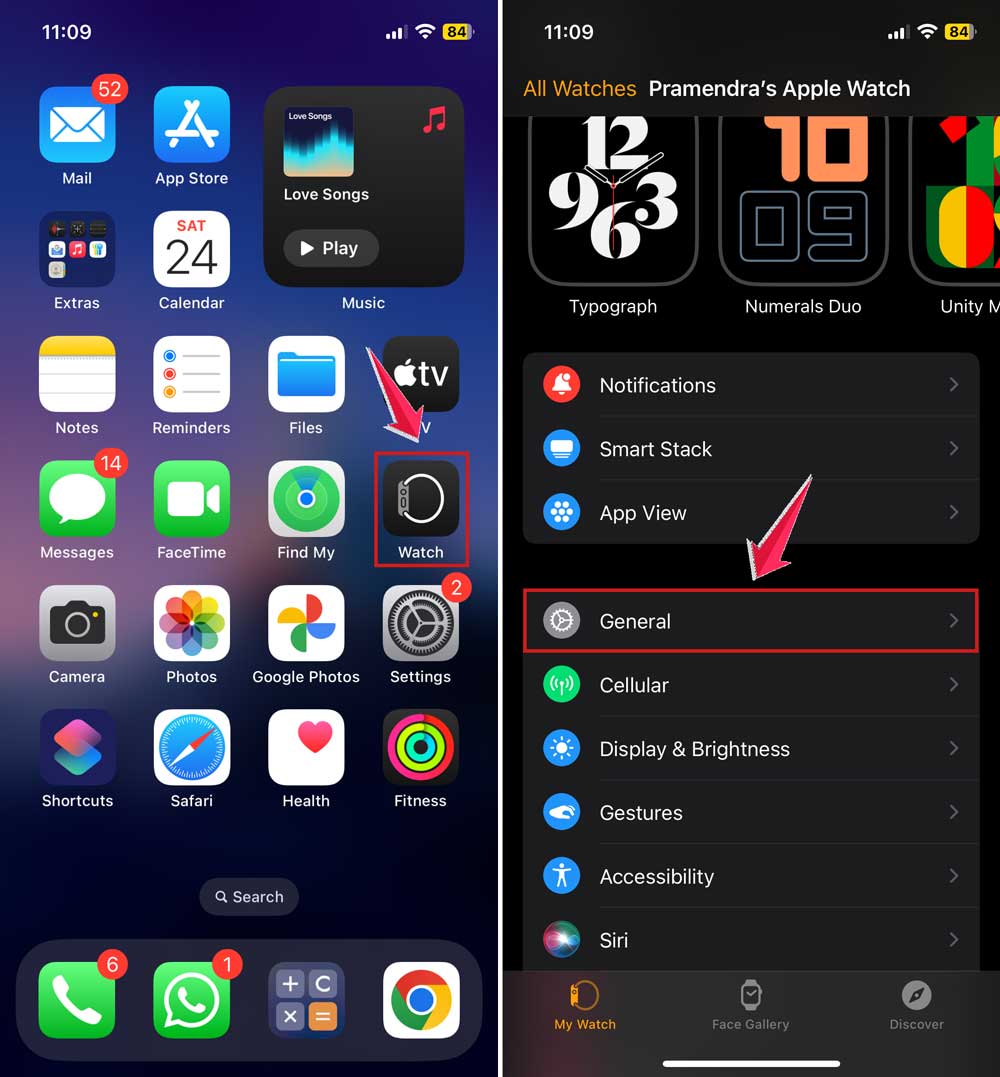
- Then, Software Update.
- If there’s an update available, go ahead and install it.

Keeping your watch updated is like giving it a tune-up. It keeps things running smoothly.
#3: Clean Your Watch’s Sensors
You’d be surprised how much dust or sweat can build up on your watch. That grime can block the sensors and stop your watch from tracking properly.
Here’s how to clean your sensors:
- Use a soft, lint-free cloth—nothing rough or wet.
- Gently wipe the back of the watch where it touches your skin.
- Don’t use soap, water, or alcohol-based cleaners.
Do this regularly. It only takes a minute, but it makes a big difference.
#4: Wear the Watch Correctly
I know it sounds obvious, but this is a common problem. Your watch needs to be snug on your wrist—not too tight, but not loose either.
Here’s what to check:
- Make sure your watch is just above your wrist bone.
- Adjust the band so it’s snug but comfortable.
- Avoid wearing it too loose—it won’t read your movement right.
A small adjustment here can make a big change in how well your watch tracks.
#5: Restart the Apple Watch
Sometimes, your watch just needs a quick reset to clear up any small bugs.
Here’s how to restart it:
- Press and hold the side button until you see the sliders.
- Drag the Power Off slider to turn it off.
- After it shuts down, press and hold the side button again to turn it back on.

Think of it like giving your watch a fresh start.
#6: Calibrate Your Apple Watch
If your step count or workout tracking still feels off, calibration can help. This lets your watch learn how you move and improves accuracy.
Here’s how to do it:
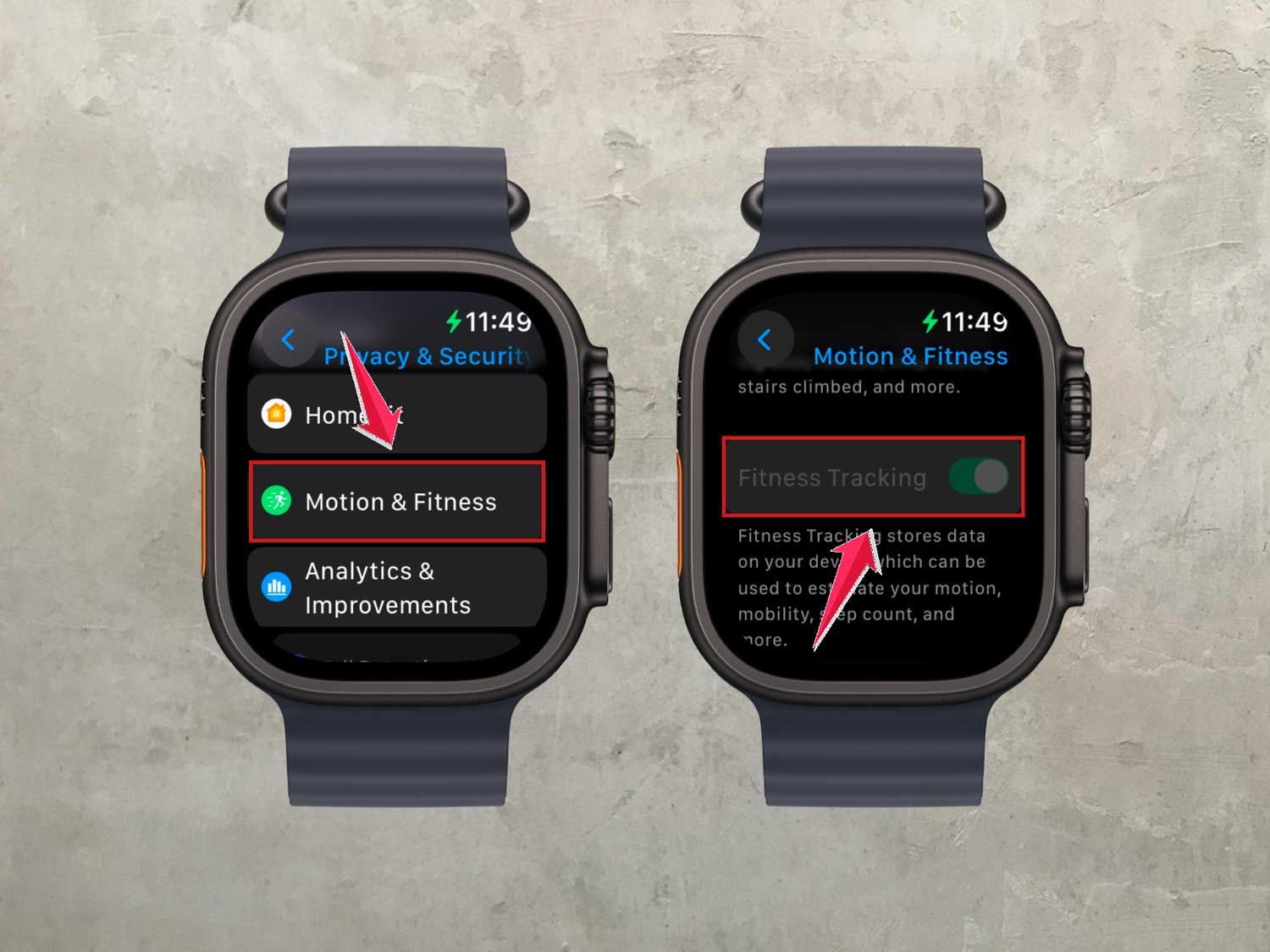
- On your Apple Watch, open the Settings app.
- Tap Privacy.

- Then choose Motion & Fitness.
- Make sure Fitness Tracking is turned on.
Now, go outside and do a 20-minute brisk walk or run in a flat area. This helps your watch “learn” your stride and activity style.
The more you do it, the better your watch gets at tracking.
These are the most effective ways to get your Apple Watch working properly again. Try them one by one, and you’ll likely see your rings closing like they should.
Still Not Working Right? Try These Extra Tips
If you’ve tried everything above and your watch is still giving you trouble, don’t give up yet. There are a few more things you can try.
1. Make Sure Your Health App Has Permissions
Sometimes, your Apple Watch isn’t allowed to share data with the Health app. If that connection isn’t working, your activity might not be recorded.
Here’s how to check:
- Open the Health app on your iPhone.
- Tap Sources.
- Make sure your Apple Watch is listed and allowed to collect and share data.
This little check can solve a lot of hidden problems.
2. Review and Adjust Your Activity Goals
If your goals are too high or not set right, it might look like your watch isn’t tracking, even when it is.
Open the Activity app and tap Change Goals. Update them to something that fits your current routine.
That way, you’re working toward something realistic, and your watch will reflect your actual effort.
3. Unpair and Pair Your Watch Again
If nothing else works, it might be time to unpair and re-pair your watch. This clears out any small software bugs that might be getting in the way.
Here’s how:
- Open the Watch app on your iPhone.
- Tap All Watches.

- Tap the “i” next to your watch.
- Tap Unpair Apple Watch.

Then, set it up again like new. It takes a little time, but it often fixes stubborn issues.
The Takeaway
When your Apple Watch isn’t tracking your workouts or closing that Move ring, it can feel like all your hard work is going unnoticed.
But don’t let it throw you off. Most of the time, the fix is something simple, like updating your software, cleaning the sensors, or adjusting how you wear it.
You’ve now got all the steps you need to get back on track. Start with the basics, work your way through the list, and be patient with the process.
Your watch is a powerful tool, and with just a little care, it can go back to being your best workout partner.
Give these fixes a try and see how your Apple Watch responds.
And hey, if you’ve got a tip or trick that worked for you, drop a comment below. Let’s help each other out and keep those rings closing!