


Ever had your iPhone screen dim all of a sudden? Like, you’re just scrolling through something or watching a video, and boom—it gets darker without warning.
Yeah, it’s annoying. And you’re not the only one dealing with it.
So, what’s going on with your phone? Well, your iPhone has a few features that try to manage brightness on their own, like Auto-Brightness and True Tone. These are supposed to help, but honestly, they sometimes make things worse.
Then there’s Low Power Mode, which dims the screen to save battery. And if your phone gets too hot, that can cause dimming too. Oh, and let’s not forget software bugs—they can mess things up quietly in the background.
Why is this a big deal? Because it gets in the way of how you use your phone. You want to see your screen clearly, not keep adjusting it every few minutes.
The good news? You’re not stuck with it. I’ll walk you through what’s causing the dimming and how to stop it. It’s easier than you think, and by the end of this, you’ll know exactly what to do.
Let’s fix that screen brightness together.
What causes your iPhone screen to dim randomly?
Let’s break this down. If your iPhone screen is dimming when you don’t want it to, chances are one of these things is behind it.
Some are settings, some are system features, and some are just your phone trying to protect itself.
1. Auto-Brightness Could Be Fiddling
Your iPhone has a feature called Auto-Brightness. It tries to adjust your screen brightness based on how much light is around you. Sounds helpful, right?
But it doesn’t always get it right. Sometimes, it dims your screen even when you don’t want it to. If you’re indoors under a lamp or walking in and out of shade, this setting can go a little crazy.
2. True Tone Adjusts More Than You Think
There’s also something called True Tone. It changes your screen’s appearance to match the lighting around you.
It’s meant to make things look more natural, but it can also make your screen look dimmer than usual. If your lighting changes a lot, your screen brightness might too.
3. Low Power Mode Saves Battery, Not Brightness
When your iPhone battery is low, Low Power Mode jumps in to help. It reduces background activity and dims your screen to save energy.
It’s useful when you’re out and about without a charger, but not when you’re trying to actually see your screen clearly.
4. Phone Feeling the Heat?
If your phone gets too hot, it’ll start to protect itself. One way it does this is by dimming the screen.
Overheating can happen if you’re using your phone under the sun, charging it while using, or just running too many apps at once. It’s not a glitch—it’s your phone trying to cool down.
5. Add a Dash of Software Bugs
Sometimes, it’s not a setting at all. It could be a software bug. These little glitches can mess with brightness settings, and you won’t even know it’s happening.
That’s why keeping your phone updated is super important.
Now that you know what’s causing the dimming, let’s fix it.
How to Stop Your iPhone Screen from Dimming Randomly
Alright, you’ve made it this far, so let’s get hands-on and fix the problem. I’ll walk you through each solution.
Some are quick setting changes, others take a bit more effort. But don’t worry, I’ll guide you step by step.
#1: Turn Off Auto-Brightness
Let’s start with the obvious one. Auto-Brightness is often the main reason your screen dims on its own.
If you don’t want your phone deciding brightness for you, here’s what to do:
- Open your Settings.
- Tap Accessibility.

- Choose Display & Text Size.
- Scroll down and turn off Auto-Brightness.

Now, you’re in control. Your screen will stay at the brightness you set.
#2: Disable True Tone
If you’ve turned off Auto-Brightness but your screen still dims, True Tone might be the next thing to check. It’s meant to make colors look better, but it can also mess with brightness.
- Go to Settings.
- Tap Display & Brightness.
- Toggle True Tone off.

Give it a try and see if your screen stays more consistent now.
#3: Turn Off Low Power Mode
Low Power Mode is great for saving battery, but it dims your screen. If you don’t mind using up a bit more battery, turn it off and regain control of your brightness.
- Open Settings.
- Tap Battery.
- Switch off Low Power Mode if it’s on.

You’ll notice your screen looks brighter again.
#4: Keep Your iPhone Cool
If your phone is overheating, it will dim the screen to protect itself. Let’s cool it down.
- Don’t use your phone in direct sunlight for too long.
- Avoid charging and using it heavily at the same time.
- Remove thick or heat-trapping cases if your phone gets hot often.
Keeping your phone cool helps it perform better and keeps your screen bright.
#5: Update Your iPhone Software
Sometimes, the problem is just a glitch. Apple often fixes bugs with updates. So, make sure your phone is running the latest version of iOS.
- Open Settings.
- Tap General.

- Tap Software Update.
- If there’s an update available, tap Update Now.

After updating, check if the dimming issue is gone.
#6: Reset All Settings
Still not fixed? Try resetting all settings. This won’t delete your apps or data, but it will reset things like Wi-Fi, Bluetooth, and display settings.
- Open Settings.
- Tap General.
- Scroll down and tap Transfer or Reset iPhone.

- Tap Reset, then choose Reset All Settings.

This might just do the trick if something deep in the settings was causing the problem.
#7: Use Manual Brightness Control
Sometimes, the best way is the manual way. You can always adjust your screen brightness manually whenever you feel it’s too dim.
- Swipe down from the top-right corner of your screen to open the Control Center.
- Slide the brightness bar up or down to adjust.

This gives you full control, and you don’t have to rely on Auto-Brightness or True Tone.
#8: Clean Your Screen
Believe it or not, a dirty screen can mess with the light sensor. If there’s dust or smudges, your iPhone might think it’s brighter than it is.
- Use a soft, lint-free cloth to clean your screen.
- Wipe gently to avoid scratching.
A clean screen helps your phone detect lighting properly and adjust better.
#9: Restart Your iPhone Regularly
Restarting your iPhone clears temporary glitches and gives it a fresh start. If your screen dims randomly, a quick reboot might help.
- Hold the power button and slide to power off.
- Wait a few seconds, then turn it back on.

Try doing this once a week to keep things running smoothly.
#10: Close Background Apps
Too many apps running in the background can overwork your phone and cause overheating. That leads to dimming.
- Swipe up from the bottom (or double-tap the home button).
- Swipe up on apps you’re not using to close them.
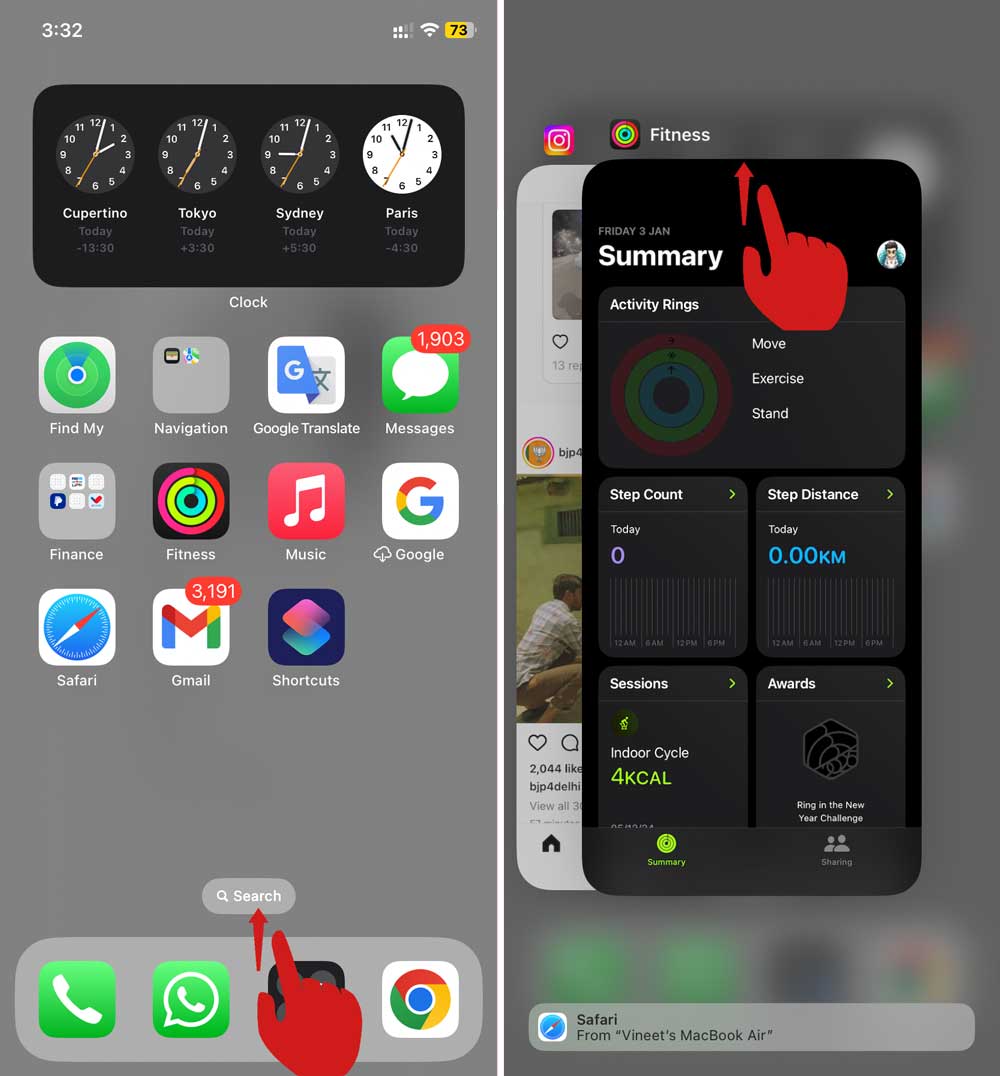
This keeps your phone cool and helps prevent dimming.
#11: Check Third-Party App Settings
Some apps—especially video or reading apps—change brightness while you use them. If it’s only happening in one app, check its settings.
- Open the app.
- Look for any brightness or display settings.
- Turn off any auto-adjust options.
That should give you a more consistent experience.
The Takeaway
There you go—you now know why your iPhone screen keeps dimming and how to fix it. Whether it’s Auto-Brightness acting up, Low Power Mode saving battery, or just your phone getting too warm, there’s always something you can do about it.
Start with the basics. Turn off Auto-Brightness and check your power settings. Keep your phone cool and updated. And don’t forget—sometimes a quick restart or a clean screen can make all the difference.
Most people think their phone is broken when the screen dims like that. But in reality, it’s just a few settings trying to be helpful and getting in the way instead.
Now you’re in control. So go ahead, make those changes and enjoy a screen that stays just as bright as you want it.
Tried any of these tips? Did one of them work for you? I’d love to hear how it went—drop a comment below and let’s chat about it!





