


Are you staring at your phone, frustrated because Instagram won’t update? Users face this issue every day and we know it, and it’s more than just an inconvenience.
Maybe you’re missing out on new features, security updates, and maybe even that cool filter your friends are raving about.
In today’s world, a working Instagram is practically essential. Whether you use it to keep in touch with friends, promote your business, or just scroll through memes, an outdated app can really put a damper on your day.
Right now, we’re going to dive into why your Instagram isn’t updating and how to get it back on track. We’ll walk through the common causes and simple solutions step by step.
Why isn’t your Instagram updating?
There are several reasons why your Instagram app might not be updated. Let’s explore some common causes.
1. Outdated phone software. Your phone’s operating system might need an update. Keeping your device’s software current is crucial for apps to function properly. If your phone is running on an older version, it might struggle to update apps like Instagram.
2. Limited storage space. Is your phone running out of space? This can prevent app updates from downloading and installing. Instagram updates often require a bit of extra space, so a nearly full device might cause issues.
3. Network connectivity problems. A stable internet connection is essential for app updates. If your Wi-Fi or mobile data is unreliable, Instagram might have trouble downloading the latest version.
4. App Store or Google Play Store issues. Sometimes, the problem lies with the app store itself. Glitches in the App Store or Google Play Store can interfere with app updates, including Instagram.
5. Instagram server problems. Occasionally, the issue might be on Instagram’s end. Server problems can disrupt various functions, including updates.
Now that we’ve identified potential causes, let’s look at how you can fix these issues and update your Instagram.
Why your Instagram isn’t updating (and how to fix it)
Are you struggling to update your Instagram? Don’t worry, we’ve got you covered. Let’s go through some common fixes to get your app up-to-date.
1. Restart your phone
Sometimes, the simplest solution works best. Here’s how to give your phone a quick refresh:
- Press down volume button and hold the power button on your device.
- Select the option to power off or restart.
- Wait for about 30 seconds after your phone turns off.
- Turn your phone back on.
- Once it’s restarted, try updating Instagram again.

2. Check your internet connection
A stable internet connection is crucial for app updates. Try these steps:
- Switch between Wi-Fi and mobile data to see if one works better.
- If you’re on Wi-Fi, try moving closer to your router for a stronger signal.
- Consider resetting your router if issues persist.
- After ensuring a stable connection, attempt to update Instagram.
3. Clear up storage space
Low storage can prevent updates. Here’s how to free up some space:
- Go to your phone’s Settings and check your available storage.
- Delete unused apps that you no longer need.
- Remove old photos and videos (after backing them up, of course).
- Clear your browser cache and app data.
- Aim to free up at least 1GB of space.
- Try updating Instagram after clearing some storage.
4. Update your phone’s software
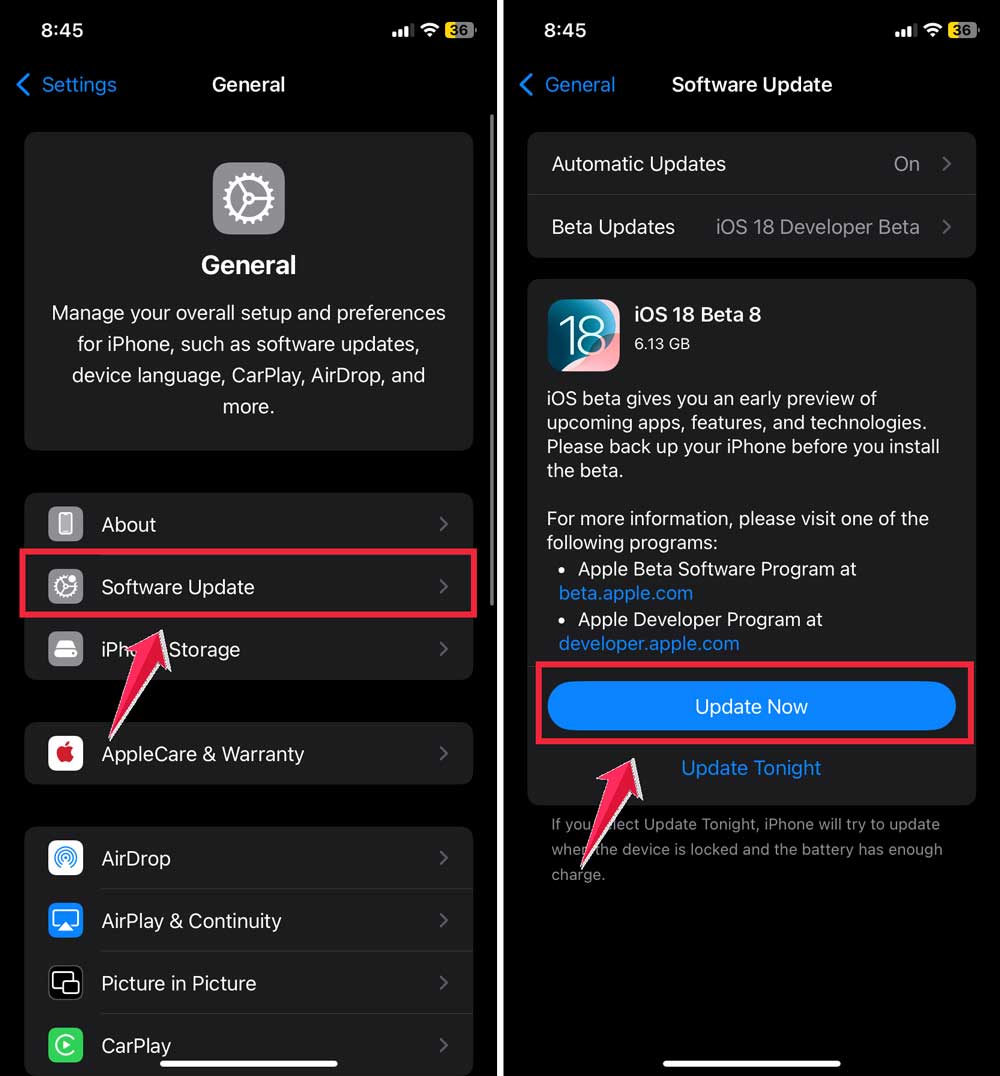
Outdated phone software can cause app update issues. Here’s how to check for updates:
For iPhone users
- Go to Settings.
- Tap on General.

- Select Software Update.
- If an update is available, download and install it.
For Android users
- Open Settings.
- Tap on Software Update then click on Download and install.
- Follow the prompts to check for and install any available updates.

5. Refresh the App Store or Google Play Store
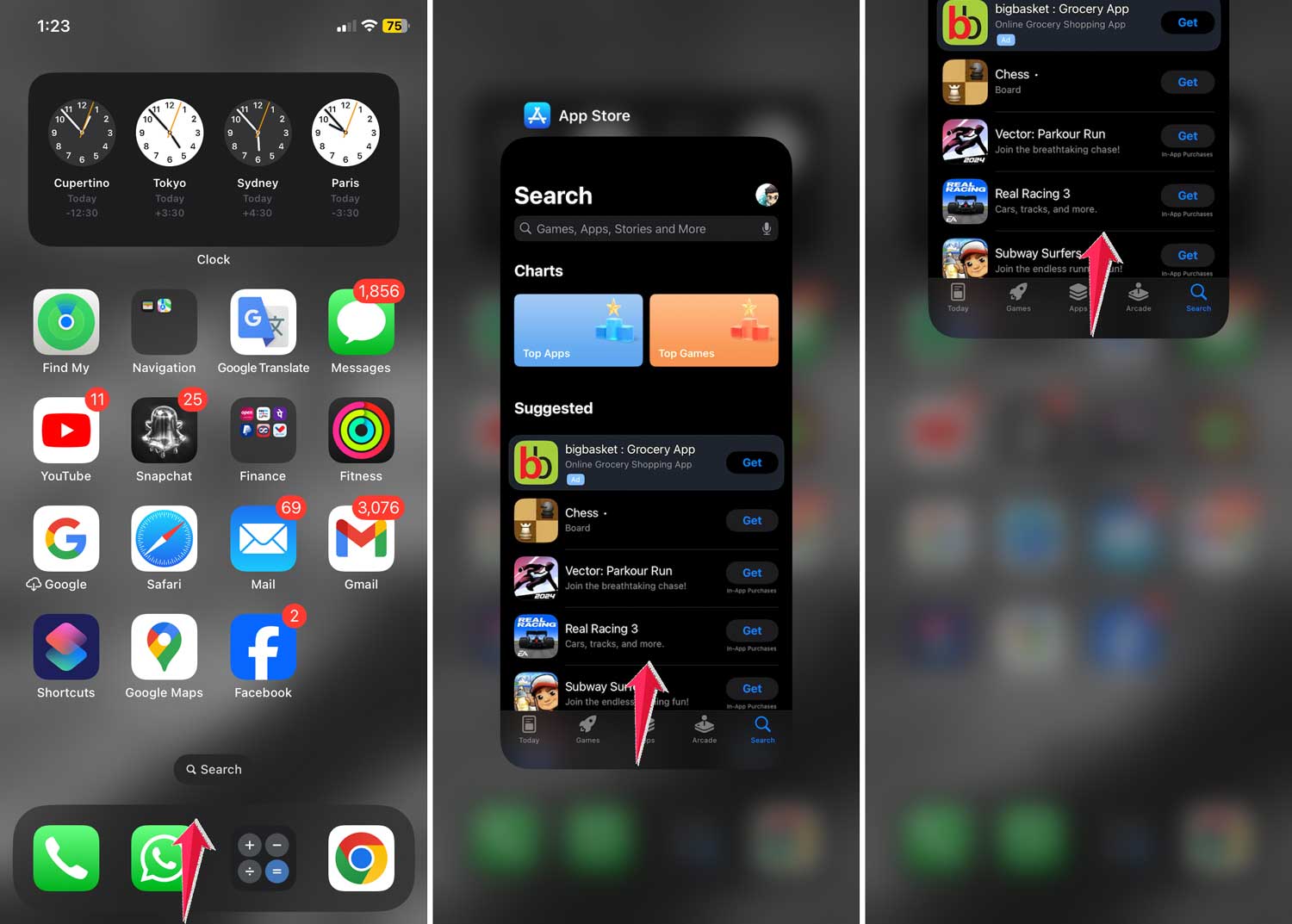
Sometimes, the app stores themselves need a little nudge. Here’s what you can do:
For iPhone users
- Double-click the home button (or swipe up from the bottom on newer models) to see your open apps.
- Swipe up on the App Store to close it completely.
- Reopen the App Store and try updating Instagram again.
For Android users
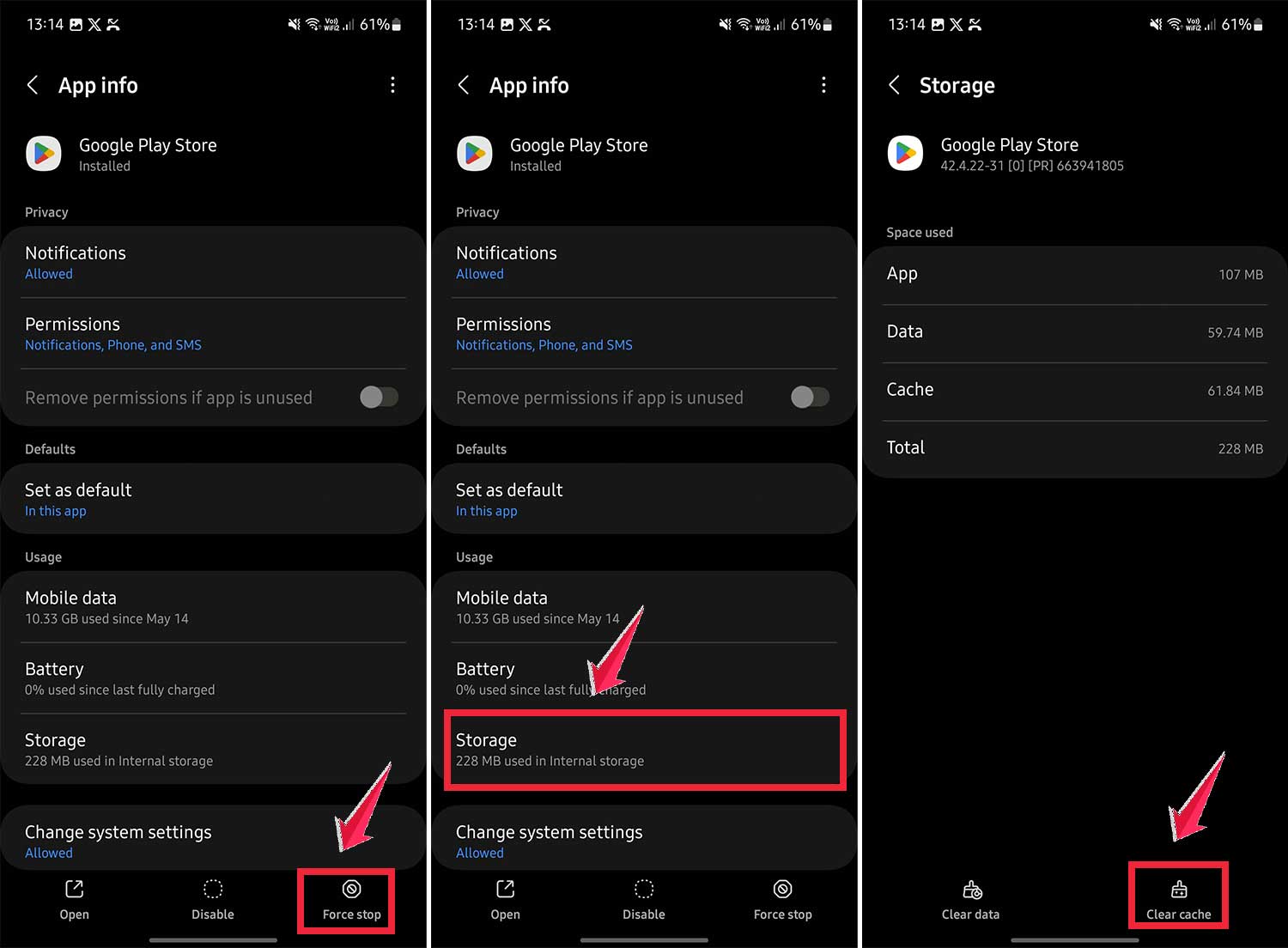
- Go to Settings.
- Tap on Apps or Application Manager.
- Find and select Google Play Store.

- Tap Force Stop, then Clear Cache.
- Reopen the Google Play Store and attempt the Instagram update.
6. Clear Instagram’s cache
Clearing the app’s cache can resolve many issues. Here’s how:
For iPhone users
- Go to Settings.
- Tap General, then iPhone Storage.

- Find and select Instagram.
- Tap Offload App.
- Once offloaded, tap to reinstall the app.

For Android users
- Go to Settings.
- Tap Apps, then find Instagram.
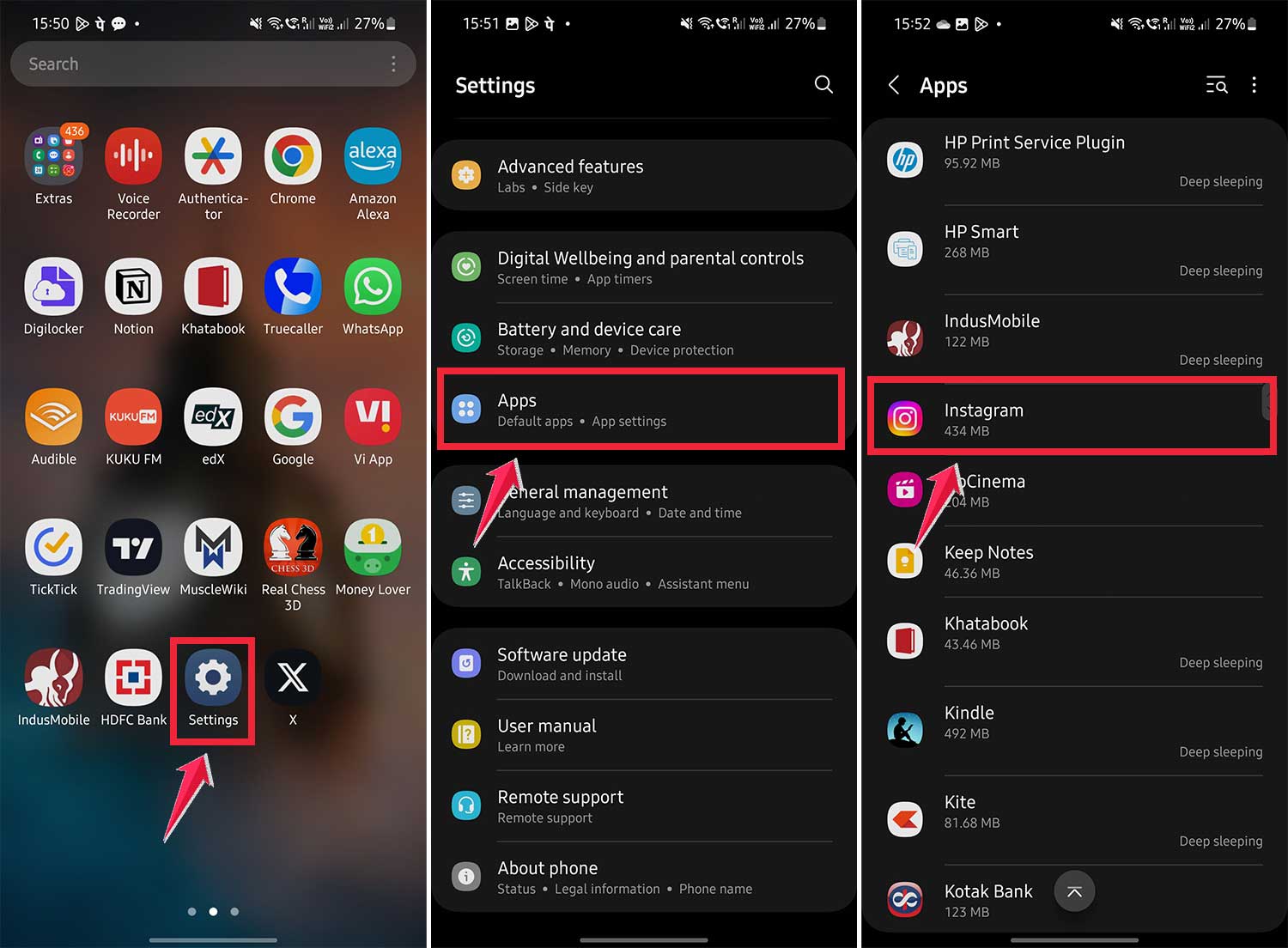
- Tap Storage, then Clear Cache.
- After clearing the cache, try updating Instagram again.

7. Uninstall and reinstall Instagram
If all else fails, a fresh install might do the trick:
- Press and hold the Instagram app icon on your home screen.
- Select the option to Uninstall or Remove the App.
- Confirm that you want to delete the app.

- Restart your phone.
- Go to the App Store or Google Play Store and search for Instagram.
- Download and install a fresh copy of the app.

What if these methods don’t work?
If you’ve tried all these steps and Instagram still won’t update, don’t lose hope. Here are a few more things to consider:
1. Check Instagram’s status. Visit downdetector.com or Instagram’s official Twitter account to see if there are any reported issues or outages.
2. Wait it out. Sometimes, update issues resolve themselves. Give it a day or two and try again.
3. Contact Instagram support. If the problem persists, reach out to Instagram’s support team for personalized assistance.
Remember, updating Instagram shouldn’t be a constant struggle. If you find yourself frequently having issues, it might be worth considering if your device is compatible with the latest version of the app. Older devices sometimes struggle to keep up with newer app versions.
The takeaway
Keeping your Instagram app updated is important for accessing new features, improved security, and better performance. Here are some tips to stay on top of updates:
Enable automatic updates: This ensures you always have the latest version without manual checks.
Regularly check for updates: If you prefer manual control, make it a habit to check for updates weekly.
Follow Instagram’s official channels: Stay informed about new updates and features by following Instagram’s blog or social media accounts.
By following these tips and troubleshooting steps, you should be able to keep your Instagram app up-to-date and running smoothly. Remember, a little patience goes a long way when dealing with tech issues.





