


Are you staring at your Facebook page right now, wondering how to get rid of it? You’re not alone. Every day, thousands of people search for ways to delete their Facebook pages.
Maybe your business has changed direction, or you’re just tired of managing yet another social media account. Whatever your reason, you’re probably feeling a mix of determination and frustration.
But don’t worry, you’re in the right place. This guide is going to walk you through the entire process, step by step. We’ll cover everything from deleting your page on different devices to what happens after you hit that delete button. We’ll even talk about alternatives if you’re not quite ready to cut ties completely.
So, take a deep breath. You’re about to declutter your digital life, and we’re here to make it as painless as possible. Ready to take control of your online presence?
Why are you thinking about deleting your Facebook page?
Maybe your business has taken a new direction, or you’re trying to simplify your online life. Whatever it is, I want you to know that you’re not alone in this.
But here’s the thing: deleting your Facebook page is a big deal. It’s not like deleting a post or unfriending someone. When you delete your page, it’s gone for good.
All those posts you’ve carefully crafted, the photos you’ve shared, and even those great comments from your followers – they’ll all disappear. It’s like erasing a digital scrapbook of your business or project.
So, before we dive into the how-to, take a moment to really think about this decision. Are you absolutely sure this is what you want? If you’re feeling overwhelmed with managing your page, remember there are other options.
You could take a break by deactivating your page instead of deleting it. Or maybe you just need to adjust your posting schedule to make it more manageable.
Now, if you’re still nodding your head and thinking, “Yep, I’m sure,” then let’s talk about one more important thing. To delete a Facebook page, you need to be the main admin.
How to delete your Facebook page on different devices
Now, let’s get down to business. I’ll walk you through the process for both iPhone and desktop users. Don’t worry, Android users – the mobile steps work for you too!
How to delete your Facebook page on an iPhone
Got your iPhone in hand? Great! Let’s walk through this together:
- Open your Facebook app and tap the menu icon (those three stacked lines) at the bottom of your screen.
- Find and tap on “Pages”.
- Switch to the Facebook business page you want to delete.
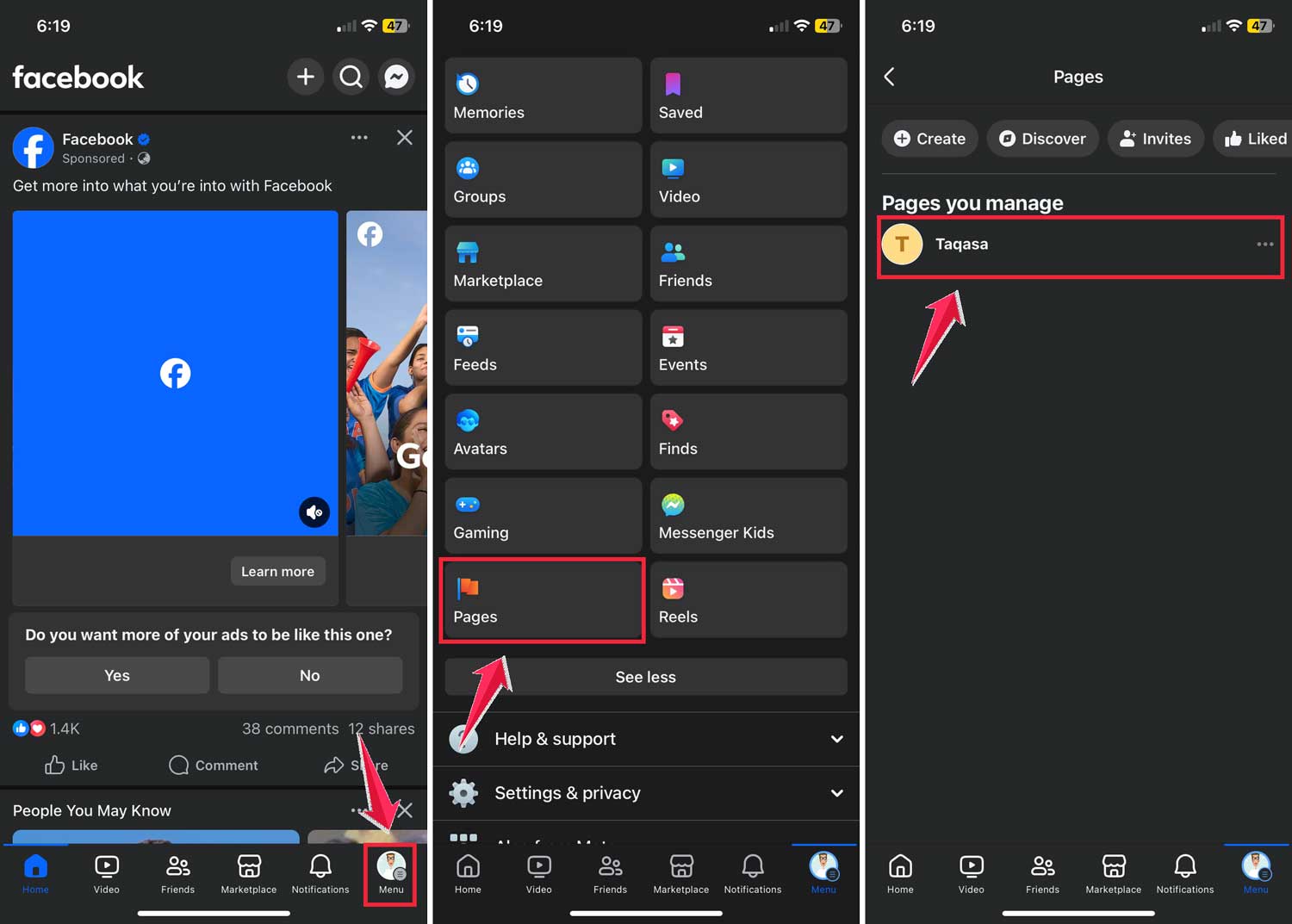
- Tap that menu icon again.
- See the little gear icon in the top right corner. That’s your settings. Tap it and head to “Page settings”.

- Scroll down until you find “Facebook Page Information”.
- Tap on “Access and Control”.
- Here’s where it gets real. Tap “Deactivation and Deletion”.
- Choose “Delete” and hit “Continue”.

- Facebook might ask why you’re leaving. You can tell them or skip this step.
- Want to keep any memories? Tap “download info” if you do. If not, just hit “Continue”.
- Time for a security check. Enter your Facebook password and tap “Continue”.
- Last chance to back out! If you’re sure, tap “Delete Page”.
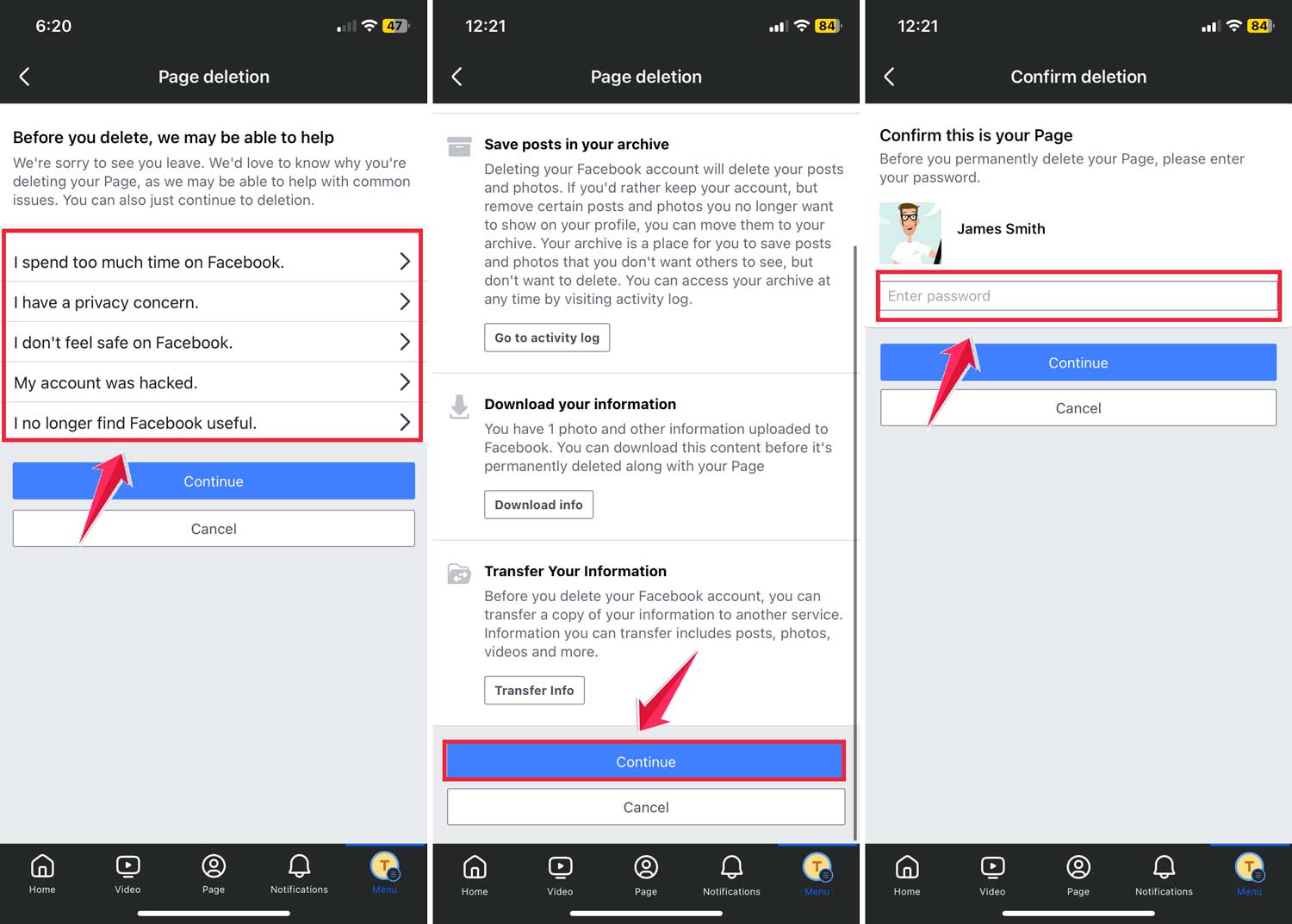
Remember, Facebook gives you 30 days to change your mind. After that, your page is gone for good.
How to delete your Facebook page on a desktop
More comfortable with your computer? No problem! Here’s how to delete your page on your desktop:
- Head to facebook.com and log in.

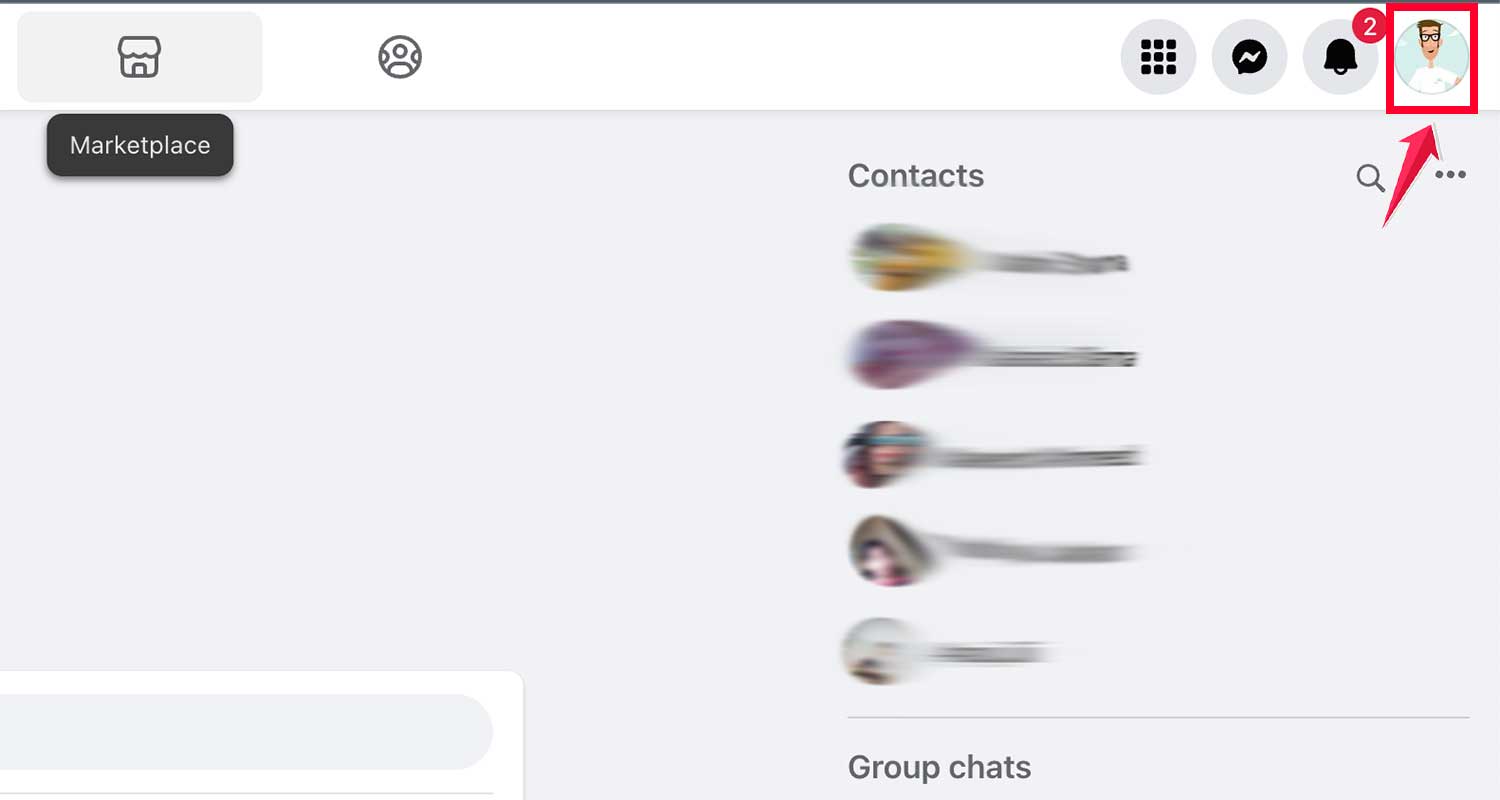
- Click on your profile icon with the downward arrow at the top Right.
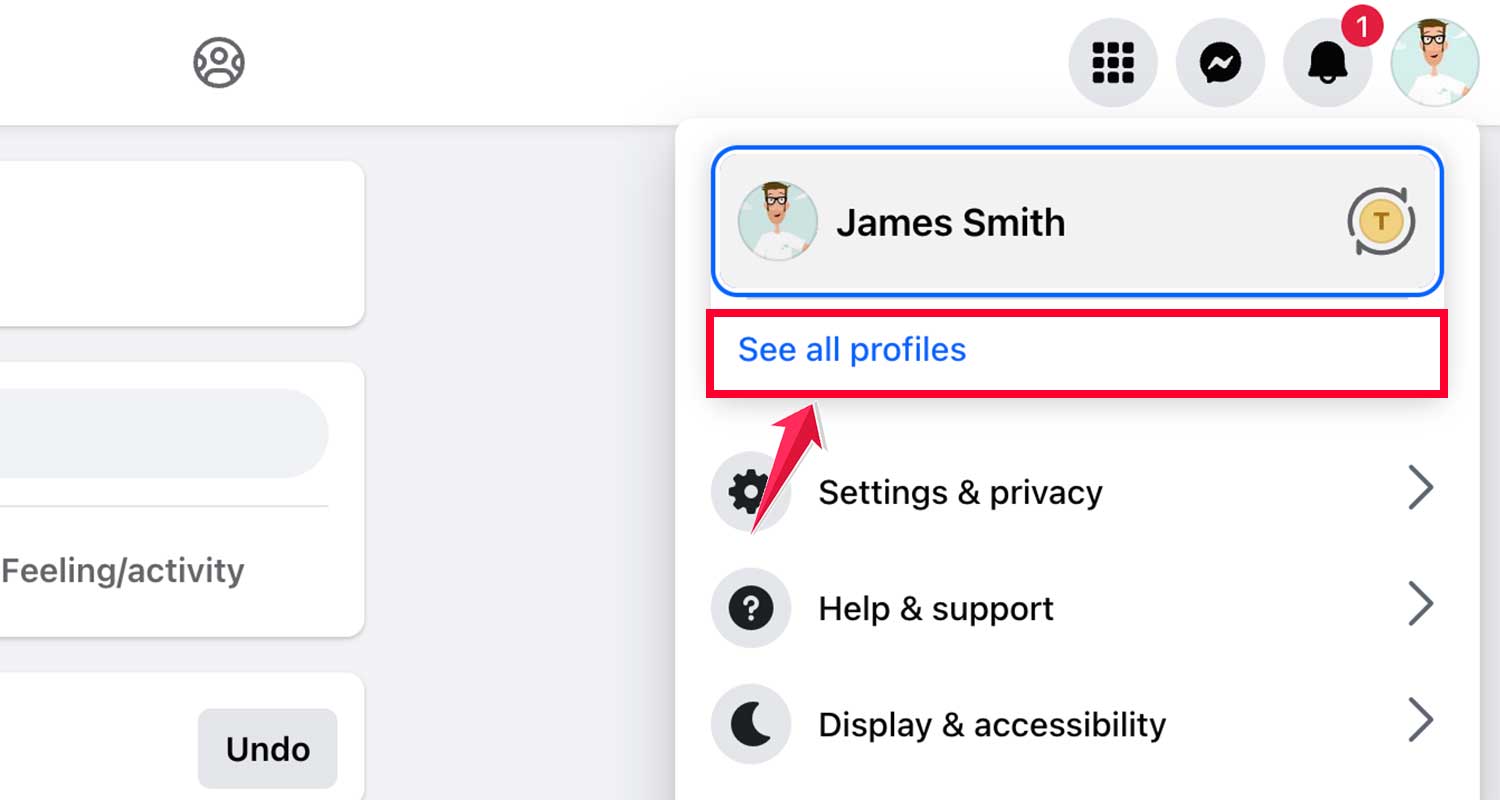
- Hit “See All Profiles” and switch to the Facebook Business Page you want to delete.
- Tap on Your Page.

- Click on the profile icon again.

- Tap on “Settings & Privacy”.

- Click on “Settings”.

- Under “Your information”, click “Access and Control”

- Find “Deactivating or deleting your Facebook Page”
- Choose “Delete Page” and click “Continue”.

- Want to keep any memories? Tap “download info” if you do. If not, just hit “Continue”.

- Enter your Facebook password to confirm it’s really you.

Just like on mobile, Facebook will keep your page in “Deletion Mode” for 30 days. During this time, your page will be unpublished and invisible to others, but you can still change your mind.
How to reactivate your Facebook page after deleting it?
Had second thoughts? Don’t worry, it happens! Here’s how you can rescue your page from deletion:
- Visit Facebook on your computer and log in.
- Click on your profile icon.
- Tap on “Settings & Privacy”.

- Click on “Settings”.

- Under “Your information”, click “Reactivate a page”

- You’ll see all your deleted profiles and pages with a countdown of days left in the 30-day deletion period.
- Find your page and click “Reactivate”.

Just remember, you can only do this from a browser, not the mobile app. And once those 30 days are up, your page is gone for good.
How to save your Facebook page data before deleting it?
Before you say goodbye to your page, you might want to save all those great memories you’ve shared. Here’s how:
- Open the Facebook app on your phone.
- Tap the menu icon (three stacked lines).
- Go to “Pages” and select the page you’re planning to delete.
- Tap that menu icon again.
- See the little gear icon in the top right corner. That’s your settings. Tap it and head to “Page settings”.
- Under “Your information”, click “Download your Information”.

- Tap on “Create File”.
- Once ready, go to the “Available Files” section
- Scroll down to find “Download” and tap it.
- Please re-enter your password.

Facebook will guide you through saving all your posts, photos, and videos. It’s like packing up your favorite things before moving out – you wouldn’t want to leave them behind, right?
What if someone else created the page you want to delete?
If you’ve come across a Facebook page with your name or business name that you didn’t create, you have options:
- Become the admin: If the page should be yours, reach out to the current owner and ask them to make you an admin.
- Report it: If it’s a fake page pretending to be you, report it to Facebook. If they agree it’s an impersonator, they’ll take it down.
If you’re just looking for a breather from your Facebook page, consider deactivating instead of deleting. This way, your page is out of sight but not gone forever. It’s like putting your page on a vacation rather than sending it off into the sunset.
Wrapping it up
Alright, we’ve covered a lot of ground here! Deleting a Facebook page is a big step, but now you know exactly how to do it, whether you’re on your phone or computer. Remember, it’s okay to take your time with this decision. Your online presence is important, and you want to make sure you’re making the right choice for you or your business.
Just keep in mind that once those 30 days are up, there’s no going back. So if you’re not 100% sure, maybe consider deactivating your page instead. That way, you can always come back to it if you change your mind.
Whatever you decide, I hope this guide has been helpful. Good luck with managing your online presence, and remember – you’ve got this!





