


Let’s be real—when your Mac’s fan starts sounding like it’s about to take off, it can be a little worrying. You might be thinking, “Is this normal?” or “Is my Mac okay?”
Well, you’re not the only one. A lot of Mac users deal with this, and the good news is, there’s something you can do about it.
Your Mac’s fan is there to keep things cool. When it gets too hot, the fan kicks in to lower the temperature.
But if it’s spinning like crazy all the time, it’s a sign your Mac might be working a little too hard or something’s blocking the airflow. Either way, it’s fixable.
Maybe you’ve got too many apps running, or maybe there’s dust building up inside. Sometimes, it’s just a software bug messing things up.
Whatever it is, you don’t need to panic. You can control your Mac’s fan speed, and yes—it’s totally safe if you follow the right steps.
In this guide, I’ll walk you through everything in plain, simple steps. We’ll figure out why your fan is acting up and how you can make it quieter, cooler, and happier. Let’s get started.
Reasons why your Mac’s fan is running fast
1. You’re pushing it too hard
If you’ve got a bunch of apps open at the same time or you’re editing videos, gaming, or doing anything heavy, your Mac’s working overtime.
That makes it heat up fast, and when that happens, the fan kicks in to cool things down. It’s doing its job, but it can get loud.
2. Some apps are using too much power
Not all apps behave well. Some of them use way more power than they should, even if they’re running in the background.
This causes high CPU usage, which leads to more heat and a louder fan. You might not even know it’s happening until your Mac sounds like a jet engine.
3. Dust is blocking the airflow
Dust builds up inside your Mac over time, especially around the fan. When that happens, air can’t move freely.
Your Mac tries harder to stay cool, and the fan has to work even harder. That’s when things get noisy. You may not see the dust, but it’s probably there.
Now that you know why your fan is running wild, let’s look at how to fix it without causing any damage. You’re going to be in control again—don’t worry.
How to control fan speed on Mac (without damage)
Alright, let’s calm that noisy fan down. You don’t need to be a tech expert. Just follow these steps and your Mac will thank you. I’ll explain everything in a way that’s easy to follow. Ready?
#1 Use a third-party app
This is one of the easiest ways to manage your fan speed. Apps like Macs Fan Control let you see what’s going on and adjust the fan manually. It’s safe to use and gives you more control over how your Mac handles heat.
Here’s how to set it up:
- Download Macs Fan Control from a trusted source like the official website.
- Install it by dragging it into your Applications folder.
- Open the app. You’ll see your fan speed and temperature.
- Adjust the speed manually or set custom rules. Don’t go overboard—keep it balanced.
This lets you reduce fan noise when your Mac isn’t hot, or ramp it up when needed. Super helpful, right?
#2 Update macOS and apps
Sometimes the problem isn’t the hardware—it’s the software. Bugs or glitches in macOS or apps can cause your fan to work overtime. A quick update can fix that.
Here’s what to do:
- Click the Apple menu in the top-left corner.
- Select System Settings.

- Go to General > Software Update.

- If an update is available, click Update Now.

Make sure the apps you use most often are up to date, too. Developers often fix overheating issues in updates.
#3 Reset the SMC
The SMC (System Management Controller) controls things like fan behavior. If your fan seems off, resetting the SMC can help. It’s simple and safe.
Follow these steps:
- Shut down your Mac completely.
- Unplug the power cord and wait for about 15 seconds.
- Plug the power cord back in.
- Press and hold Shift + Control + Option and the power button for 10 seconds.
- Release all keys and turn your Mac back on.
This can reset your fan settings and fix weird behavior. It’s like giving your Mac a fresh start.
#4 Use Activity Monitor to close heavy apps
Some apps eat up your Mac’s power without you realizing. Let’s find them and shut them down.
Here’s how to do it:
- Open Activity Monitor.

- Look at the column for CPU. See any apps using too much?

- Select the app and click the X at the top to quit it.
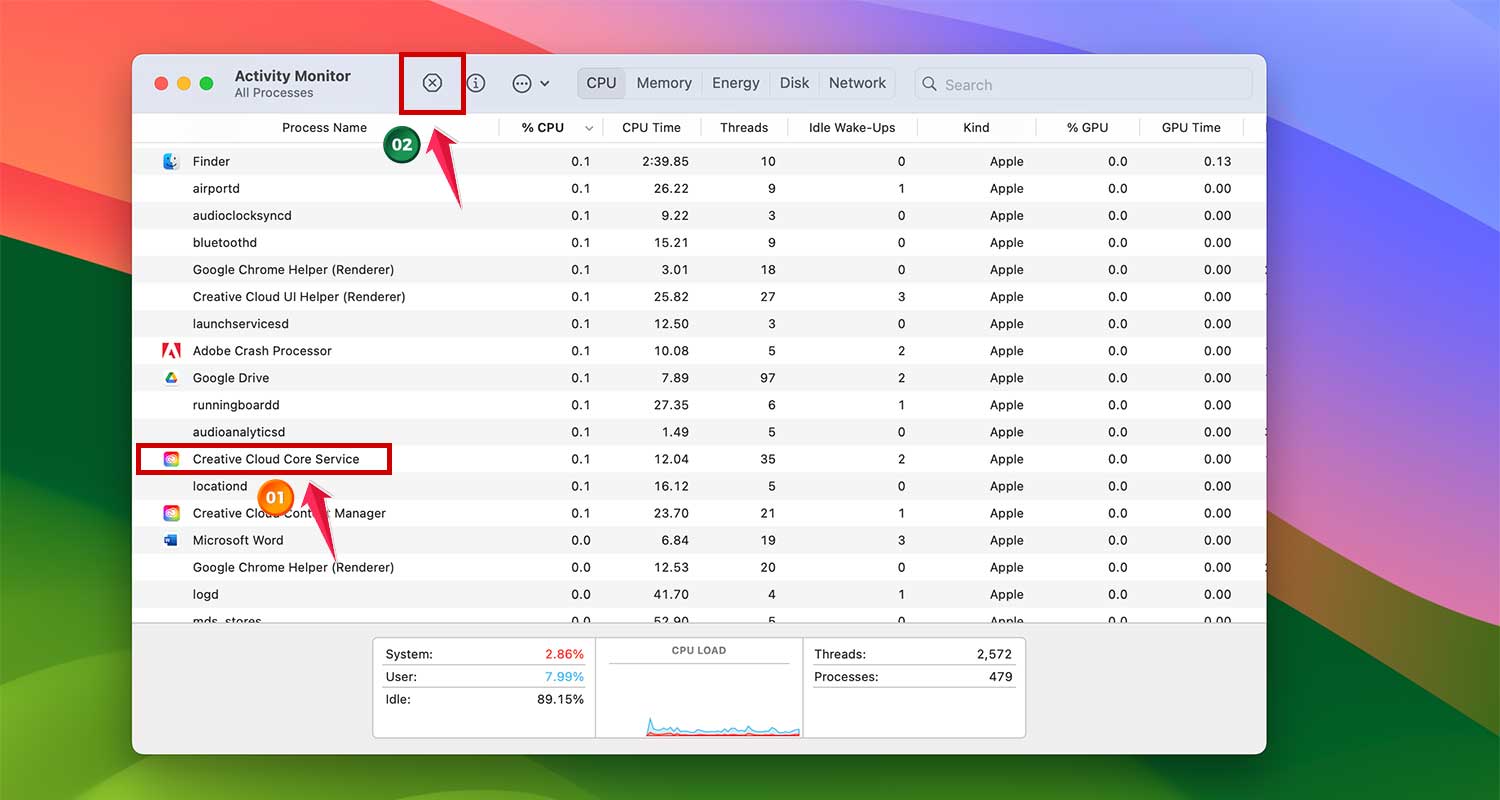
Less power usage means less heat—and a quieter fan. Do this regularly if your Mac feels hot often.
#5 Clean the inside of your Mac
If you’re comfortable opening your Mac, cleaning the inside can make a big difference. Just be gentle and careful.
Here’s how:
- Turn off your Mac and unplug everything.
- Open the back panel carefully (check your model’s guide).
- Use a can of compressed air to blow out dust around the fan.
- Don’t touch any internal parts with your hands.
If you’re not sure about opening your Mac, it’s totally okay to take it to a pro. Better safe than sorry.
Extra tips to keep your Mac cool
1. Find a home for your Mac on a hard surface
Don’t place your Mac on soft surfaces like your bed or couch. They block the vents and trap heat. Always use a flat, hard surface like a desk or table. It helps air move freely.
2. Get friendly with a cooling pad
Cooling pads are cheap and super helpful. Just place your Mac on one, plug it in, and let it do its thing. It gives your Mac that extra airflow it needs to stay cool.
3. Remember the air vents
Keep stuff away from your Mac’s vents. If they’re blocked, your fan has to work harder. Make sure there’s space around your Mac so it can breathe properly.
4. Take breaks and manage usage
If your Mac’s heating up, give it a break. Close apps you’re not using. Let it rest for a bit. It’ll perform better—and last longer, too.
These simple habits can make a big difference. Try them out and see how much cooler your Mac feels.
The Takeaway
So, your Mac’s fan is loud, and you were worried. But now? You’ve got this. You’ve learned why it happens—too many apps, high CPU usage, or just dust. And more importantly, you’ve got easy steps to fix it.
Using an app like Macs Fan Control helps you take charge. Updating your Mac, resetting the SMC, and cleaning out dust? All solid moves. And no, changing the fan speed won’t hurt your Mac, as long as you do it right.
Now it’s your turn. Go ahead and try the tips. Your Mac will run cooler, quieter, and smoother. And if you’ve got a question or a tip of your own, drop a comment below. I’d love to hear from you.





