


Ever pulled your iPhone out of your pocket only to be blinded by its flashlight? Yeah, it’s kind of annoying. And no, you’re not the only one dealing with this. It happens to a lot of people, and honestly, it’s frustrating when your phone lights up for no reason.
So, what’s really going on here? Most of the time, it’s because of accidental touches. Your screen is too sensitive, or a feature like Raise to Wake is making your screen light up when you don’t want it to. Sometimes, it could be a software glitch that’s just messing things up quietly in the background.
Why does this even matter? Well, for one, that random flashlight can drain your battery. And two, it just feels weird to pull your phone out and find it glowing like a mini spotlight. Not fun, especially in public.
But here’s the good news—you can fix it. And you don’t need to be a tech genius to do it. I’ve got your back with some simple steps and easy changes. Let’s walk through them together and stop that flashlight from coming on when it’s not supposed to.
Why Your iPhone Flashlight Turns On by Itself
Alright, let’s talk about what might be causing this in the first place. Once you understand what’s going on, fixing it will be a lot easier.
1. Accidental Touch: Your Screen’s Too Sensitive
Sometimes your iPhone just reacts too quickly. You might not even feel it, but a little bump or pressure in your pocket can trigger the flashlight.
It usually happens when your lock screen is active and you accidentally touch the flashlight icon. Your screen might just be too sensitive for its own good.
2. Raise to Wake: Handy, But Sometimes Too Handy
This feature is meant to help you. You raise your phone, and the screen lights up automatically. Sounds great, right?
But here’s the catch—when that screen lights up in your pocket, even the tiniest touch might activate the flashlight. And boom, you’ve got a light show going on without even knowing it.
3. Lock Screen Glitch: Sometimes It’s Not You
Even if you didn’t touch anything, sometimes a glitch in the system can cause the flashlight to turn on. It’s rare, but it happens.
Your phone thinks you pressed something when you didn’t. Keeping your iOS updated usually helps prevent these kinds of weird bugs.
Now that we’ve talked about what might be causing this, let’s move on to the good stuff—how to stop it.
How to Stop iPhone Flashlight from Turning On in Your Pocket
Let’s fix this step by step. I’ll guide you like a friend sitting next to you, showing you exactly what to do. Most of these are quick changes, and you’ll feel the difference right away.
#1 Adjust Touch Sensitivity
Let’s start with how sensitive your screen is. If it’s reacting too easily, we can tone it down a little. Less sensitivity means fewer accidental touches—and that means no more random flashlight surprises.
Here’s how you do it:
- Open Settings on your iPhone.
- Tap Accessibility.
- Go to Touch.
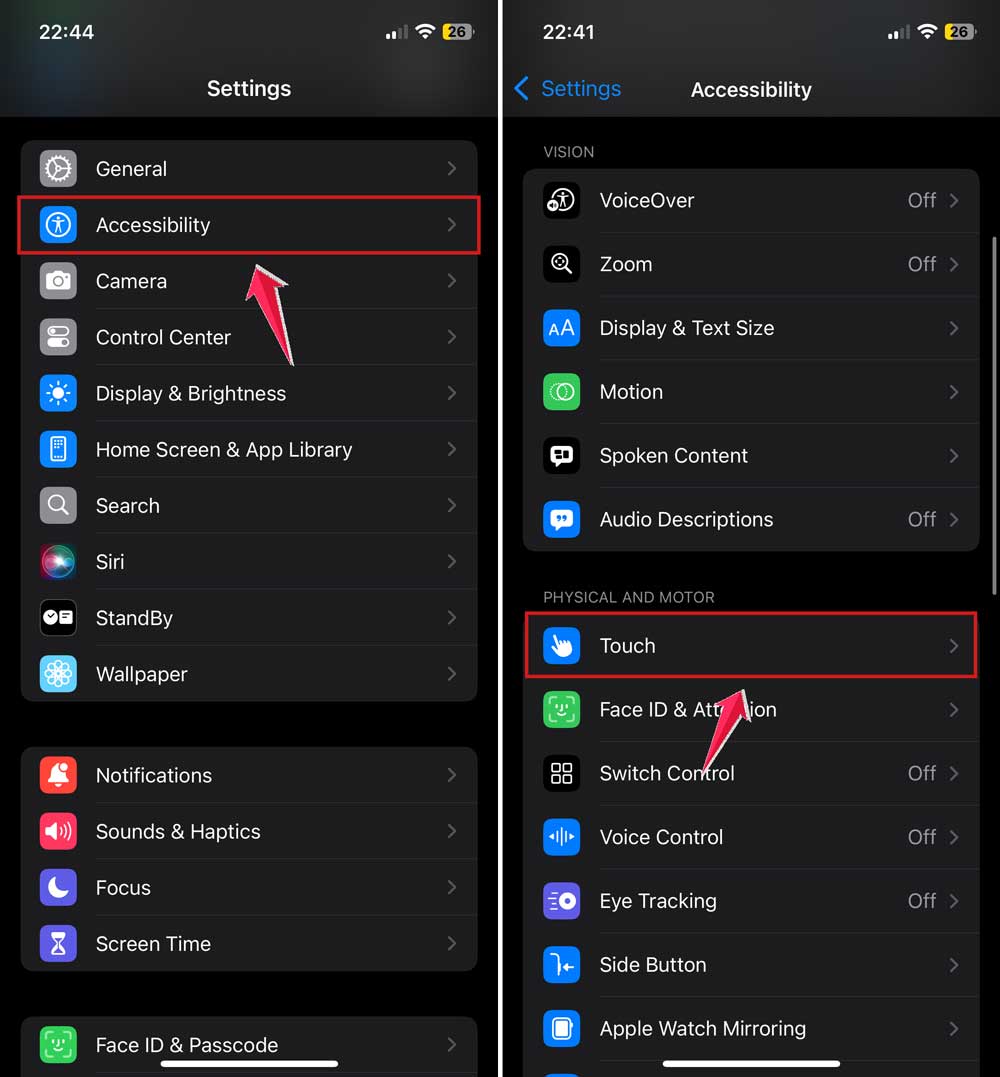
- Tap Touch Accommodations.
- Adjust the settings to reduce sensitivity.
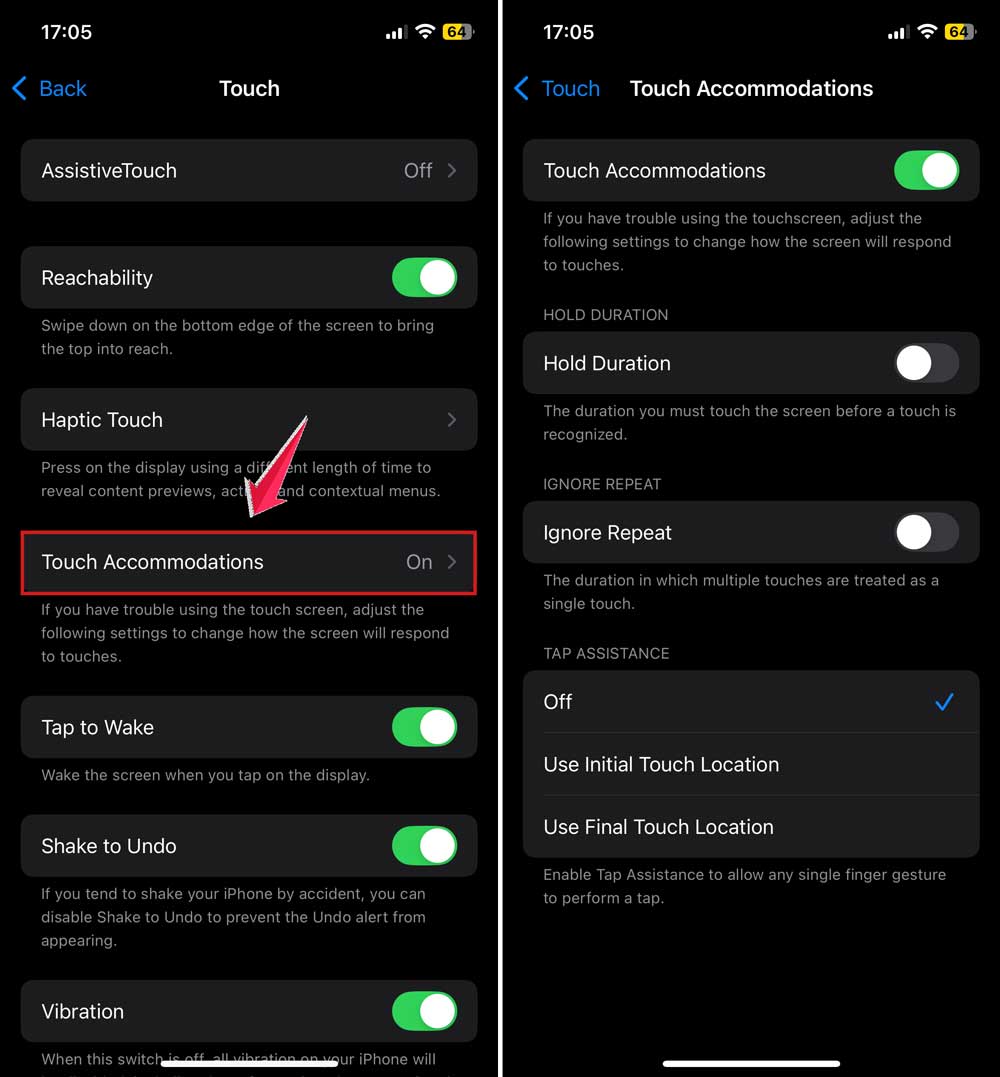
This small change can make a big difference. Give it a try and see how it feels.
#2 Turn Off Raise to Wake
This feature is useful, but not when it lights up your phone inside your pocket. If you don’t really need it, turning it off can stop the flashlight from turning on randomly.
Here’s how to do it:
- Go to Settings.
- Tap Display & Brightness.
- Toggle off Raise to Wake.
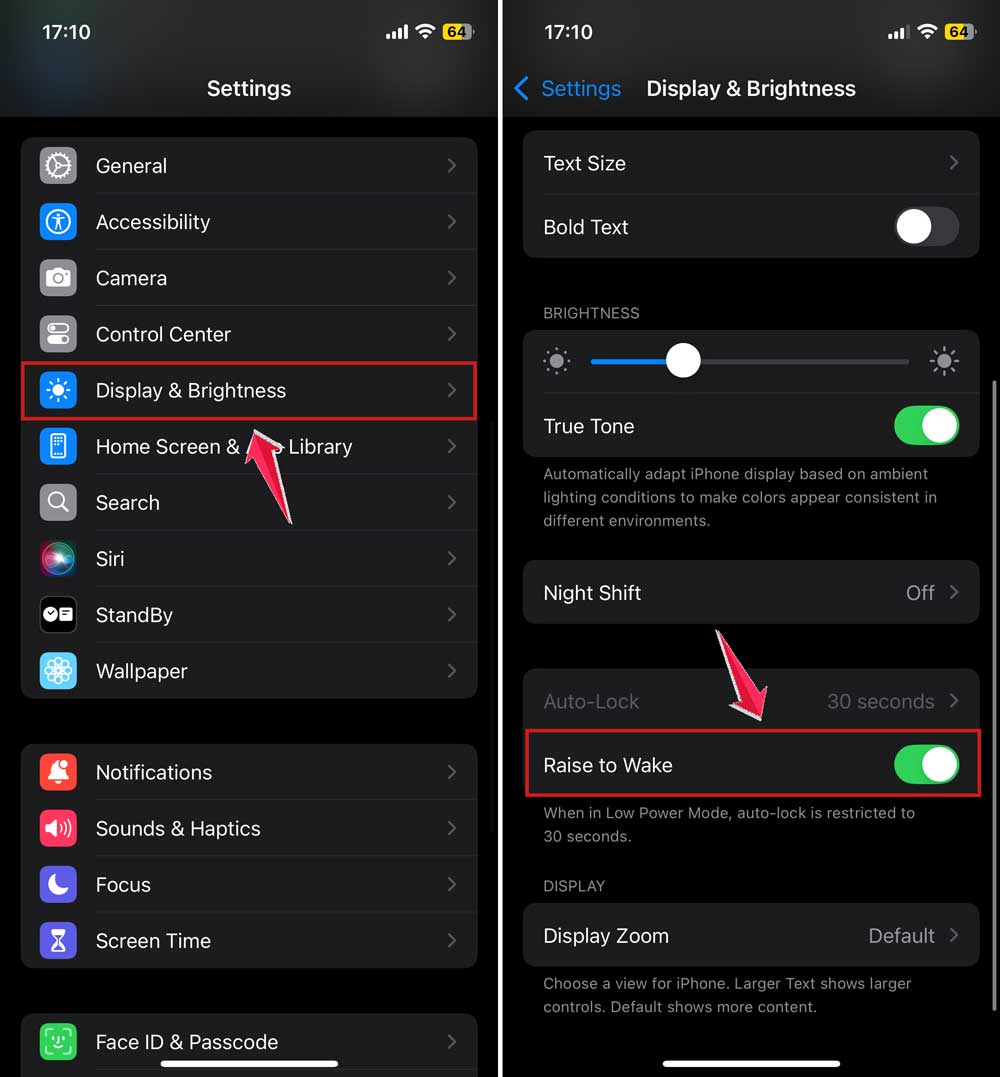
Now your screen won’t light up just because you moved your phone. It’s a small change, but it helps a lot.
#3 Ensure iOS is Updated
Sometimes the problem isn’t with your settings—it’s with the software. Apple often releases updates to fix bugs like this. So, let’s make sure your iPhone is running the latest version of iOS.
Here’s what you need to do:
- Open Settings.
- Tap General.

- Select Software Update.
- If there’s an update, tap Update Now.

Updates don’t just add new features—they fix bugs. This might be the fix you need.
#4 Use a Screen Protector
You might not think a screen protector could help, but it does. It adds a little buffer between your screen and whatever’s pressing on it. That extra layer can stop those accidental touches that turn on the flashlight.
Here’s what to do:
- Buy a good-quality screen protector.
- Apply it carefully—make sure there are no bubbles.
Simple, right? And now your screen is safer too.
#5 Lock the Screen Before Pocketing
This one’s easy and super effective. Just get into the habit of locking your phone before putting it in your pocket. That way, the screen won’t react to anything at all.
Here’s how:
- Press the side button or power button once before putting the phone away.
It becomes a habit quickly and saves you a lot of hassle.
#6 Try Using a Case
A case isn’t just for protection—it also helps avoid random screen touches. Some cases even have raised edges that make it harder to tap anything accidentally.
Here’s what you can do:
- Pick a case that covers the edges well.
- Make sure it’s comfortable for daily use.
It’s like dressing your phone in armor—and your flashlight stays off until you need it.
Extra Tips to Keep That Flashlight Off
Want more ways to make sure your flashlight stays off? Here are a few bonus tips that can help.
1. Mind the Widgets
Sometimes, widgets in your Control Center can be too easy to tap. Go into your settings and remove anything you don’t really use. Less clutter, less chance of tapping the flashlight by mistake.
2. Explore AssistiveTouch
AssistiveTouch gives you an on-screen button you can customize. It helps you avoid using physical buttons too much, and you can even turn off the flashlight from there if needed.
3. Check Your Back Tap Settings
Back Tap lets you double-tap the back of your phone for shortcuts. But if it’s set to flashlight, it can turn on without you noticing. Go into settings and either change it or turn it off completely.
4. Keep Your Pockets Tidy
It sounds silly, but it helps. Loose items in your pocket can press against your phone. Try keeping your pocket clear, especially of keys or coins.
5. Consider Using a Passcode
Face ID or Touch ID can misread in your pocket. Try using a simple passcode instead. It gives you more control and reduces the chance of accidental unlocks.
The Takeaway
So, we’ve tackled the mystery of the glowing pocket flashlight. It’s annoying, for sure—but now you know what’s causing it and how to stop it.
Whether it’s accidental touches, Raise to Wake, or some quirky software bug, you’ve got all the tools to fix it.
Start by adjusting your touch sensitivity, turning off Raise to Wake, and locking your phone before pocketing it.
These small steps go a long way. Don’t forget to update your iOS and maybe grab a screen protector or case to keep things extra safe.
Most importantly, you’re not alone. So many iPhone users deal with this—and now, you’ve got the upper hand.
If any of these tips helped, or if you’ve found another clever fix, drop a comment below and share it with others!





