


Find Your Archived Emails in Gmail. Ever wondered where your archived emails go in Gmail?
Whether you’re using a web browser or the Gmail app on your phone, this guide makes it super easy to find and move your archived emails back to your Inbox.
How to Retrieve Archived Emails in a Browser
Don’t worry if you’ve archived some emails by accident or just need them back in your Inbox for a quick review. Here’s a simple way to retrieve them using any web browser:
- Find ‘All Mail’: Look on the left side of your Gmail and click on All Mail. This is where all your messages, including the archived ones, hang out!

- Pick Your Emails: Spot the emails you want to move back to your Inbox. Remember, if they’re still in the Inbox, they’ll have an Inbox label right in front of the subject line.

- Search If Needed: Can’t see the email you need? Use the Gmail search tools to find your archived messages easily. Sometimes, finding old emails in Gmail can be tricky, but these tools make it much simpler.

- Move Them Back: Once you’ve selected your emails, hit the Move to Inbox button on the main toolbar above the emails.

- Just in Case: Changed your mind? Click Undo right after the move to send them back to where they were.

Now you’re all set to keep your conversations going or just keep your important emails handy!
Retrieve Archived Emails Using the Mobile App
Need to find and restore archived emails right from your phone? Just follow these easy steps:
- Open the Menu: Tap the Menu icon (three horizontal lines) at the top of your screen. If you’re having trouble with the app, make sure you’ve checked that Gmail is working properly on your Android device.

- Go to All Mail: Scroll through the menu and select All Mail. This is where all your emails, including the archived ones, are stored.
- Choose Your Email: Find and tap on the email you want to move back to your Inbox.
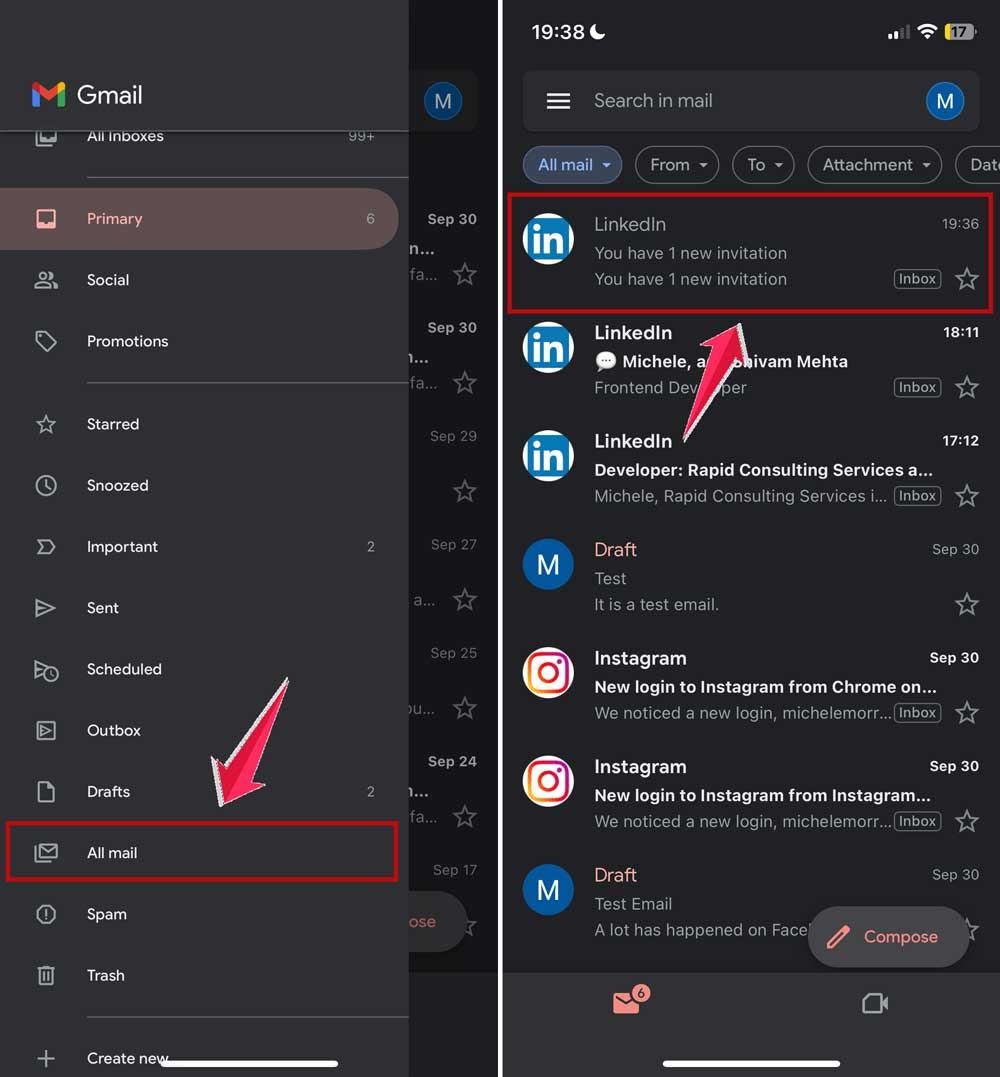
- Access More Options: Tap the three-dot menu in the upper-right corner of the message.
- Move It Back: Simply hit Move to Inbox.

And voilà! Your email will pop right back into your Inbox.
Tips to Avoid Accidental Archiving
Accidentally archiving an important email can be frustrating. Here are some easy precautions to help you avoid this:
- Be Careful While Scrolling: Especially on a smartphone or tablet, take it slow. Avoid any quick swiping from right to left, as this could send your emails straight to the archive!
- Change Swipe Actions: Not a fan of the default swipe settings? No problem! Head to General settings > Swipe actions in your app, and customize how you swipe. While you’re at it, you might want to explore other ways to organize your Gmail inbox folders for better email management.
- Keep an Eye on Confirmations: Often, when you archive something, a little confirmation pops up at the bottom with an Undo button. Tap it if you’ve archived something by mistake.
Taking these steps can help keep your emails right where you want them—safe in your Inbox!
Conclusion
Managing your archived emails in Gmail doesn’t have to be a chore. Whether you’re navigating from a browser or using the mobile app, retrieving your emails is just a few taps or clicks away.
Remember, taking your time and tweaking your swipe settings can save you from accidental archiving. Stay alert for those helpful confirmation messages, and always know you’ve got an ‘Undo’ option if you need it.
Keep these tips in mind, and you’ll master your email inbox in no time! And remember, if you ever need to clean up your Gmail inbox more thoroughly, there are plenty of strategies to help you stay organized.





