Are you planning a Facebook event right now? Maybe you’re feeling a bit overwhelmed with all the details, or you’re wishing you had some help to make your event really shine.
Adding co-hosts to your Facebook event is a game-changer. Whether you’re organizing a big online party, a virtual workshop, or a community meetup, having co-hosts can make your life so much easier. By the way, if you’re new to this whole Facebook event thing, first, you should learn to create events on Facebook.
In this guide, we’re going to walk you through exactly how to add co-hosts to your Facebook event, whether you’re using your computer or your phone. Let’s get started!
Why host events on Facebook?
In today’s digital world, online gatherings are becoming the norm. Facebook makes it super easy to set up and manage events, whether you’re planning a small get-together or a large public event.
Here’s why you might want to host your next event on Facebook:
- It’s cost-effective: You don’t need to spend a fortune on venue rentals or physical invitations.
- Wide reach: With billions of active users, Facebook helps you connect with a large audience.
- Easy to use: The platform is user-friendly, even if you’re new to creating online events.
- Interactive features: You can engage with attendees through posts, polls, and live videos.
Oh, and if you’re looking to get more eyes on your event, you might want to recommend your Facebook page to friends – it’s a great way to boost your reach.
Why should you add co-hosts to your Facebook event?
Now, let’s chat about why adding co-hosts is such a smart move:
- Share the workload: Planning an event can be overwhelming. Co-hosts can help manage details, freeing up your time.
- Expand your reach: Each co-host brings their own network, potentially increasing your event’s visibility.
- Diverse perspectives: Co-hosts can bring fresh ideas to make your event more engaging.
- Better attendee experience: More hands on deck means quicker responses to questions and smoother event management.
If you’re a business or organization, co-hosts can help you gain more followers and increase your Facebook presence. Plus, when other event organizers or promoters share your event, it stands out more in the crowded online space.
How to add a co-host to a Facebook event on your computer
- Log in to Facebook using your favorite browser.

- Click the ‘Menu’ button in the top right corner and select ‘Events’.

- Find your event in the ‘Hosting’ section, usually next to a calendar icon.
- Click on your event to open it.
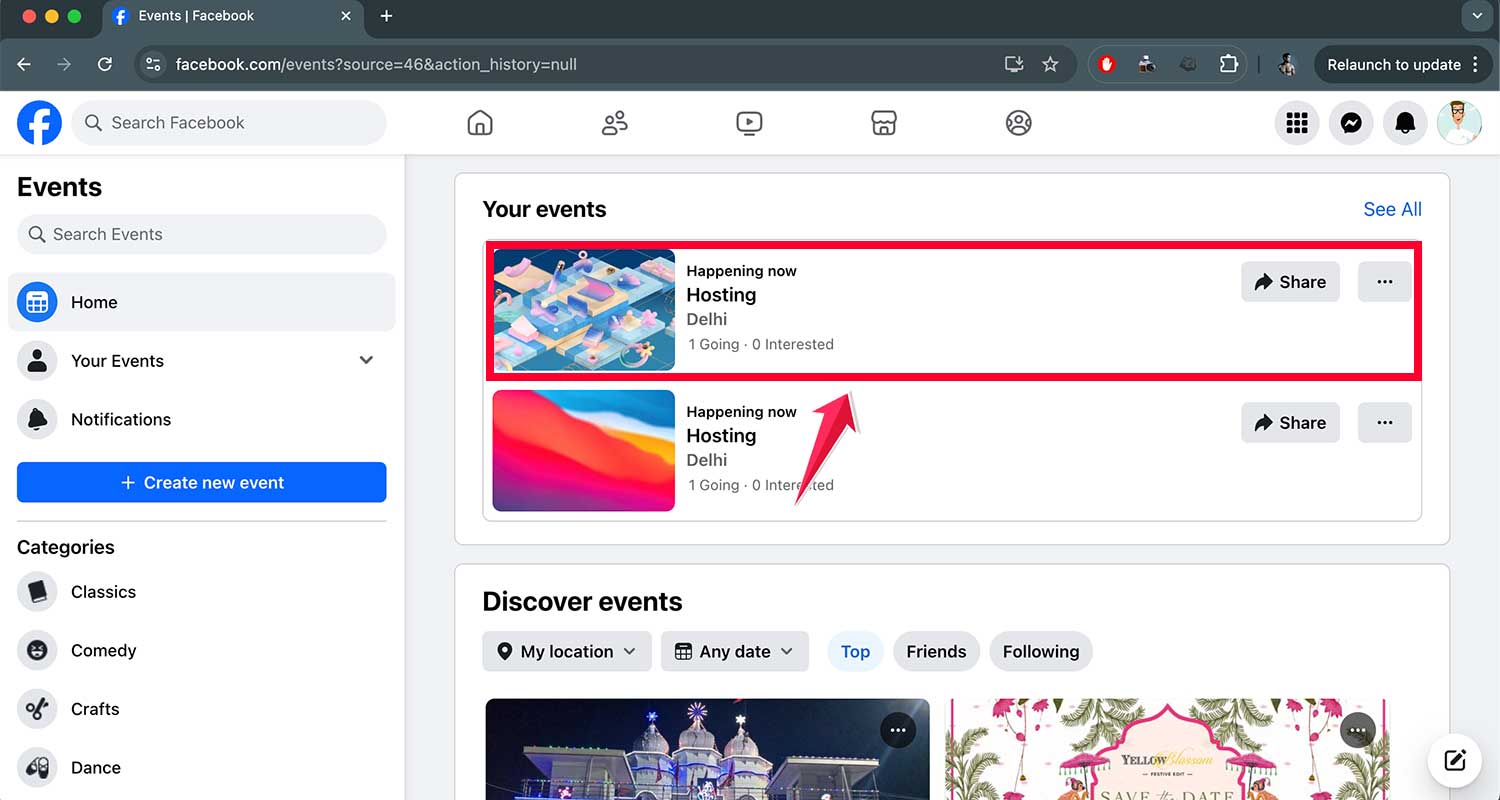
- Tap on the Edit button.

- In the settings, find the option to add co-hosts.

- Type in the name of a Facebook friend you want to add as a co-host.
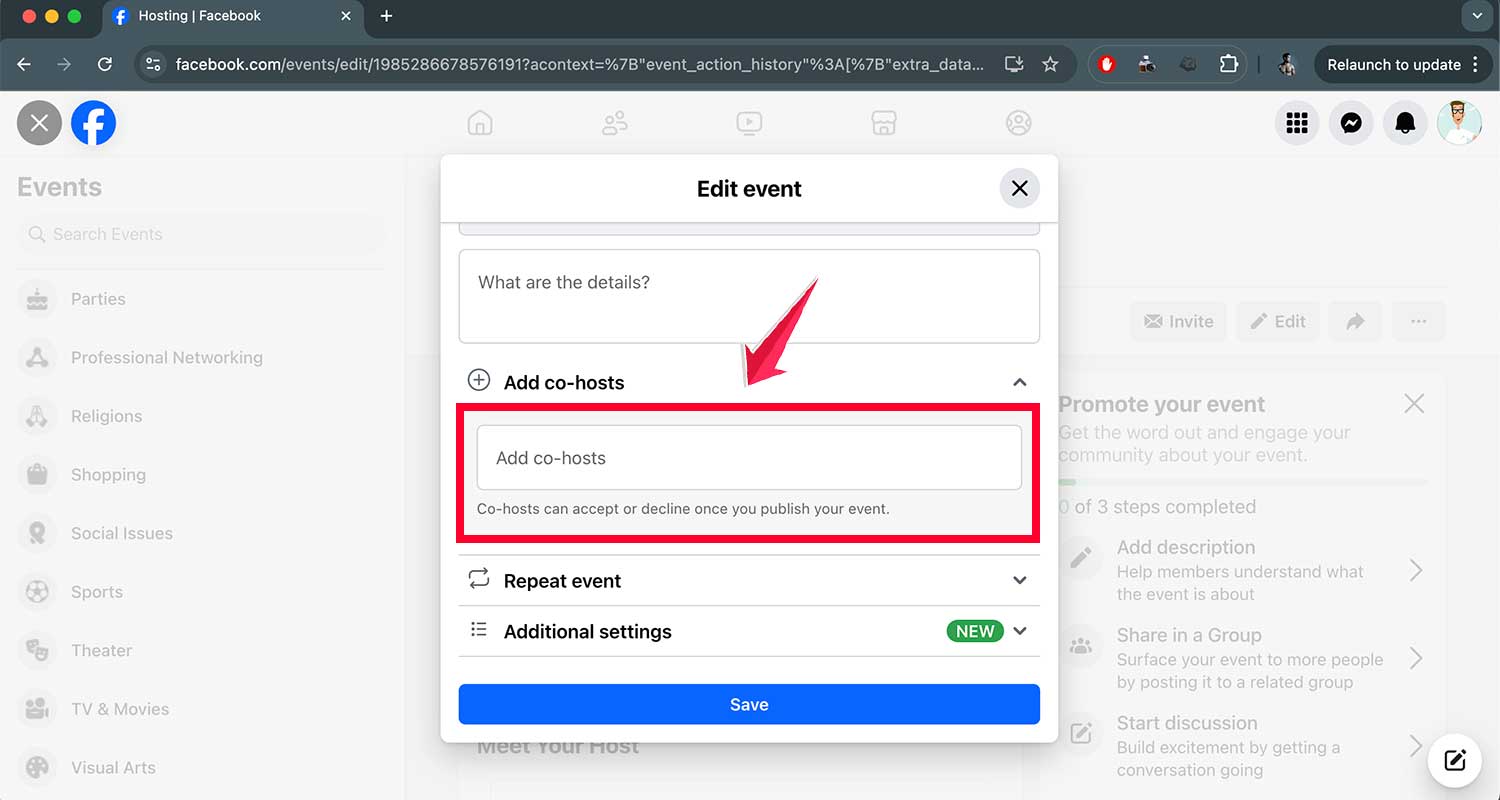
- Click the ‘Save’ button to confirm.

How to add a co-host to a Facebook event on your phone
- Open the Facebook app and tap your profile picture in the bottom right corner.
- Find and tap on ‘Events’.
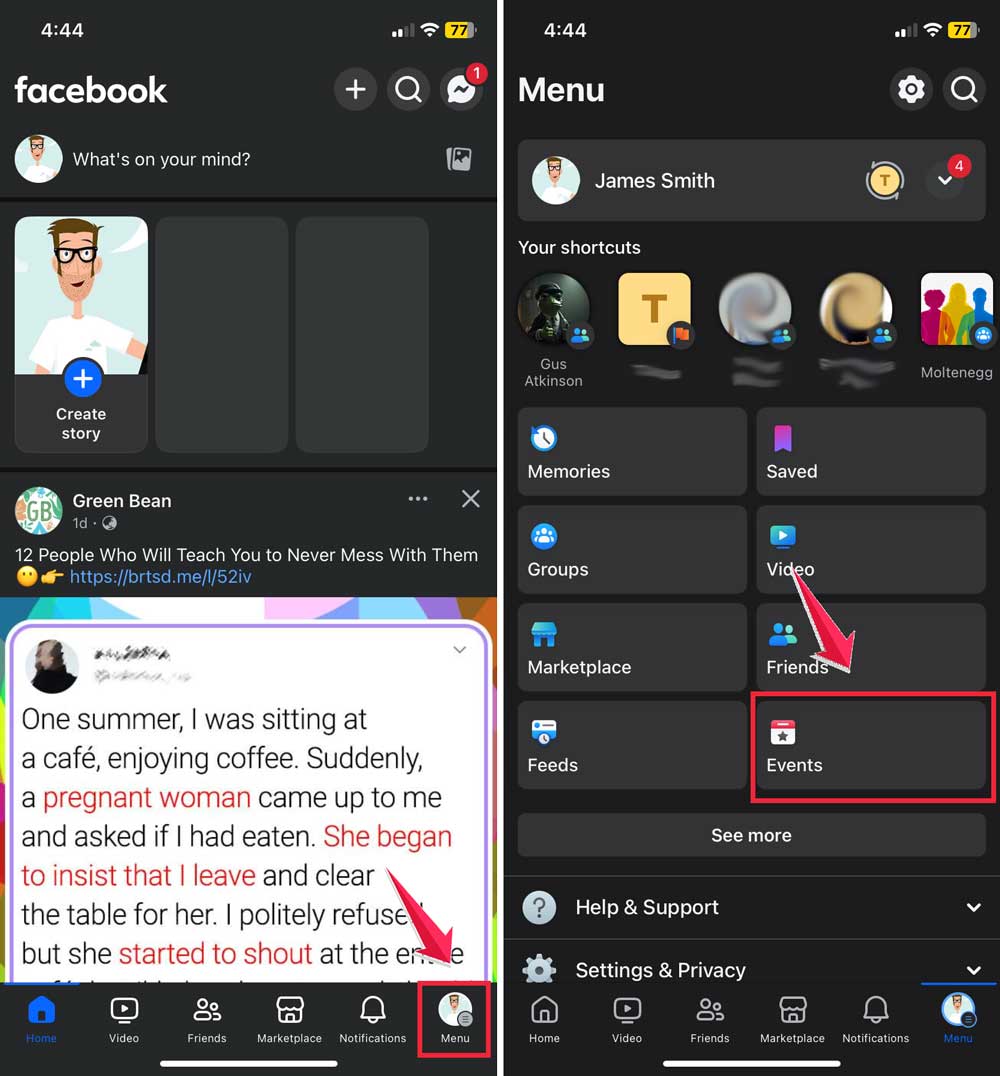
- Look for the calendar icon next to ‘Events‘ and tap it.

- Click on Manage then select the event you want to edit.

- Find the option to add co-hosts in your event settings.

- Type in the name of a Facebook friend to add as a co-host.
- Tap ‘Save’ or ‘Confirm’ to add your co-host.

These steps should work smoothly, but if you run into any issues, always check why Facebook keeps stopping and fix it.
Remember, your co-host must be your Facebook friend. Once you’ve added them, they’ll be able to help manage your event. It’s that simple! And don’t forget to use Stars on Facebook. They’re pretty cool if you’re thinking about monetizing your events.
Wrapping it up
And there you have it! You’re now equipped with all the know-how to create and manage Facebook events like a pro. Whether you’re boosting your business’s online presence or just organizing a fun virtual get-together, these steps will help you set up your Facebook event smoothly and efficiently.
Remember, adding co-hosts isn’t just about sharing the work. It’s about creating a vibrant, engaging event that draws more people in. By following these simple steps, you can turn your online event into a buzzing community hub.
So go ahead, put this knowledge to use, and watch as your Facebook events transform into lively, well-attended online gatherings. Here’s to hosting successful and enjoyable events on Facebook!
Got any questions? Feel free to ask in the comments below.