


Are you staring at your phone right now, frustrated because an Instagram link isn’t working? It can be incredibly annoying when you’re trying to share something important or check out a cool website.
Maybe you’ve just posted a link to your latest blog post or an awesome product you’re selling. Or perhaps you’re trying to visit a link your favorite influencer shared. Either way, when you tap that link, and nothing happens, it feels like hitting a digital brick wall.
In this article, we’re going to walk through why your Instagram links might not be working and, more importantly, how you can fix them right now.
Why isn’t your Instagram link working?
You’re tapping on an Instagram link, but nothing’s happening. Frustrating, right? Don’t worry, you’re not alone. Let’s figure out why your link’s giving you trouble and how to fix it.
1. Your link service might be down. If you’re using a link-shortening service, it might be having issues. Try using the full URL instead or switch to a different service.
2. Is your link in the right spot? Make sure it’s in your bio, not hidden in a post or reel. Instagram can be picky about where links go.
3. Your app might need an update. Instagram’s always improving, so make sure you’re running the latest version. An outdated app can cause all sorts of problems, including link issues.
4. Pesky bugs might be to blame. Sometimes, it’s not you – it’s Instagram. Software bugs can make links act up. If nothing else works, it might be time to report the issue to Instagram.
5. Instagram’s memory might be full. Just like your phone, Instagram can get bogged down with too much data. Try clearing the app’s cache to give it a fresh start.
6. Check your internet connection. A weak or unstable connection can mess with links. Make sure you’re on strong Wi-Fi or have a good data signal before blaming the link.
7. Instagram might be playing it safe. The platform blocks links it thinks are suspicious to protect users from spam and sketchy content. This includes links to adult content, competing platforms, or known spam sites.
8. The link itself might be broken. Sometimes, the webpage you’re trying to link to doesn’t exist anymore. Double-check that your link is still valid.
Remember, every problem has a solution. Now that you know what might be causing your link troubles, you’re better equipped to fix them.
How to fix Instagram links that aren’t working
Is your Instagram link giving you trouble? Don’t worry, we’ve got some solutions for you. Let’s tackle this problem head-on!
1. Clear Instagram’s in-app browser data
Instagram has its own mini-browser, and sometimes it needs a good clean-up. Here’s how to do it:
- Find a working link on someone’s profile and tap it.
- This will open Instagram’s browser. Tap the three dots at the top.
- Choose “Delete Browser Data“.

- Select “Cookie, Site Data” And “Cached Images and files.
- Confirm by tapping “Delete browsing data“.

This simple clean-up can often solve link issues.
2. Open links in Chrome instead
If Instagram’s browser is still being stubborn, try using Chrome:
- Tap the troublesome link on Instagram.
- In the in-app browser, tap the three dots.
- Select “Open in Chrome“.
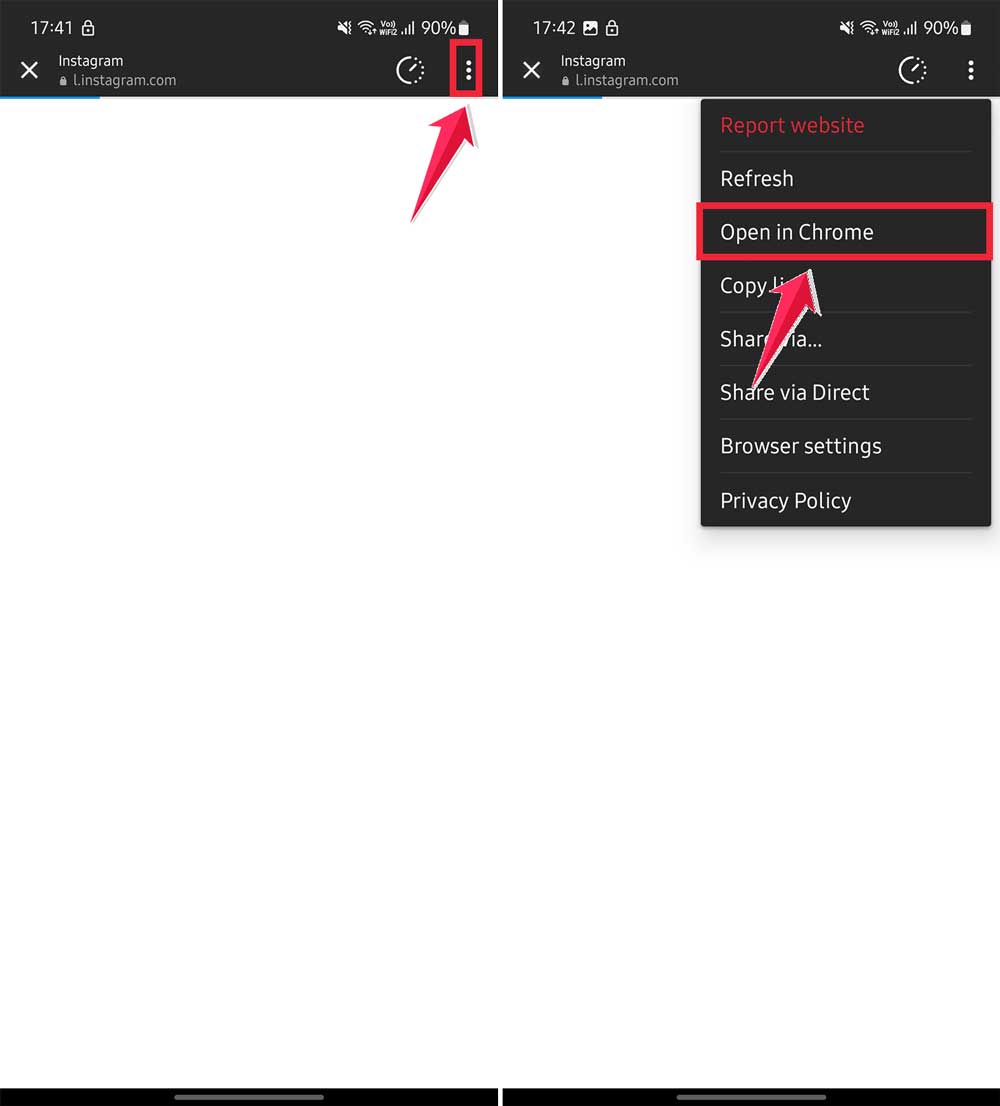
Sometimes, a different browser is all you need.
3. Clear Instagram’s cache
Apps can get bogged down with old data. Clearing the cache is like giving Instagram a fresh start:
If you are on Android
- Find Instagram on your home screen.
- Press and hold the icon, then tap “App info“.
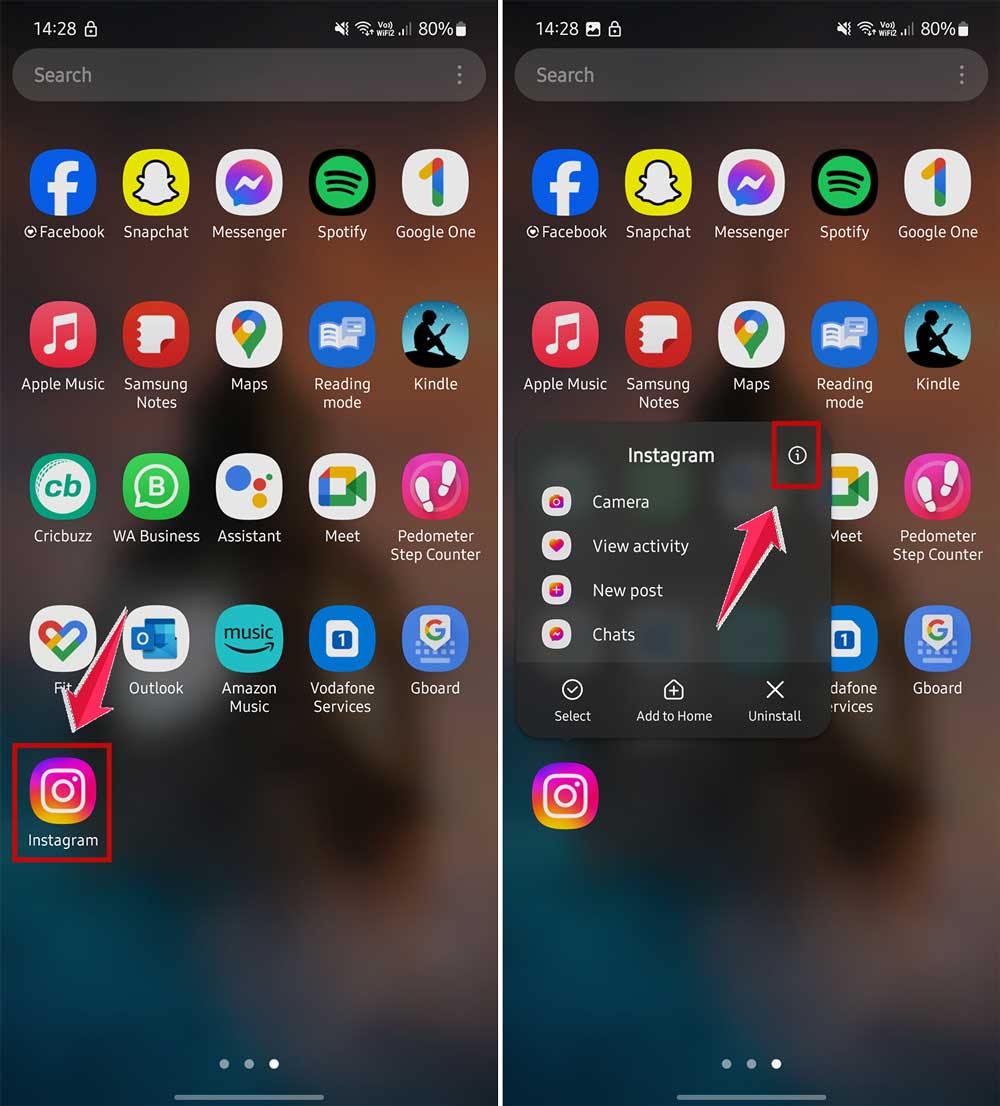
- Tap “Storage usage“, then “Clear cache“.

If you are on iPhone
- Go to Settings > General > iPhone Storage.
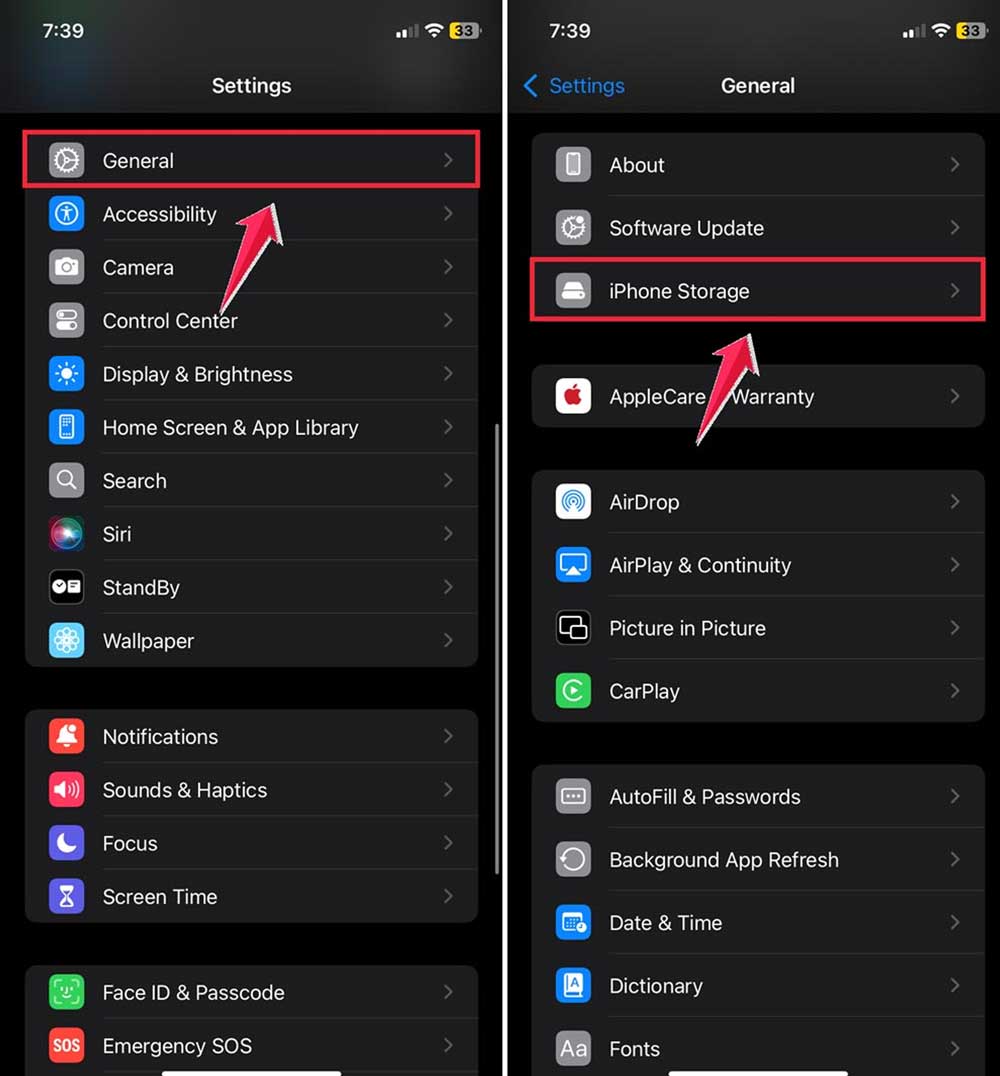
- Find and tap on Instagram.
- Tap “Offload App” to clear the cache without deleting the app.

A clean cache can make a big difference in app performance.
4. Force stop the Instagram app
Sometimes, Instagram just needs a quick restart:
- Find Instagram on your home screen.
- Press and hold the icon, then tap “App info“.
- Tap “Force stop“.

This is like giving Instagram a quick nap to refresh itself.
5. Reinstall Instagram App
Sometimes, a fresh start is all your app needs.
- Open your device’s app store.
- Search for “Instagram“.
- Tap “Uninstall“, then wait for it to complete.
- Tap “Install” to get a fresh version of the app.
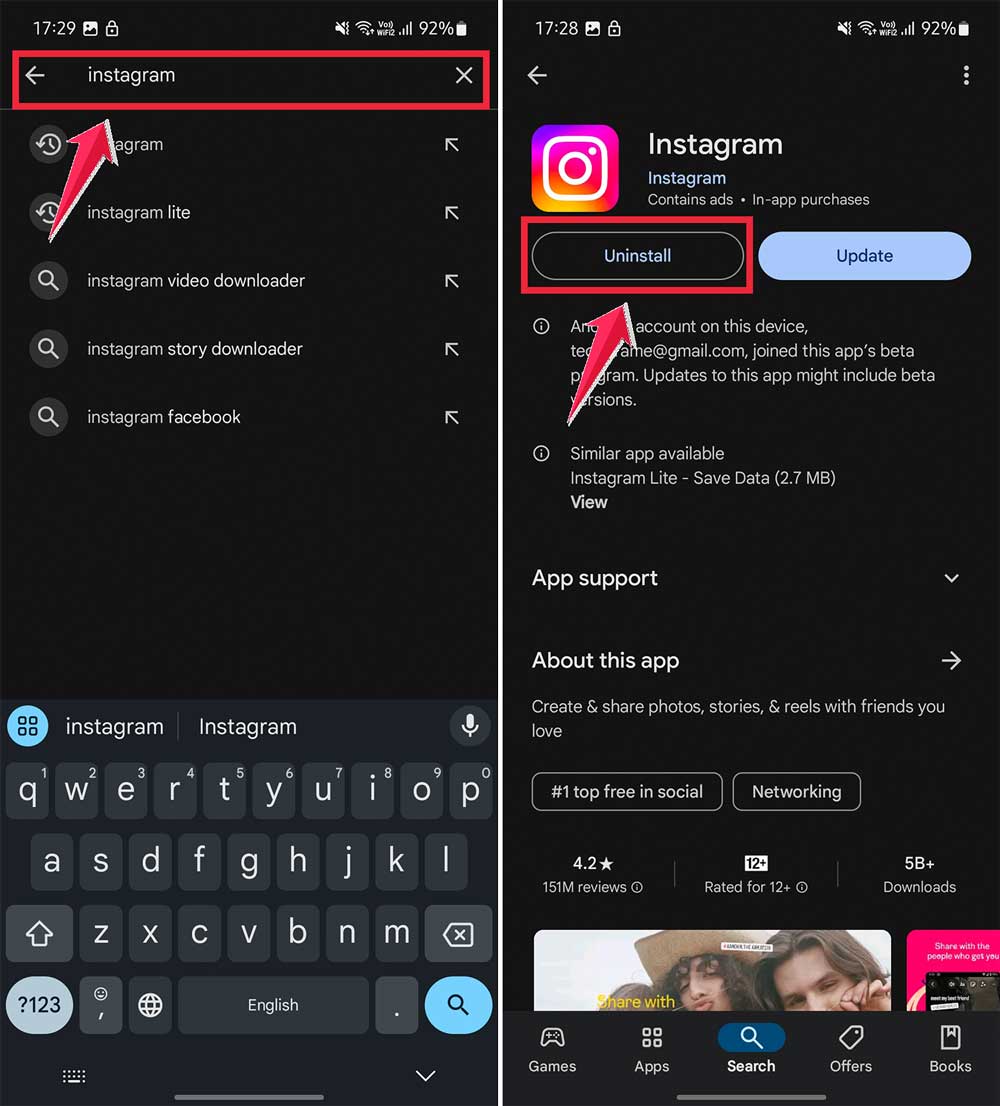
Remember, you’ll need to sign in again after reinstalling, so have your login details ready.
6. Restart your device
Yes, sometimes, your phone might just need a quick break.
- Hold down your device’s power button.
- Tap “Restart” when the option appears.

This simple step can often clear up minor glitches and get your links working again.
7. Switch your internet connection
A stable connection is crucial for Instagram. Try these steps.
- If you’re on Wi-Fi, switch to mobile data (or vice versa).
- Try the airplane mode trick:
- Turn on airplane mode for a few minutes.
- Turn it off and reconnect to your network.
A different connection might be all you need to get those links working.
8. Update your Instagram app
Keeping your app up-to-date is important. Here’s how:
- Open your device’s app store.
- Search for “Instagram“.
- If an update is available, tap “Update“.
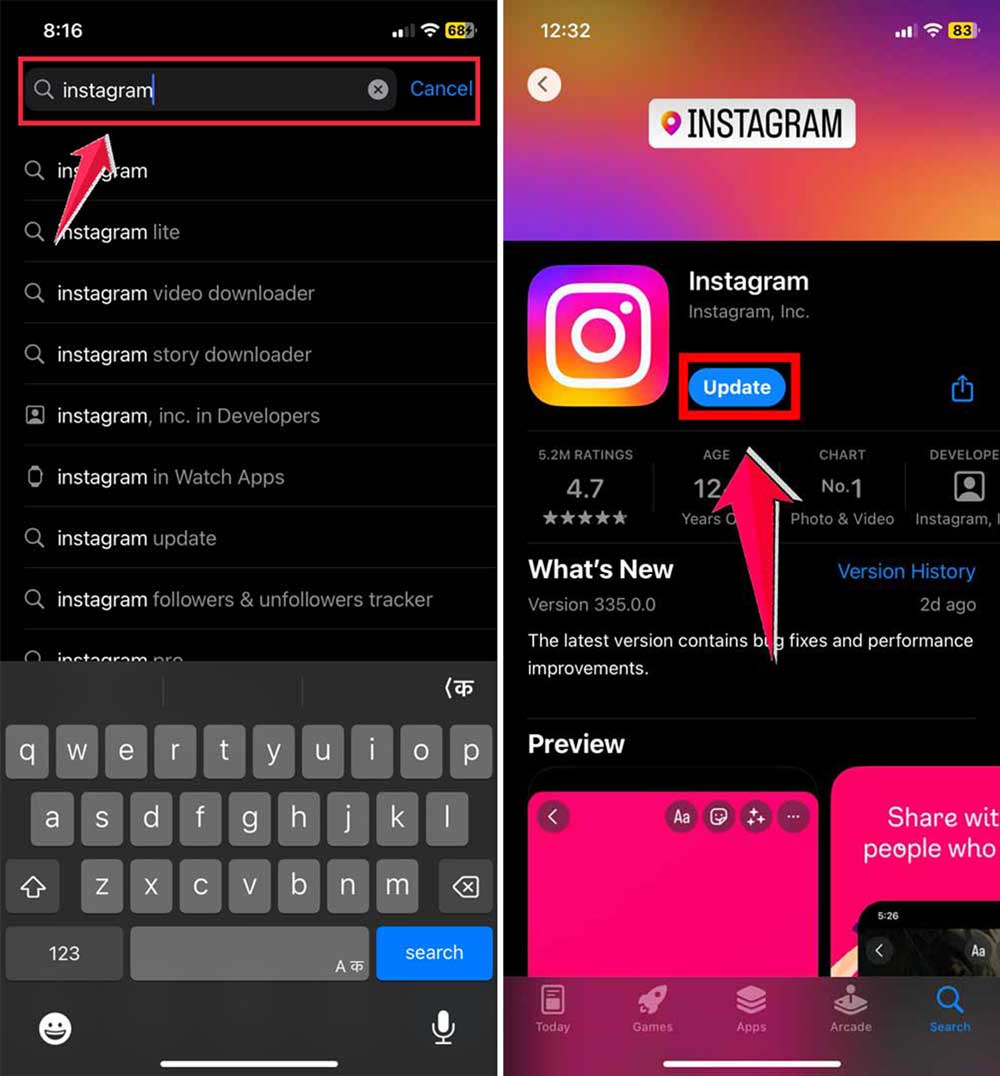
New versions often include bug fixes that can resolve link issues.
9. Replace the correct link in the right section
Getting your link in the right spot is crucial.
- Open Instagram and go to your profile.
- Tap “Edit Profile” at the top.
- Look for the “Links” section and tap it.
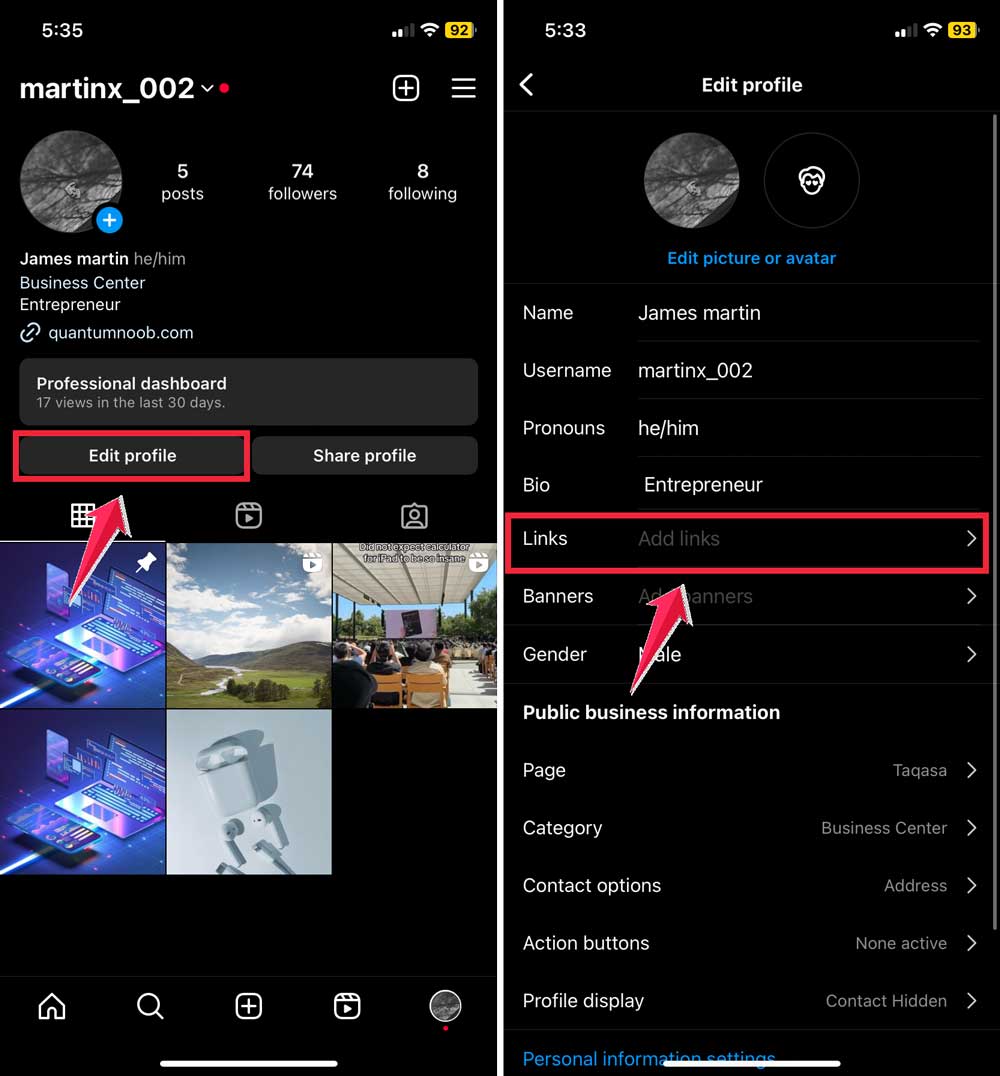
- Choose “Add external link“.
- Enter your URL in the “URL” field.
- Give your link a title so followers know what it’s about.
- Tap “Done” to save your changes.

Double-check for any typos in your link. Even a small mistake can break it.
10. If your bio service stops working
Using a third-party link service? Sometimes, these can have issues.
- Check if the service is actually down.
- If it’s not working, consider switching to a more reliable service.
- In the meantime, try using a direct link in your bio.
11. Wait for a while
Sometimes, the issue might be on Instagram’s end. If nothing else works:
- Take a break from the app for a few hours.
- Come back later and check if the problem has resolved itself.
- If you’re using a third-party app, contact their support team for help.
12. Get help from Instagram’s support team
If you’ve tried everything and your links still aren’t working:
- Open Instagram and go to Settings.
- Tap “Help“.
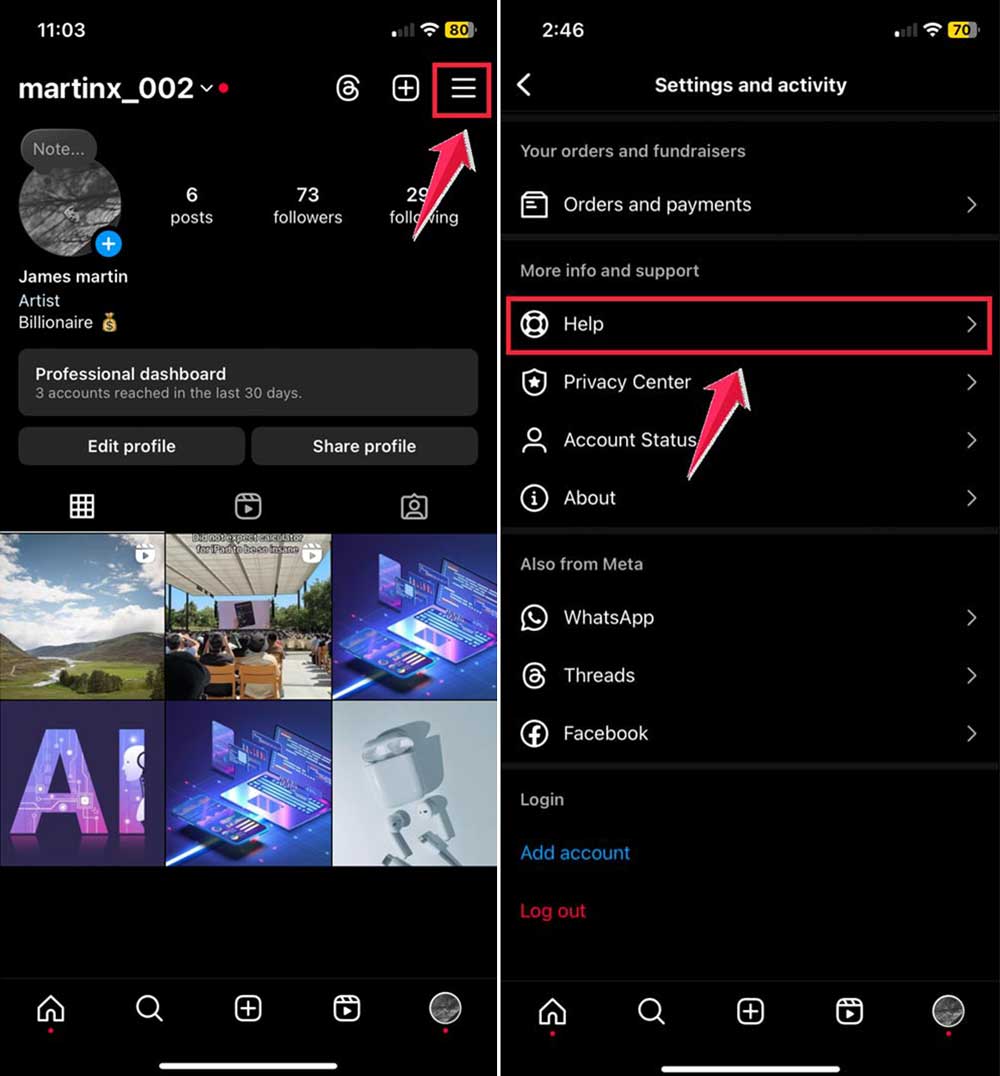
- Select “Report a problem“.
- Confirm to “Report a problem“.

- Click on Include and Continue.
- Explain your issue in detail.

The more information you provide, the better they can help you.
The takeaway
So, you’ve been on quite a journey with those pesky Instagram links, haven’t you? But here’s the thing – you’ve got this. Remember, whether it’s a stubborn app glitch or a sneaky typo in your link, there’s always a fix.
Let’s recap: clearing your cache, updating the app, and double-checking your link placement are your go-to moves. And if those don’t do the trick? Don’t sweat it. You’ve got backup plans like reinstalling the app or reaching out to Instagram’s support team.
Here’s a little secret: most link issues aren’t Instagram playing gatekeeper. It’s usually just a tech hiccup you can sort out yourself. So take a deep breath and tackle those solutions one by one.
You’re now armed with the know-how to keep your Instagram game strong. So go on, share those links, connect with your followers, and keep rocking your Instagram world. You’ve totally got this!





